Trello Card Creation for Listing Updates
This Trello task card is created to give instructions to listers what to update on a
Overview#
Purpose: This Trello task card is created to give instructions to listers what to update on a listing.
Scope: This applies to all product listers.
Responsibility: It is the responsibility of the lister assigned or who has access to the Dropbox Picture Folder (Picture & Picture Edits Jessa Dropbox Folder) to create this card.
Objective: The objective of this procedure is to create a standardized Trello card for every listing updates.
Process Flow#
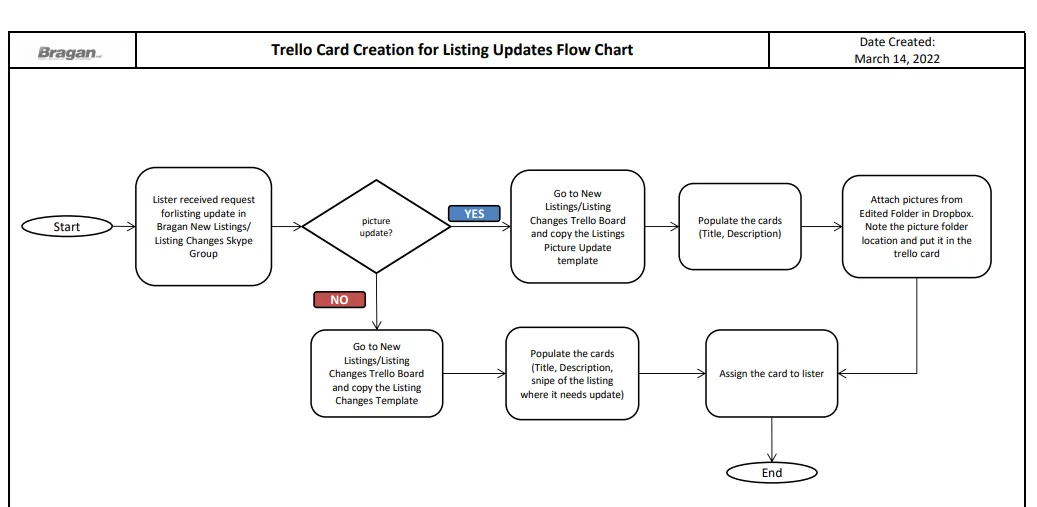
Procedure#
When to Create the Card#
Create this card when there is a request for a listing to be updated whether title update, description, picture etc. Listing update requests comes through chat in the Bragan New Listings/ Listing Changes Skype Group, the requestor will tag the lister. The one who will create the card is the lister who is assigned in handling the Picture & Picture Edits Jessa Dropbox Folder, usually this is the senior lister. Original item pictures and edited pictures are saved in this folder.
Usually management will request listing updates or customer service agents. For picture or image update in the listing this is from management. Any changes to the pictures in the listing should be approved by management. CS agents request listers to add dimension image to the listing, or change the description since the inclusions
are incorrect. These are just some scenarios. Just remember that for all listing updates, a trello card must be created.
- Create Card
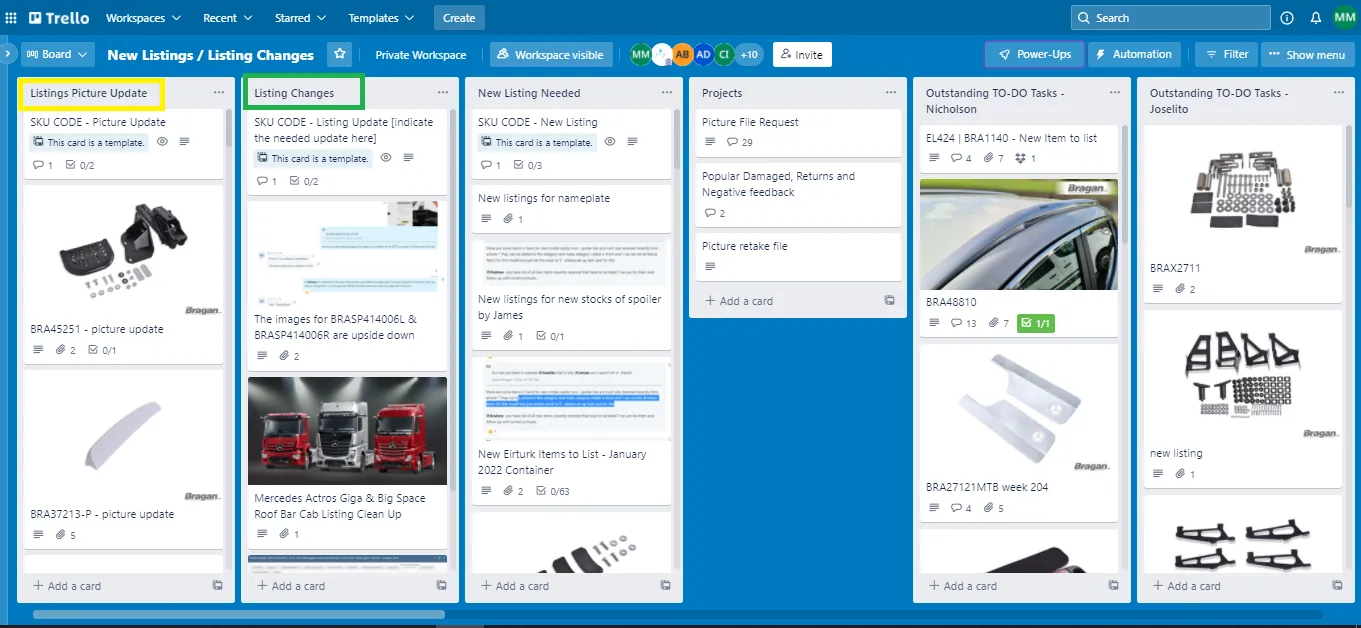
Once the lister received the listing update request, go to the New Listings/Listing Changes Trello Board. If the request is to update picture then create card under the Listings Picture Update (yellow box) by copying the template, any other listing updates create the card under the Listing Changes (green box) by copying its template.
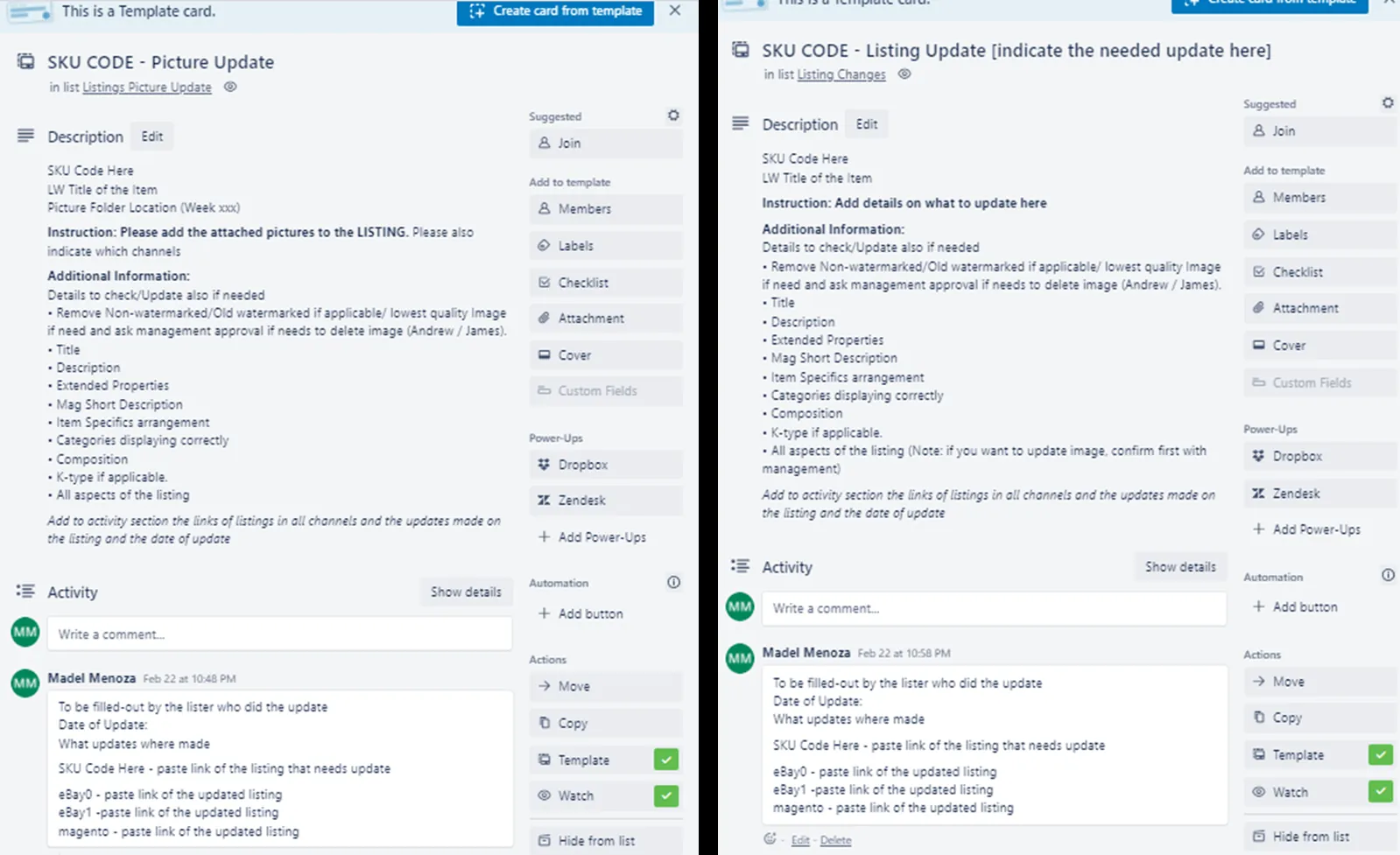
- Populate Card
2.1 Picture Update
Card Title - Just add the SKU code here.
Description:
Input the SKU code, then the LW title of the item and then Picture Folder Location (to know where to find the location, see Step 3). No need to fill this if the picture update only requires you to delete and image in the listing. Instruction - please also indicate here if the image should be added in the cluster only or make it as main image.
Additional information - no need also to edit unless you have additional information. This part is very important because it would remind the lister that even though the main task is just to update the picture in the listing, they still need to check all other aspects of the listing if everything follows the SOP. See this link for listing guidelines. If there's a need to update these other information then the lister should do it.
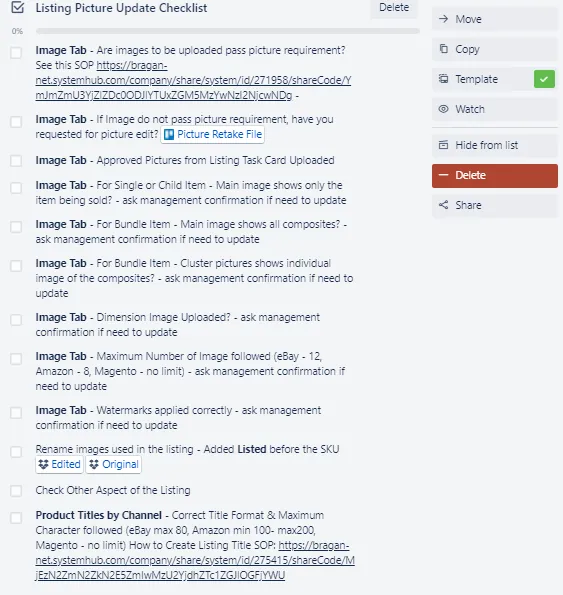
Additional Instruction - listers are tasked to rename the pictures used in the listing. Listers will need to go to the picture folder location, locate the pictures used and rename it. Add LISTED before the SKU. See Figure 4 & 5.
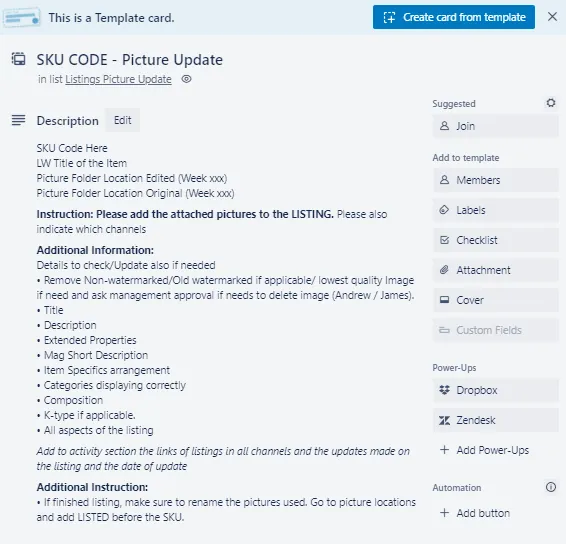
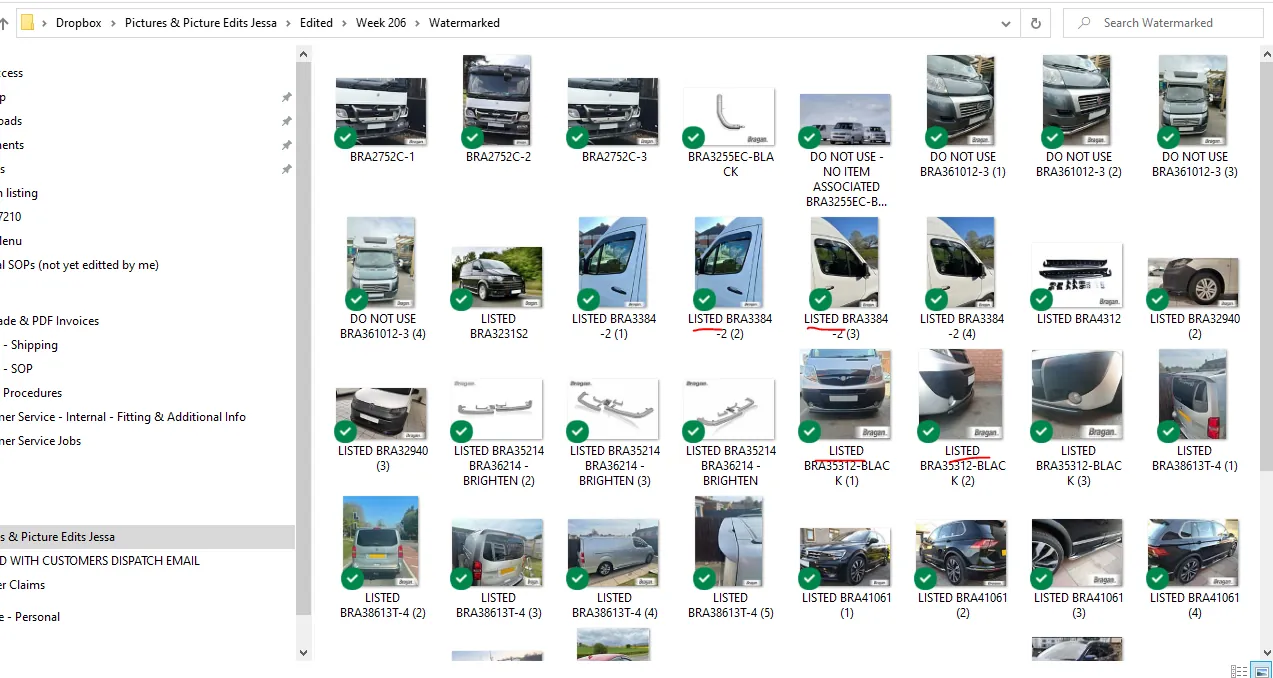
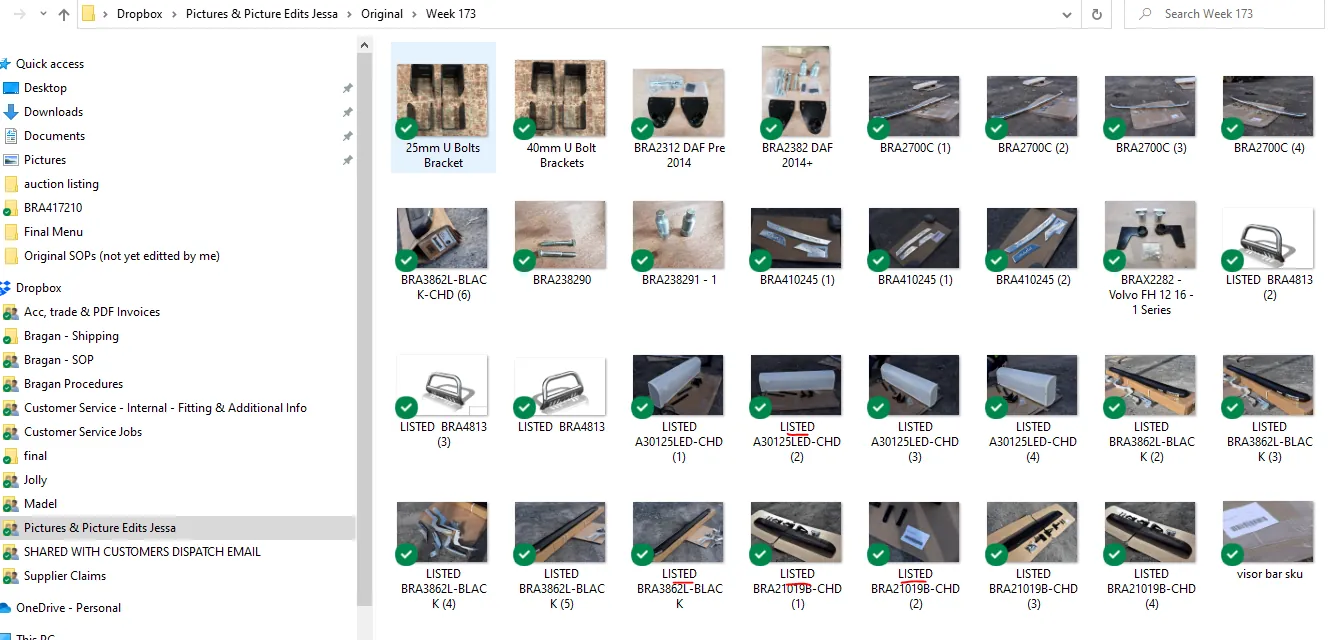
Activity - this will be filled-out by the lister doing the update. See sample below.
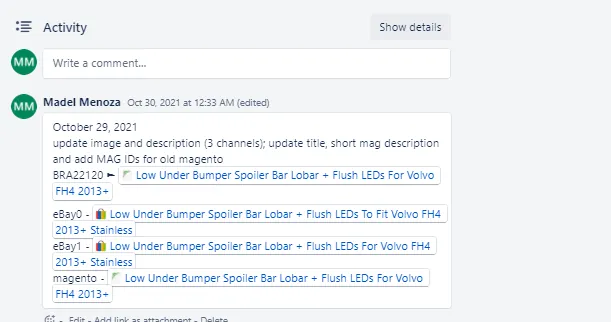
2.2 Other Listing Updates
Card Title - Add the SKU and then what update is needed. Example: BRA361012 - Description Update or BRA361012 - Title Update
Description:
Input the SKU code, then the LW title of the item. there is no need to add picture location since we are not updating picture. Instruction - add instruction on what update is needed for the listing Additional information - no need also to edit unless you have additional information. This part is very important because it would remind the lister that even though the main task is just to update the description for example in the listing, they still need to check all other aspects of the listing if everything follows the SOP. See this link for listing guidelines. If there's a need to update these other information then the lister should do it. However, if you want to update the image it needs managements approval then use the Picture Update card once approved.
Activity - this will be filled-out by the lister doing the update. The same process when doing the Picture Update.
- Attach Pictures
For other listing updates that do not requires picture attachment, the created card is now ready and can now be assigned to available listers. But there are listing updates where you need to attach a snipe of the issue to make the instruction clearer. Example, the task is change the description since it is inconsistent with the title of the listing, you can attach a snipe to show where the inconsistency is. In the Instruction part of the card, you can add "see snipe for details".
For picture updates that only requires you to delete an image from the listing, you can also add snipe of the picture to be deleted so listers will know what to delete.
However, for picture update where you need to add an image to the listing, you need again to access the Edited folder in the Picture & Picture Edits Jessa Dropbox Folder. As card creator, you already know what picture to add based from management's instruction. You also already requested this to the picture editor to edit based on our standard requirements and you also know that the picture is ready since you are already creating the card. Do not create the picture update card if the picture is not yet ready.
Since you are also in charge in saving the edited pictures from the picture editor, you already have an idea which Week folder it was saved. See process on how to save pictures in Edited Folder here. If not you can just use the search bar. Just search the SKU, make sure that you use the correct image. Right click on the image and Copy. Then go back to the Trello card you are creating and paste it. This will attach the picture. Attach all images needed to be added to the listing.
If the picture is saved in the Week 217 folder then indicate it in the Picture Folder Location Edited in the trello card (See Figure 8).
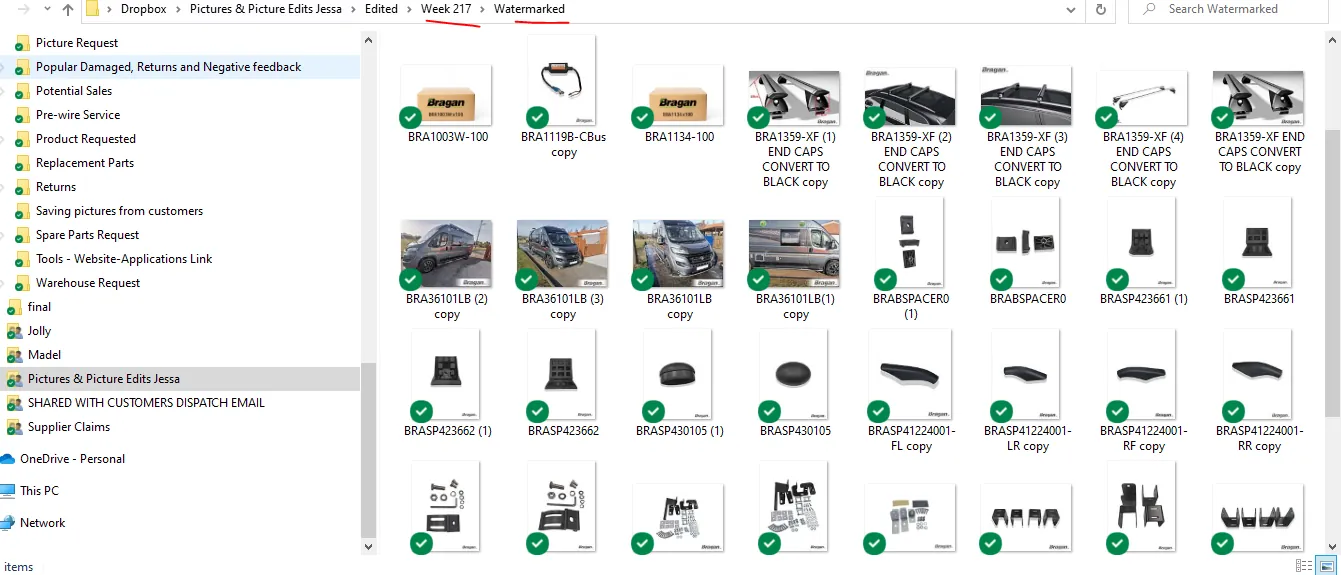
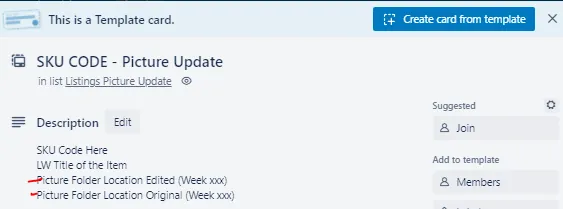
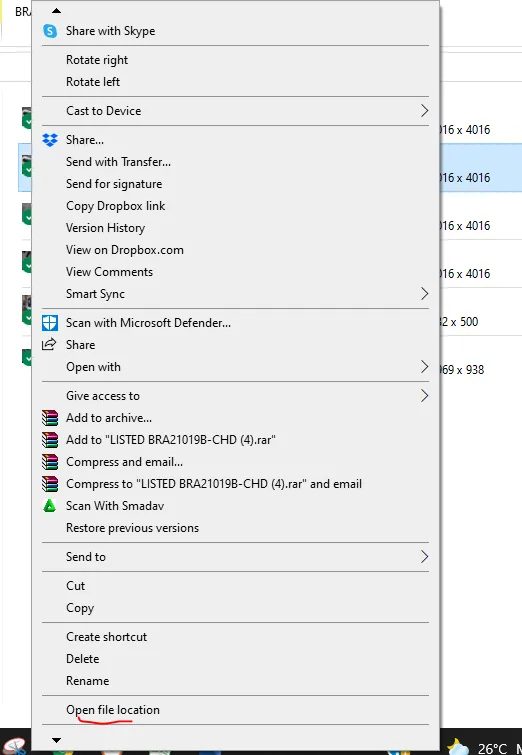
Even though you do not need to add the original raw picture in this card, you still need to find the location of the original picture in the Original Folder in the Picture & Picture Edits Jessa Dropbox Folder because listers will need to rename the original picture once they list it. Just go to the Original Folder, type the SKU in the search bar and find the original picture of the one you attach in the card. Once it appears, right click on it and select Open File Location so will know which folder it was saved. If the picture is saved in the Week 217 folder then indicate it in the Picture Folder Location Original in the trello card (See Figure 8).
- Assign the Card
Once the card is populated and correct pictures were attached, you can now assign this to any available listers. You can put this card under their Name or remain in the Listings Picture Update or Listing Changes list. It depends on its priority. Unassigned cards can be picked by any lister if they have no more task cards under their names.
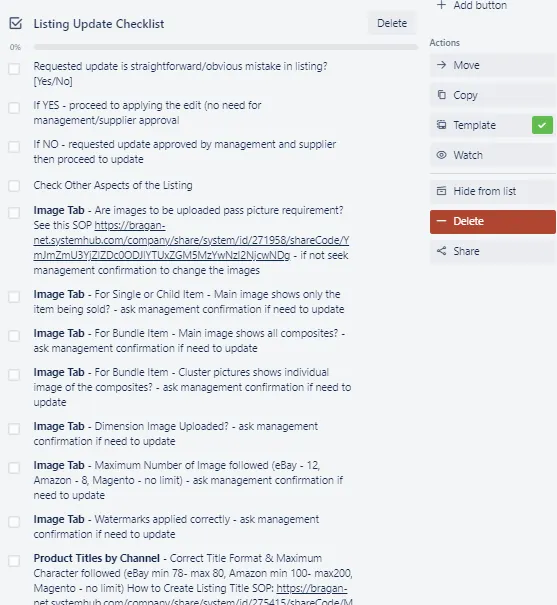
Note: Listing Update Checklist should be followed accordingly by the lister.
Video & Media#
🎥 Picture update trello card creation
Notes#
This section is important so Adhoc points and issues can be logged. Also, Q&A can be logged for suggestions for potential issues encountered. Also,
log important notes needed for this system.
Additional Notes:
For Child SKU to be added on the Cluster, can also be uploaded to all parent SKU listed. Search all parent SKUs of this child SKU. Check parent SKU images so that it will not be duplicated. Ensure to check the image if it is the same with the listing you are adding to. Check if the picture already exists on the listing. Photo that showcases the Bragan Product well can be used as Main Picture. The photo can also be added to the composite listing if the listing does not have many pictures yet. The photo can also be added to relevant models. Example: Picture of the item for Peugeot Partner can also be used on Citroen Berlingo listing. Be keen on all the Bragan Products available in the picture. Ensure all flaws on the picture must be edited before adding to the listing. All cards must be checked and approved by Team IRL. You may provide the card link for them to check. Do not hesitate to ask if you have questions or clarifications
Potential Issues:
1 - ISSUE ENCOUNTERED: Stuck on Loading
RESOLUTION: Refresh Browser
2 - ISSUE ENCOUNTERED: Broken Links
RESOLUTION: Get the external link as this will allow other people to access the SOP without the need for login credentials and avoid broken links.
3 - ISSUE ENCOUNTERED: Wrong image attached to the listing.
RESOLUTION: Double check SKU code from Picture Edit Week Folder original dropbox folder if the SKU in edited folder is the same. Always check if the image that you need to attach Is the same with the listing.
Attachments#
Trello_Card_Creation_for_Listi… 16/12/2025