Trello Card Creation for New Listing
This Trello task card is created to guide listers what to for a new listing task.
Overview#
Purpose: This Trello task card is created to guide listers what to for a new listing task. This card contains the instructions for the items to be listed on different channels. It therefore contains all relevant information about the item such as the SKU code, the description, the pictures to be used, which channel to list etc.
Scope: This procedure applies to all product listers.
Responsibility: It is the responsibility of the lister assigned or who has access to the Dropbox Picture Folder (Picture & Picture Edits Jessa Dropbox Folder) to create this card.
Objective: The objective of this procedure is to create a standardized Trello card for every new listing requests.
New Listing Trello Card Creation SOP
Process Flow#
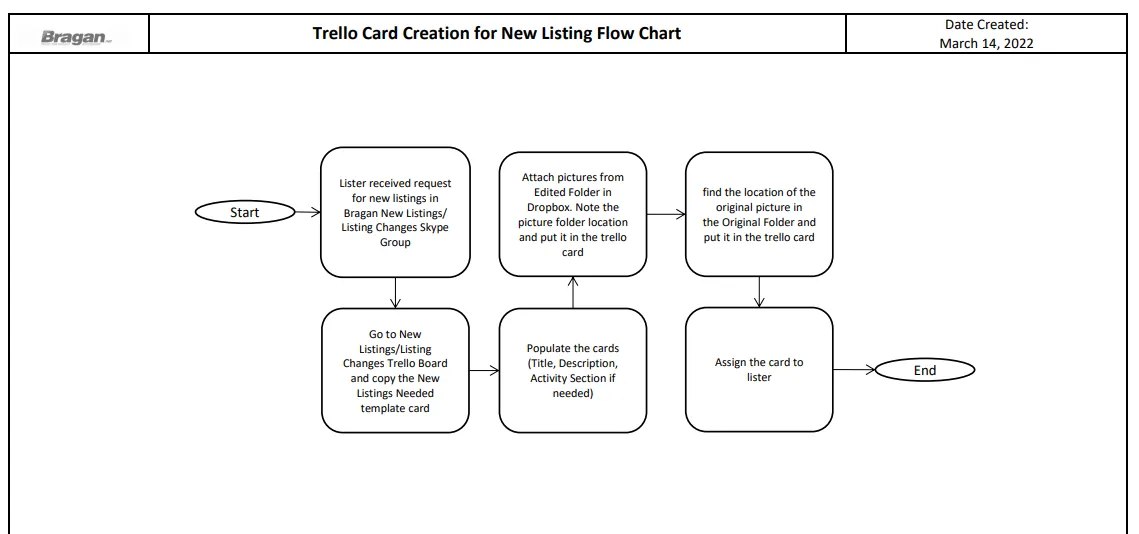
Procedure#
When to Create the Card#
Trello task cards are created when there is a request for new item to be listed. Take note that for listing updates, a trello task card is also created but is has a different SOP. Click here to check for listing updates.
New listing request usually comes from management or from customer service agents. CS agents request for an item to be listed especially if there is a potential sale for the item, customers are looking for it. CS agents will also request spare parts, brackets, fitting kits to be listed. Or management will request for a new product to be listed. These are just some scenarios. Just make sure that for all new listing request, there should be an equivalent Trello card. This is very important.
The request comes through chat in the Bragan New Listings/ Listing Changes Skype Group, the requestor will tag the lister. The one who will create the card is the
lister who is assigned in handling the
Picture & Picture Edit Jessa 2018+
Dropbox Folder, usually this is the senior lister. Original item pictures and edited pictures are saved in this folder.
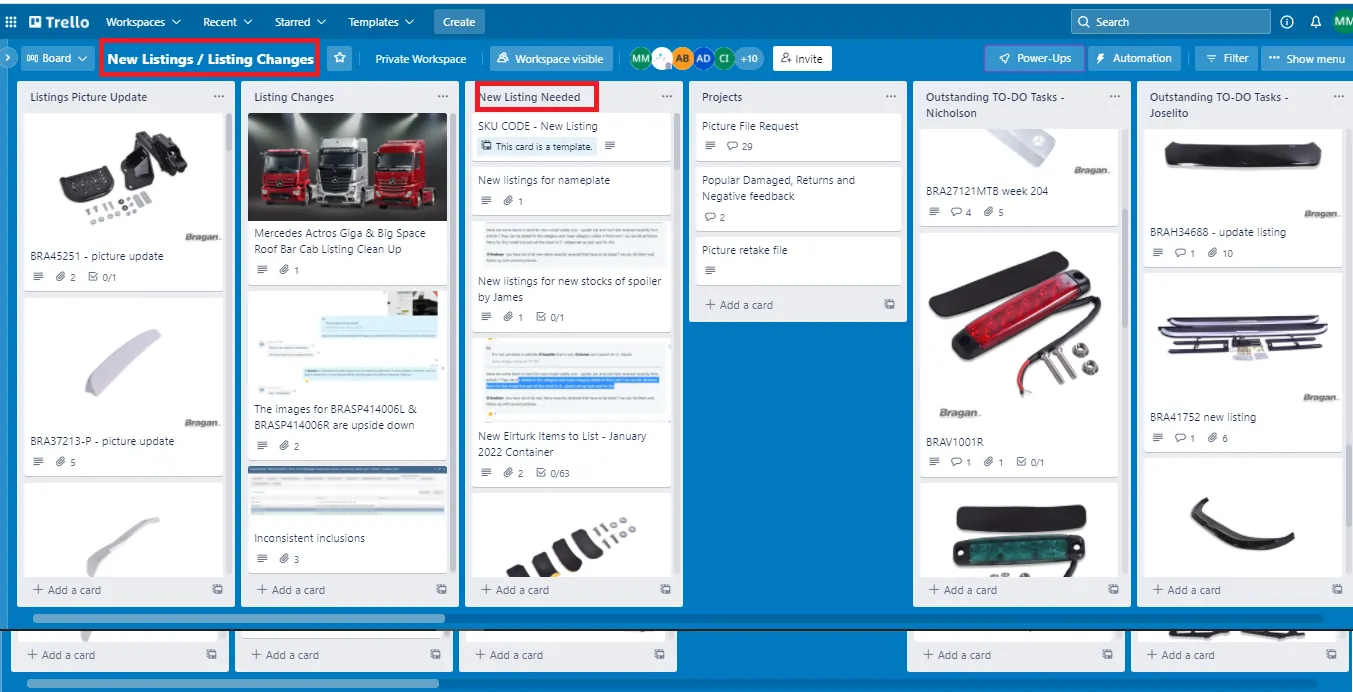
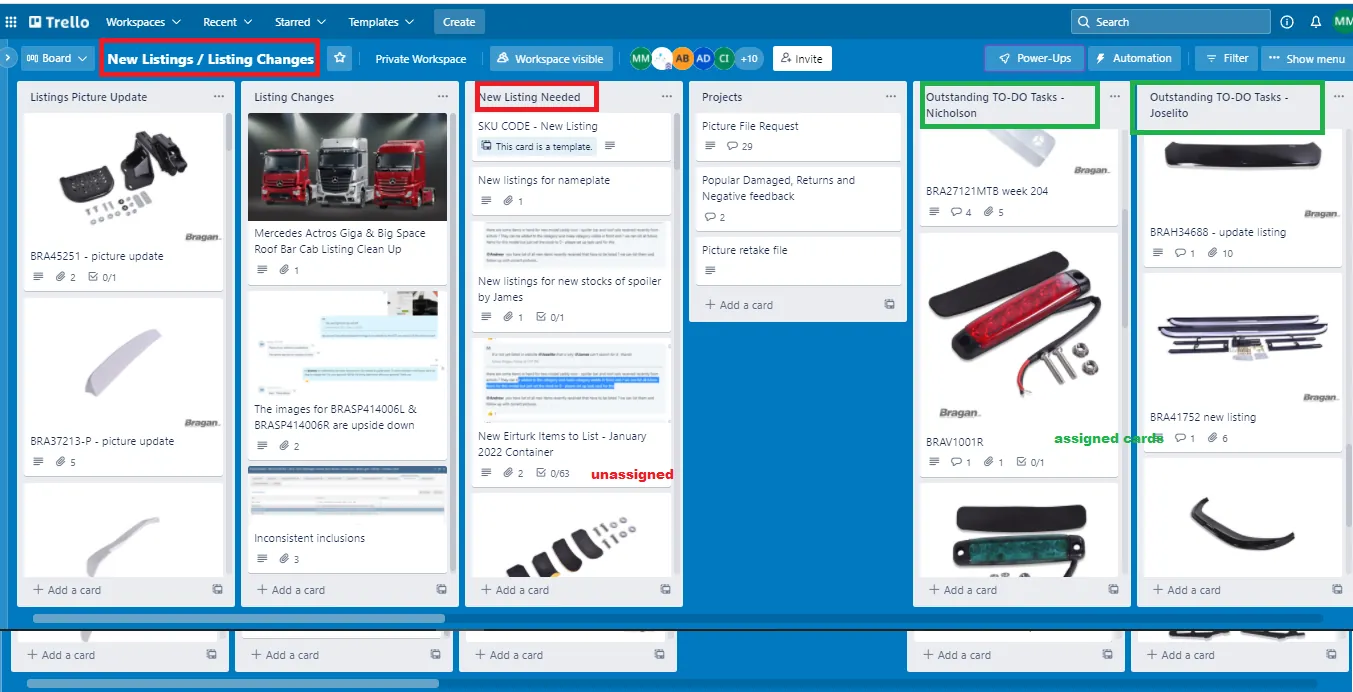
- Create Card Once the lister received the new listing request, go to the New Listings/Listing Changes Trello Board. Under the New Listing Needed List, create a new card by duplicating the template.
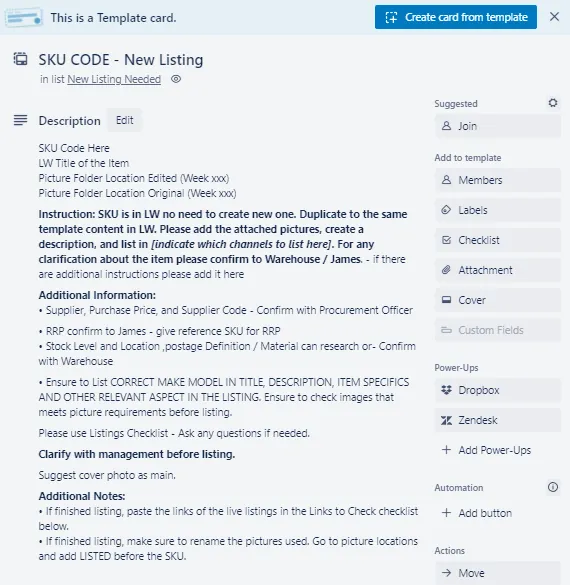
- Populate Card
Card Title - Just add here the SKU code of the item to be listed
Description:
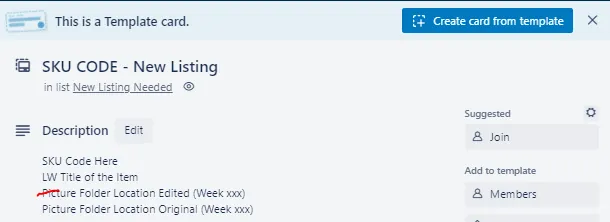
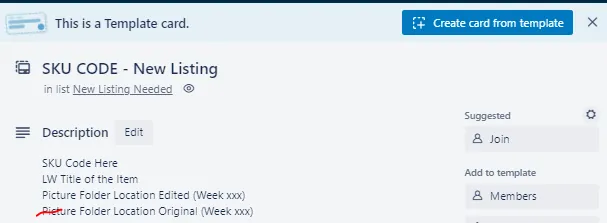
Input the SKU code, then the LW title of the item and then Picture Folder Location (to know where to find the location, see Step 3).
Instruction - Make sure to indicate here which channels to list the item. If there are additional instructions include it here. Additional information - In here you indicate whom to confirm supplier details, RRP, inventory and materials. But sometimes these information are already confirmed, for example you are passing this card to a trainee for his first listing exercise so you confirmed already these details beforehand. You can indicate here that supplier, RRP are already confirmed and then put the confirmed data. This way the lister won't double work.
Note: For the supplier details, there is an on going project where these details in LW are already correct. This way it will eliminate the constant asking for confirmation. But for now, you still need to confirm while it is not yet finalized.
Additional notes - Aside from the fixed notes in the template, you can also add other important notes about the item. Example for this is the item is a bullbar. You can add here as reminder that Non-approved EC bull bars should be without a watermark (Refer to the SKU Code if it has “EC” in it).
New Listing Checklist - This is to be followed accordingly by the lister doing the listing to minimize errors during the listing process.
Links to Check Checklist - to be filled-out by the lister after he list the item. Paste here the link for each channel so it will be easier for his partner or trainer to check the created listing.
Activity - You can add here update or important development regarding this listing. This way if this card is passed to another lister, he can check listing history details here. Example you can add here link to the warehouse query card.
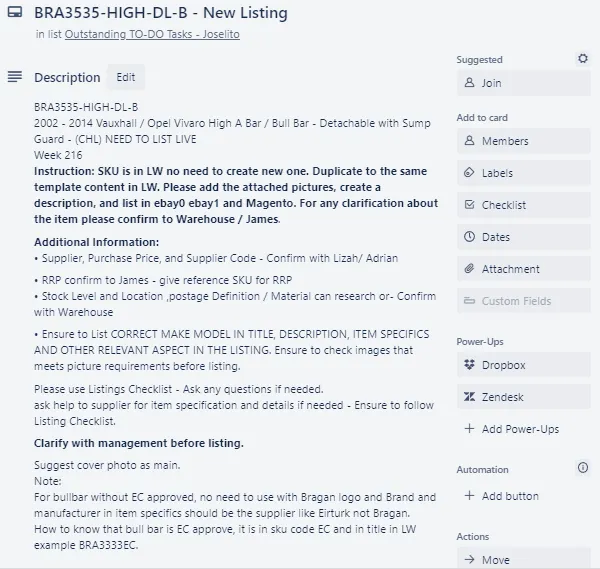
Here is sample of a populated card:
- Attach Picture of Items to Trello Card
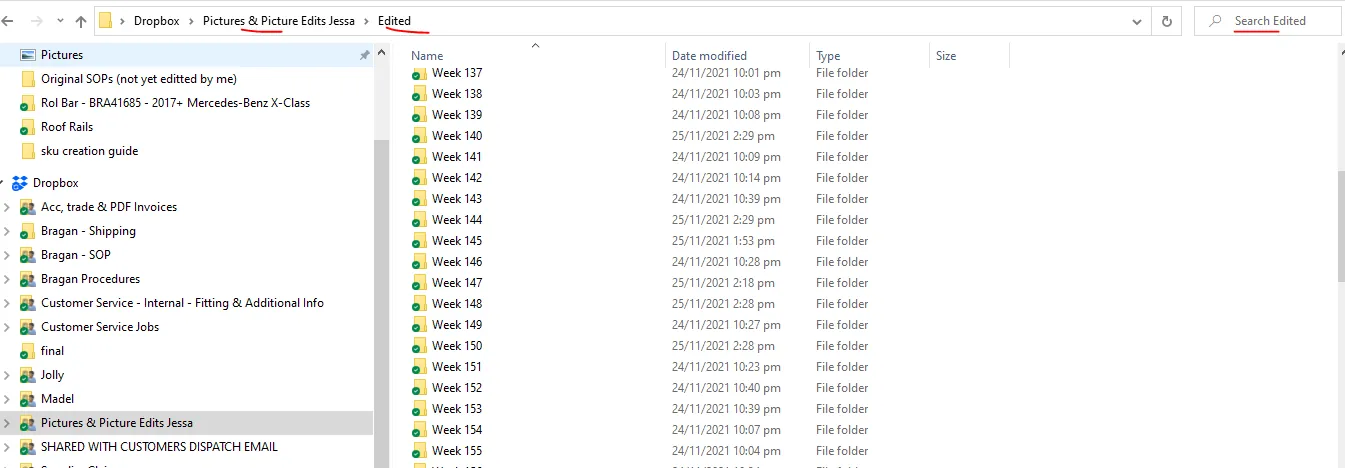
Go to the Edited folder in Pictures & Picture Edits Jessa Dropbox Folder. Copy the SKU code of the item to be listed and search it inside Edited Folder.
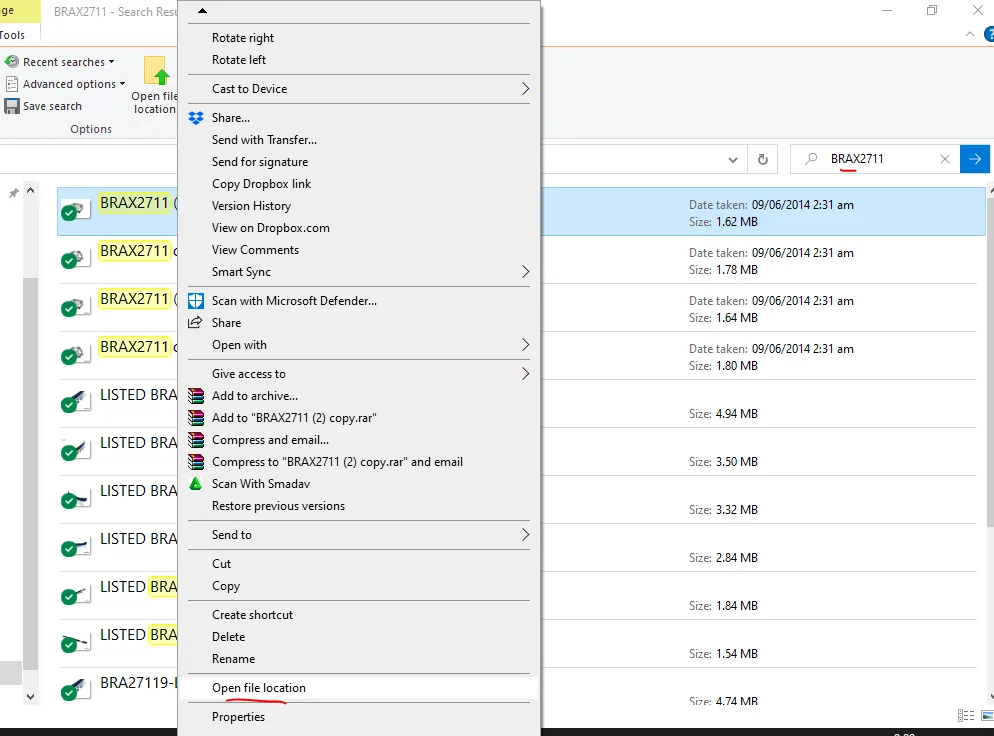
Once pictures appear right click on it and select Open File Location.
This will bring you to the correct folder location. Note the file location (Week 216) and make sure to put this in the trello card in the Picture Folder Location Edited.
Open the Watermarked folder, pictures uploaded to our channels should have the watermarked except for some bull bars.
Note:
Non-approved EC bull bars should be without a watermark (Refer to the SKU Code if it has “EC” in it). Therefore if the SKU has EC in it it should have a watermark. Example: BRA48123EC19-6-BLACK - it has EC on it, thus the edited picture should have the watermark.
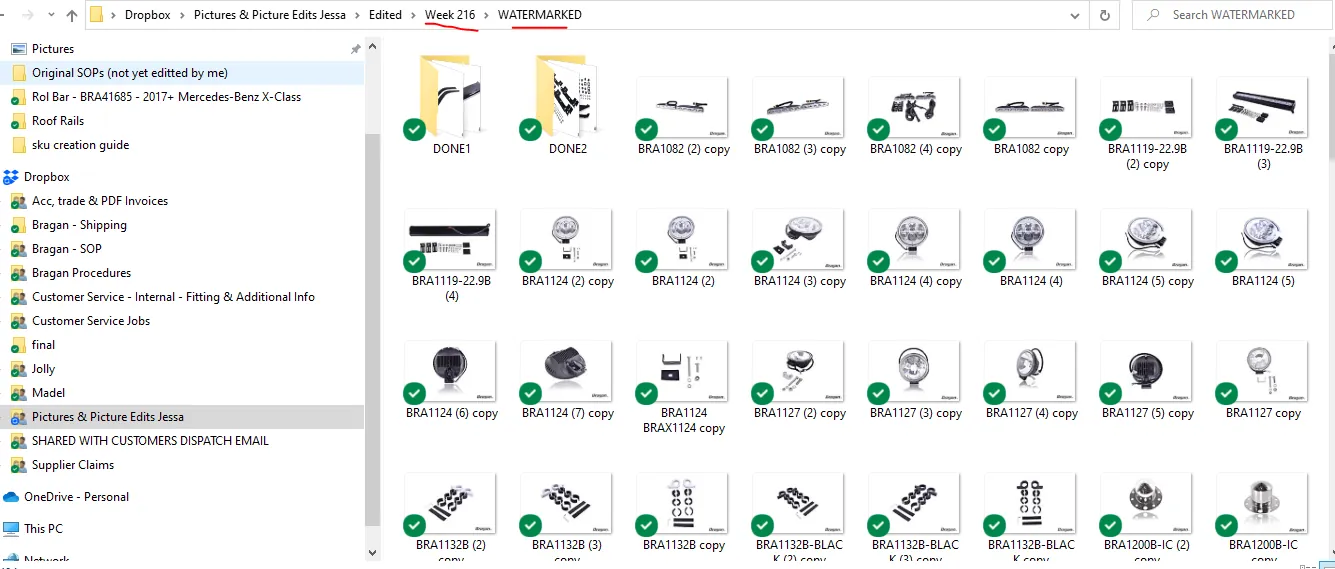
Find the correct SKU, right click on it and Copy. Then go back to the trello card you are creating and paste it. This will attach the picture. Attach all the pictures to be added to be used to the listing.
However, if you search the Edited folder and no picture appears for the SKU you searched, then you need to request for the picture. Follow this SOP on how to request for pictures.
Even though you do not need to add the original raw picture in this card, you still need to find the location of the original picture in the
Original Folder
in the
Picture edit Jessa 2018+
Dropbox Folder because listers will need to rename the original picture once they list it. Just go to the Original Folder, type the SKU in the search bar and find the original picture of the one you attach in the card. Once it appears, right click on it and select Open File Location so will know which folder it was saved. If the picture is saved in the Week 217 folder then indicate it in the Picture Folder Location Original in the trello card.
- Assign the Card
Once the card is populated and correct pictures were attached, you can now assign this to any available listers. You can put this card under their Name or remain in the new listing needed list. It depends on its priority. Unassigned cards, or cards under the New Listing Needed List can be picked by any lister if they have no more task cards under their names.
Video & Media#
🎥 New Listing Trello Card Creation SOP
Notes#
This section is important so Adhoc points and issues can be logged. Also, Q&A can be logged for suggestions for potential issues encountered. Also, log important notes needed for this system. Additional Notes:
Photo that showcases the Bragan Product well can be used as Main Picture. Please refer to the Picture Requirement SOP to know the standard.
Be keen on all the Bragan Products available in the picture. Customers might think all the items in the picture are included. Make sure that there is a note in the description part of the listing what are the sale inclusions. Refer to this SOP for the listing guide.
Make sure that you attached the correct picture for the item.
Request the picture if you cannot find it in the Edited Folder
Some pictures can also be added on relevant models. Example: Picture of the item for Peugeot Partner can also be used on Citroen Berlingo listing.
Some pictures can also be added to the composite listing if the listing does not have many pictures yet.
All cards must be checked and approved by Team IRL. You may provide the card link for them to check. This is when you are new for the task.
Do not hesitate to ask if you have questions or clarifications.
When formatting the card the agent should also filter the model to find other related tasks associated to that model and ask management if should amalgamate to one Trello task card if it is similar.
Potential Issues:
1 - ISSUE ENCOUNTERED: Stuck on Loading
RESOLUTION: Refresh Browser
2 - ISSUE ENCOUNTERED: Broken Links
RESOLUTION: Get the external link as this will allow other people to access the SOP without the need for login credentials and avoid broken links.
Attachments#
Trello_Card_Creation_for_New… 16/12/2025