Updating Old Magento Listing
Listing updates, may it be picture, price, description, or extended properties, will
Overview#
Purpose: Listing updates, may it be picture, price, description, or extended properties, will always involve listings in Magento. If the template is already in Magento 2, updating would be done through Linnworks Template Update (Product Details Screen). However, for listings originally made in old Magento, the change would be done through Magento’s back end because Linnworks doesn’t have access anymore to the old Magento templates.
Scope: This procedure applies to Listing Team.
Responsibility: It is the responsibility of each employee to ensure the process set out in this procedure is followed.
Objective: The objective of this procedure is to standardize the process of updating listings in old Magento.
Process Flow#
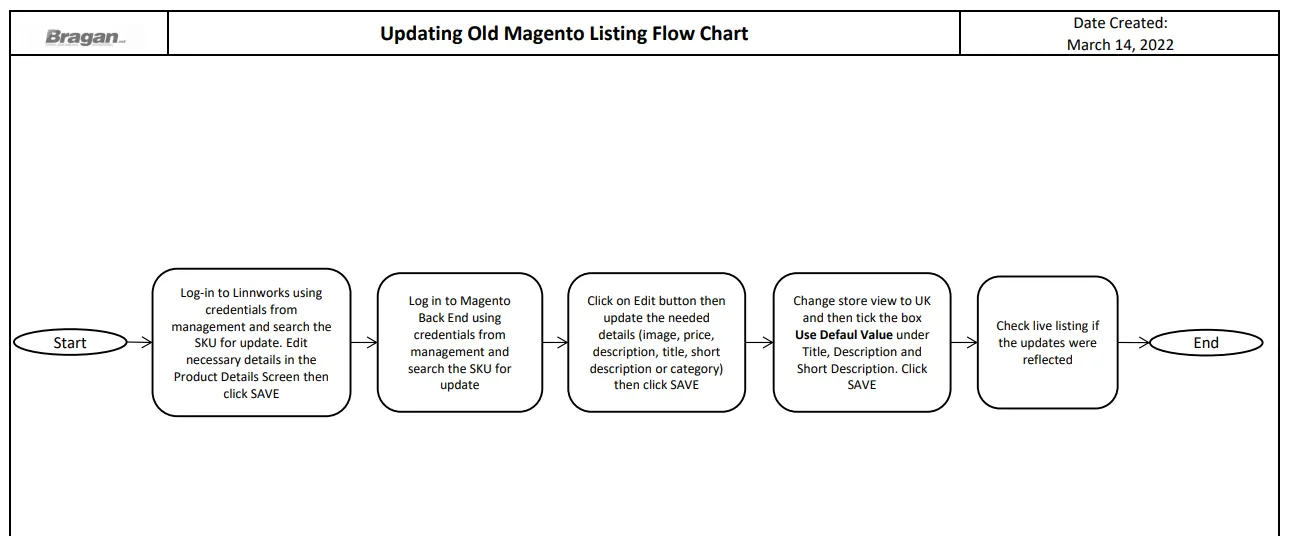
Procedure#
There are two Magento listings in Linnworks. One is for the old Magento and M2 (new Magento). In Linnworks you will know that the listing is in the old Magento if the template is under the Magento (https://www.bragan.net) column - red box. While listing under the new Magento is under the Magento (M2 Bragan Website) - blue box. See Figure 1 below.
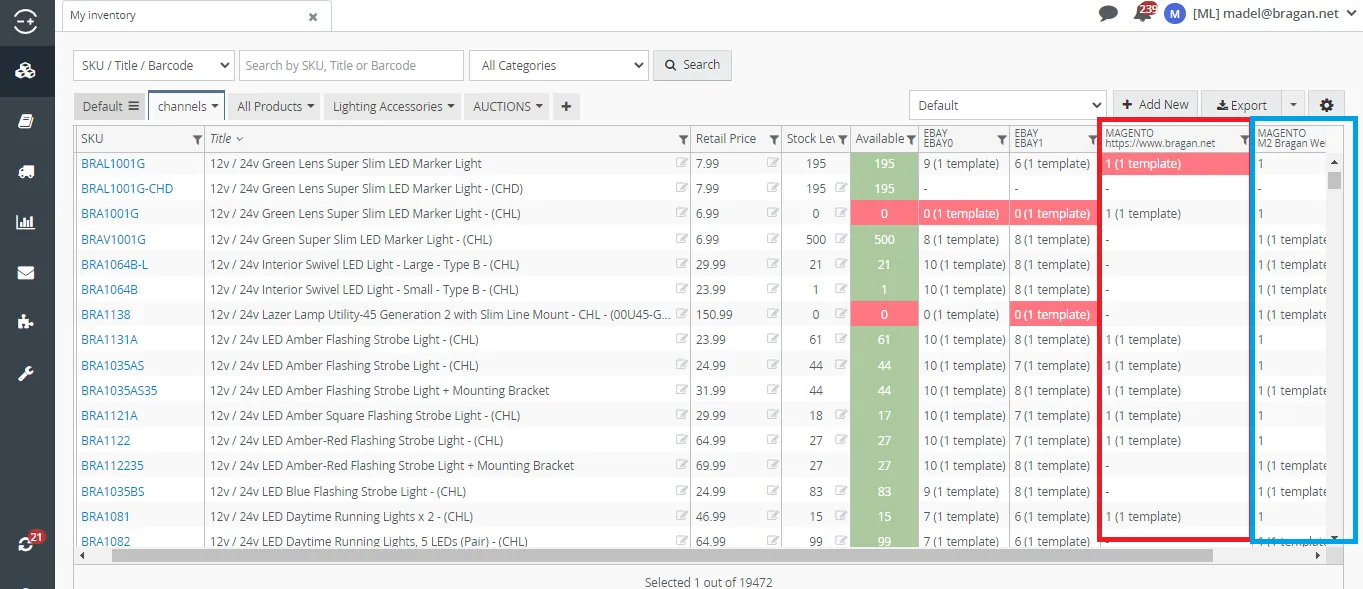
- Update Template in Linnworks (Product Details Screen)
For old Magento listing, updating in the Product Details Screen will not reflect in the live listing. Any updates you make in the Product Details Screen it won't take effect when you check the website.
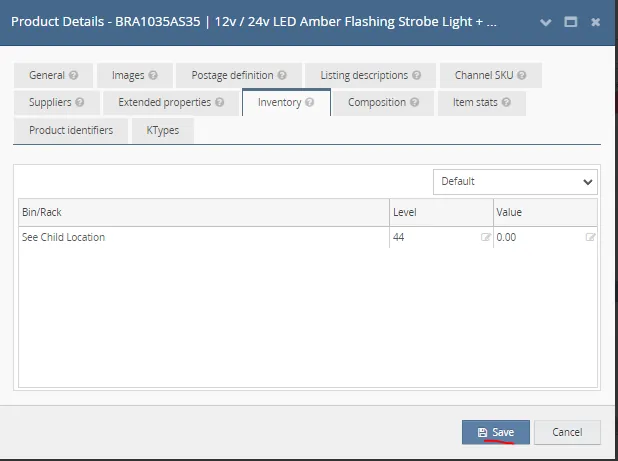
But this step is still important. You still need to update the Product Details Screen because this is crucial when doing bulk extraction in Linnworks. New information will not reflect in extraction if this step is skipped. So do this first.
Just go to Linnworks > My Inventory Screen, search on the SKU and click on it to open Product Details Screen. Once you finish updating the needed details for the old Magento listing just click on Save. And that's it. Proceed to Step 2. Which is to update the listing in Magento Back end.
- Log in to Magento Back End
Once you have updated all the information in the product details in Linnworks for the item, Log in to Magento Back End. In order for the updates to be reflected on the live listing, we need to do it here. Ask management for Log-in credentials.
Make sure that the updates you make in the Product Details Screen in Linnworks is the same to the updates that you are going to make in Magento back end.
- Product Search
Click on Catalog > Products
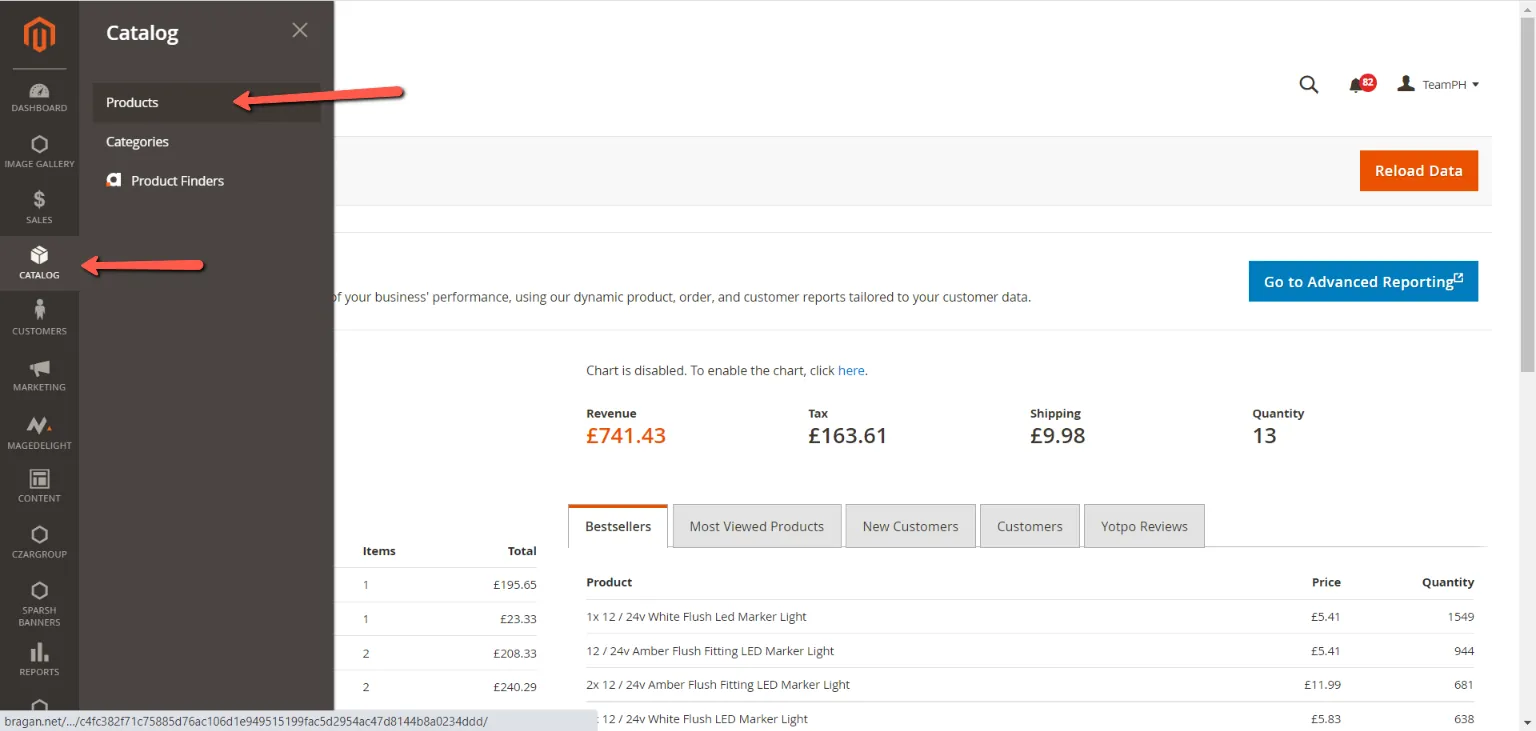
Search using the SKU code of the item
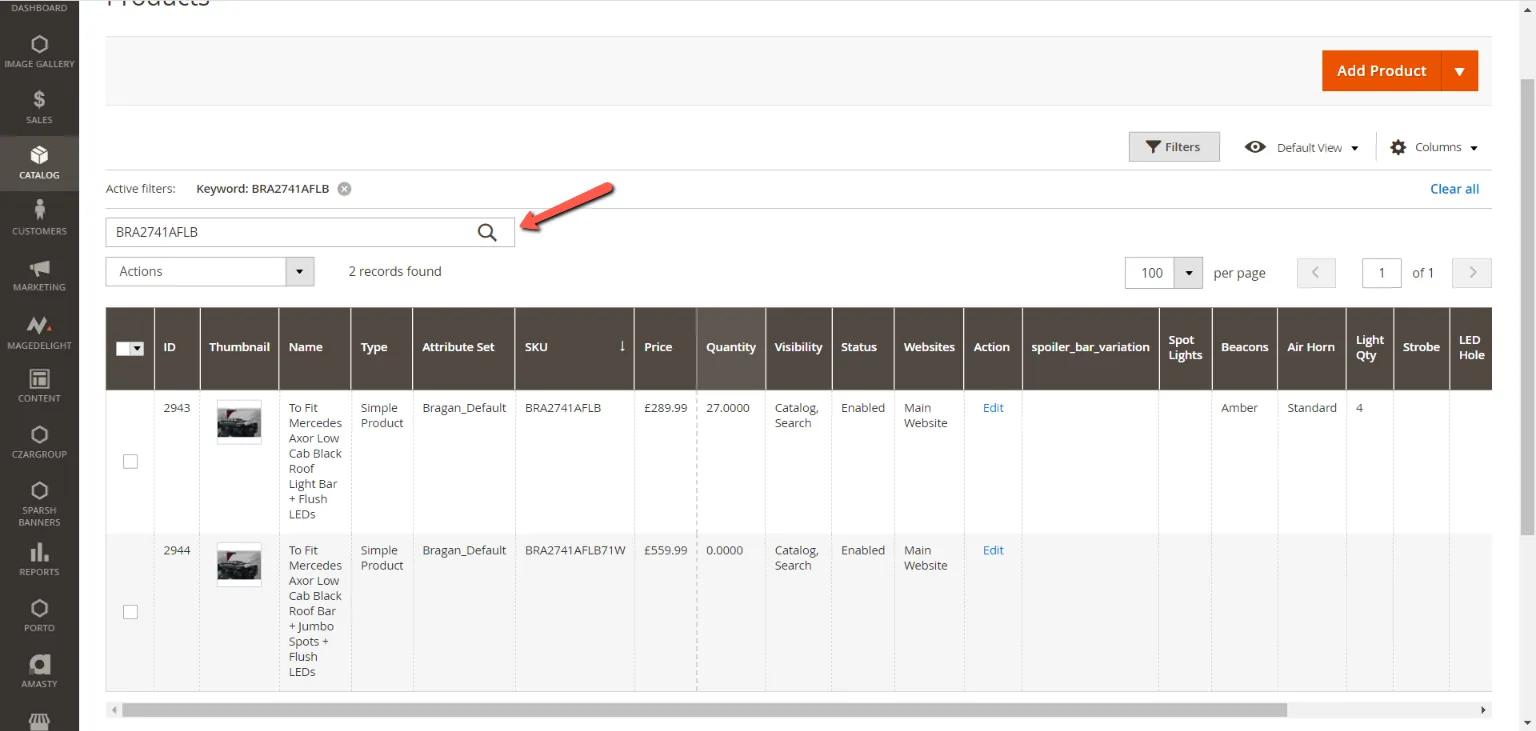
- Access Edit Window After it loads, click on the Edit button under the Action column. Make sure to click on the button for the correct SKU.
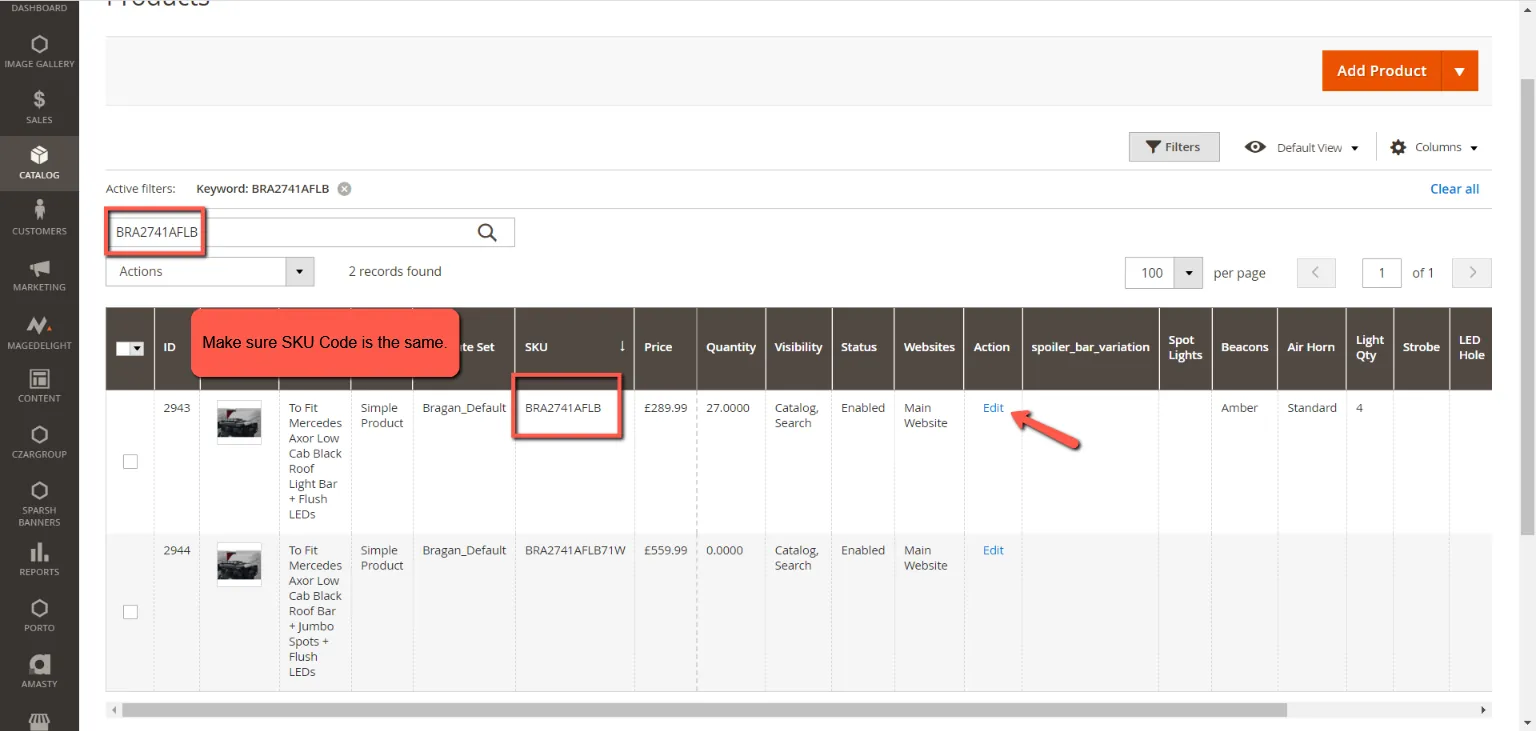
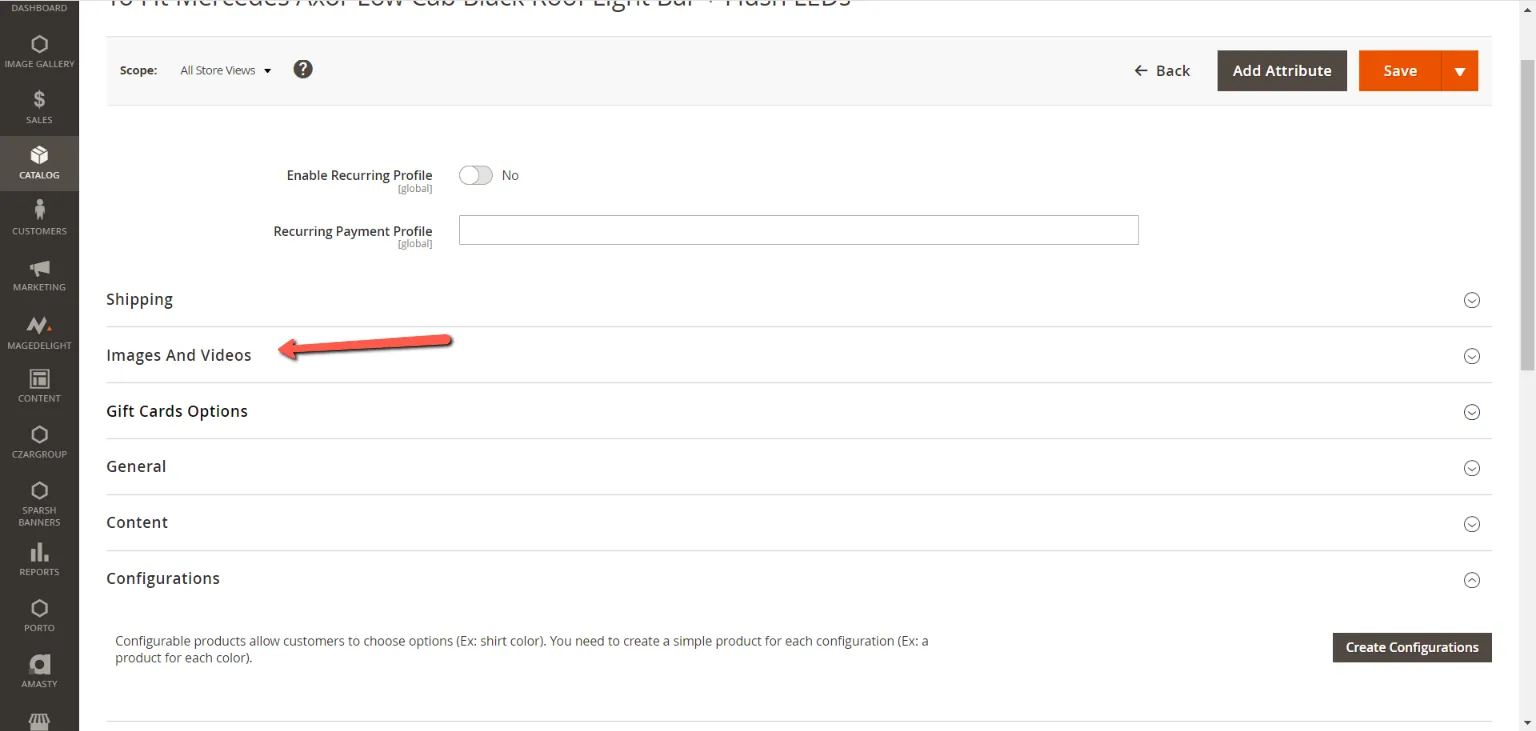
- Update details needed. 5.1 Image Update
Click on Images And Videos
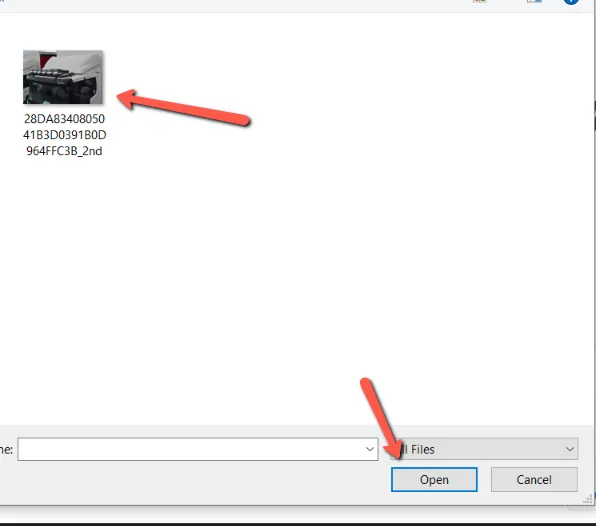
Click on Browse to find or drag images here
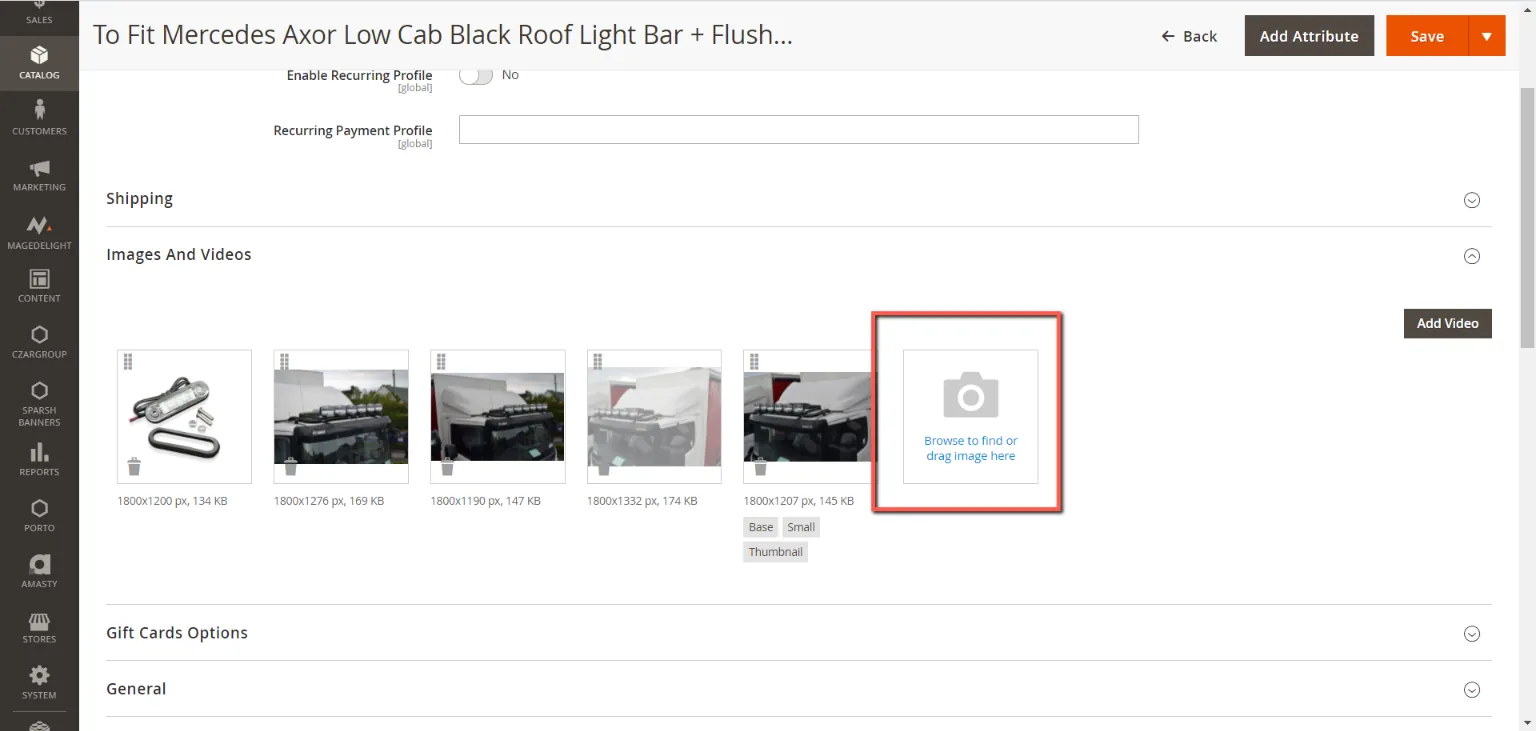
Add the needed Images from your computer.
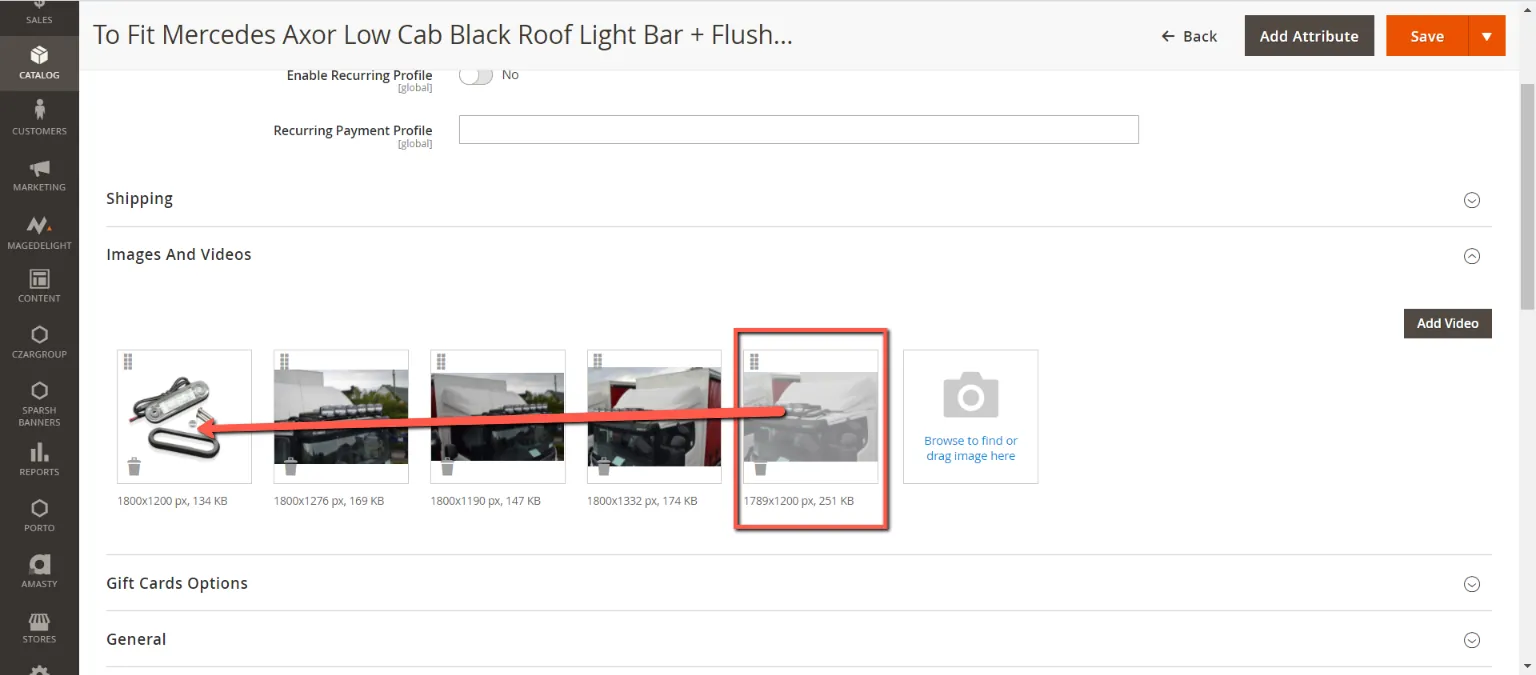
You can arrange the images by dragging. Images will be displayed in Magento from to right.
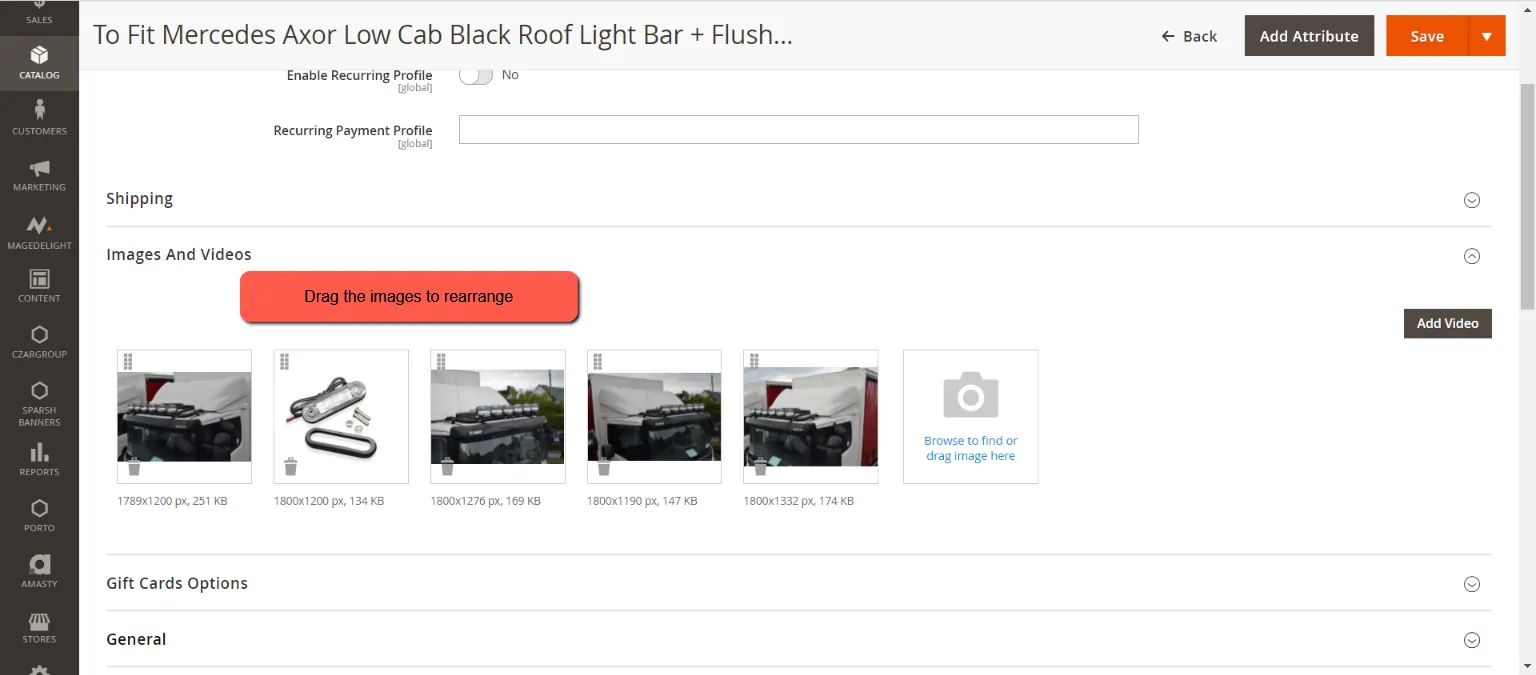
Click on the image you want to be main and thumbnail. Check on the roles and close. You can add more images here than in Linnworks. It is ok that number of images here is not the same to Linnworks. There is no limit on the number of picture in Magento.
5.2 Price Update
Click on General
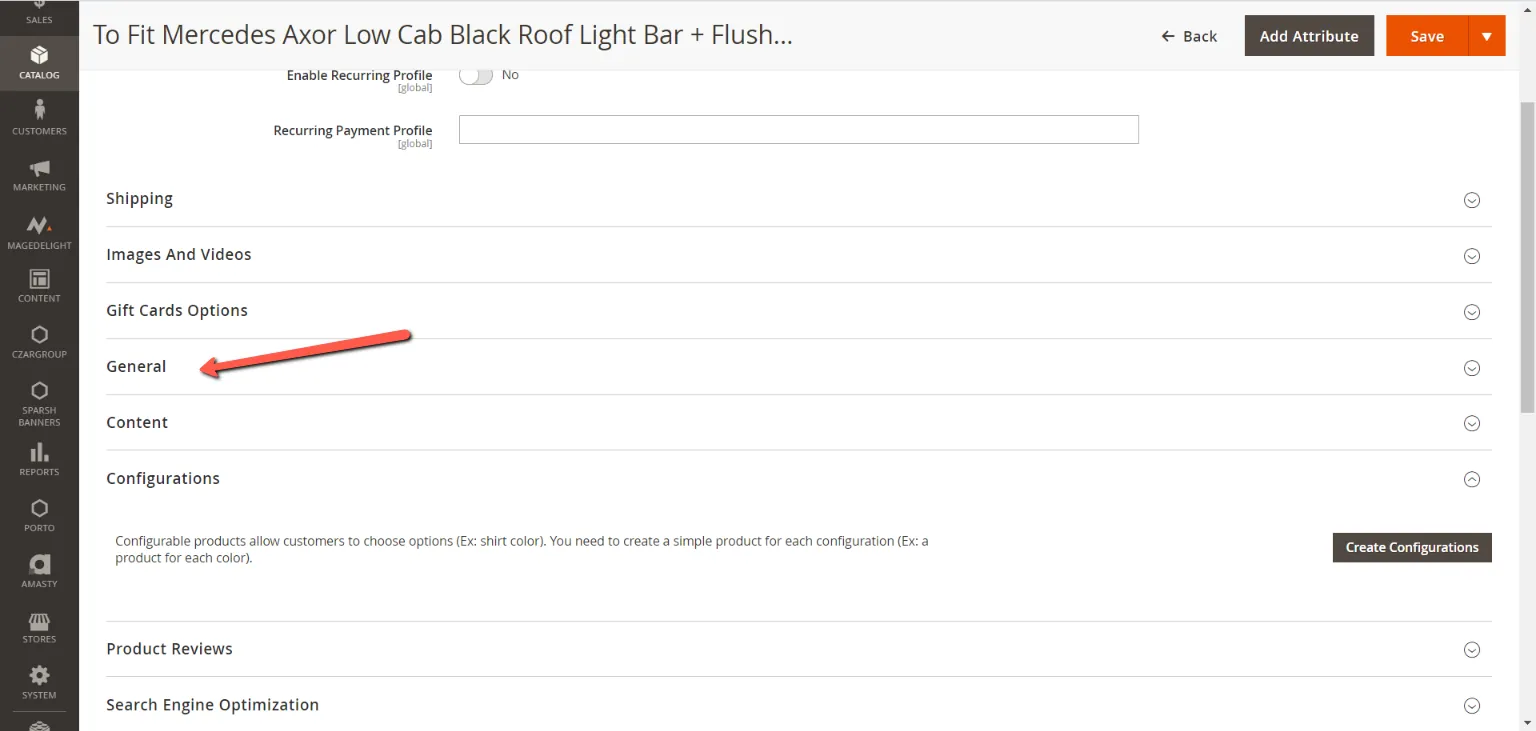
Scroll down and look for the Price section
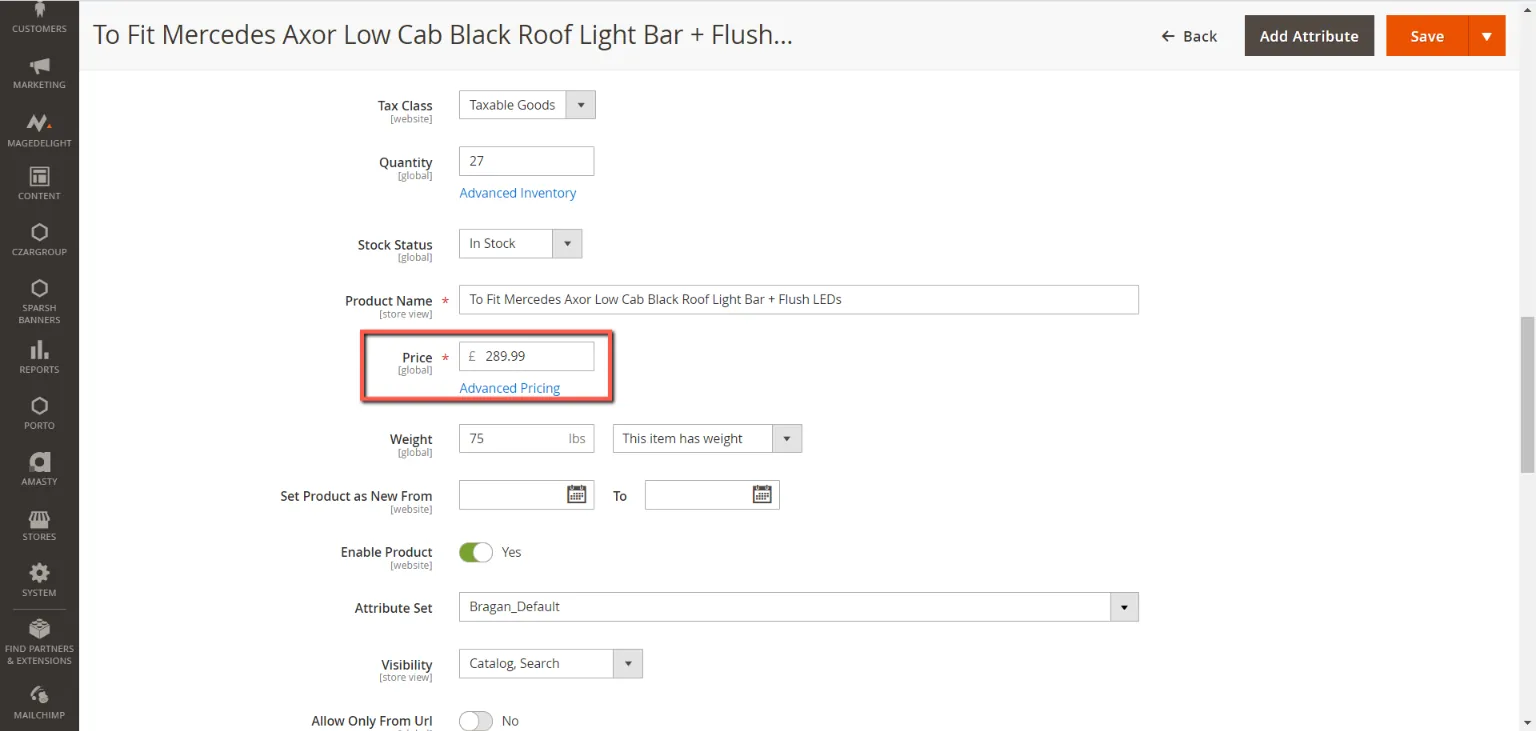
Input the new Price. Make sure this is the same in Linnworks
5.3 Title Update
Click on General and look for the Product Name section Input the new Title, should be the same in Linnworks
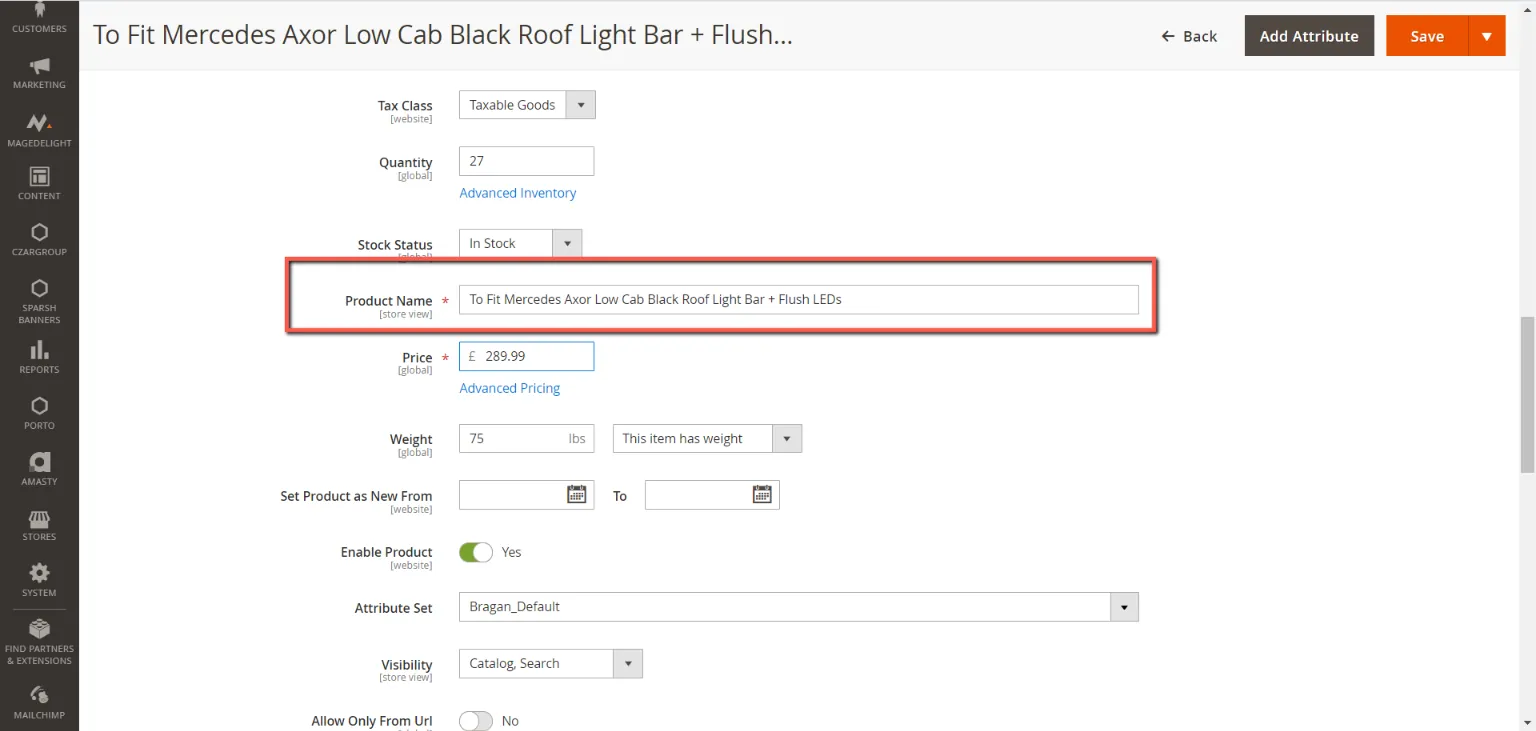
5.4 Description and Mag Short Description Update
Click on Content
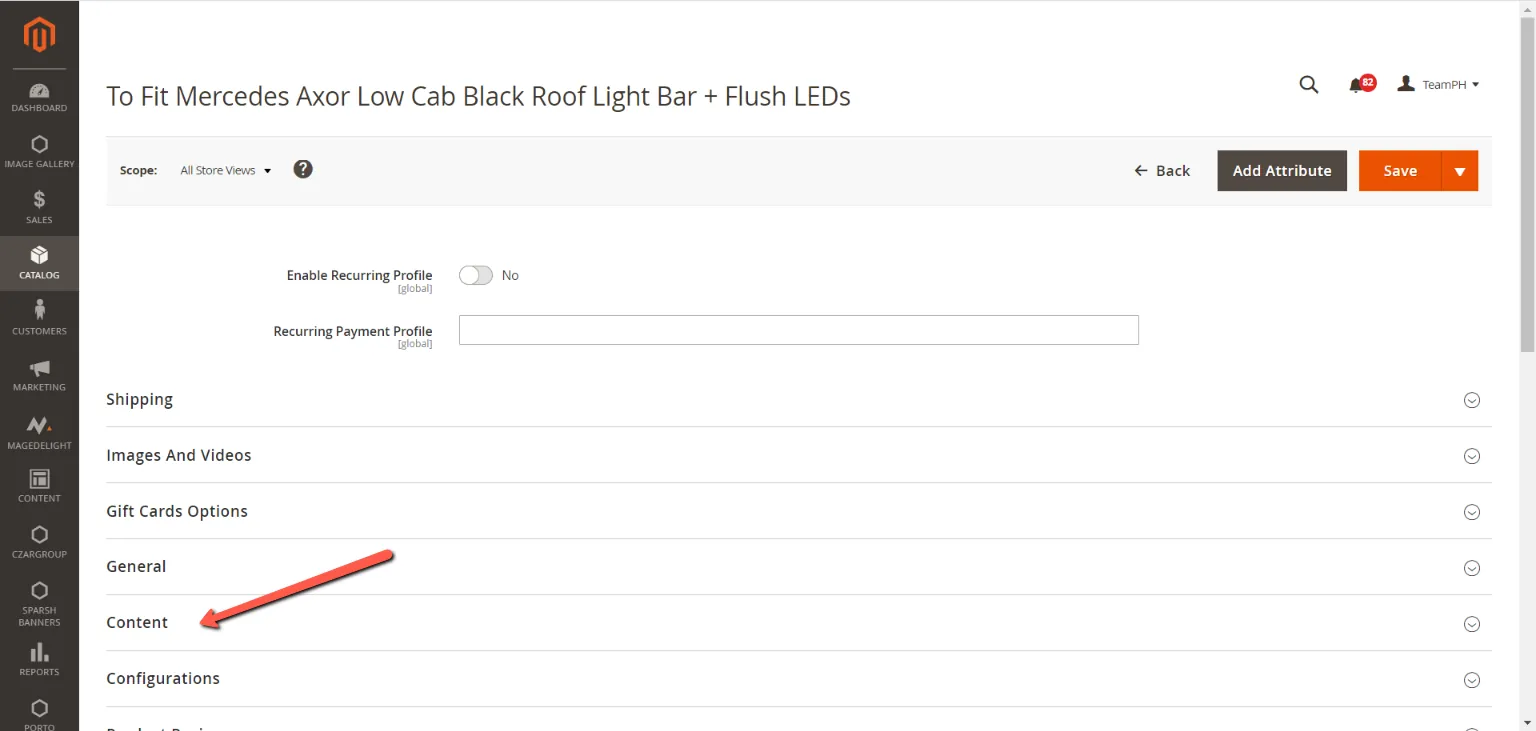
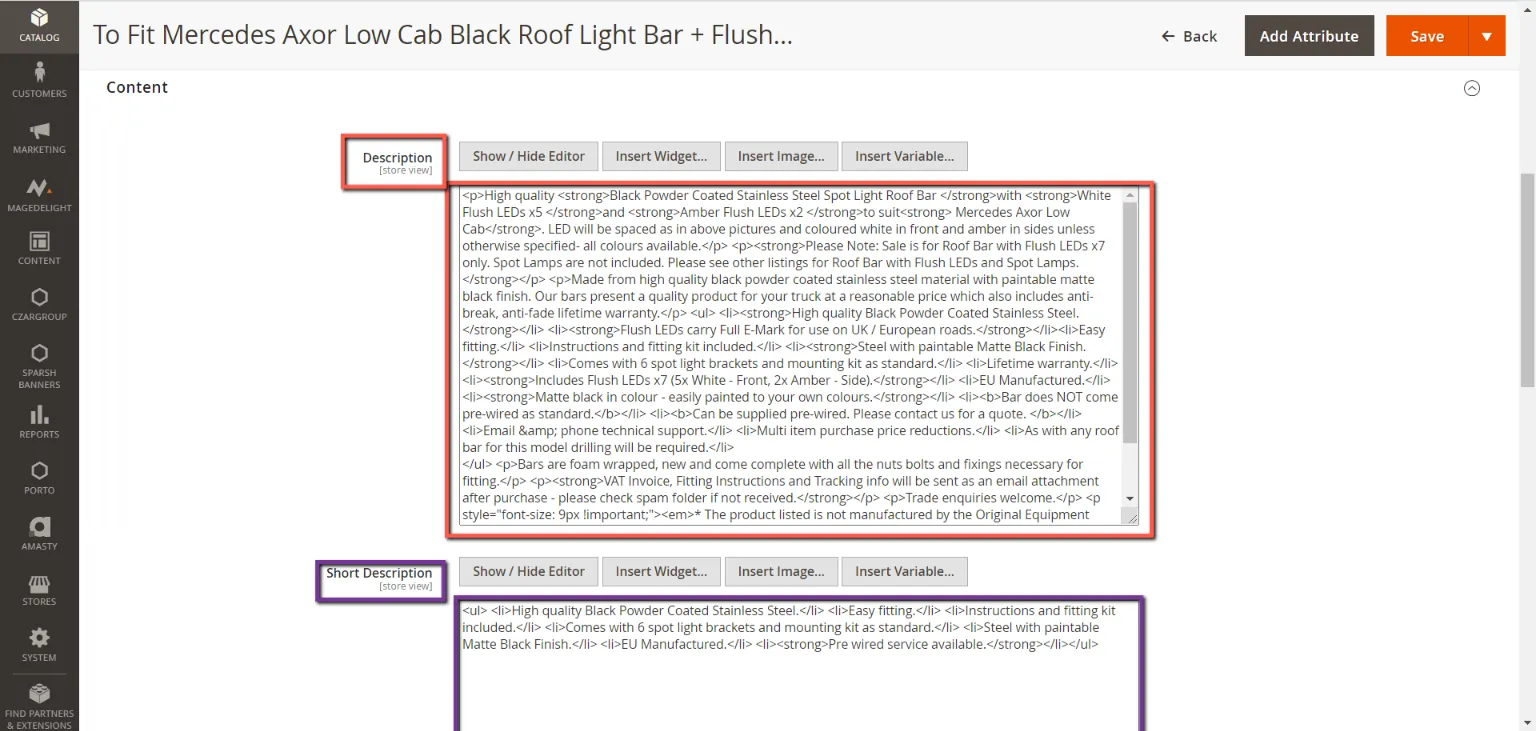
Input new Description or Mag Short Description in the correct box. Format should be in HTML. Copy the one in LW.
5.5 Category Update
Click on General and look for the Categories section
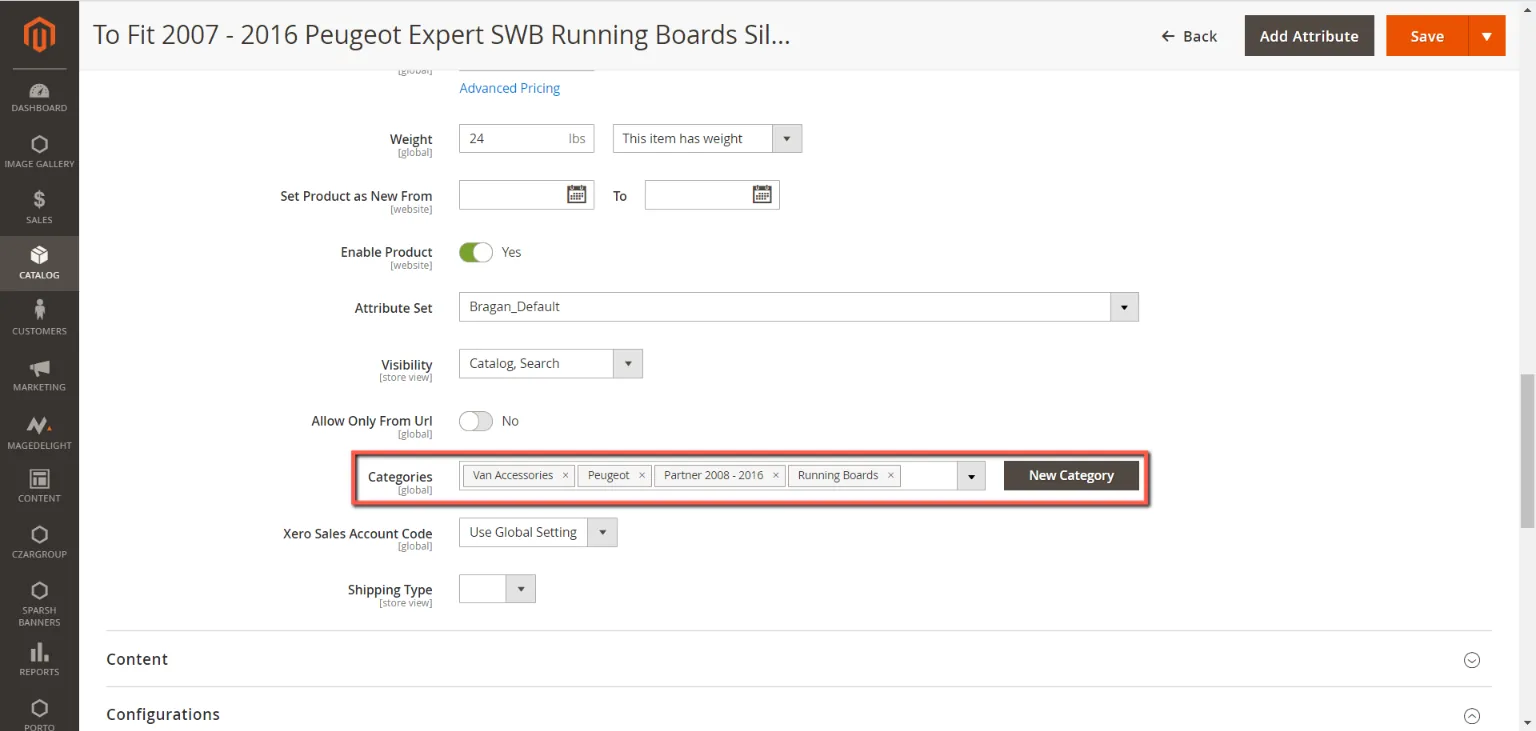
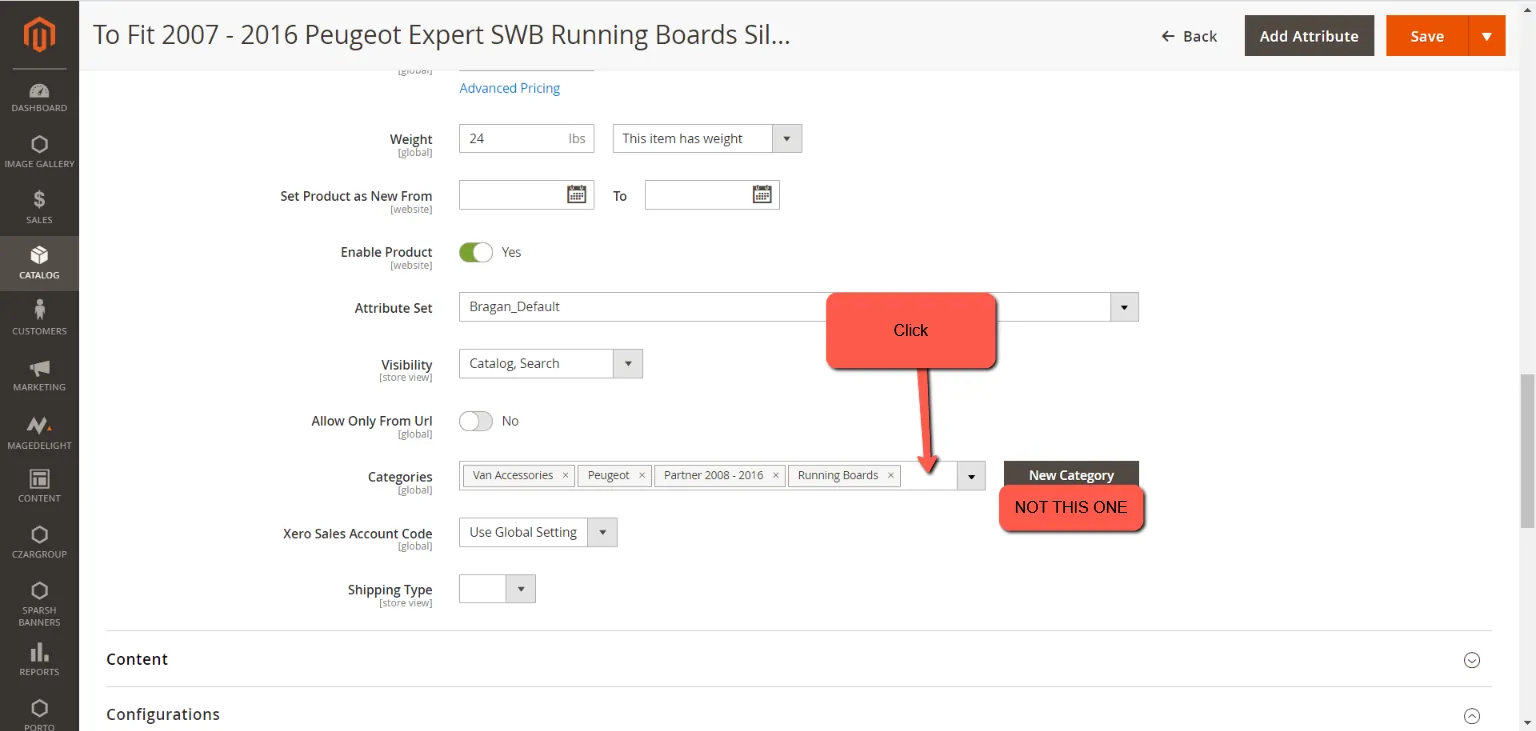
Click on the box. NOT on the New Category button because it will create a new category in Magento.
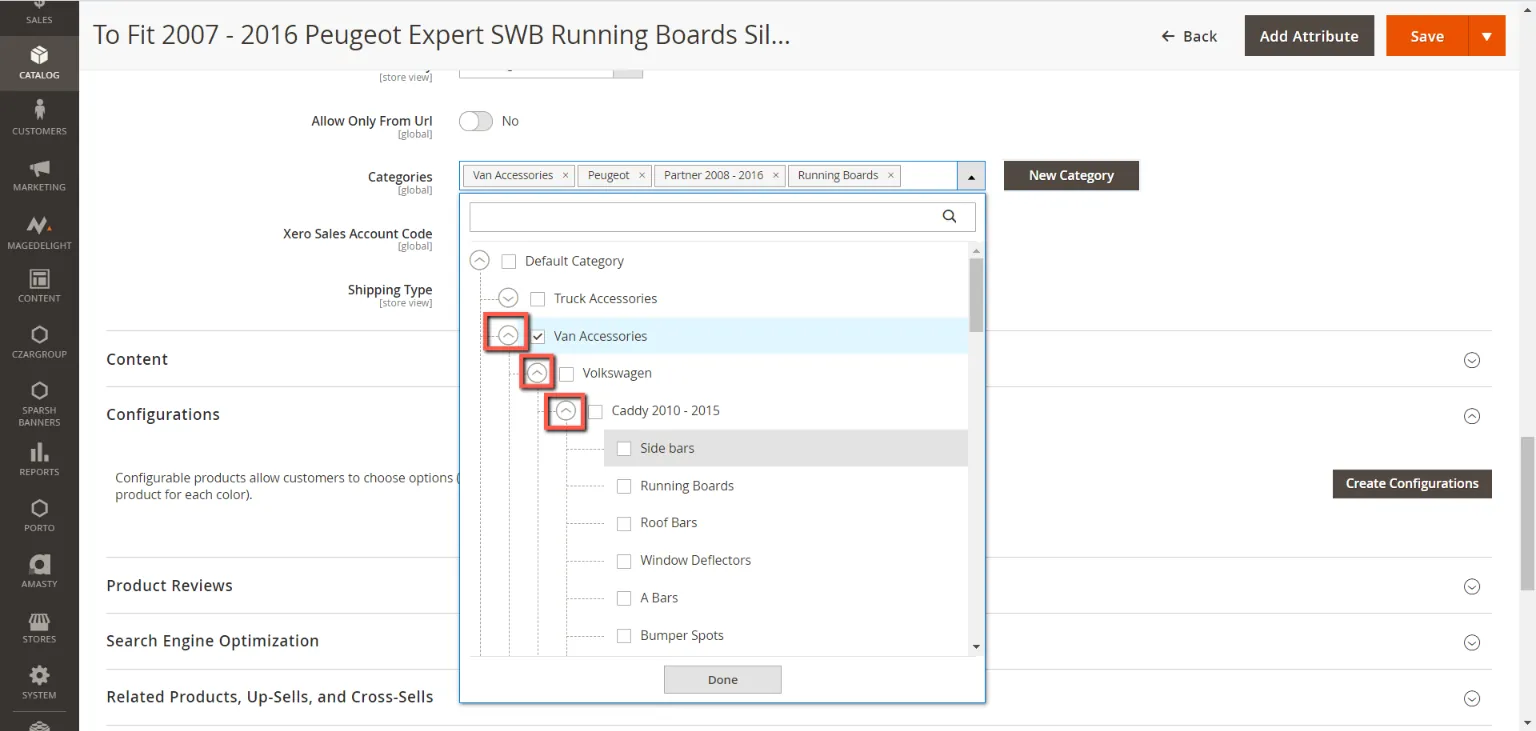
A box would pop up after. Please navigate to the path where your designated category is located using the arrow beside each category.
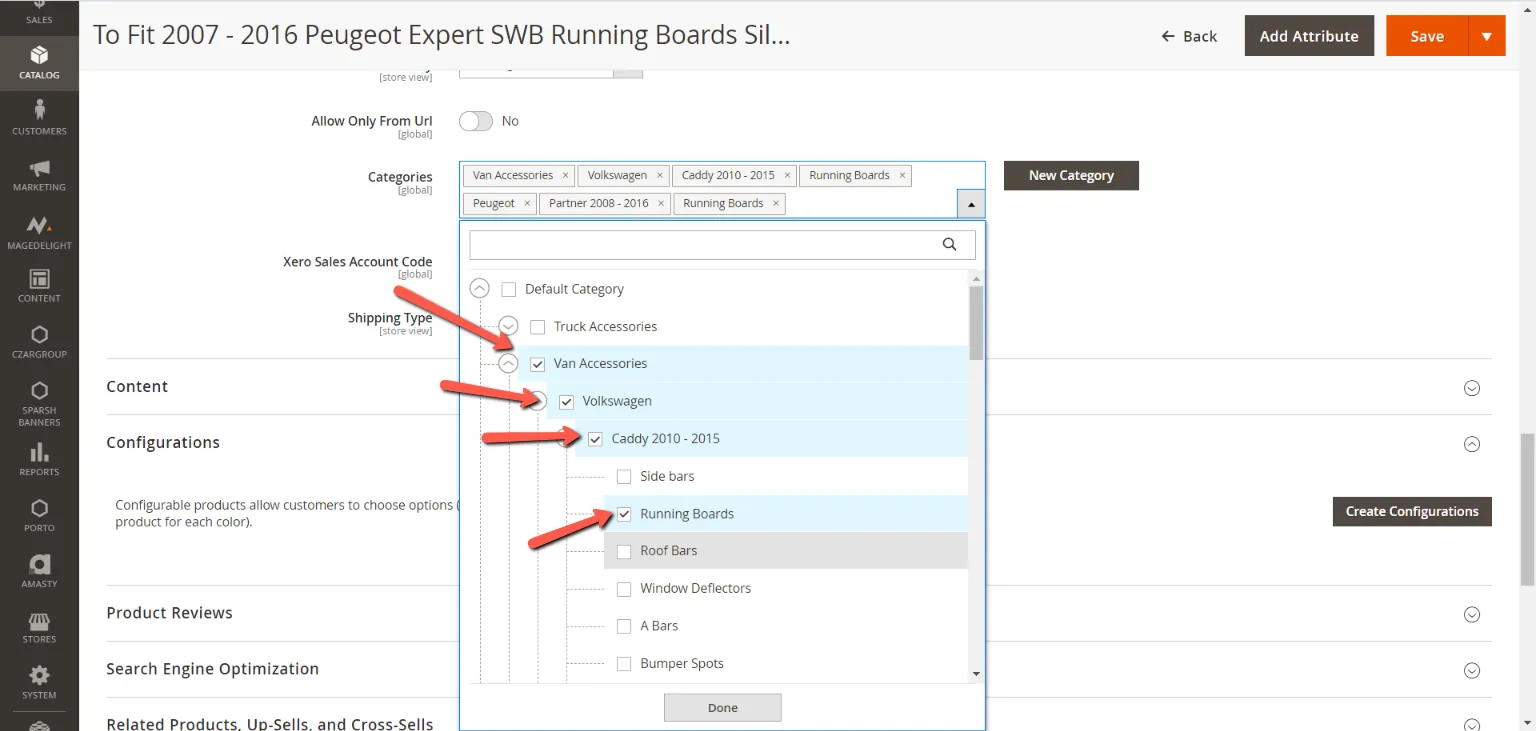
Once you have found the category you wish to add. Check on all the boxes of the categories that your selected category falls under and also check the box of the category itself. For example Caddy 2010 – 2015 running boards. Check on Van Accessories, Volkswagen, Caddy 2010 – 2015, Running Boards. This will ensure that our website would recognize the path where to put our product.
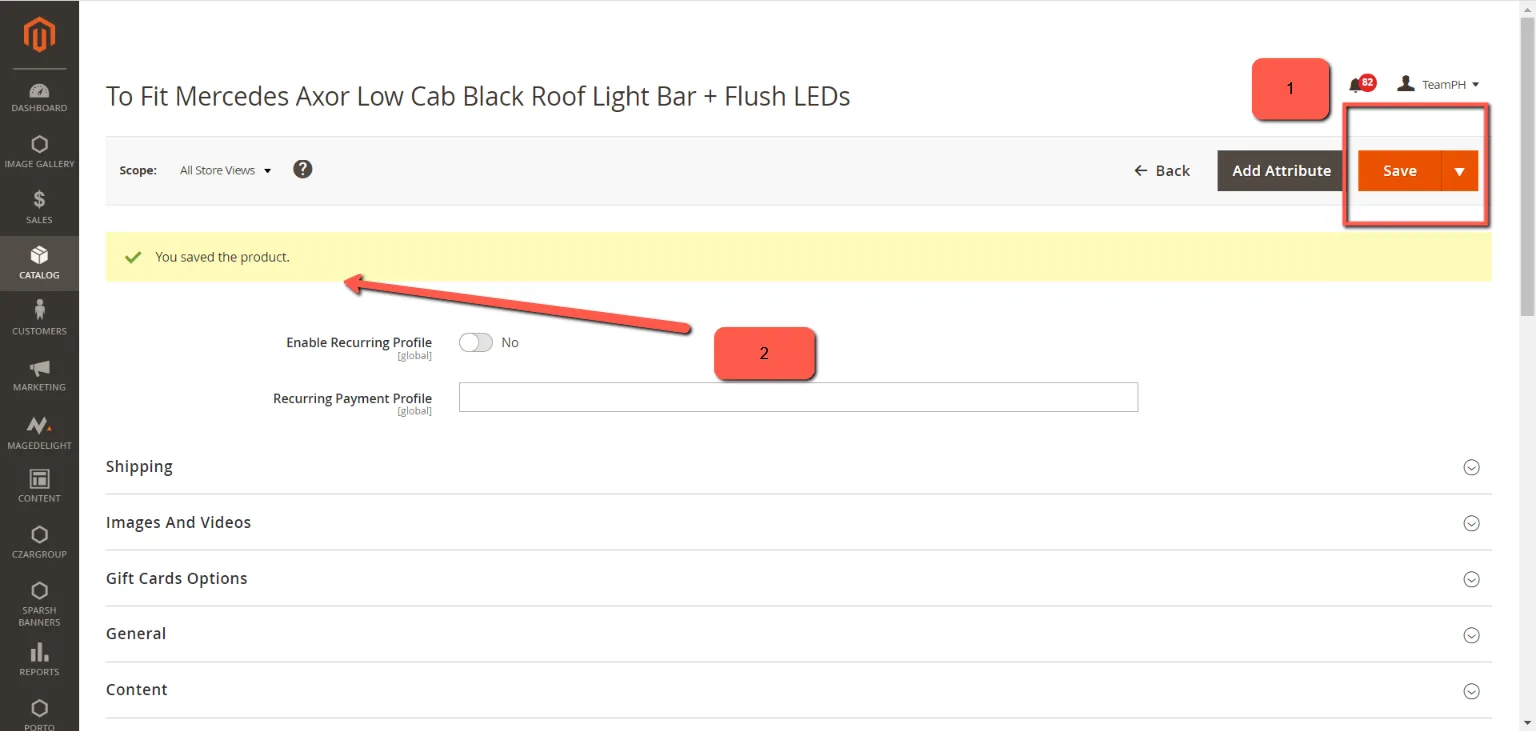
- Save After making all the changes needed, click on Save on the top right section of the page. A message will show saying "You saved the product."
- Change Store View
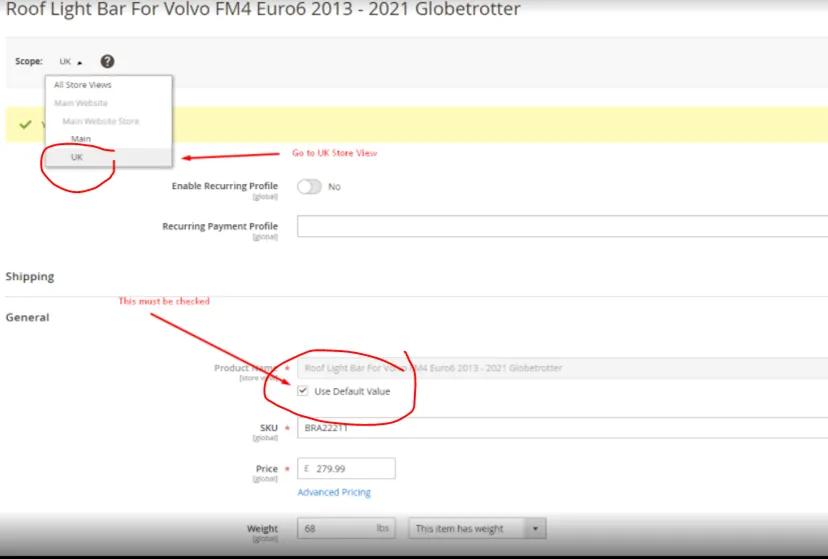
In order for the updated Title, Description and Magento Short Description to reflect in the website you need to change store view to UK. To do this, click on Scope dropdown menu and select UK.
Once you are in UK store view, tick the box Use Default Value under Title, Description and Magento Short Description. Then Save.
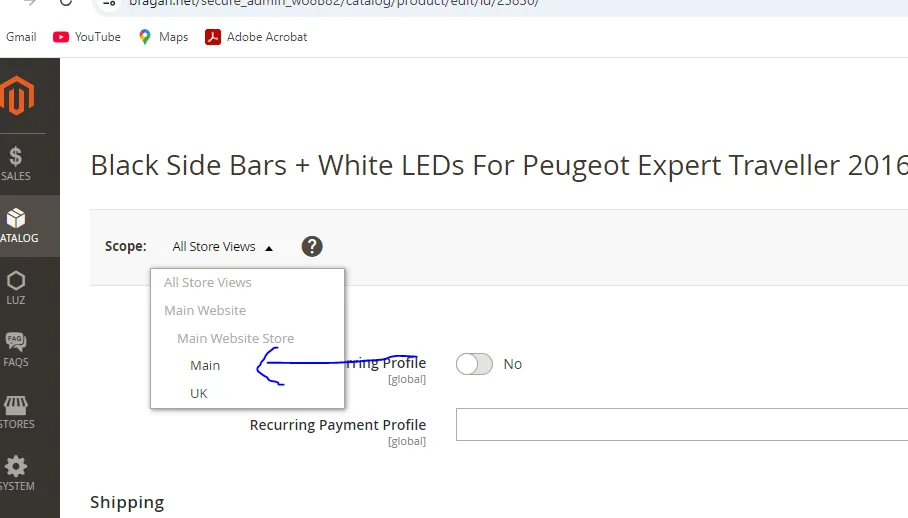
Tick also MAIN view and follow the same steps above then SAVE.
- Check Live Listing
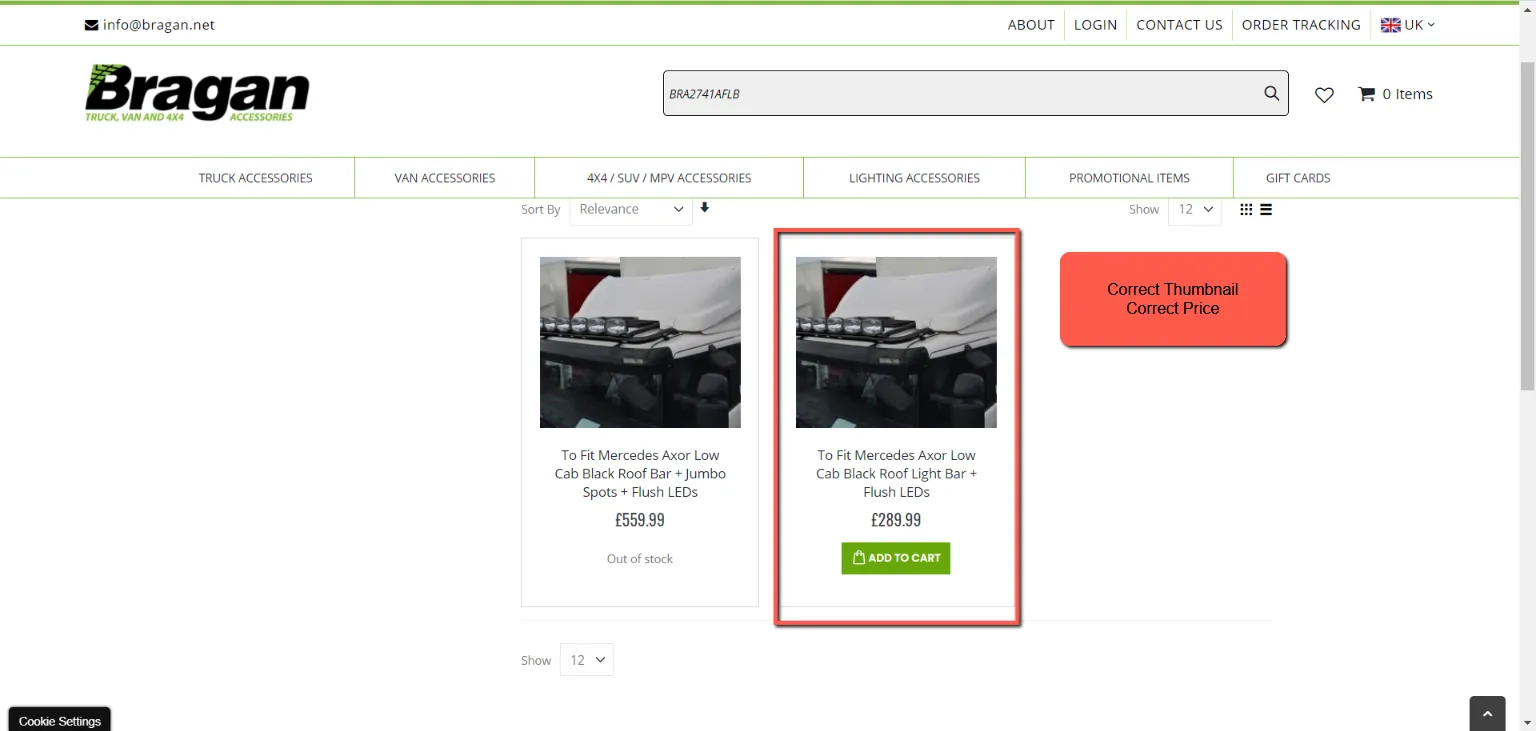
To ensure that the changes were applied, check on the website if to see if the changes have been reflected.
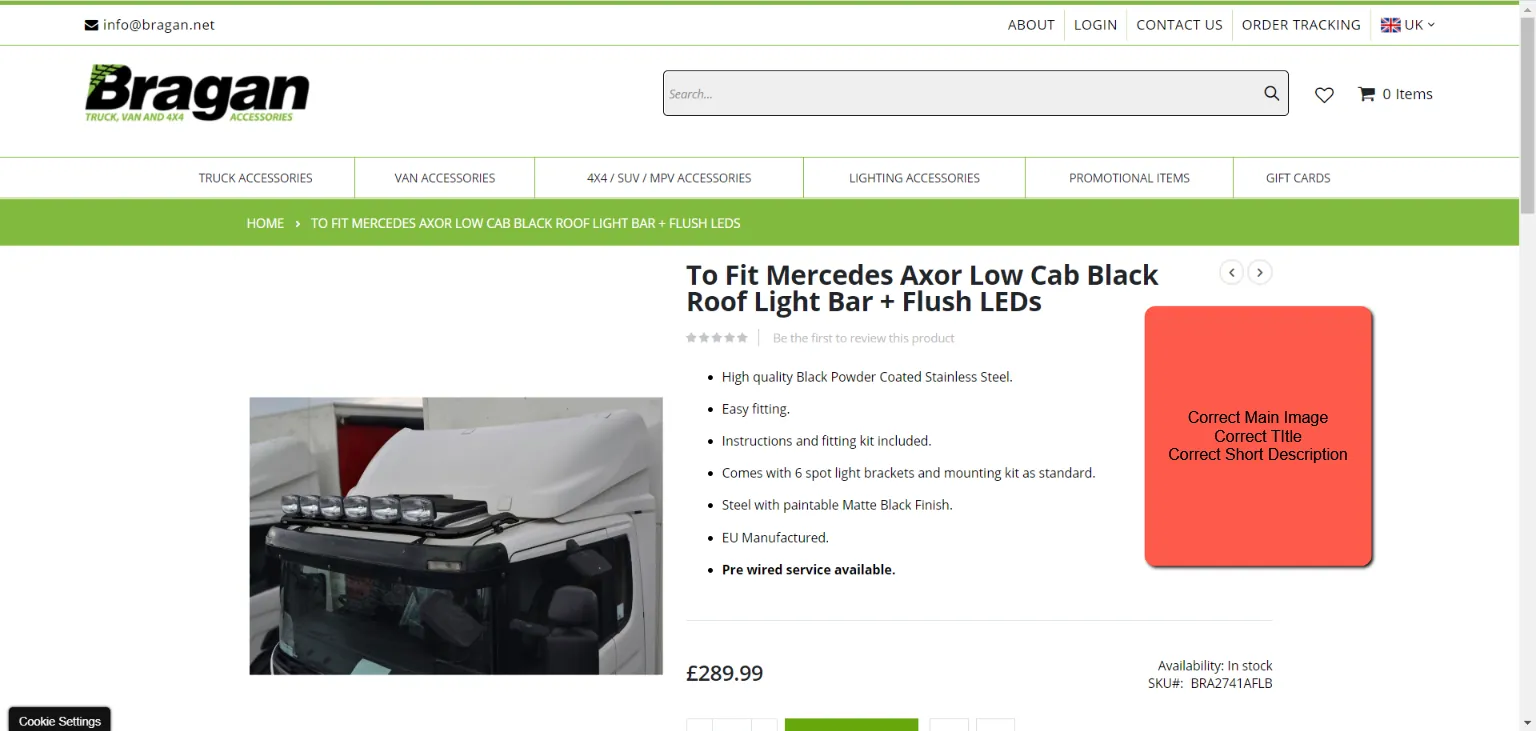
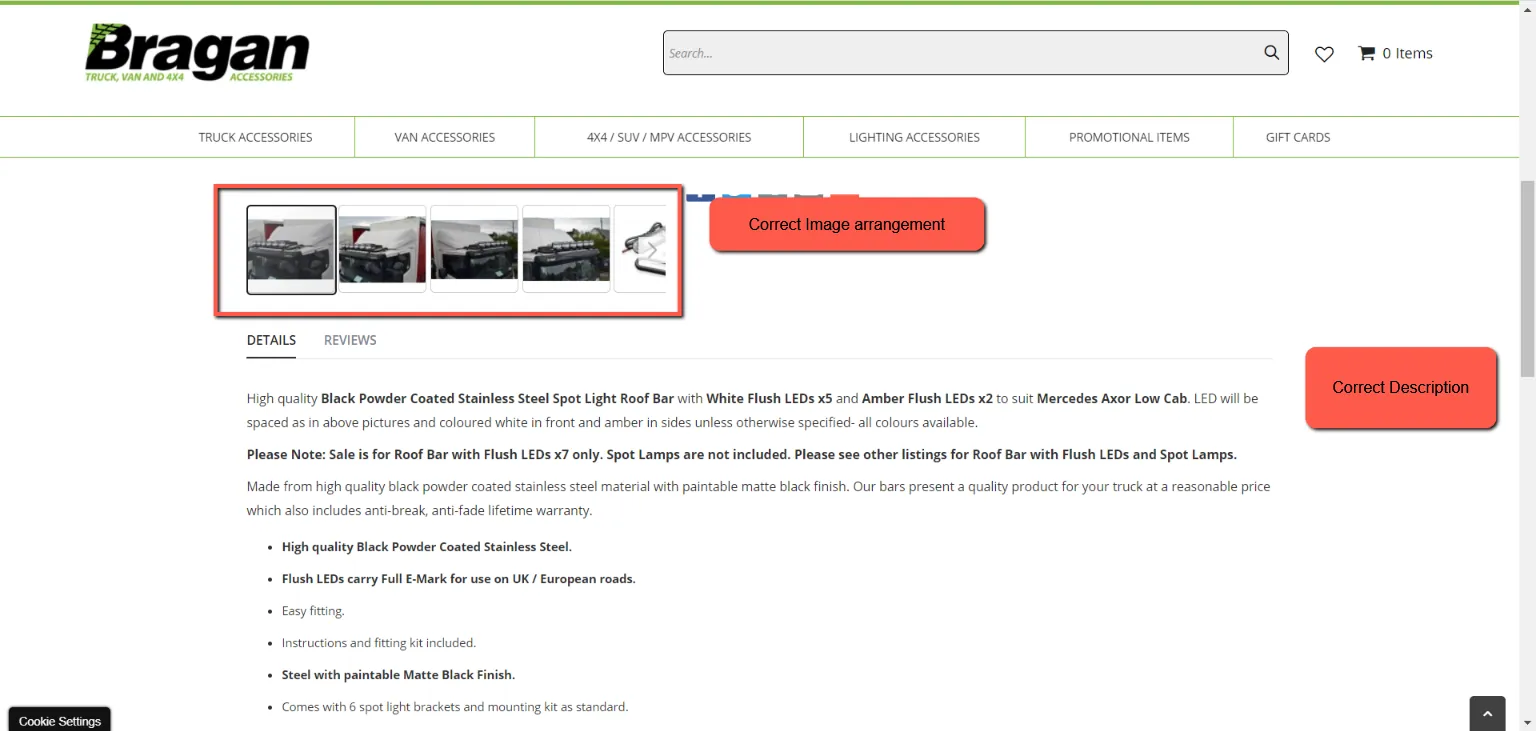
Video & Media#
🎥 Updating Old Magento Listing
Notes#
This section is important so Adhoc points and issues can be logged. Also, Q&A can be logged for suggestions for potential issues encountered. Also, log important notes needed for this system. Additional Notes:
This document is important to know to be able to update listings of old Magento. "All changes must be done in Linnworks Inventory > Product Details first. This step is crucial when doing bulk extraction in Linnworks. New information will not reflect in extraction if this step is skipped.
Ensure to follow the sop.
Tick these so that updates will reflect in Magento Website in updating Title, Magento short description, and Description. The same rules apply when updating these 3 aspects. > Choose UK view > Use Default Value
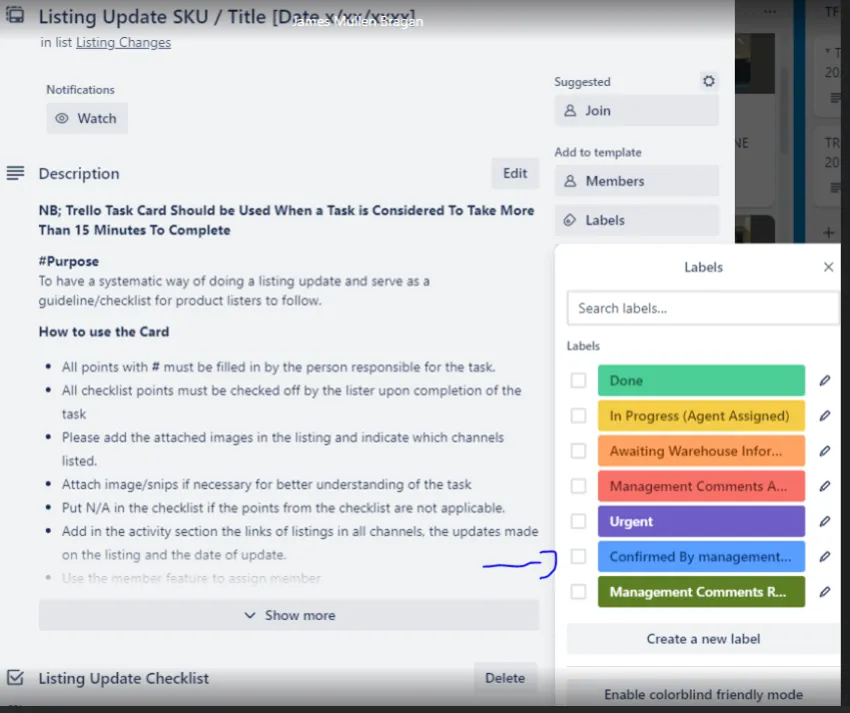
Needs to be extra careful when adding new images to the listings. Check if the item fitted in the vehicle is similar to the stand-alone picture of the item or all pictures are showing the same item on sale. Trello task card for update listings / new listings should be in blue color (confirmed by management) before starting the task.
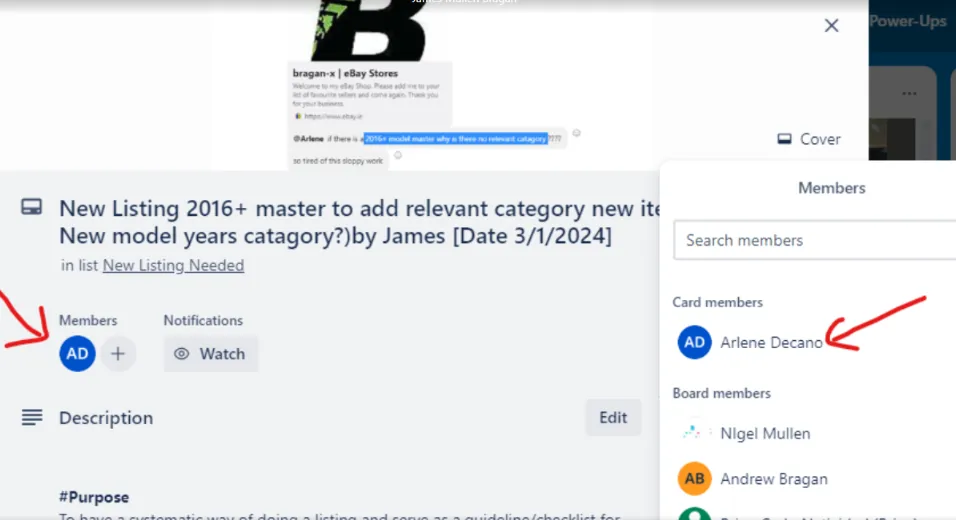
Agent should join the card for new listing / update listing he/she is currently working.
Potential Issues:
1 - ISSUE ENCOUNTERED: Stuck on Loading
RESOLUTION: Refresh Browser
2 - ISSUE ENCOUNTERED: Broken Links
RESOLUTION: Get the external link as this will allow other people to access the SOP without the need for login credentials and avoid broken links.
3 - ISSUE ENCOUNTERED: Updates in title, description and magento short description does not reflect in the website.
RESOLUTION: Tick these so that updates will reflect in Magento Website in updating Title, Magento short description, and Description. Same rules applies when updating these 3 aspects. > Choose UK view > Use Default Value
Attachments#
Updating_Old_Magento_Listin… 16/12/2025