Annual Leave
We encourage all employees to take their full contractual allowance of annual leave.
Overview#
Purpose: We encourage all employees to take their full contractual allowance of annual leave. Please refer to your Employee Handbook for details on Annual Leave or Time off from Work.
Scope: This procedure applies to all Bragan personnel.
Responsibility: It is the responsibility of each employee to ensure the process set out in this procedure is followed.
Objective: The objective is to standardize the filing of Annual Leave.
Booking Annual Leave#
You must give a minimum of four weeks’ notice of your intention to take holidays and a minimum of two weeks’ notice for a single day. This gives the company time to ensure workloads can be properly covered during your absence or that it doesn’t clash with other colleagues. (check warehouse calendar) The Company will make every effort to accommodate your request for the holiday. To be fair to all employees, requests will be dealt with on a first come first served basis, and subject to the operational needs of the company.
Unpaid leave can only be agreed with Nigel/Andrew – no exceptions.
If you are off work without first obtaining approval from your manager, it will be treated as an unauthorized absence.
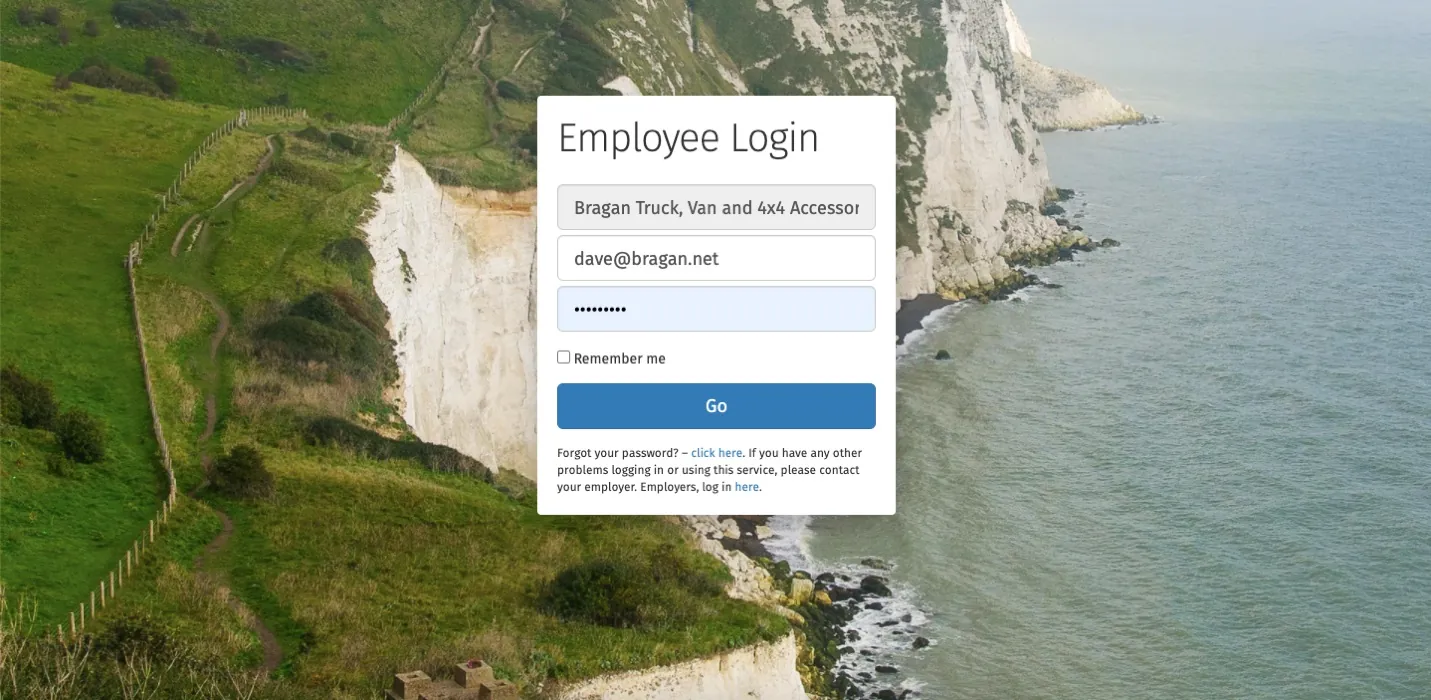
Annual leave can be booked through your BrightPay employee Portal – if you cannot access the portal please reset your password or flag this to your manager brightpay.cloud
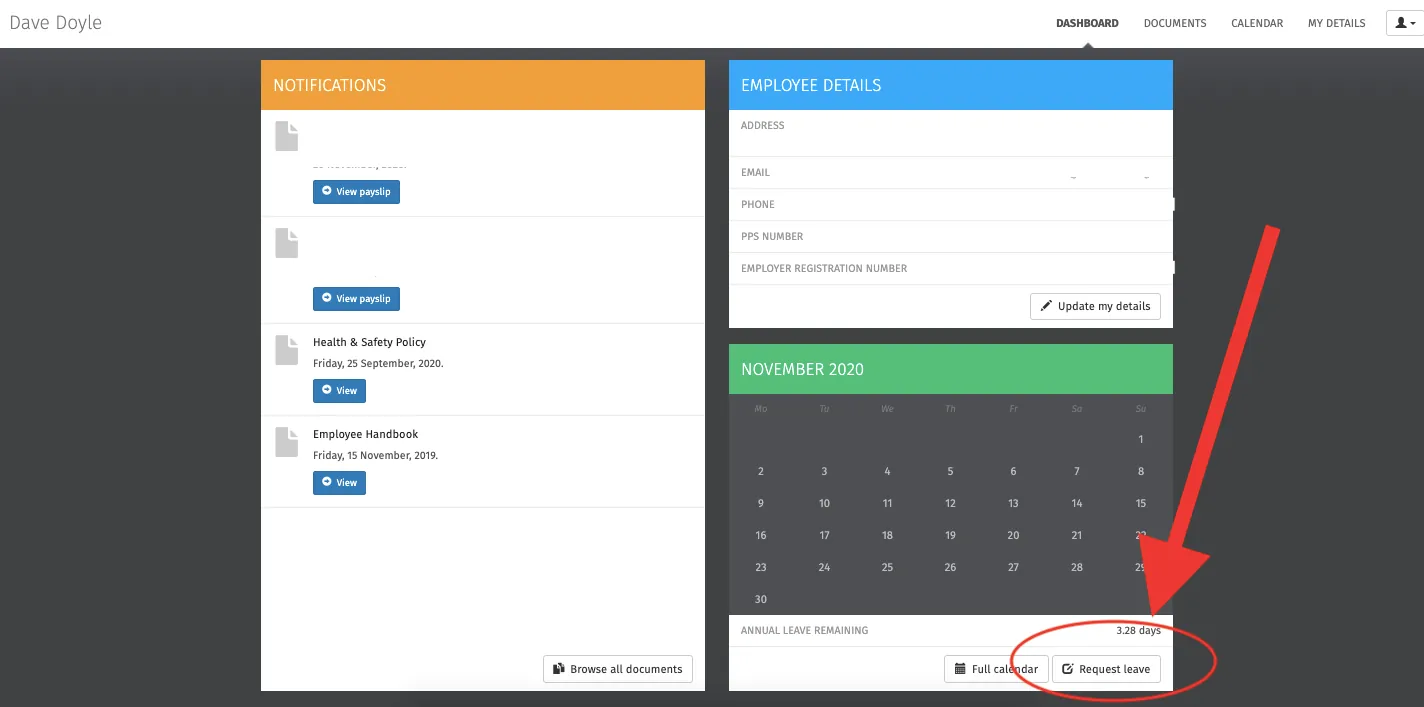
Click on Request Leave in the bottom right of the screen.
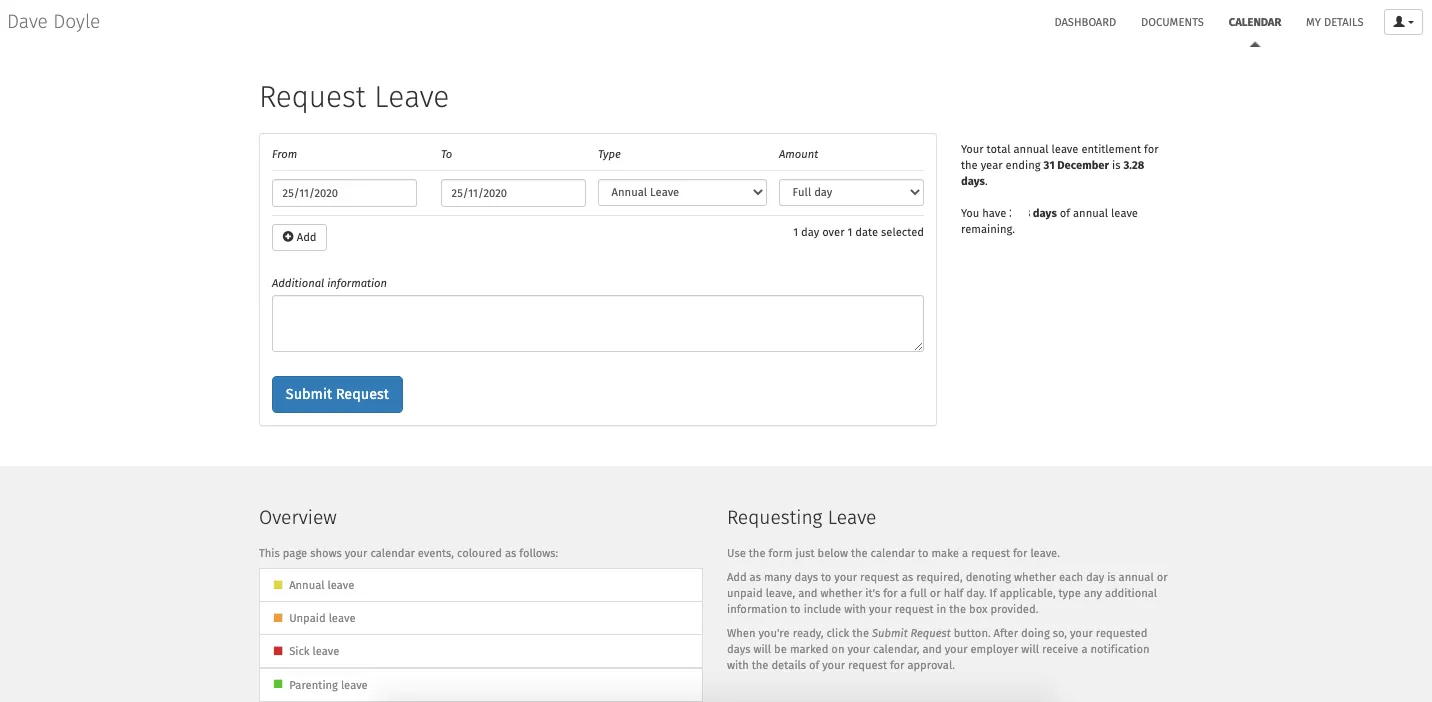
Use the form just below the calendar to make a request for leave.
Annual Leave Entitlement#
Your annual leave entitlement will be shown to the right of the request leave box. Please flag with your manager if there are any discrepancies.
Add as many days to your request as required (a maximum of 2 weeks holidays at a time) denoting whether each day is annual or unpaid leave, and whether it's for a full
or half-day. If applicable, type any additional information related to your request in the box provided.
When you're ready, click the Submit Request button. After doing so, your requested days will be marked on your calendar, and your employer will receive a notification with the details of your request for approval.
Warehouse View#
It is important that the warehouse follow the same procedure to book leave, however, you can view annual leave for all others in the warehouse on the Warehouse Trello calendar view. Please check this prior to booking holidays as we may be unable to accommodate leave if other warehouse staff members are on leave at the same time. It is each employees responsibility to add their approved days/time off to the warehouse calendar and also to put a reminder into Dispatch office comms group the week before your time off as a reminder to all staff.
Warehouse View here - trello.com calendar/calendar/2020/12
Summary#
Annual Leave is not to be taken under any circumstances without prior approval from your manager – to be 100% clear, you may only take annual leave once it has been approved in Brightpay by your manager and has been updated on the relevant calendar.
Notes#
This section is important so Adhoc points and issues can be logged. Also, Q&A can be logged for suggestions for potential issues encountered. Also, log important notes needed for this system. Additional Notes:
Employees MUST check the warehouse calendar to ensure no-one else has already booked that time off before asking for holidays/days off. "Add important notes here"
Potential Issues:
1 - ISSUE ENCOUNTERED: Stuck on Loading
RESOLUTION: Refresh Browser
2 - ISSUE ENCOUNTERED: Broken Links
RESOLUTION: Get the external link as this will allow other people to access the SOP without the need for login credentials and avoid broken links.
3 - ISSUE ENCOUNTERED: "Type Text Here"
RESOLUTION: "Type Text Here"