Scanner Formatting
When a scanner is running slow or purchased a second-hand scanner it may require
Overview#
Purpose: When a scanner is running slow or purchased a second-hand scanner it may require formatting
Scope: This procedure applies to IT personnel.
Responsibility: It is the responsibility of each employee to ensure the process set out in this procedure is followed.
Objective: The objective is for the scanner to be ready to use by the warehouse operatives.
To perform a factory reset on a Zebra TC72/TC77 first go to supportcommunity.zebra.com language=en_US#SD
Download most recent factory reset

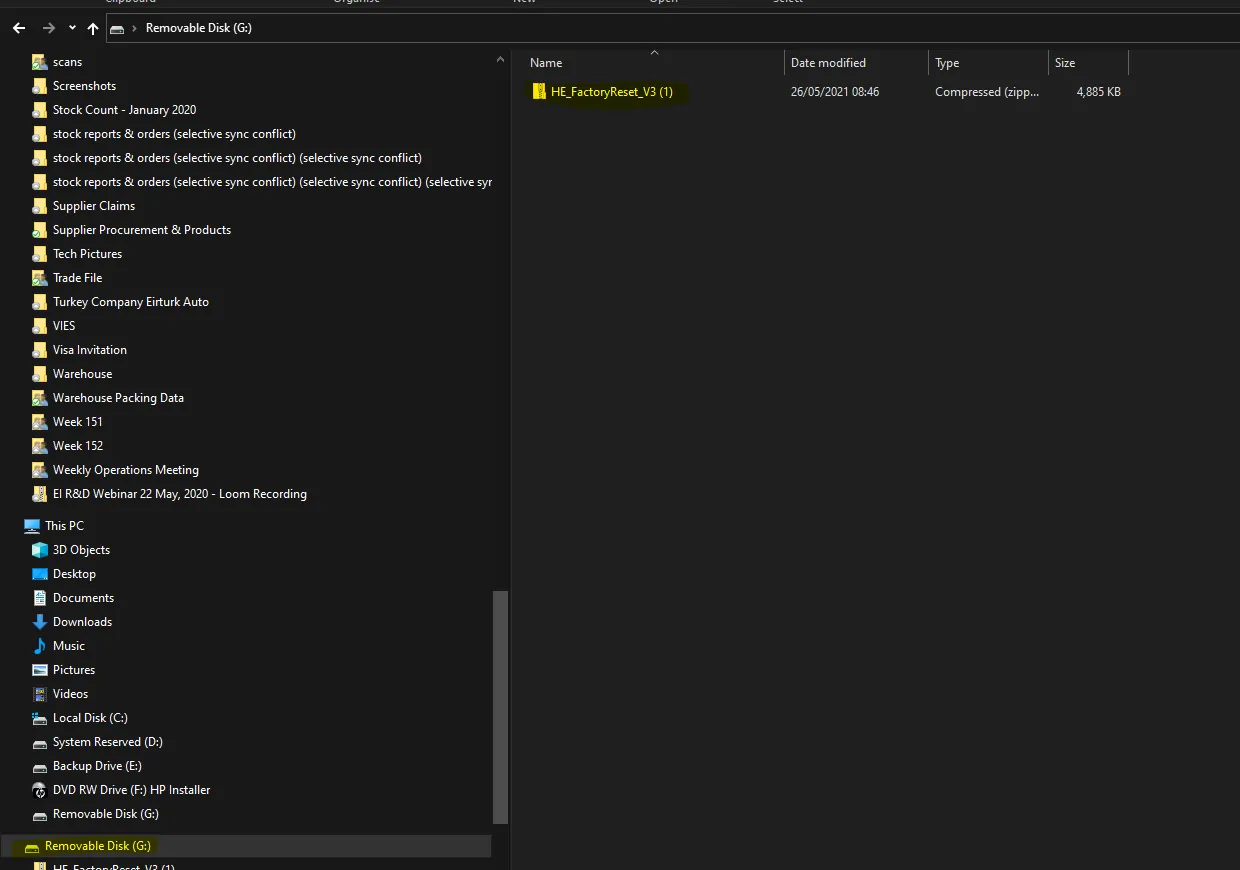
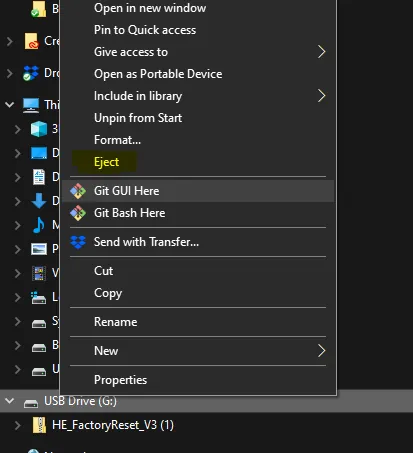
Insert the SD card into the computer and copy the downloaded zip file to the SD card (there should be nothing else on the SD card).
Press in and hold the two tabs on the back of the scanner and pull up to remove the battery.
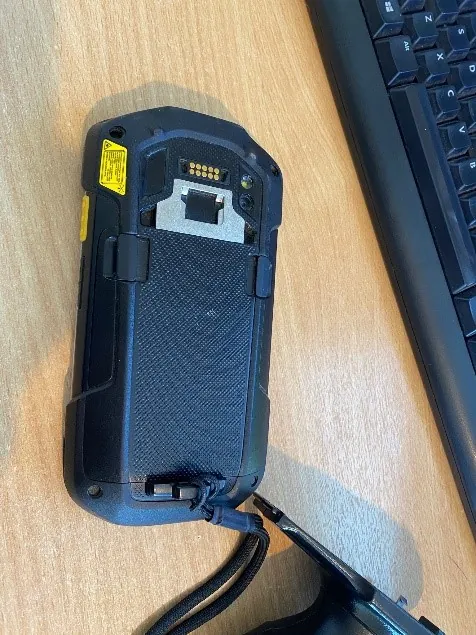
Lift up the tab covering the SD card.
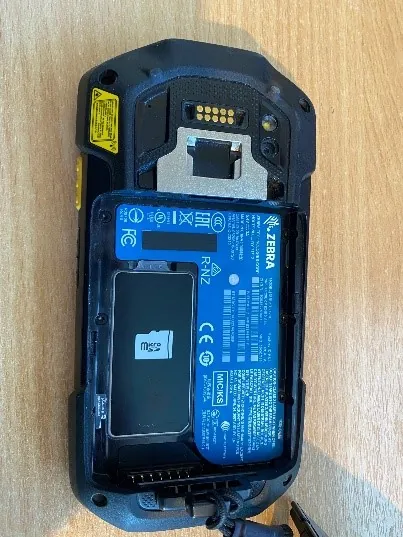
Insert the SD card and lock it into position.
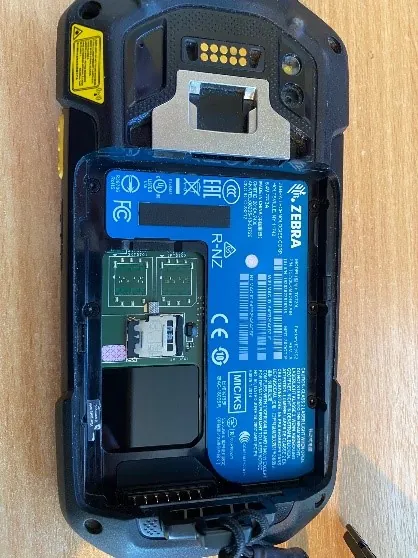
Insert the SD card cover and the battery and hold the trigger button while turning the scanner on until it arrives on the boot screen like shown.
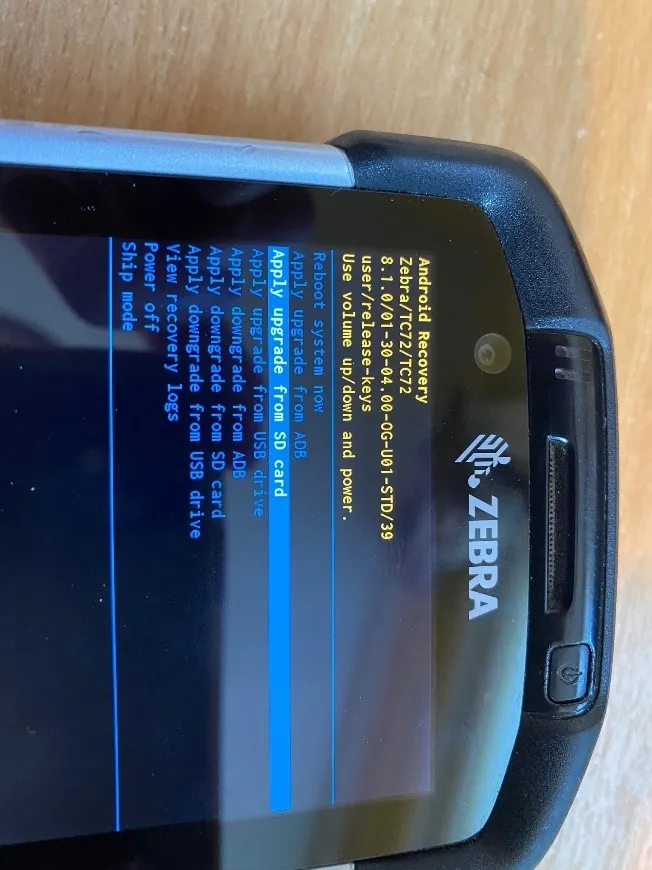
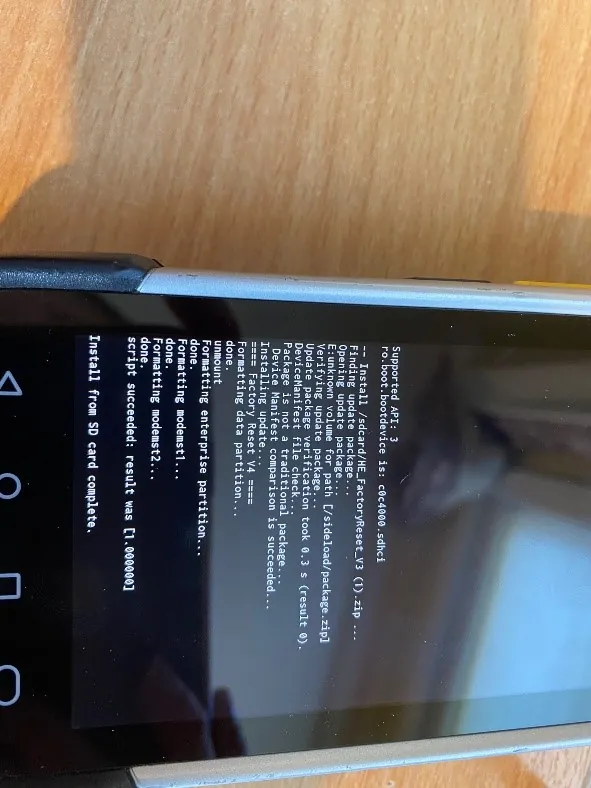
Use the volume key to navigate down to “Apply upgrade from SD card” then press the power button to enter. Then wait until the screen says “Install from SD card complete” then hold the power button to restart the scanner.
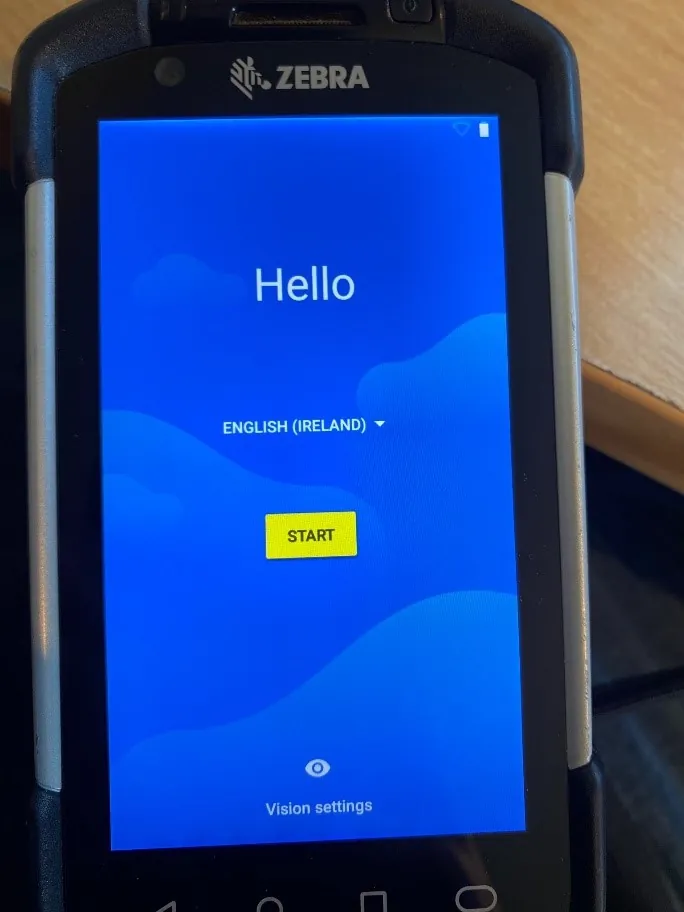
Select English > Ireland then press start.
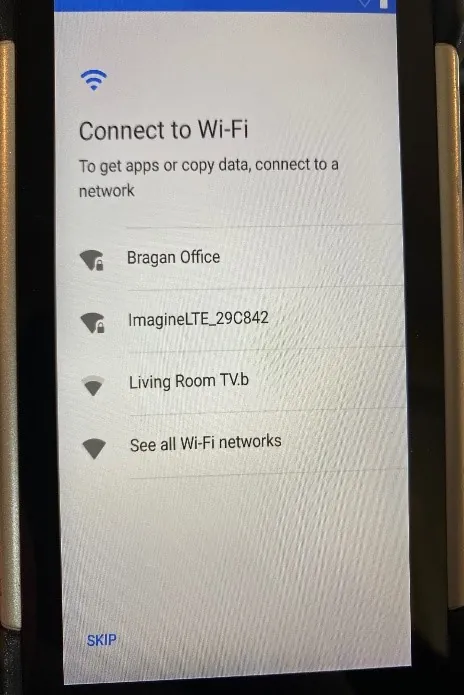
Log in to the company WiFi.
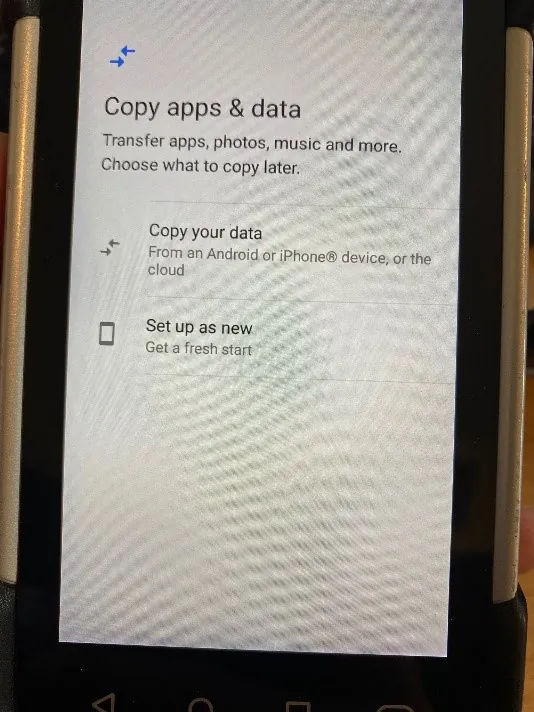
Select “Set up as new”.
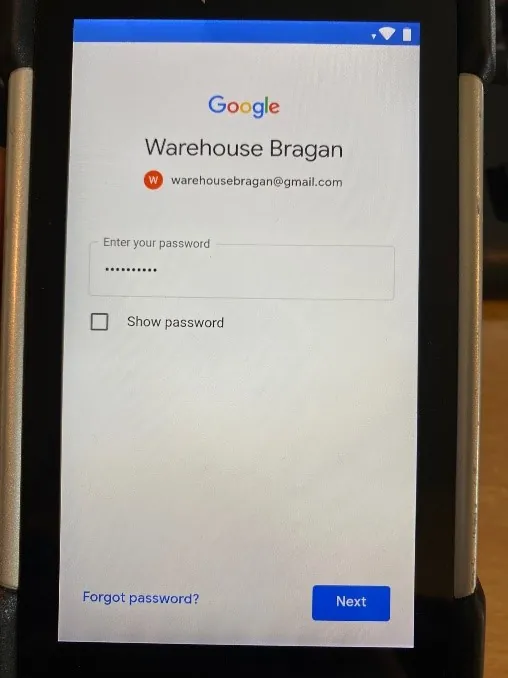
You will now be asked to log in to your Google account, the login details for all scanner Google account is the same.
Email: [email protected]
Password: br@gan2020
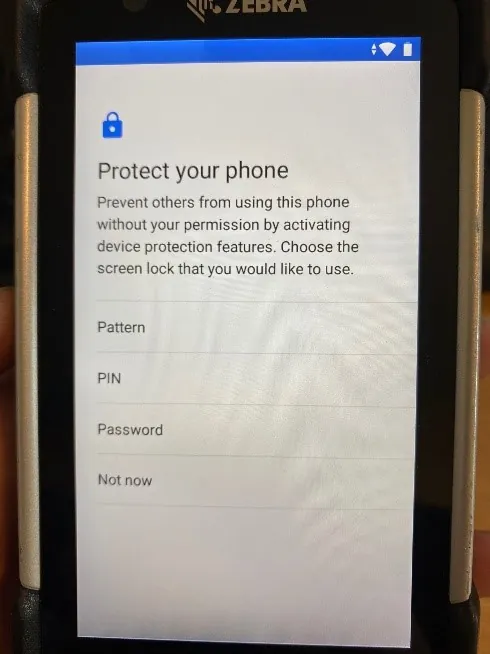
Select "Not Now".
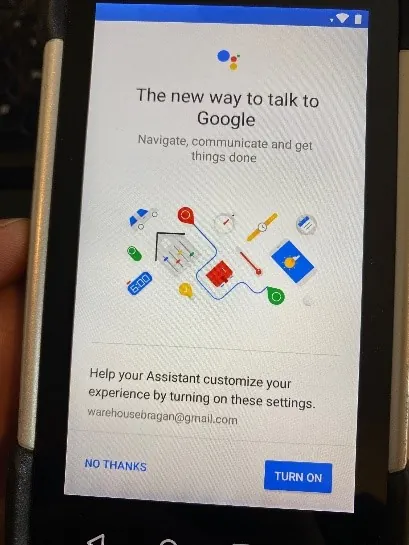
Select "No Thanks".
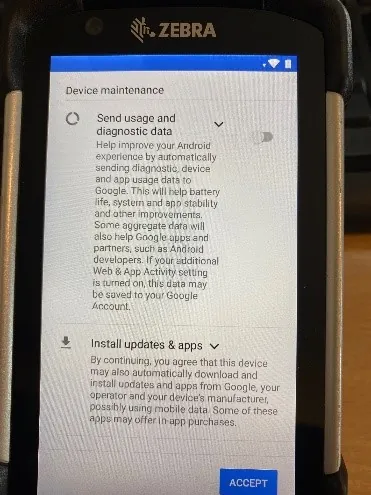
Unselect all options so they have turned grey then click "Accept".
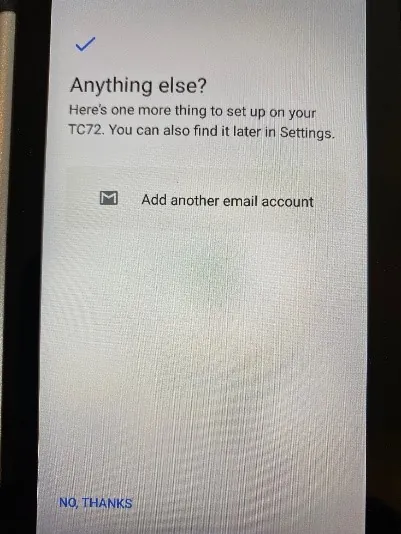
Select "No Thanks".
You will now be brought to your home screen.
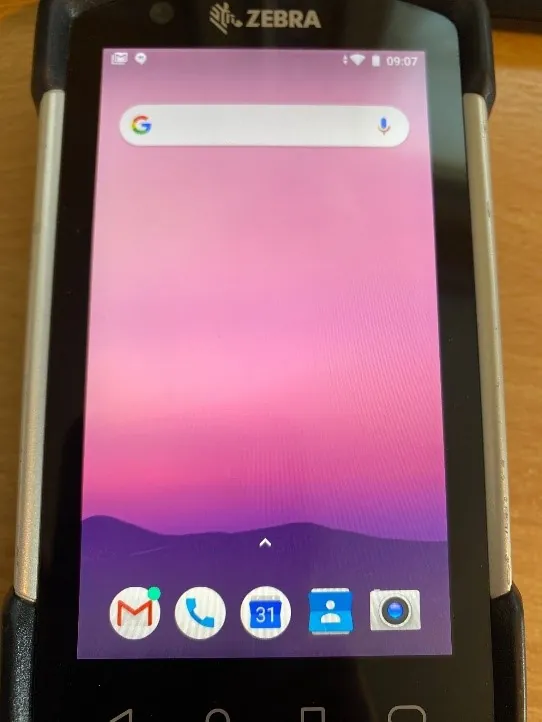
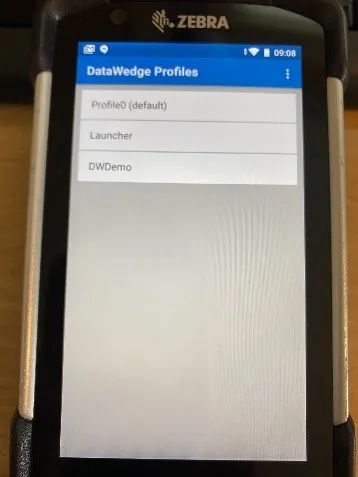
Go to Apps then “DataWedge” then select "Profile0".
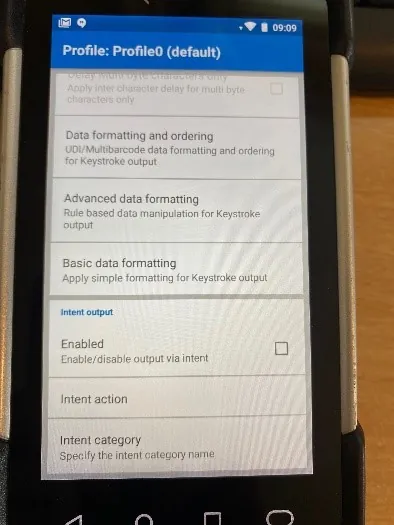
Scroll down and select Basic data formatting.
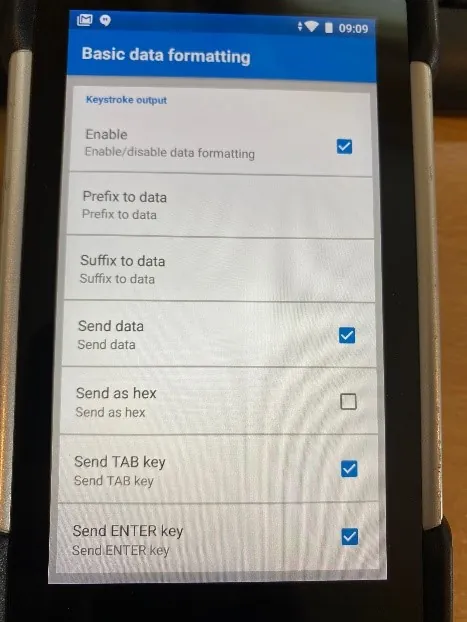
Check “Send ENTER key” and uncheck “Send TAB key”.
You can now exit the app DataWedge and go to the Google App Store and download the following three apps.
Skype ePicklist Stockwise
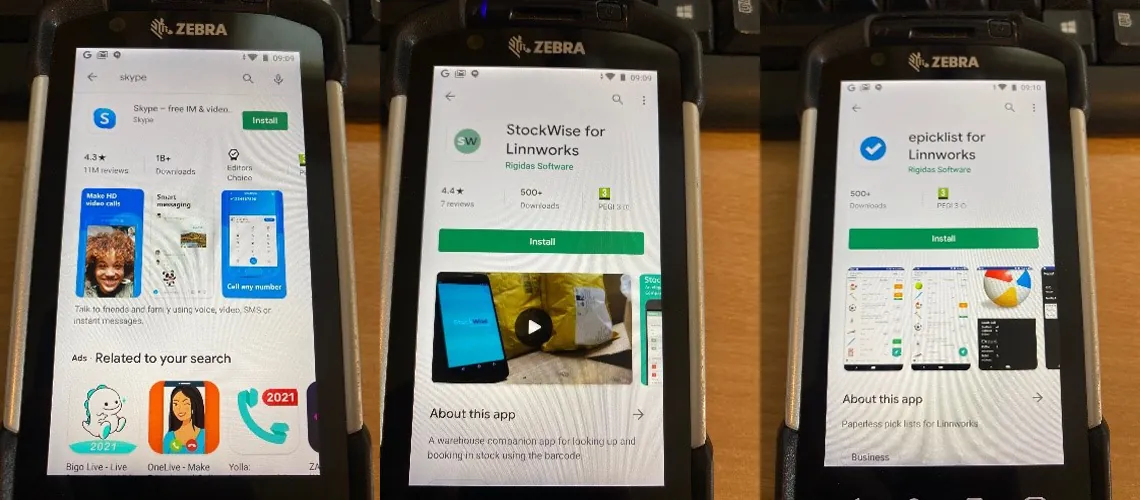
For Skype, the operator must use the credentials provided by IT or Management.
For ePicklist and Stockwise use the following credentials.
Email: [email protected] Password: Mollymalone1
Skype and Stockwise do not require any further configuration.
Open ePicklist and click on the three dots in the top corner then select "Settings".
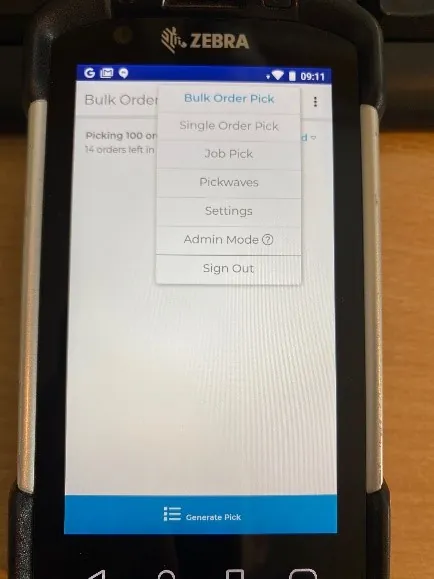
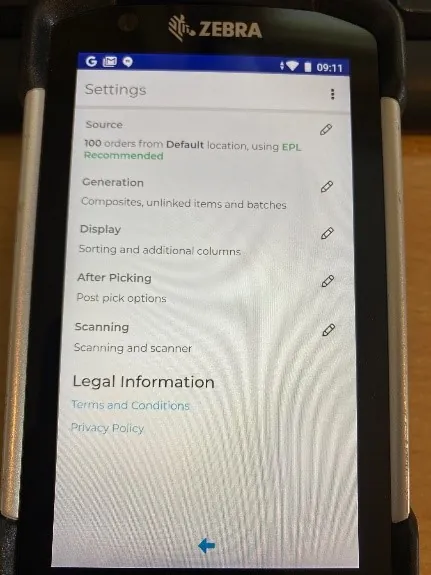
Select "After Picking".
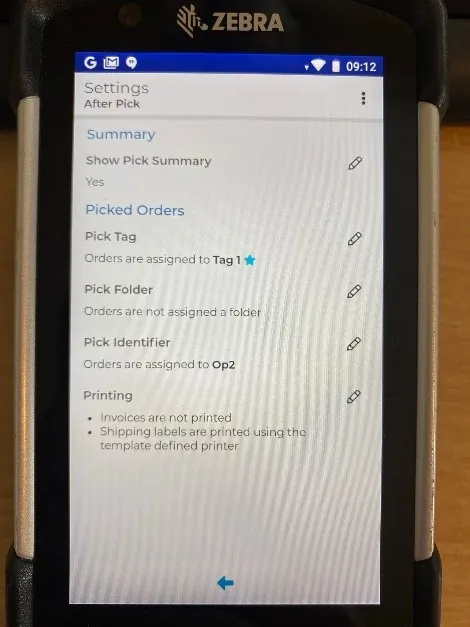
Select "Pick Tag" and set it to "Tag 1".
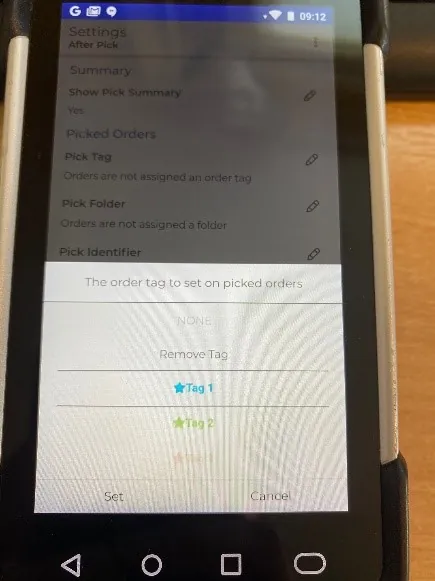
Select "Pick Identifier" and confirm with Management which number should be allocated.