Adding eBay Categories SOP
As new products are procured, we will have to list them to our eBay channels.
Overview#
Purpose: As new products are procured, we will have to list them to our eBay channels. Sometimes, our products are applicable to new models. In these cases, it is usually needed to add a new eBay category to our channels to better accommodate the needs of our customers. The purpose of this document is to outline to new and existing staff how to add eBay categories to our eBay channels.
Scope: This procedure applies to the team lead/staff in charge of listing to channels.
Responsibility: It is the responsibility of each employee to ensure the process set out in this procedure is followed.
Objective: The objective of this procedure is:
to guide employees on how to add eBay categories.
Procedure#
- Log in to eBay accounts for eBay0 (bts_trading) and eBay1 (bragan-x). Get permission first about adding an eBay category. Then, Ask management for log-in credentials. Note: Every time you will log-in to eBay, you need to notify management.
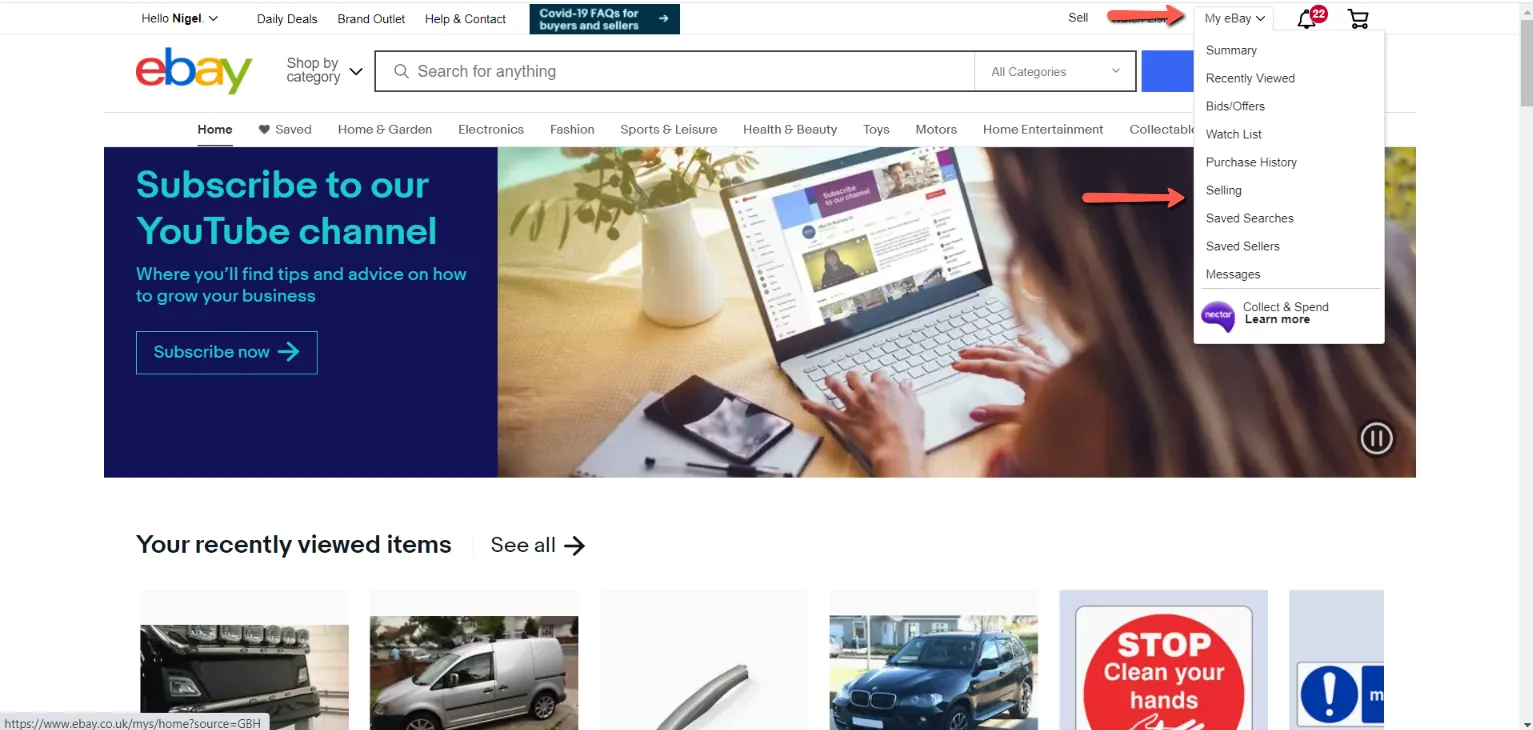
- Once logged in, go to My eBay > Selling. This will take you to the Seller Hub.
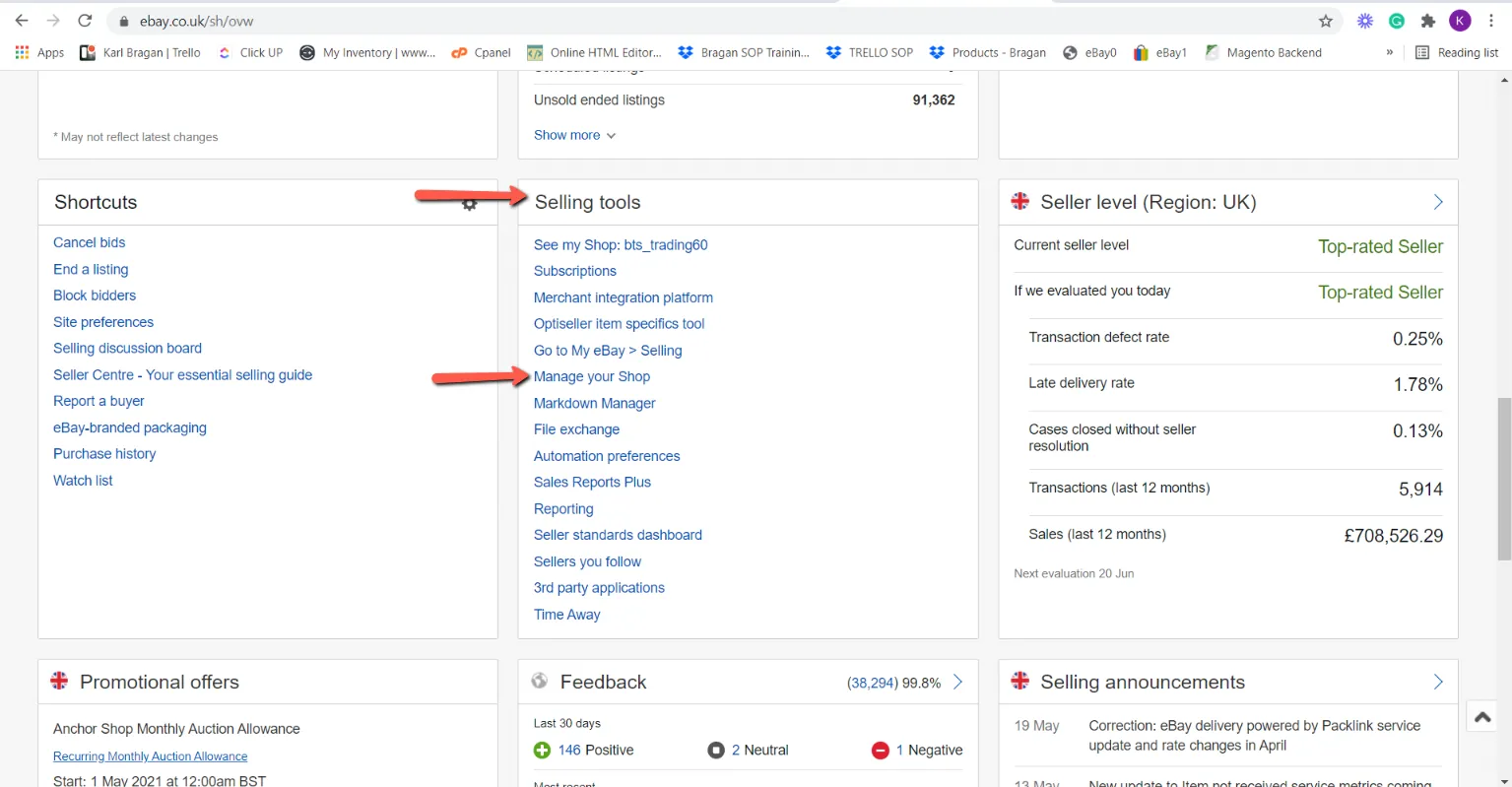
- Scroll down and look for “Selling Tools”. Under it you will find “Manage your Shop” or “Manage Shop”. Click on it and it will take you to the “Manage My Shop” window.
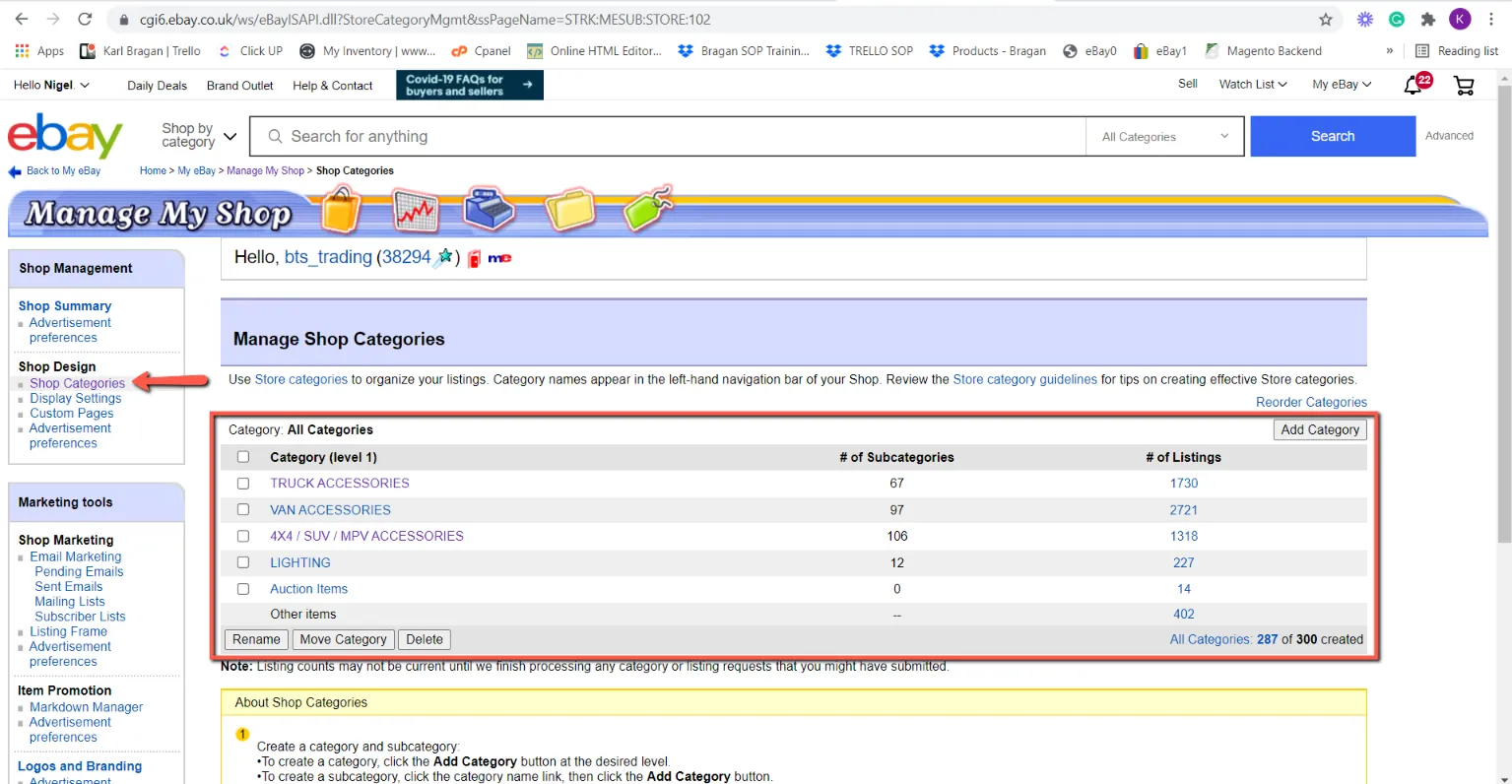
- In the Manage My Shop window, under Shop Design, click on Shop Categories. From there you would navigate the path to where you would put your new category. Let’s take Volkswagen Touareg 2021+ for example, it is under 4x4 > Volkswagen.
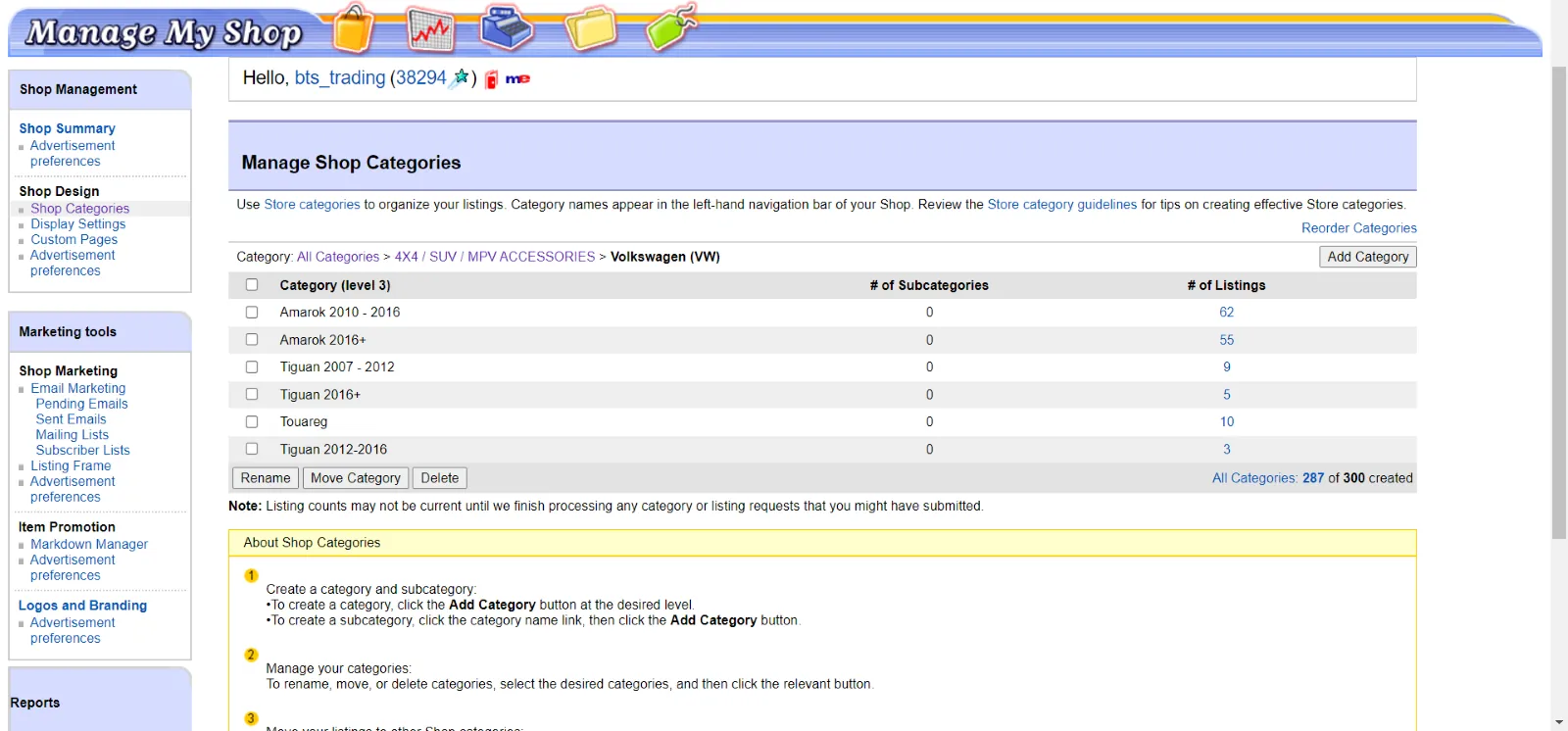
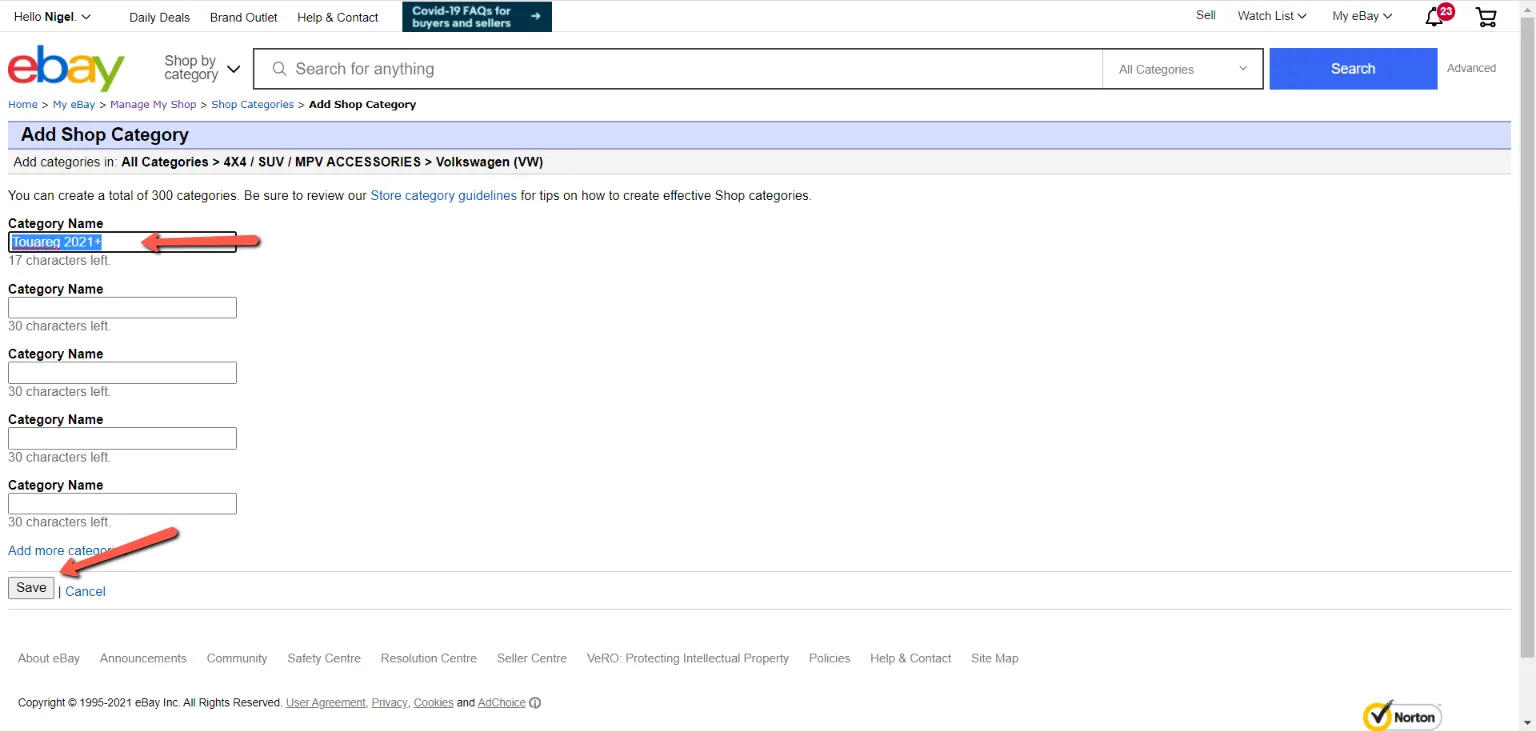
- Once you’ve navigated to the designated location of the new category, click on add Category at the top right. You will be brought to Add Shop Category page. Type in the Category Name you wish to add and click Save.
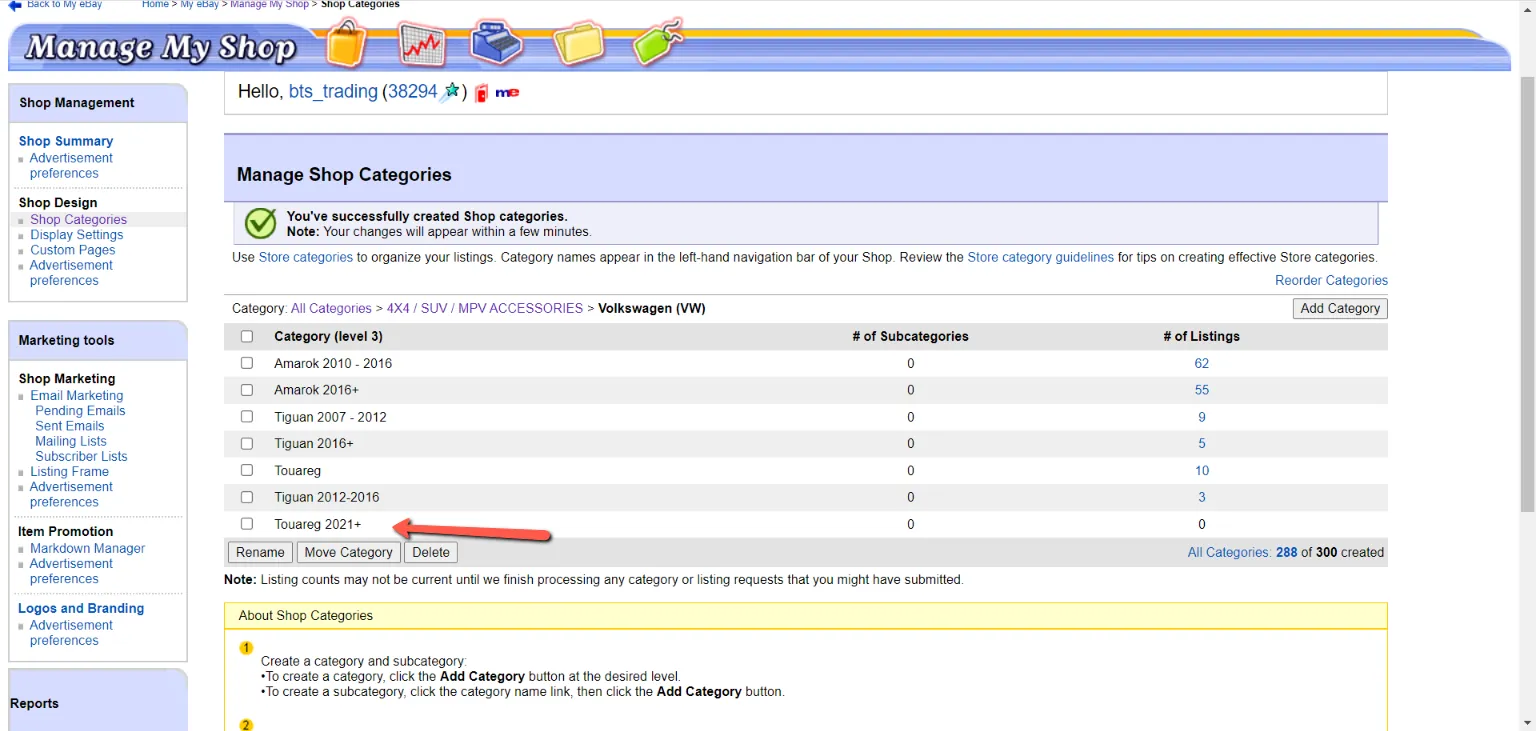
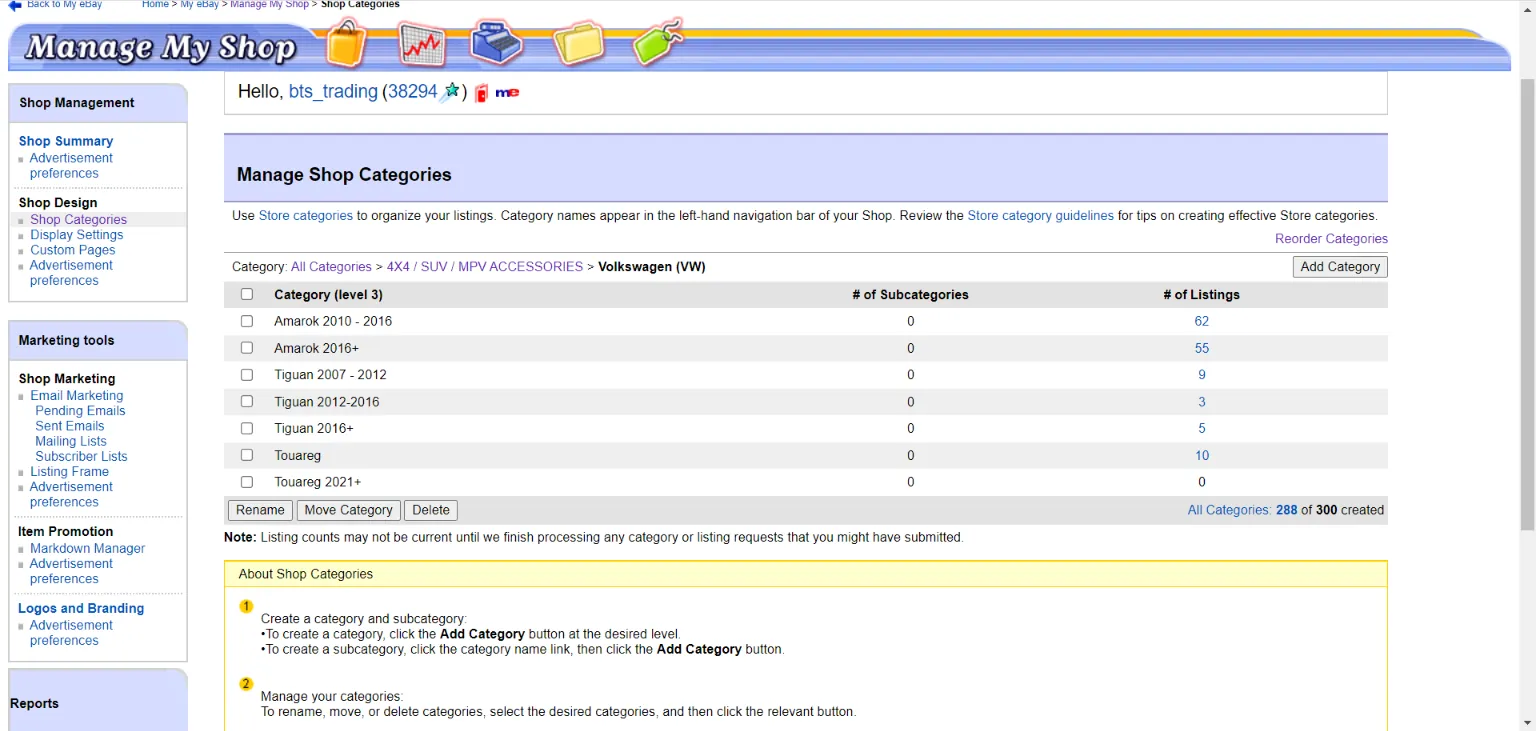
- It will take you back to the manage Shop Category page. Now, your added category would be visible there as well.
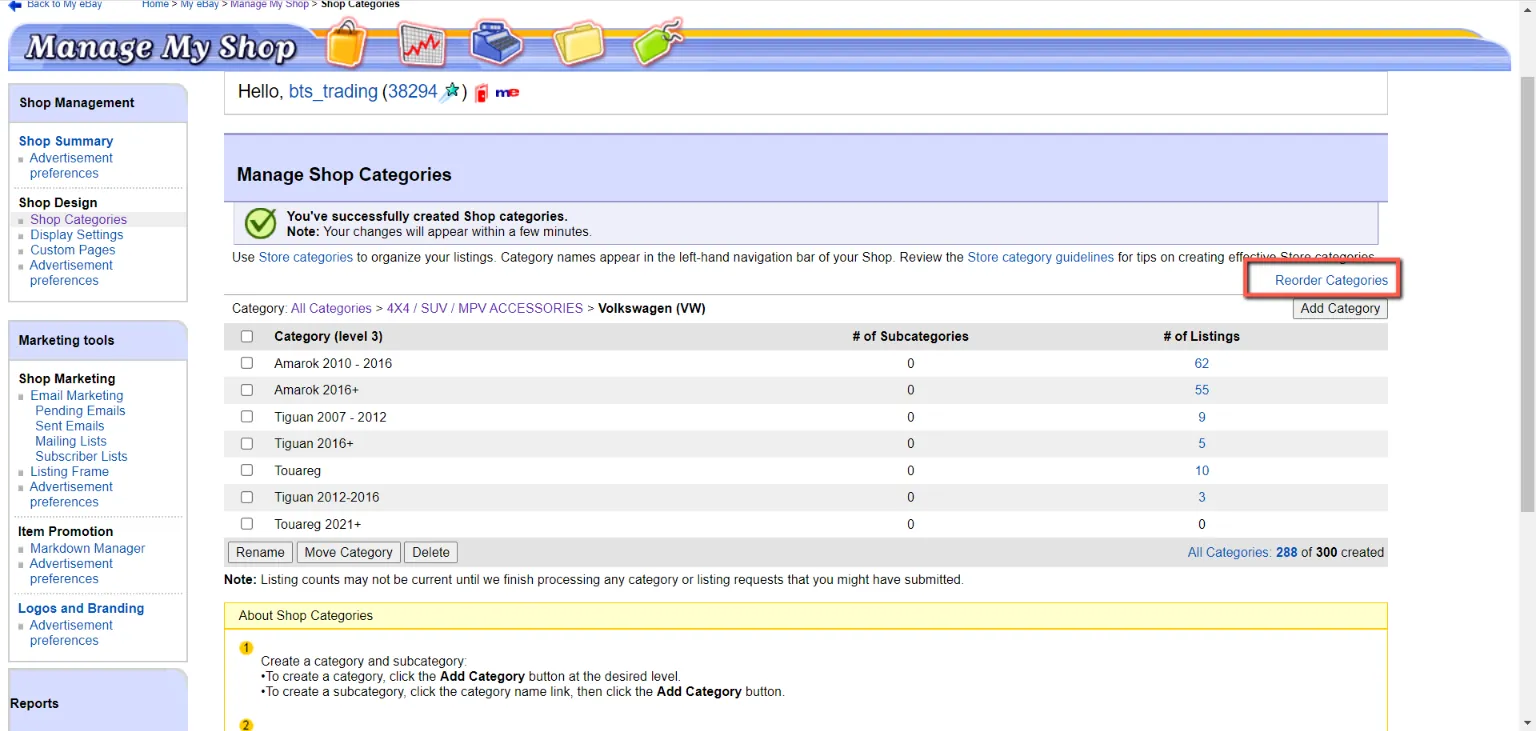
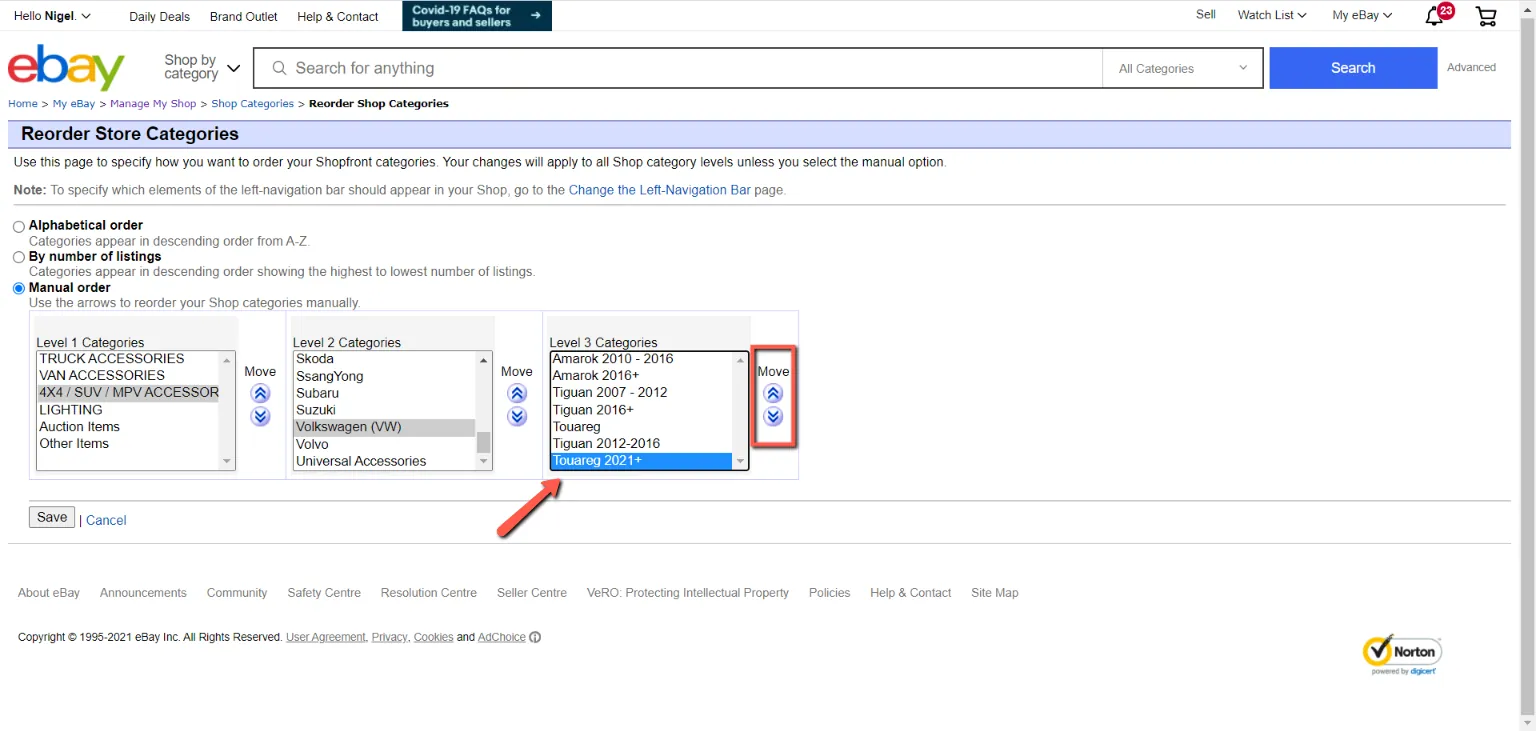
- To rearrange the categories click on Reorder Categories. This will take you to Reorder Store Categories.
- Navigate again to the path where you want to reorder the categories. Click on the category you wish to change the position then click on the move buttons on the side to move it up or down the list. Would be best to rearrange categories alphabetically then numerically for the years.
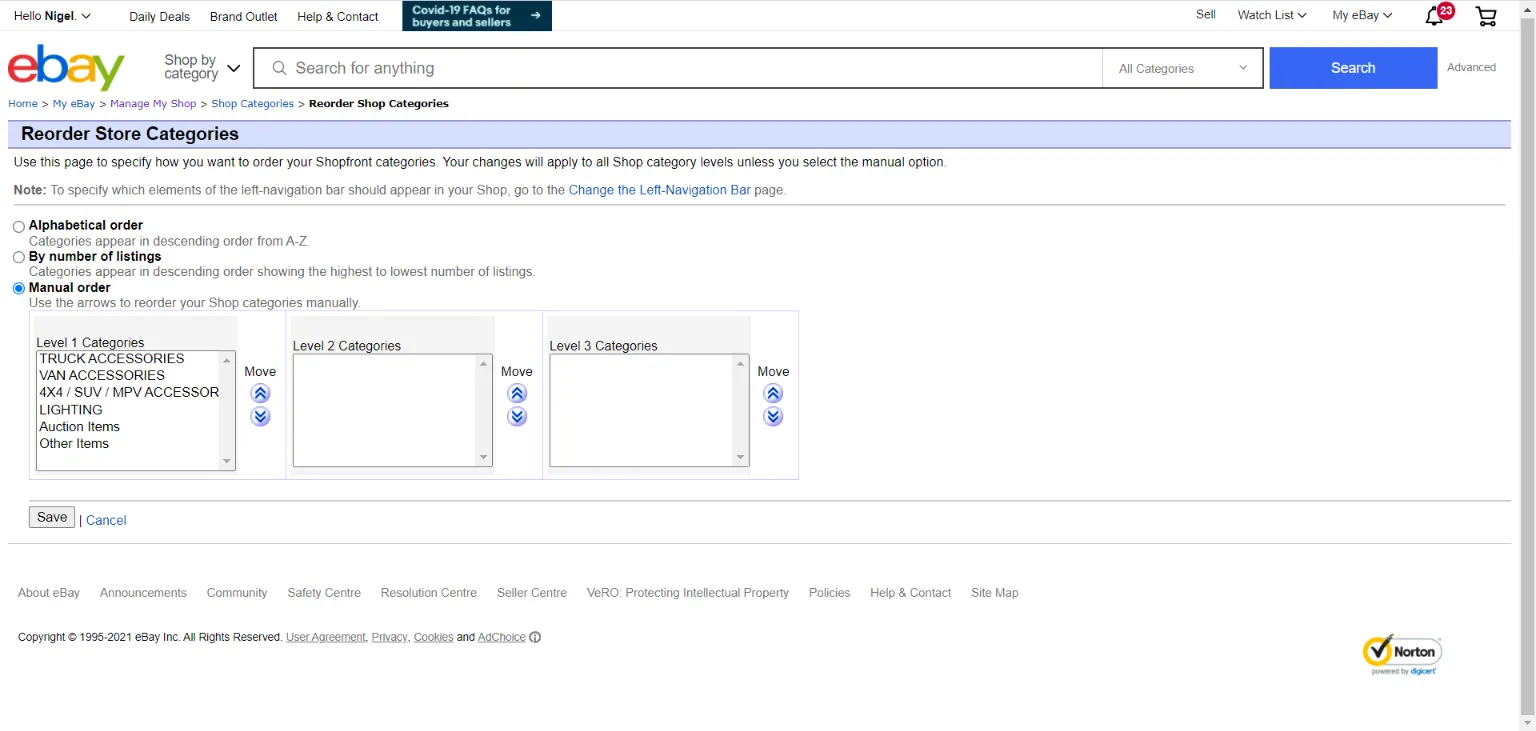
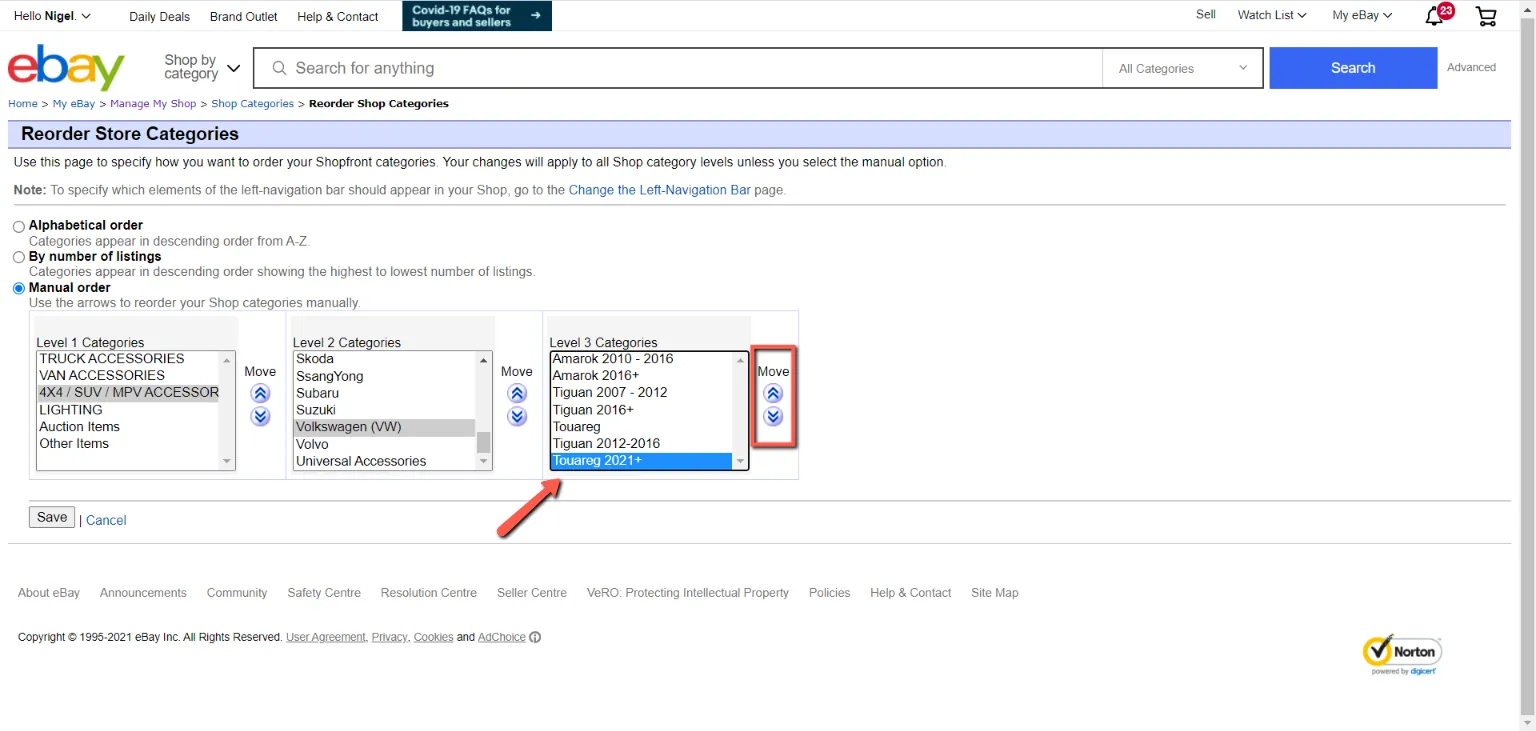
- Now that the categories are arranged, click on save. Check to see the results by navigating again to the path where you did the reorder.
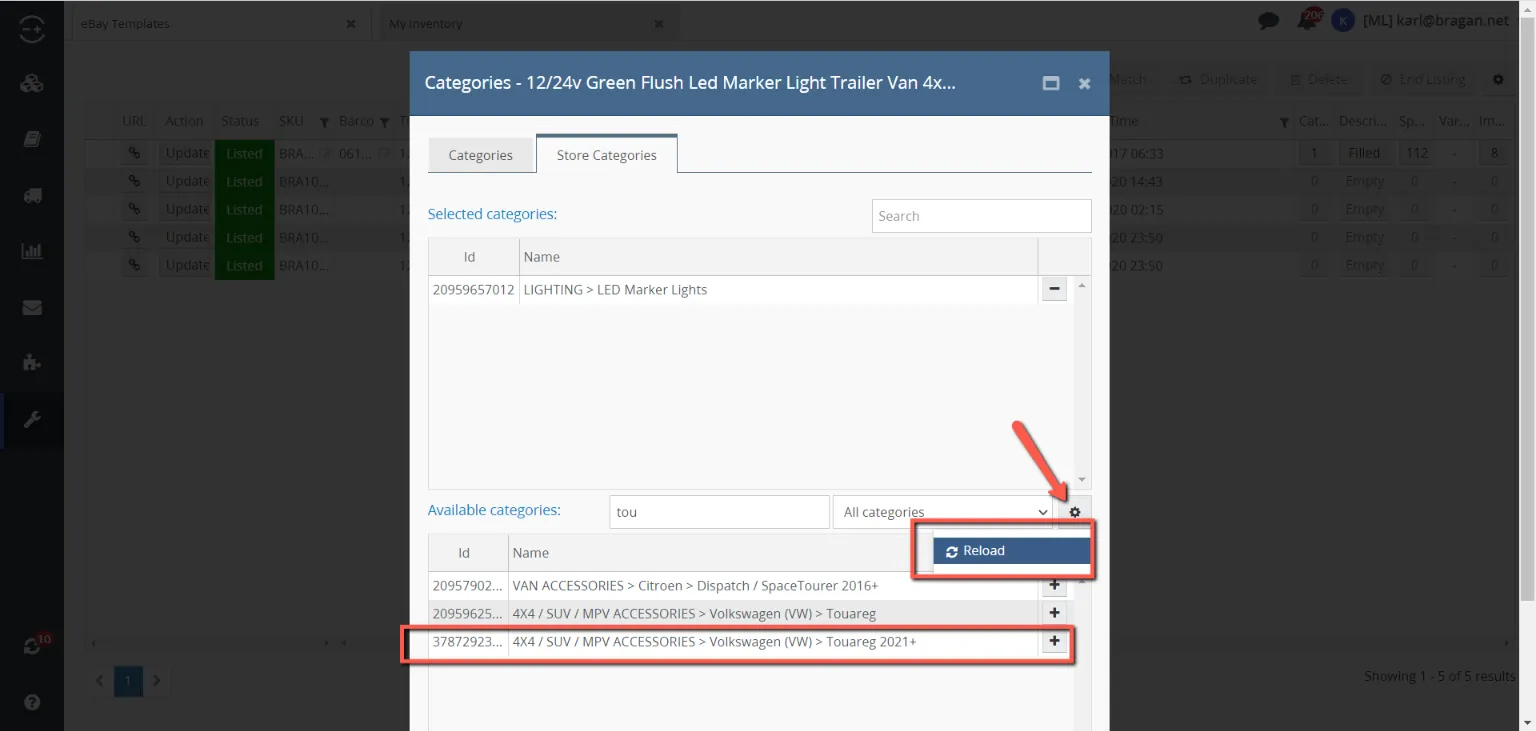
- You can double-check if you’ve successfully created the category when you take an eBay template in Linnworks and search for the created category in Store Categories > Available Categories. Make sure to set the search parameter to All categories and not Configurator categories. It would take about 5 minutes for the new category to reflect in Linnworks. If you search it and it’s still not present. Click on the gear icon and click reload.
Video & Media#
Notes#
This section is important so Adhoc points and issues can be logged. Also, Q&A can be logged for suggestions for potential issues encountered. Also, log important notes needed for this system. Additional Notes:
This SOP helps Bragan personnel to create categories in eBay.
Potential Issues:
1 - ISSUE ENCOUNTERED: Stuck on Loading
RESOLUTION: Refresh Browser
2 - ISSUE ENCOUNTERED: Broken Links
RESOLUTION: Get the external link as this will allow other people to access the SOP without the need for login credentials and avoid broken links.
Attachments#
eBay0_Categories_New.xlsx 16/12/2025
Ebay1_Categories_New.xlsx 16/12/2025