Creating Categories in New Magento
The purpose of this SOP is to guide Product Lister agents in creating a new category
Overview#
Purpose: The purpose of this SOP is to guide Product Lister agents in creating a new category in the M2 Back-end.
Scope: This procedure applies to all Product Listers.
Responsibility: It is the responsibility of all employees to ensure that the process set out in this procedure is followed.
Objective: 1. To serve as a guide to agents on how to create a new category in Magento.
- To serve as a guide to agents on how to sync new category to Linnworks.
Adding Magento Categories
Creating Categories#
The category structure of the Magento catalog is like an upside-down tree, with the root category at the top. Each section of the tree can be expanded and collapsed. The first level of categories below the root typically appears as options in the main menu. You can create as many additional subcategories as needed. The category ID number appears in parentheses after the category name at the top of the page.
Step 1: Login Magento back-end#
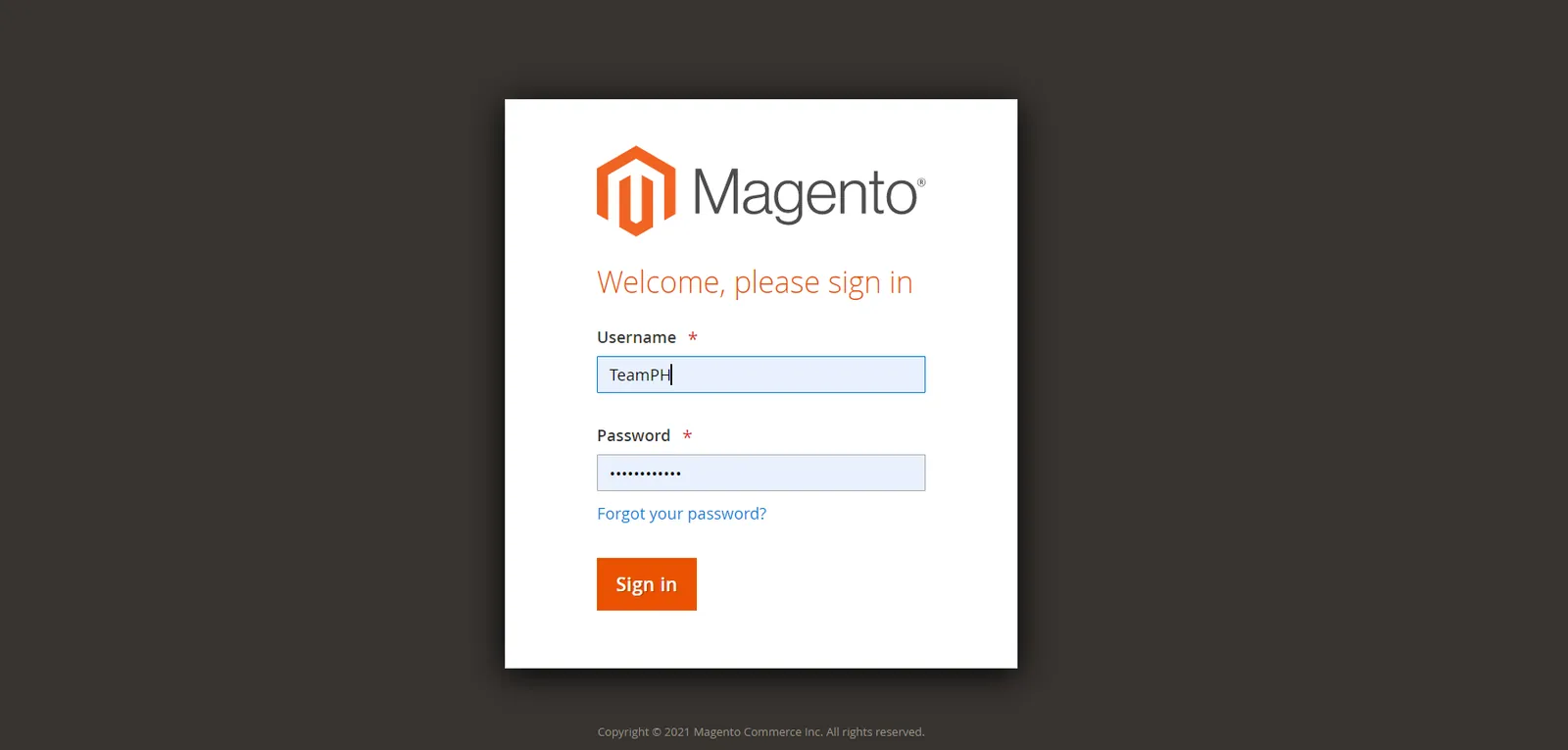
Note: Ask for login credentials from the management. Be extra cautious when using the Magento back-end because this is for the live listings on the Bragan Website store.
Step 2: Create a Category#
- On the Admin sidebar, go to Catalog > Categories.
- Set Store View to determine where the new category is to be available.
- In the category tree, select the parent category of the new category. (The parent is one level above the new category.)
- Click Add Subcategory.
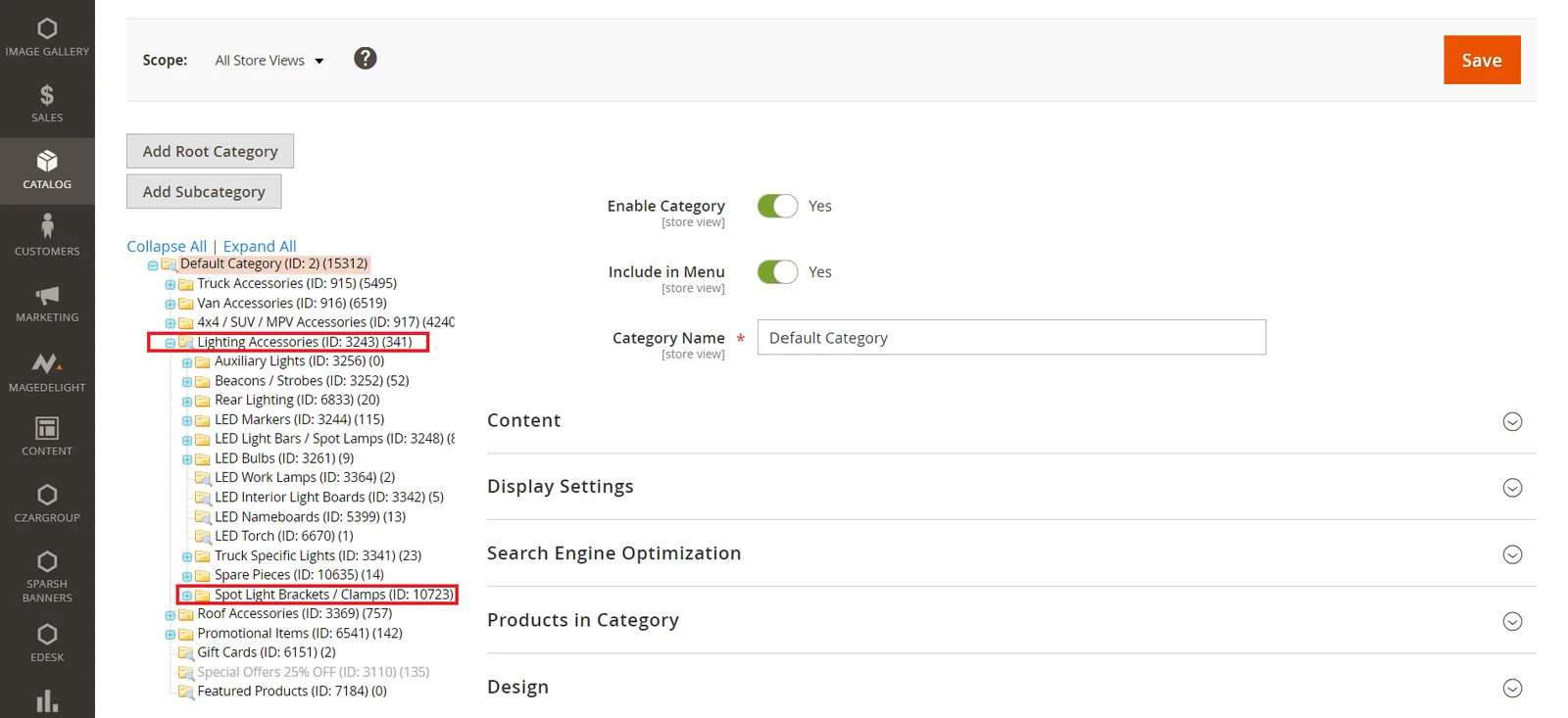
Note: For this example, a new sub-category category under Lighting Accessories will be created. The new sub-category will be for "Spot Lights Brackets / Clamps"
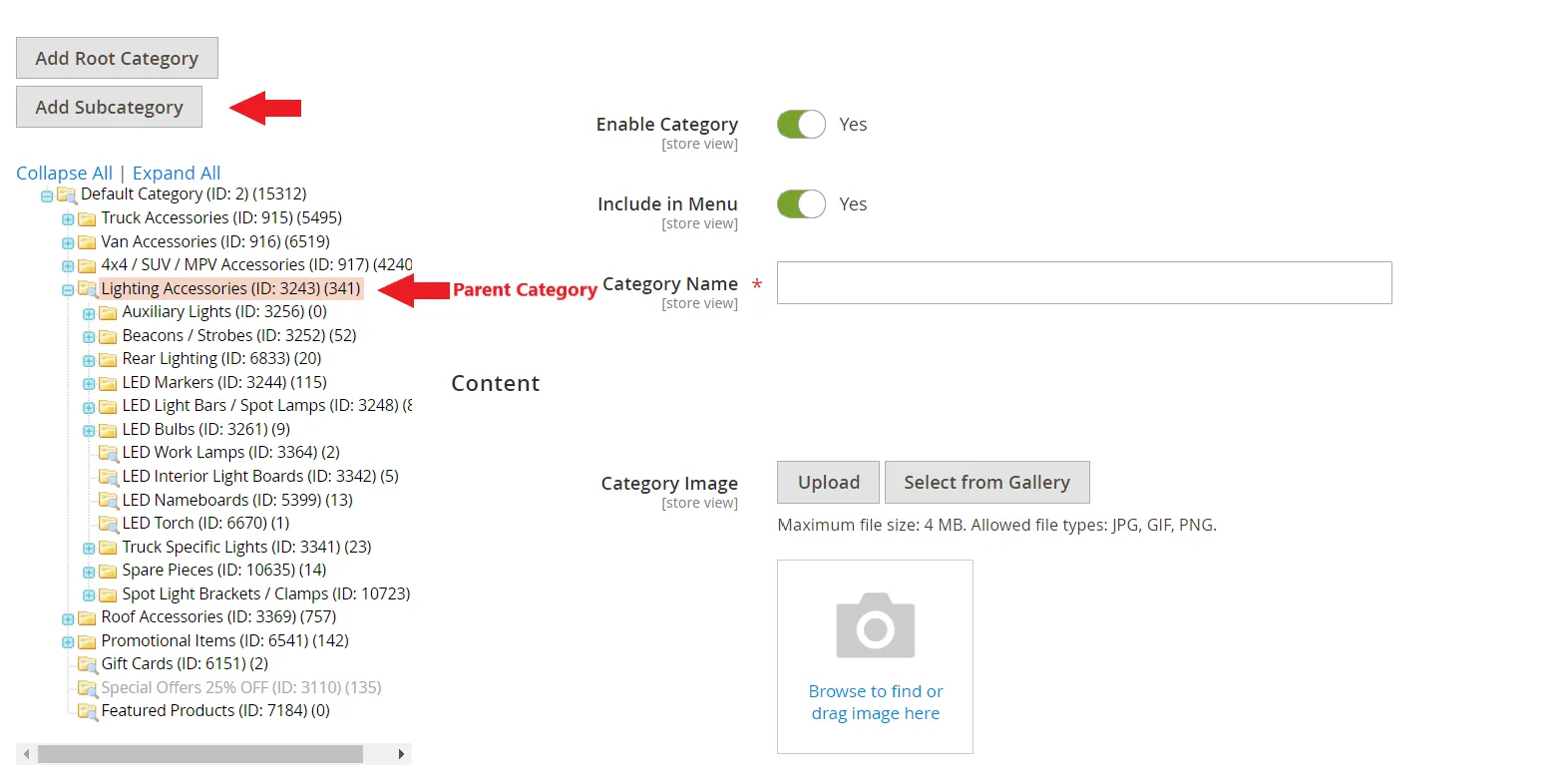
Step 3: Complete Basic information#
- If you want the category to be immediately available in the store, set Enable Category to Yes.
- To include the category in the top navigation, set Include in Menu to Yes.
- Enter the Category Name.
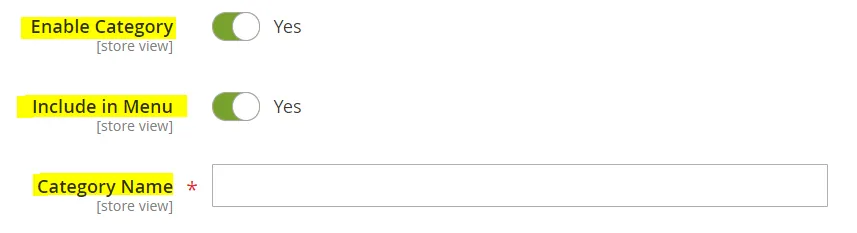
- Click Save and continue.
Step 4: Choose the products in the category#
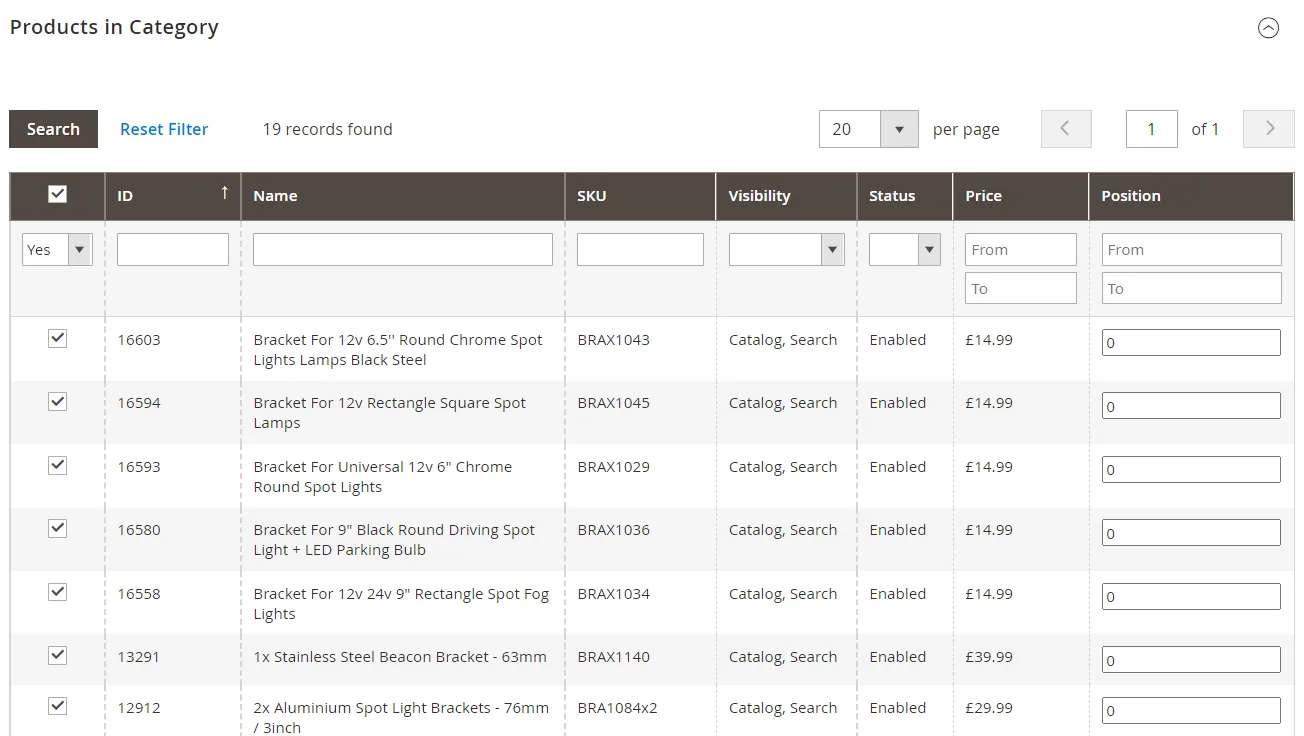
- Expand the Products in Category section.
- Use the filters as needed to find the products.
- To display all records that are not yet included in the category, set the record chooser in the first column to No and click Search.
- In the first column, select the checkbox for each product to include in the category.
Note: It is very important to add the products so that the new sub-category will be visible to the Navigation Menu and Mega Menu on the Bragan Website.
Once all the Basic Information and Products are added to the new sub-category "Spot Lights Brackets / Clamps". It will look like this in the category tree.
Step 5: Cache Management#
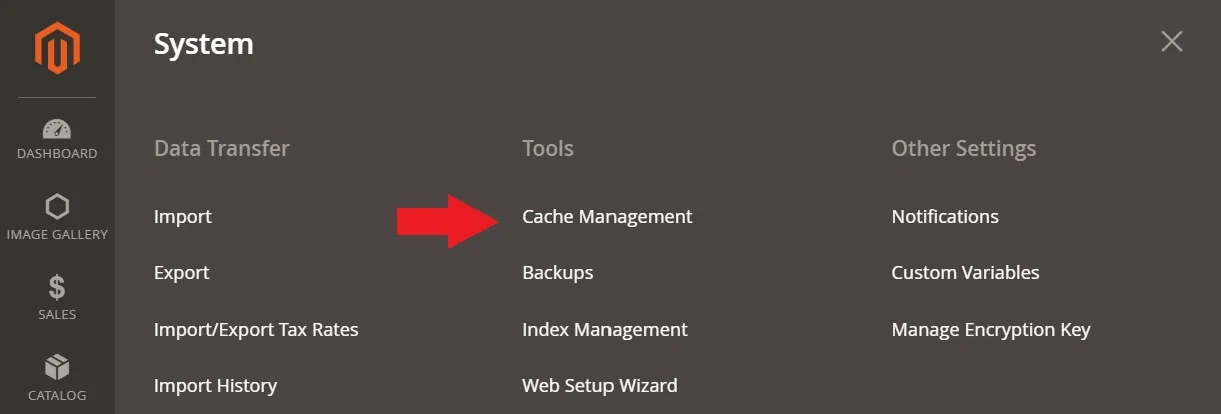
- On the Admin sidebar, go to System > Cache Management.
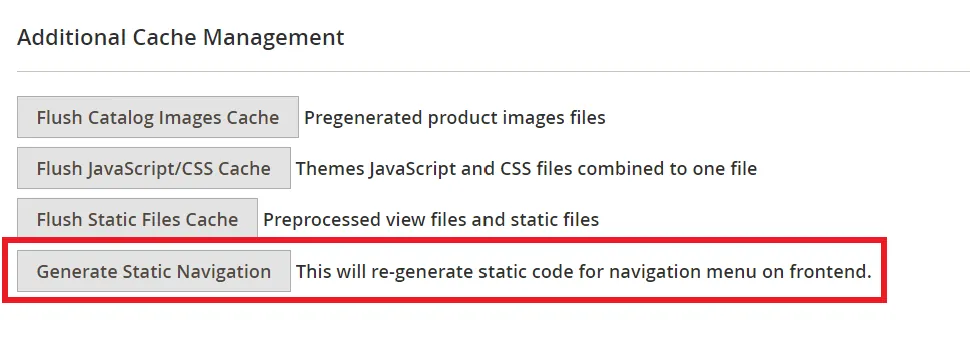
- Go to the Additional Cache Management section at the bottom.
- Click Generate Static Navigation button.
Note: This will re-generate static code for the navigation menu on the frontend. This step is very important so that the new sub-category will be shown in the
Navigation and Mega Menu on the Bragan Website.
Step 6: Check the Bragan Website#
It is very important to check if the new sub-category is added to the navigation menu and mega menu.
Step 7: Update in Linnworks#
This is an additional step to sync the new category in Linnworks.
- Go to Linnworks > Settings > Configurators > Others
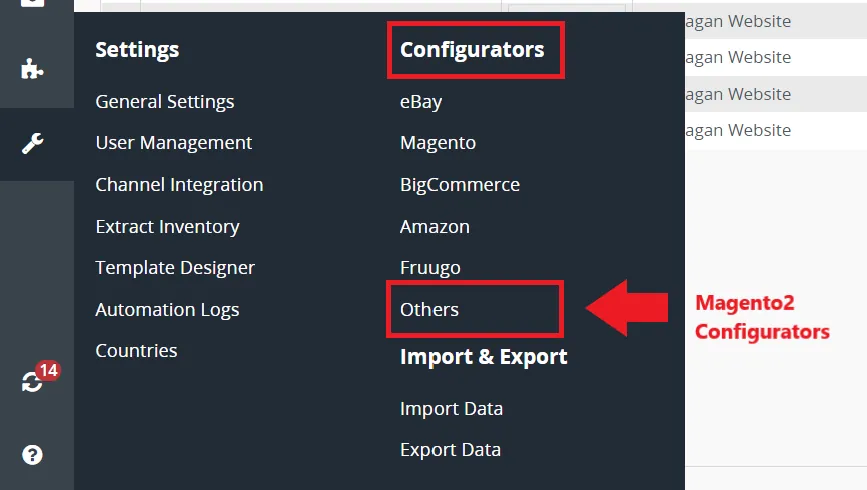
Note: Magento is for the old Magento and Others is for Magento2.
- Magento2 Configurators window will show up.
- Select the required configurator(s) that need the new category > Click Refresh Categories
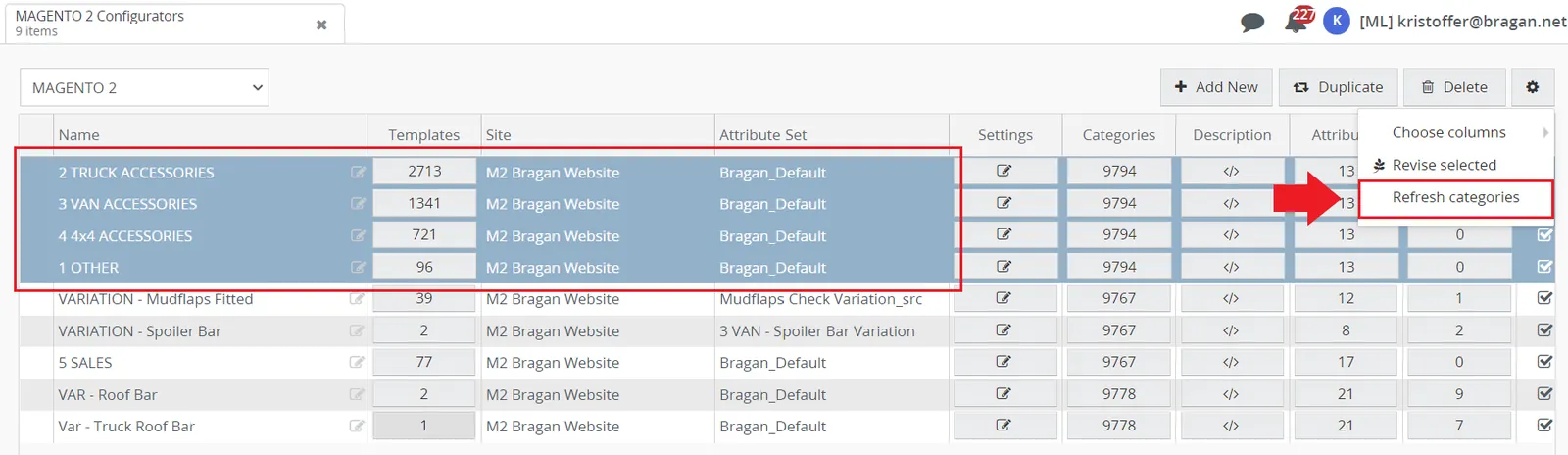
Note: This will take time to refresh wait for the new category to show up in the categories.
- Double click the number under Categories, example image above 9794. View below will appear upon double-clicking the number. The new category will be added to the "Available Collections" Section below. Click the add button (+) for it to be added in the selected categories. Make sure to add the new category to all the configurators selected.
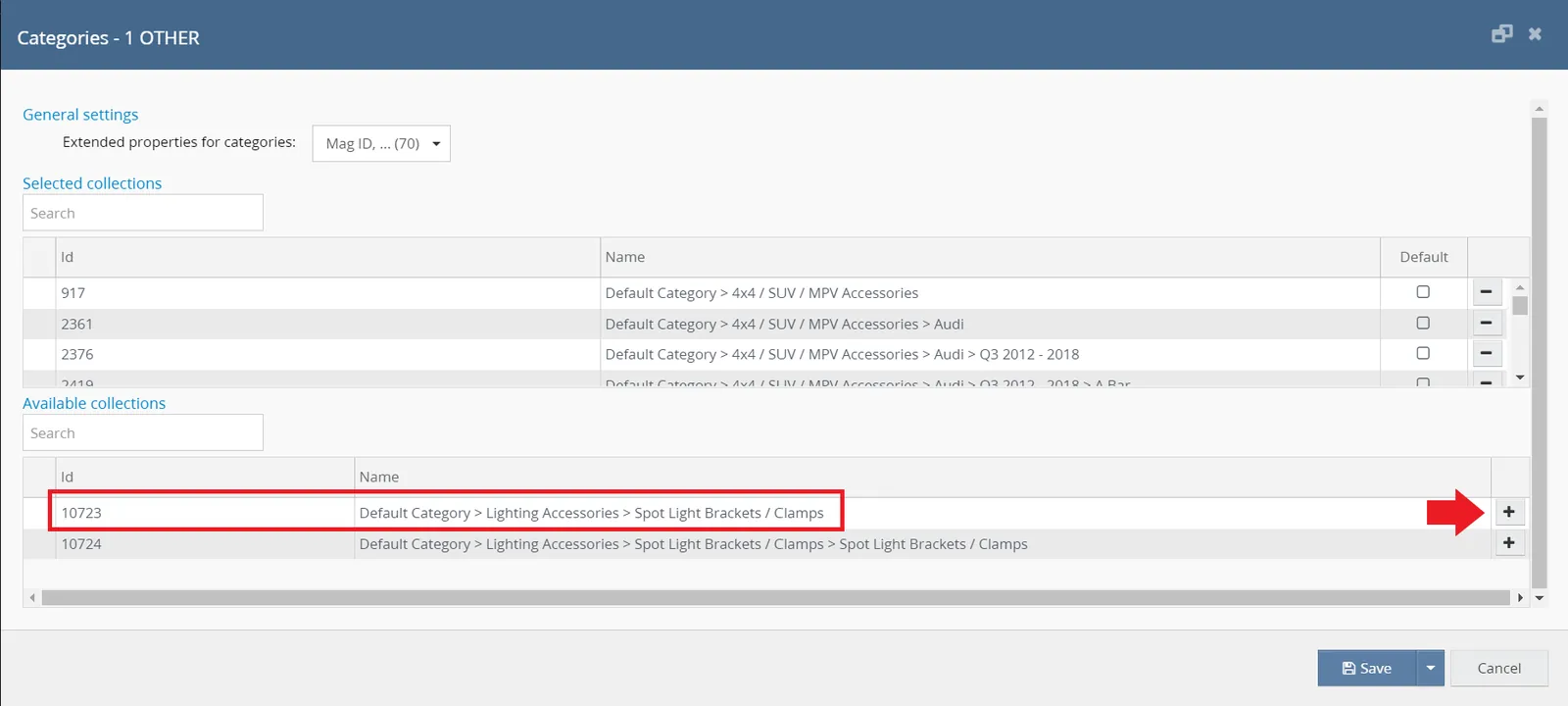
- Click Save and Check if the category is selected in the configurators.
If the categories are still not appearing, check on your Magento backend if the Root Category defined in your Store page matches the Root Category defined in your Catalog page:
Magento 1:
System > Manage Stores > Store Name the root category has to match the root category in Catalog > Manage Categories.
Magento 2:
Stores > All Stores > Store the root category has to match the root category in Catalog > Categories.
Notes#
This section is important so Adhoc points and issues can be logged. Also, Q&A can be logged for suggestions for potential issues encountered. Also, log important notes needed for this system. Additional Notes:
It is very important the all the basic information should be correct - Category Name. It is very important the new sub-category is under the correct parent category. It is very important to add all the products/items to the new sub-category.
It is very important that the Cache Management > Generate Static Navigation step should be followed so that the new sub-category will be shown in the Navigation and Mega menu on the Bragan Website. It is very important to sync the new category in Linnworks Website.
Potential Issues:
1 - ISSUE ENCOUNTERED: Stuck on Loading
RESOLUTION: Refresh Browser
2 - ISSUE ENCOUNTERED: Broken Links
RESOLUTION: Get the external link as this will allow other people to access the SOP without the need for login credentials and avoid broken links.
3 - ISSUE ENCOUNTERED: "New Category not Showing in Navigation and Mega Menu"
RESOLUTION: "Double check if products are linked to the new sub-category and do the Cache Management > Generate Static Navigation step again"