eBay General Account overview SOP
To understand how the back end of eBay is set out and the different sections you
Overview#
Purpose: To understand how the back end of eBay is set out and the different sections you will need.
Scope: This applies to all Bragan personnel.
Responsibility: To give all Bragan personnel the standard system about eBay general account overview.
Objective: Knowledge of there to go in the back end of eBay for specific tasks.
- Seller Hub
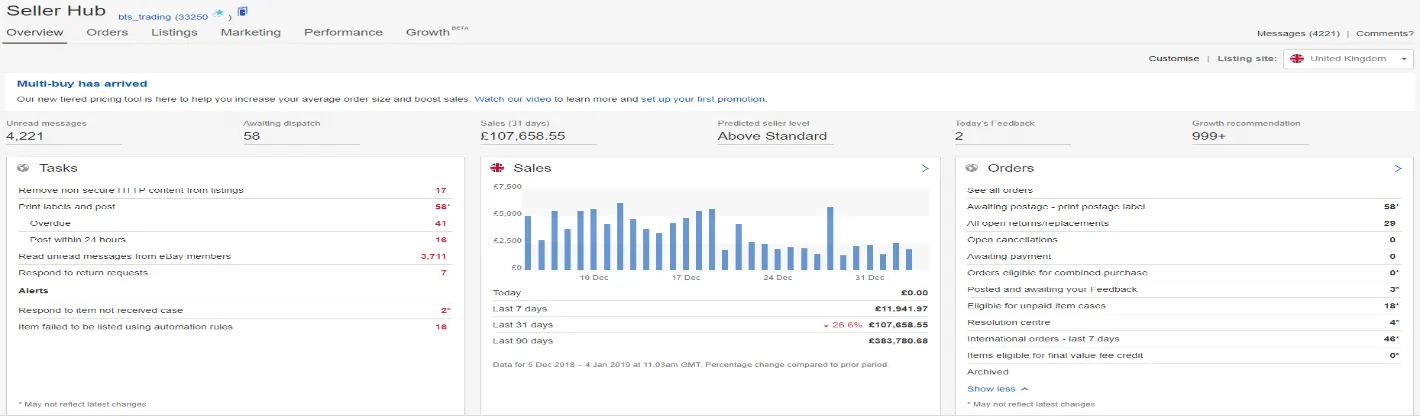
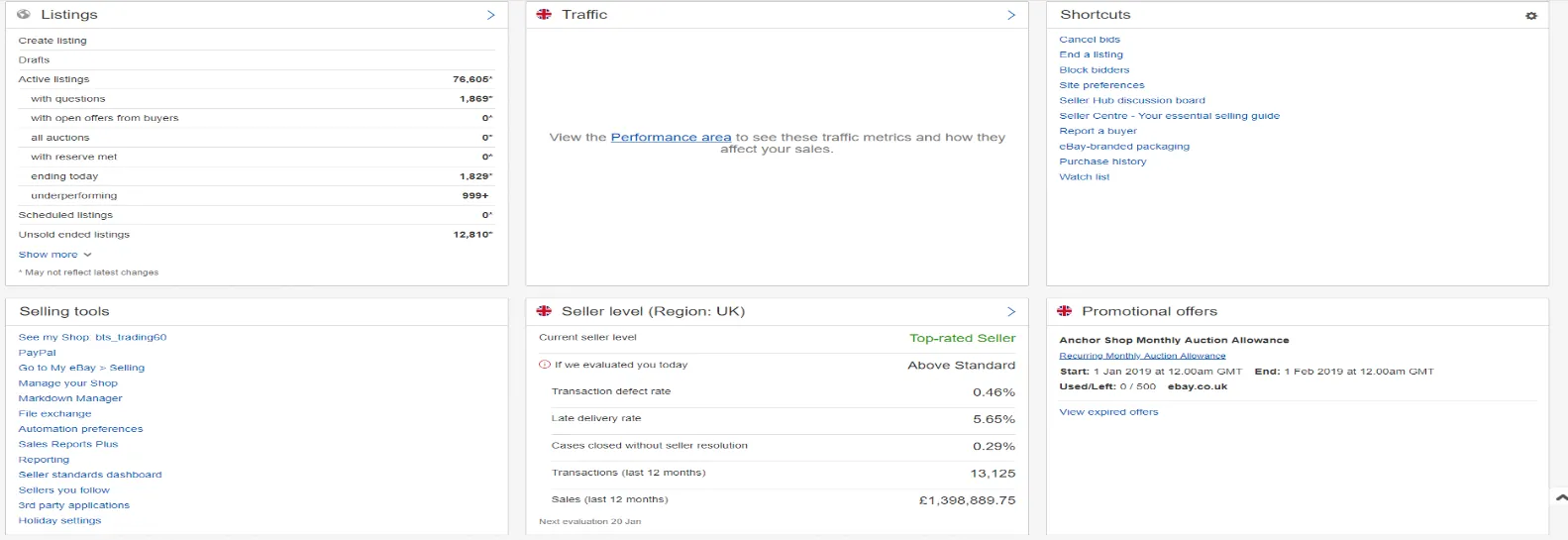
Below is the main seller’s hub on our eBay site. There is a lot of information here (some of which you need to be aware of & some of which you don’t)
A lot of the info is fairly self-explanatory, if you click on ‘Sell all orders’ which is placed to the top of the right-hand side – this is to show all the orders that are open in our system, on the next page you can search a customer order by using the search bar at the top
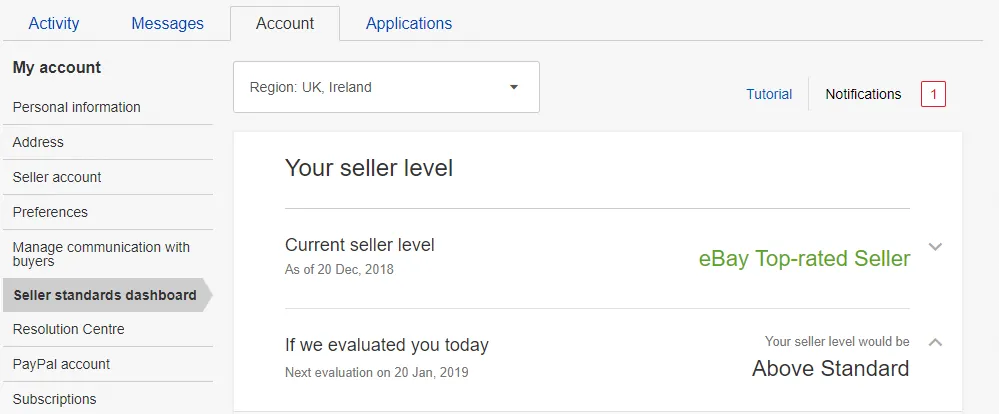
The main two headings you will be interested in after this will be the ‘Feedback’ & ‘Seller Level’ headings.
- Feedback
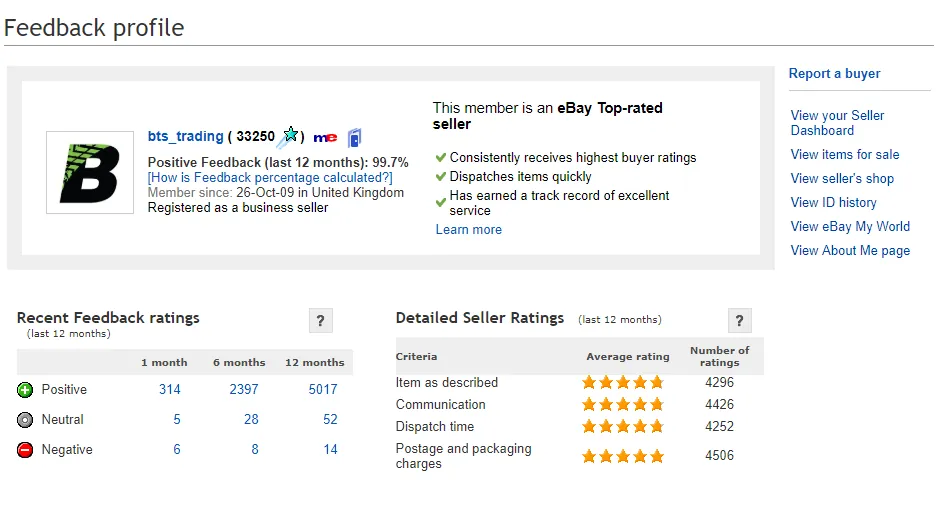
In this section, we can see the Feedback (Positive / Neutral & Negative). Obviously, we want to avoid Neutral & Negative comments but unfortunately, this is not always possible. Even when the customer does leave a Neutral or a Negative, we can still get these removed by either contacting the Concierge team in eBay (Screenshot below) or we can come to an arrangement with the buyer to remove the feedback (this will be explained in another eBay workflow)
We can also get these comments removed by submitting an eBay defamation – (explained further in another eBay SOP). An eBay defamation will in some cases remove the full comment and score which is counted against you, and in other cases, it will remove the comment only
NB: The comment and score will be removed if an eBay policy has been violated through the comment the buyer has left.
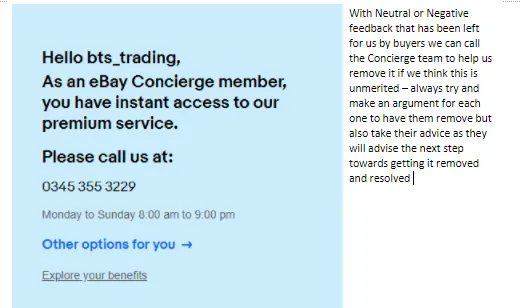
Failing that – we would always ask the customer to change the feedback or ask what we can do to resolve and sort out the issue that they had whether this be through offering some partial refund or sending replacements etc.
- Seller Level
Here we can see the level we are operating on (Top-rated / Above Standard / Below Standard) – this is based on different factors & obviously, the higher-rated you are the better sales and promotion of your listings you will get (i.e. top of the search in eBay)
Different factors are:
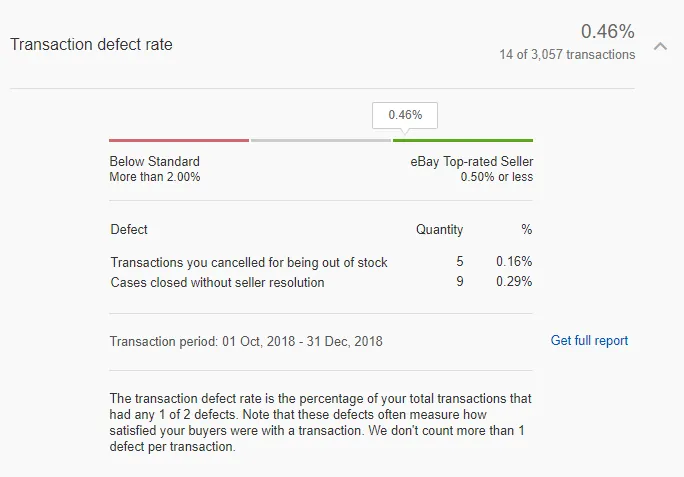
Transaction defect rate (Ref Figure 1 in appendix) – needs to be below 0.50%. Within this you are scored on two different things:
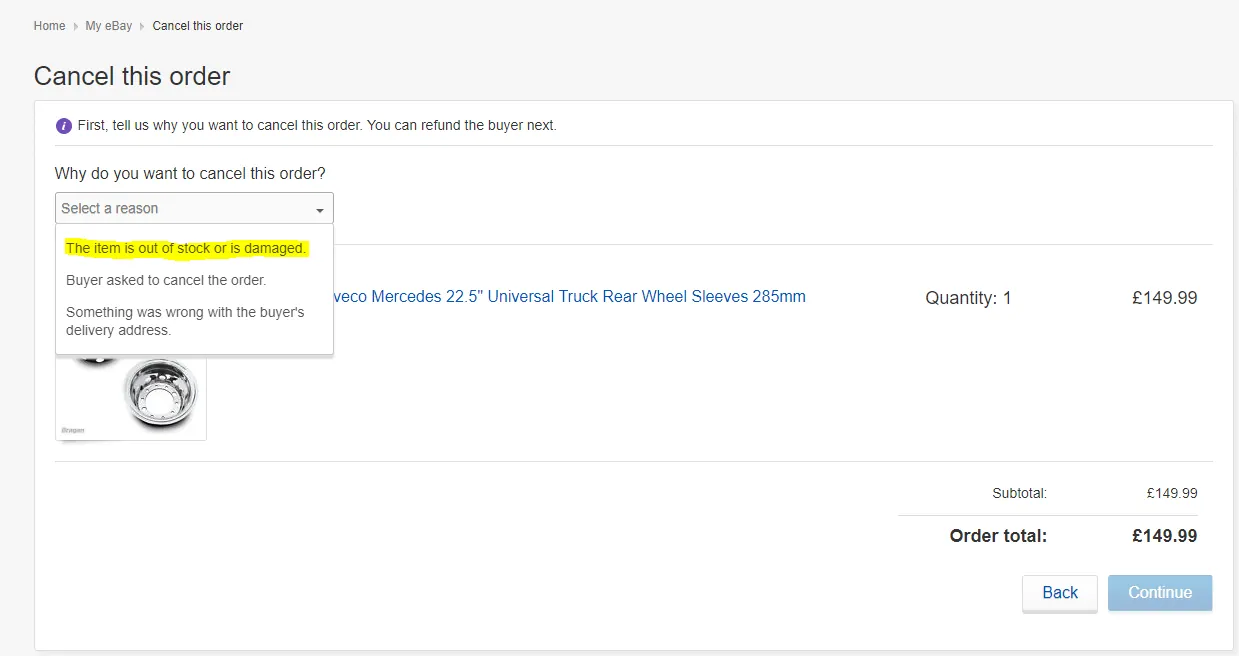
- Transactions you canceled for being out of stock. There are two ways this can be picked up from eBay as being canceled for being out of stock. Number one is that when we manually canceled the order for being out of stock. When canceling an order, you will have to choose one of 3 options (one of which is for being out of stock – you NEVER select this option). This will be explained with screenshots further below (see Figure 2 in the appendix).
- Cases closed without seller resolution – this is where a customer has opened a return request and it has not been dealt with within the 7 days of it being opened so the buyer has contacted eBay and eBay has decided to favor with the buyer. It is vital that return requests are checked twice daily and that issues are dealt with ASAP so to avoid a case being left opened.
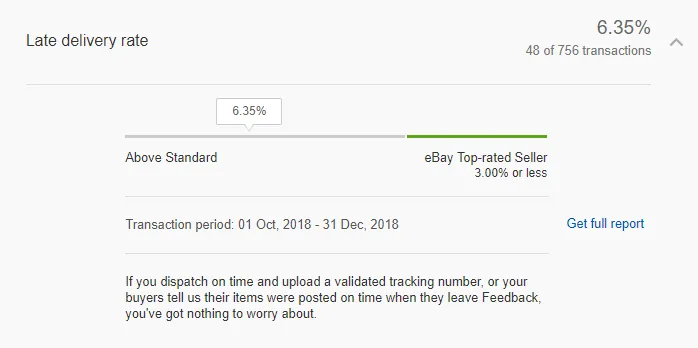
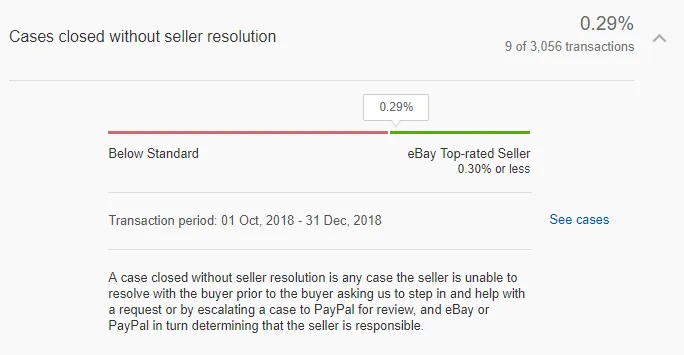
Late delivery rate – (Ref Figure 3 in appendix) – needs to be below 9% for ABOVE STANDARD, below 3% for Top-rated Seller. Defects that are noted here can be removed through eBay concierge if the tracking shows dispatched and delivered on time. Cases closed without seller resolution – (Ref Figure 4 in appendix) – needs to be below 0.30%. This is where the buyer has opened a return request perhaps and it has not been dealt with within the 7 days (days can vary) and they have asked eBay to step in and eBay has then sided with the buyer. These can be appealed and removed through eBay concierge if we can prove additional info etc.
NEVER choose ‘The item is out of stock or is damaged’, ALWAYS choose one of the other two options.
Notes#
This section is important so Adhoc points and issues can be logged. Also, Q&A can be logged for suggestions for potential issues encountered. Also, log important notes needed for this system. Additional Notes:
This SOP is beneficial for agents to understand how the back end of eBay is set out and the different sections you will need.
Potential Issues:
1 - ISSUE ENCOUNTERED: Stuck on Loading
RESOLUTION: Refresh Browser
2 - ISSUE ENCOUNTERED: Broken Links
RESOLUTION: Get the external link as this will allow other people to access the SOP without the need for login credentials and avoid broken links.