How to Make Listing Private in Magento Backend
The purpose of this document is to outline the process to make a listing private in
Overview#
Purpose: The purpose of this document is to outline the process to make a listing private in Magento Backend.
Scope: This procedure applies to all Product Listers.
Responsibility: It is the responsibility of each employee to ensure the process set out in this procedure is followed.
Objective: The objective is to provide a standardized step-by-step guide for product listers to make a listing private.
Step 1: Login Magento back-end#
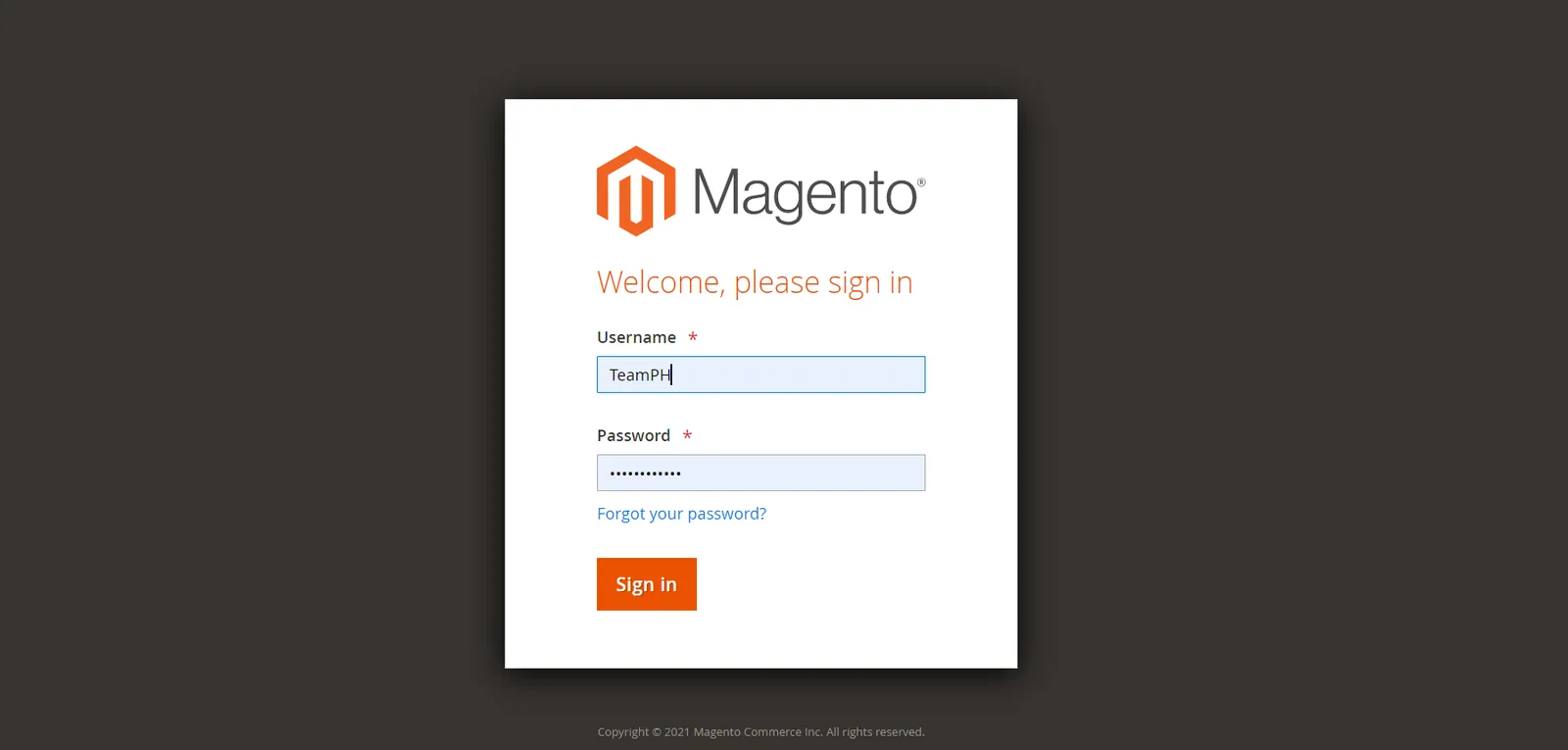
Note: Ask for login credentials from the management. Be extra cautious when using the Magento back-end because this is for the live listings on the Bragan Website store.
Step 2: Find the SKU / Product#
- On the Admin sidebar, go to Catalog > Products.
- Look for the SKU and click EDIT.
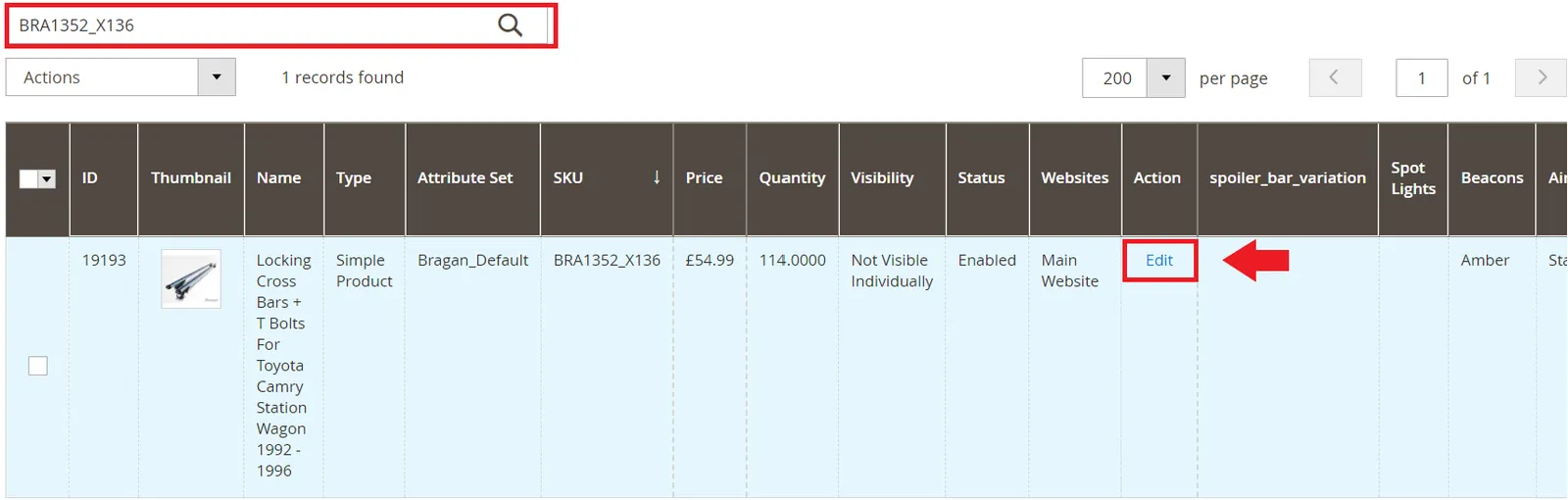
Note: Ensure that the correct SKU is selected. These are all live listings in the Magento Backend so be careful when editing.
Step 2: Edit SKU / Item Settings#
- Under General Tab > product details
- Set Visibility > Not Visible Individually
- Set Allow Only From Url > YES
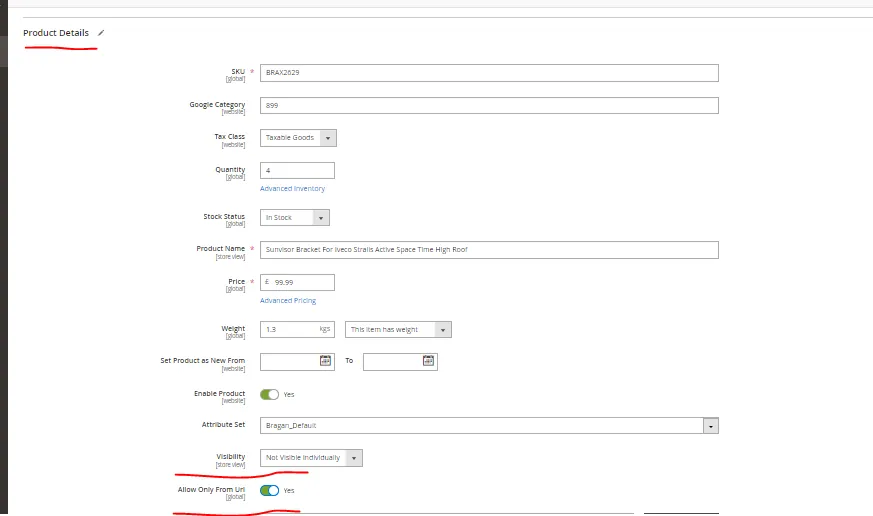

Note: Make sure that you have set these settings to both the store views of the SKU / Item in the magento backend.
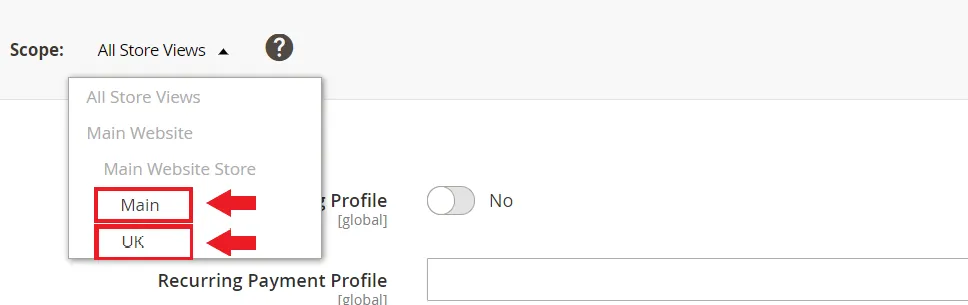
In the UK View, "Use Default Value" > Must be CHECKED.

Step 3: REINDEXING#
Once all the steps are done. Make sure that you do reindexing from the Magento Backend (take help from the developer as this is a command line). Or this will run also automatically during the day after listing it. (if it is not reindexed by the developer).
Also, you need to remove all MAG IDs in extended property in Linnworks then revise it (reload categories, extended property).
The private listings are not visible in website and it is visible only when log into the replacement log in accounts - [email protected] and [email protected] and also via URL only. You can get the URL of the listing from linnworks.
Steps to get the URL of the private listing in Linnworks:
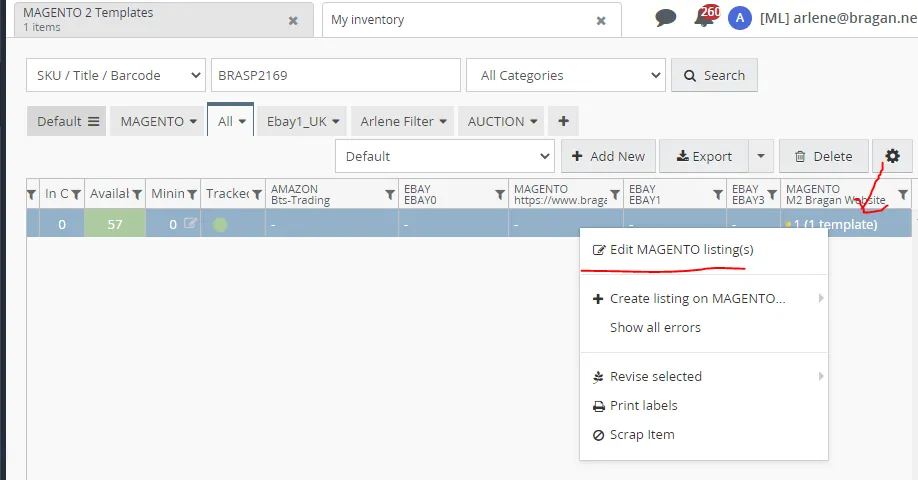
- Right click magento template and click edit magento listing
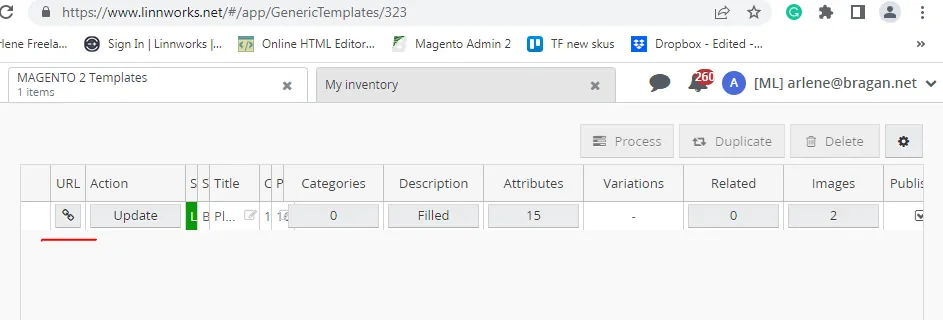
- Then click the URL button and you will be directed to the website
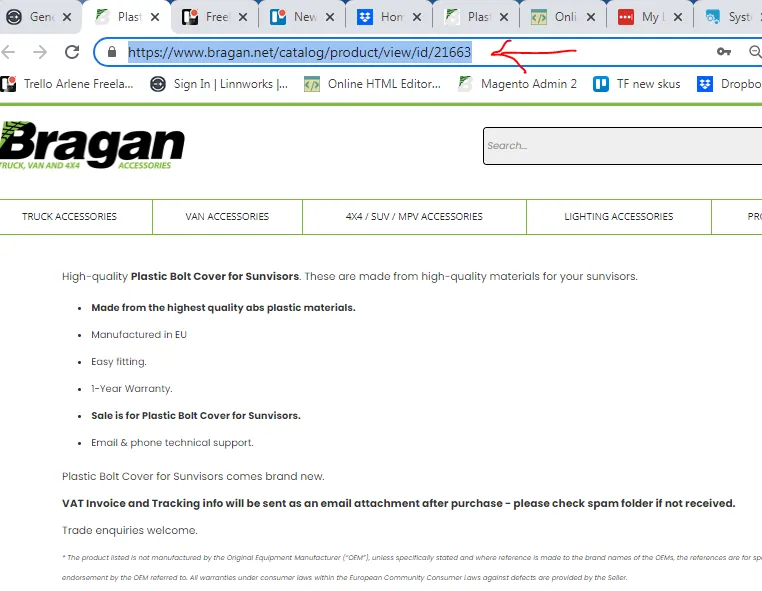
- Then you can get the URL of the listing of the website.
These items are listed as private so that these items will not show in company website, and if the customer will need spareparts or brackets for their vehicle , customer service can be able to send the link so that customer can be able to order for these. these items are usually spare from warehouse stocks and are only parts of CHL or CHD ordered items.
Notes#
This section is important so Adhoc points and issues can be logged. Also, Q&A can be logged for suggestions for potential issues encountered. Also, log important notes needed for this system. Additional Notes:
It is very important that when listing private items on the Magento Bragan
| The item should have no categories selected. Remove Mag ID both in | |
|---|---|
| Linnworks (revise extended property so that previous IDs will be removed and | |
| remove Mag ID also in magento backend. |
Private Listings are usually the Toyota Products. All Spare parts (BRASP), Brackets (BRAX), Fitting Kit (BRAHX) should be listed in magento only and set to private listing. BRAX1140 BRAX1140-BLACK and BRASP430920B are exempted for private listings, these are set as searchable in website.
Potential Issues:
1 - ISSUE ENCOUNTERED: Stuck on Loading
RESOLUTION: Refresh Browser
2 - ISSUE ENCOUNTERED: Broken Links
RESOLUTION: Get the external link as this will allow other people to access the SOP without the need for login credentials and avoid broken links.
3 - ISSUE ENCOUNTERED: Item Still Showing when Searched in BRAGAN WEBSITE.
RESOLUTION: Make sure that you have set the settings for both store views.