Linnworks Shipping SOP
All orders must be placed in a packaging group, and all items must have postage
Overview#
Purpose: All orders must be placed in a packaging group, and all items must have postage definitions as standard in Linnworks. The purpose of this document is to outline to new and existing staff how this information is created and edited, and why / how it is selected.
Scope: This procedure applies to both Team IRL and Team PH, it is universal throughout the company, however, you will need admin access to be able to view and edit packaging groups. This is not to be done without permission from management.
Responsibility: It is the responsibility of each employee to ensure the process set out in this procedure is followed.
Objective: The objective of this procedure is for all employees to fully understand:
Postage definition and how to manage it.
Packaging groups and how to manage them.
- Postage Definition
The postage definition is part of each SKU in Linnworks. This is the dimensions and the weight of the item. The postage definition must be set for every parent SKU individually. This can be done manually or through a CSV import.
1.1 Locating Postage Definition
Find the item that you are looking for by inputting the SKU in the search bar, fig 1.1.3, in the My Inventory tab, fig 1.1.2. The My Inventory tab can be found on the left of the screen under the icon of three boxes stacked on each other, fig 1.1.1.
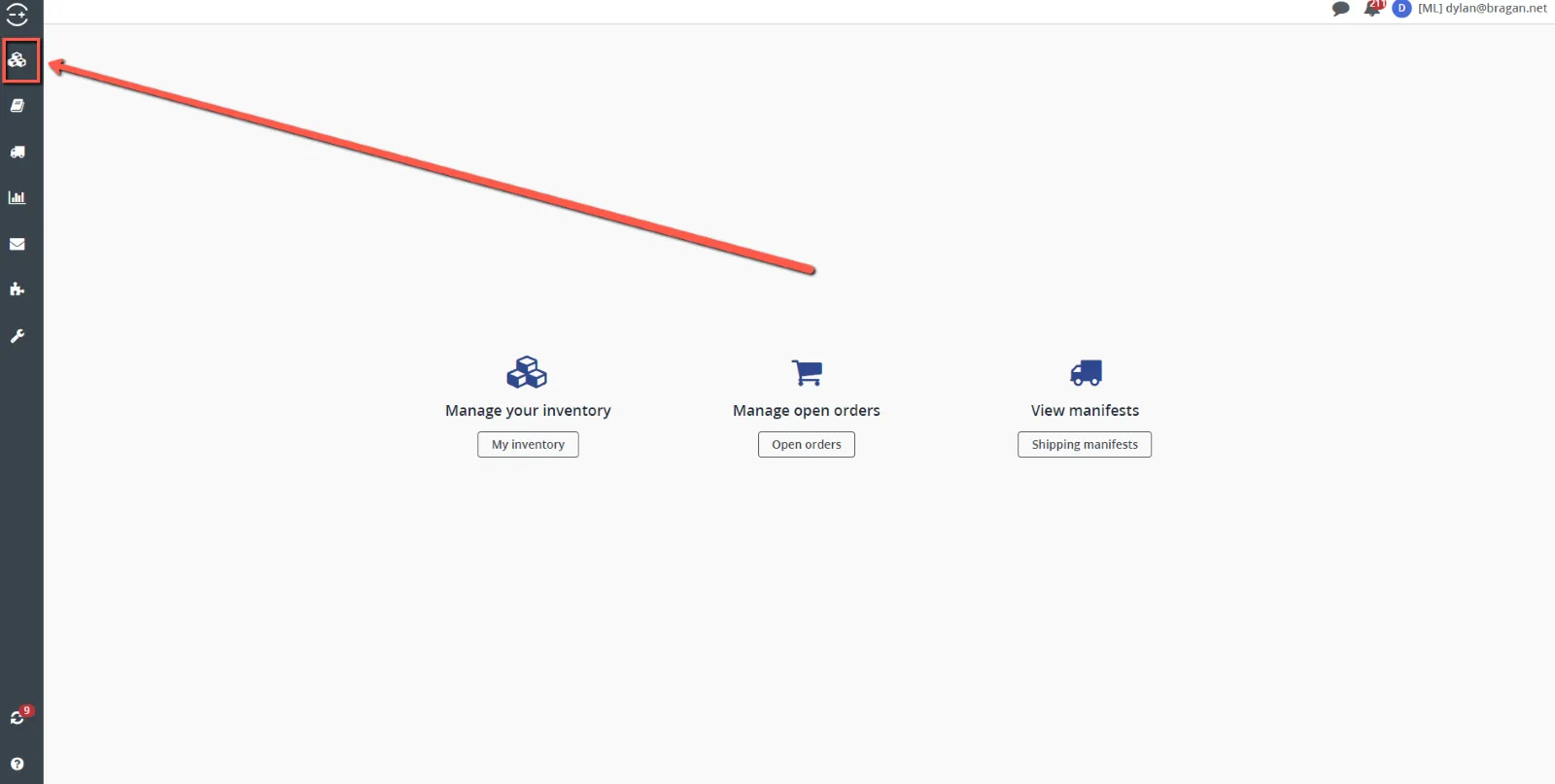
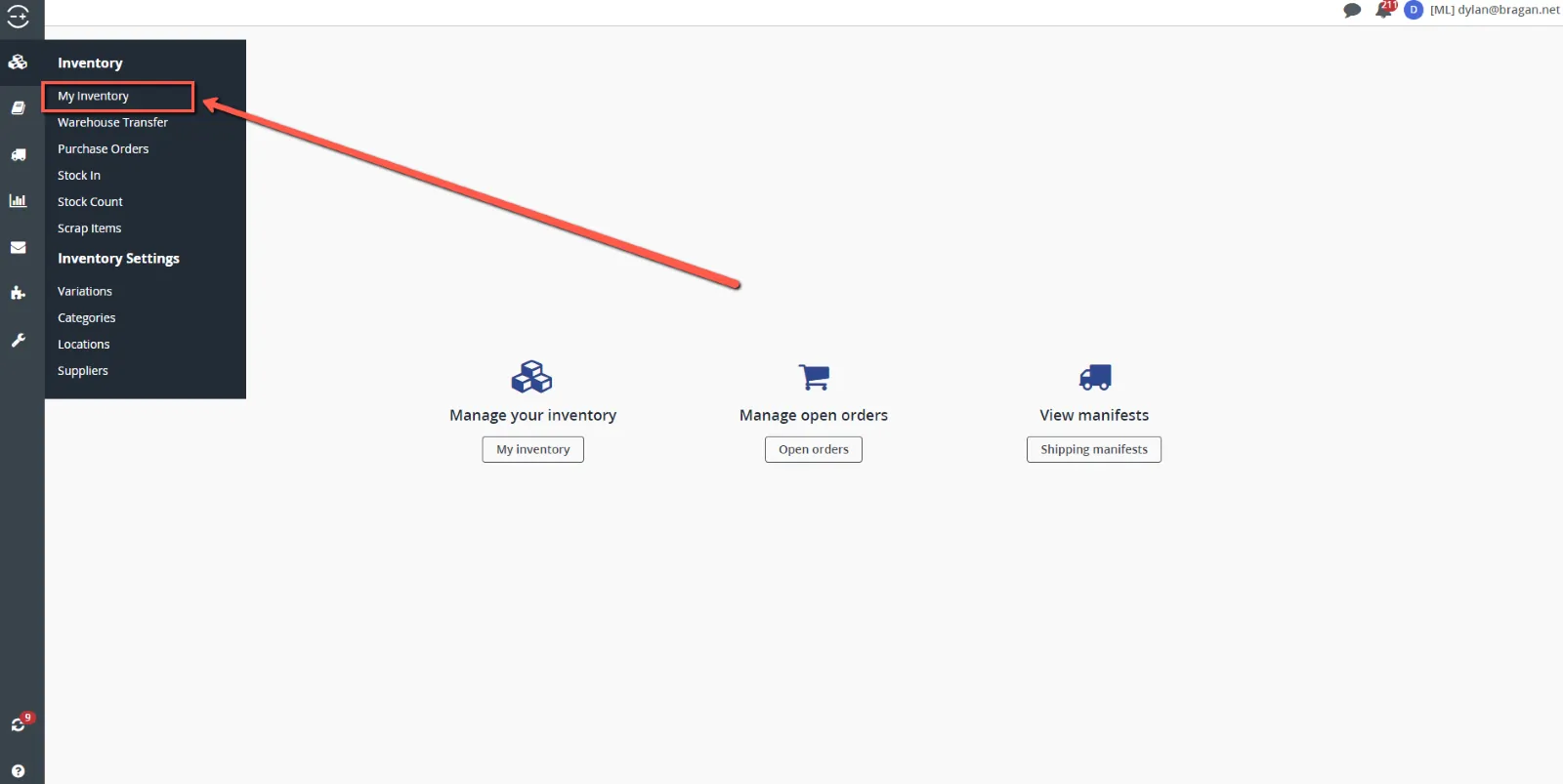
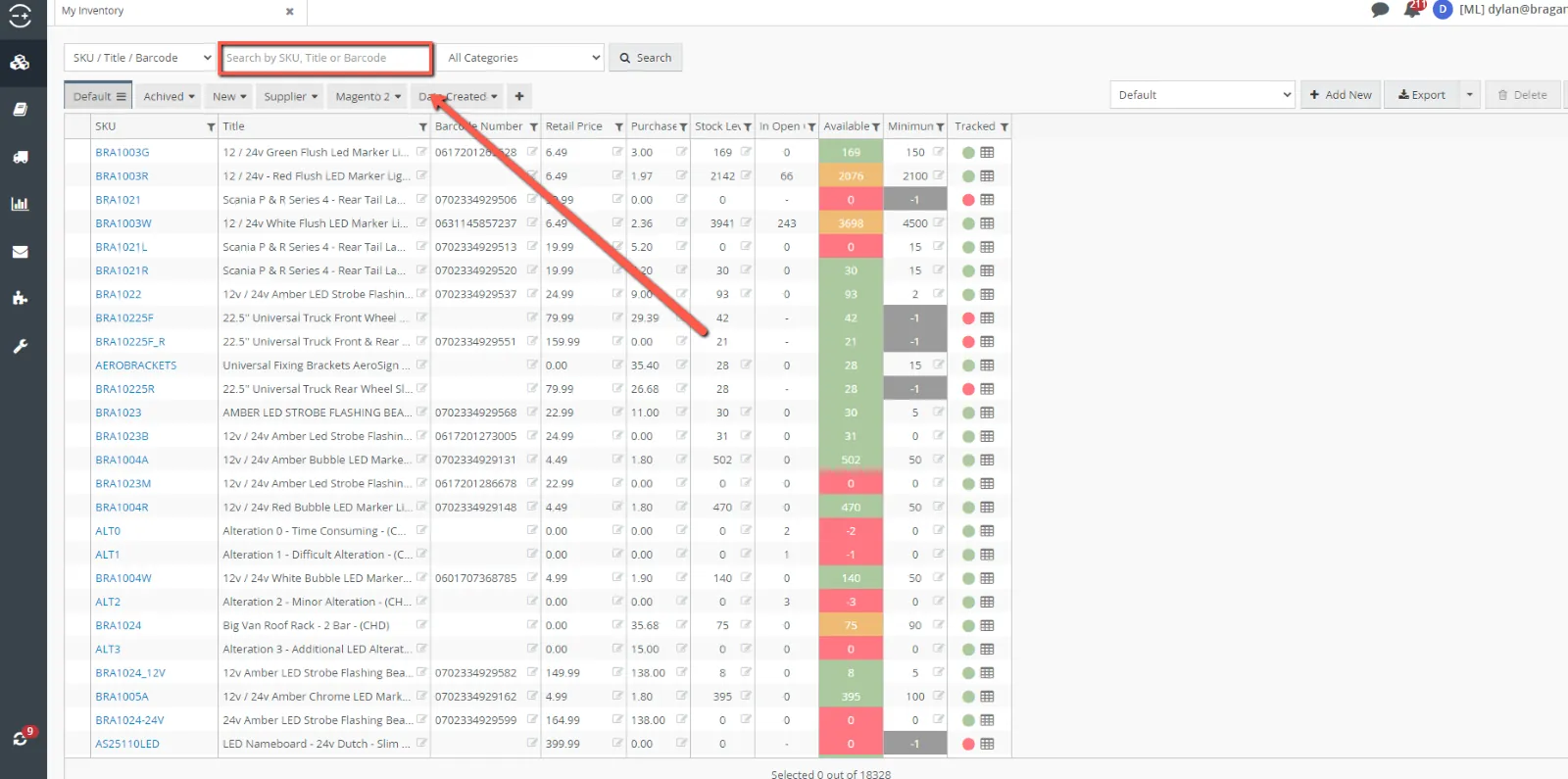
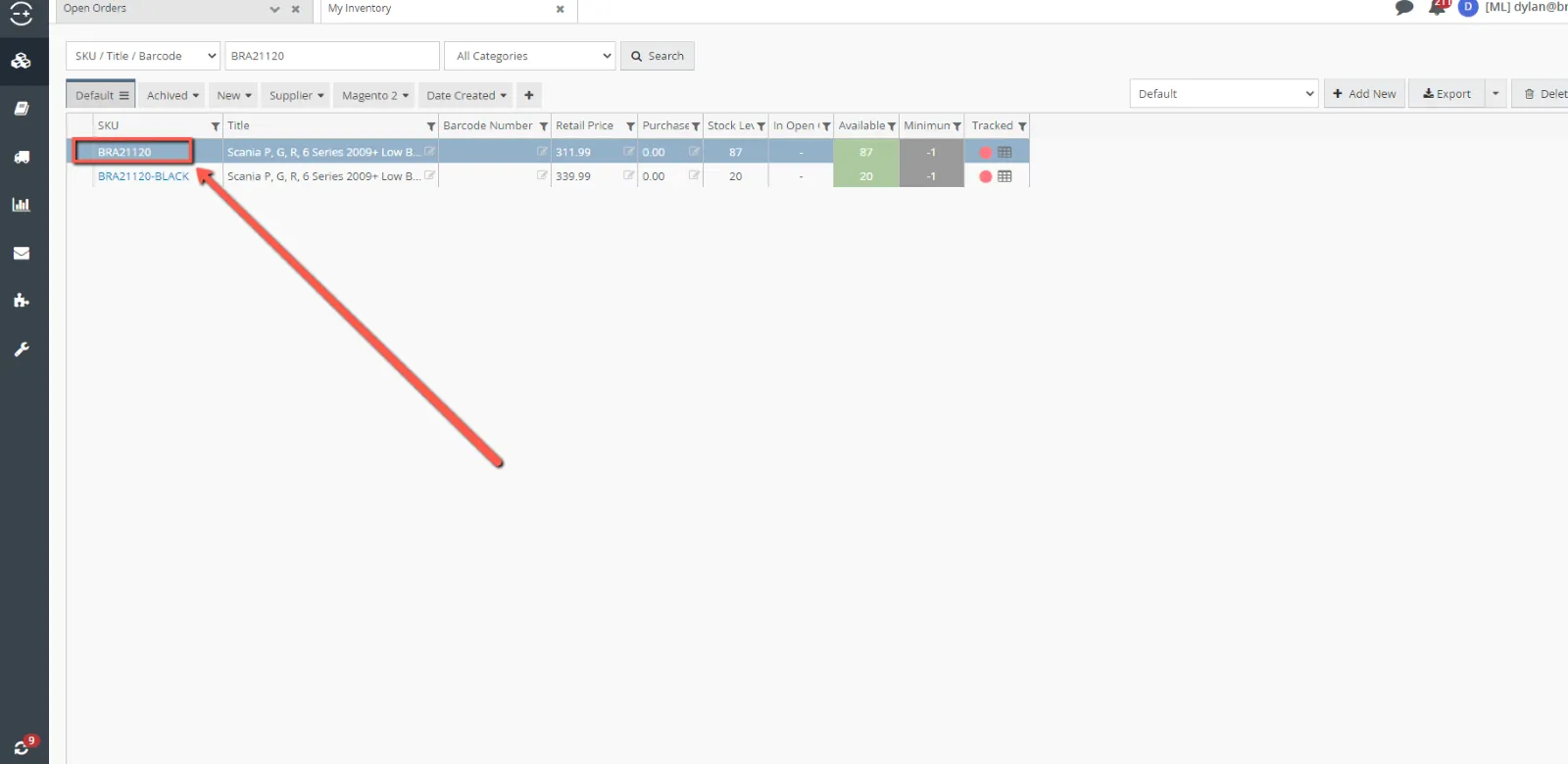
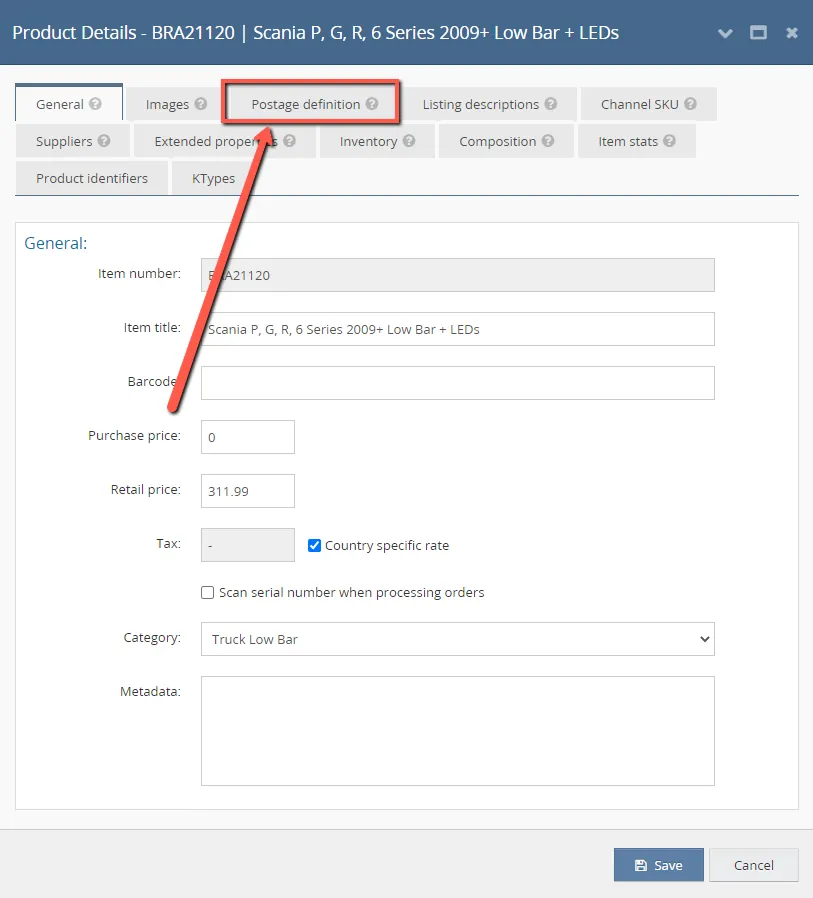
Once you have searched for the SKU that you want to view the postage definition of, you click the hyperlink that is the SKU, fig 1.1.4, to bring up the product details. In the product details, you will see a tab marked as ‘Postage definition’, fig 1.1.5.
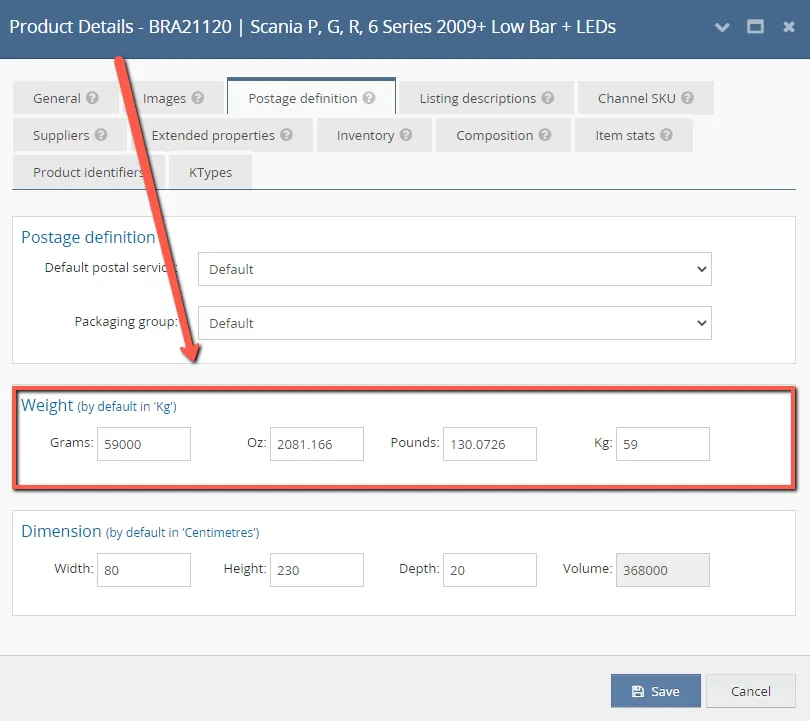
Inside this tab, you will see the weight of the item, fig 1.1.6, in grams, ounces, pounds, and kilograms.
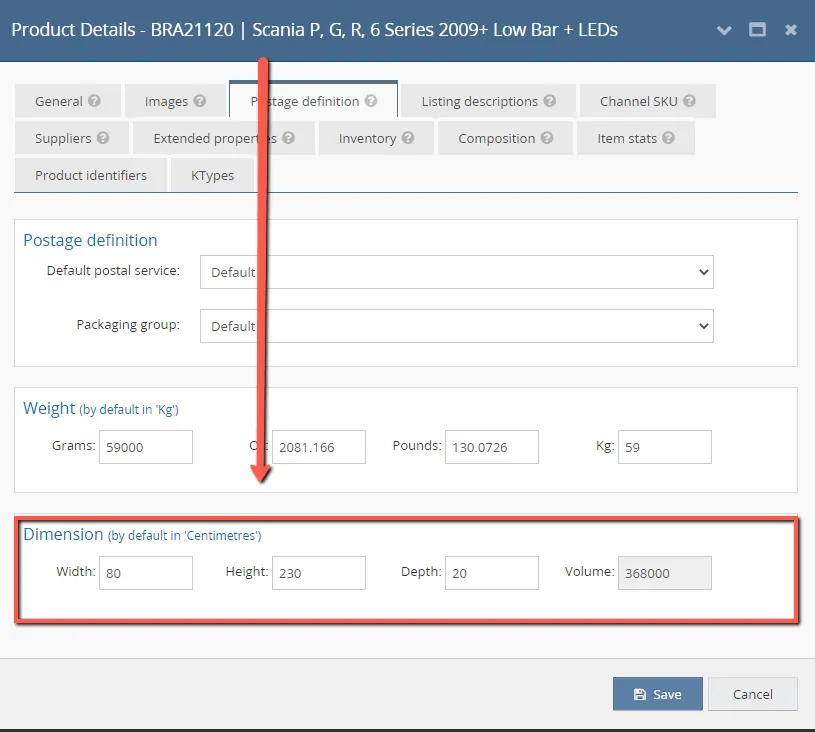
You can view and edit the dimensions, and the volume, fig 1.1.7. The volume is automatically calculated by the dimensions as it is Width multiplied by Height multiplied by depth.
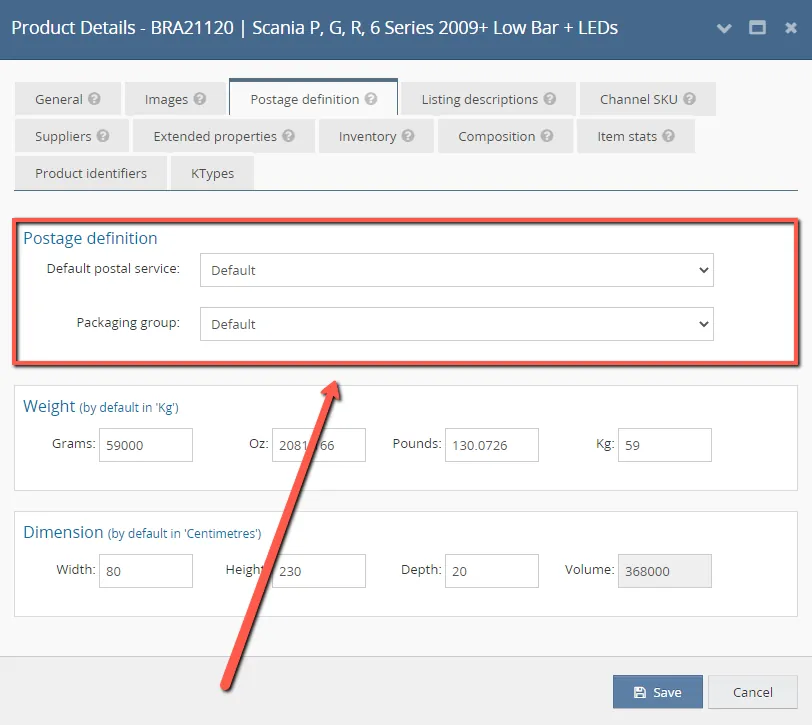
There is another section in this tab, fig 1.1.8. This section allows you to set a predetermined courier and packaging group to an item, however, currently, this section is unused at Bragan. The packaging group is determined by the dimensions and weight set to the item, please see sections 2 & 3, and the courier is determined by the rules engine, please see ‘Linnworks Rules Engine’ SOP for further information on this.
1.2 Dimensions
For team IRL the easiest and fastest way to get the dimensions of an item is by measuring the item yourself. For Team PH you will need to request this from team IRL through the warehouse querier Trello list. It is important that when inputting the dimensions you have the longest side as the Height, the next longest as the Width, and the shortest as the Depth, as shown in fig 1.2.
1.3 Weight
You can input the weight in any of the four measurements you want and Linnworks will automatically calculate what that weight is in the other weights. At Bragan, we measure items in kilograms (kg). The physical weight of a product is only necessary if it is small enough to travel with a courier that requires physical. If all dimensions fall under 35cm height, 25cm width and 13cm depth, then the item will require a physical weight. If one of the dimensions of the item are above these measurements, then we will use the product volumetric weight instead of the physical weight. Most of our couriers work with volumetric weight as opposed to physical weight as this will determine how much space the product will take up in the truck and this is how they will charge us. Volumetric weight is determined by the following formula:
H x W x D ÷ 5000 (Height x Width x Depth divided by 5000).
This will give you the volumetric weight in KG and is what will go in the weight section shown in fig 1.1.6 if any of the dimensions go above what is outlined above.
- Packaging Groups
Packaging groups are what Linnworks will think you are packing the order in. On Linnworks system, you will need to put the items in one or more box to send them. As most of our products are ready to send as they are, or there is no one box they are going in, but this is a necessity for Linnworks we have had to create a work around to achieve what we are looking for. In this section you will be shown how the current packaging groups are working, how we have come to this realisation, and how to edit and create packaging groups if necessary.
2.1 LocatingPackaging Groups
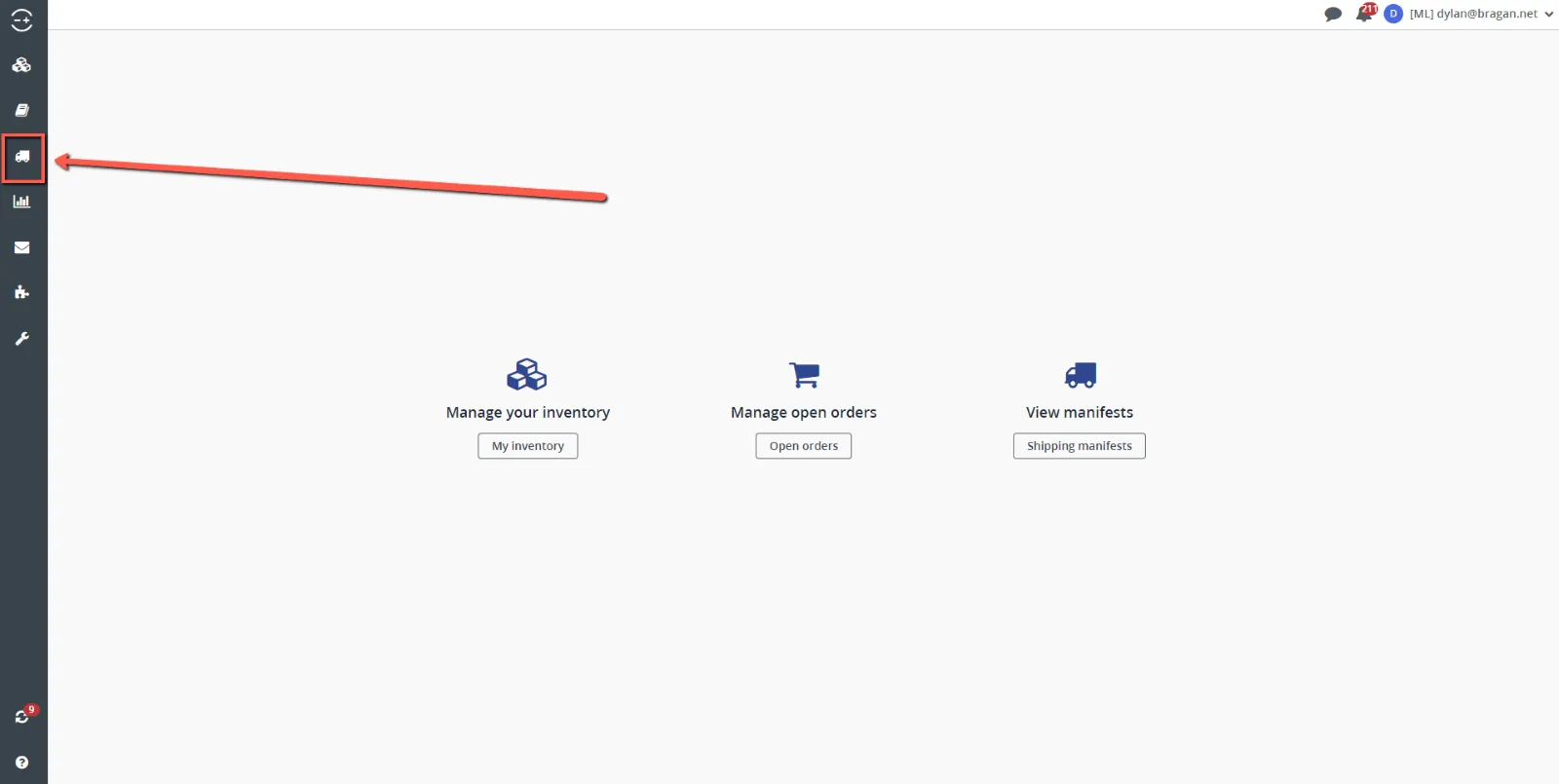
Packaging groups are in the shipping tab, the truck icon, on the left side of the screen, fig 2.1.1. Under this you will see the option for ‘Packaging Groups’, fig 2.1.2.
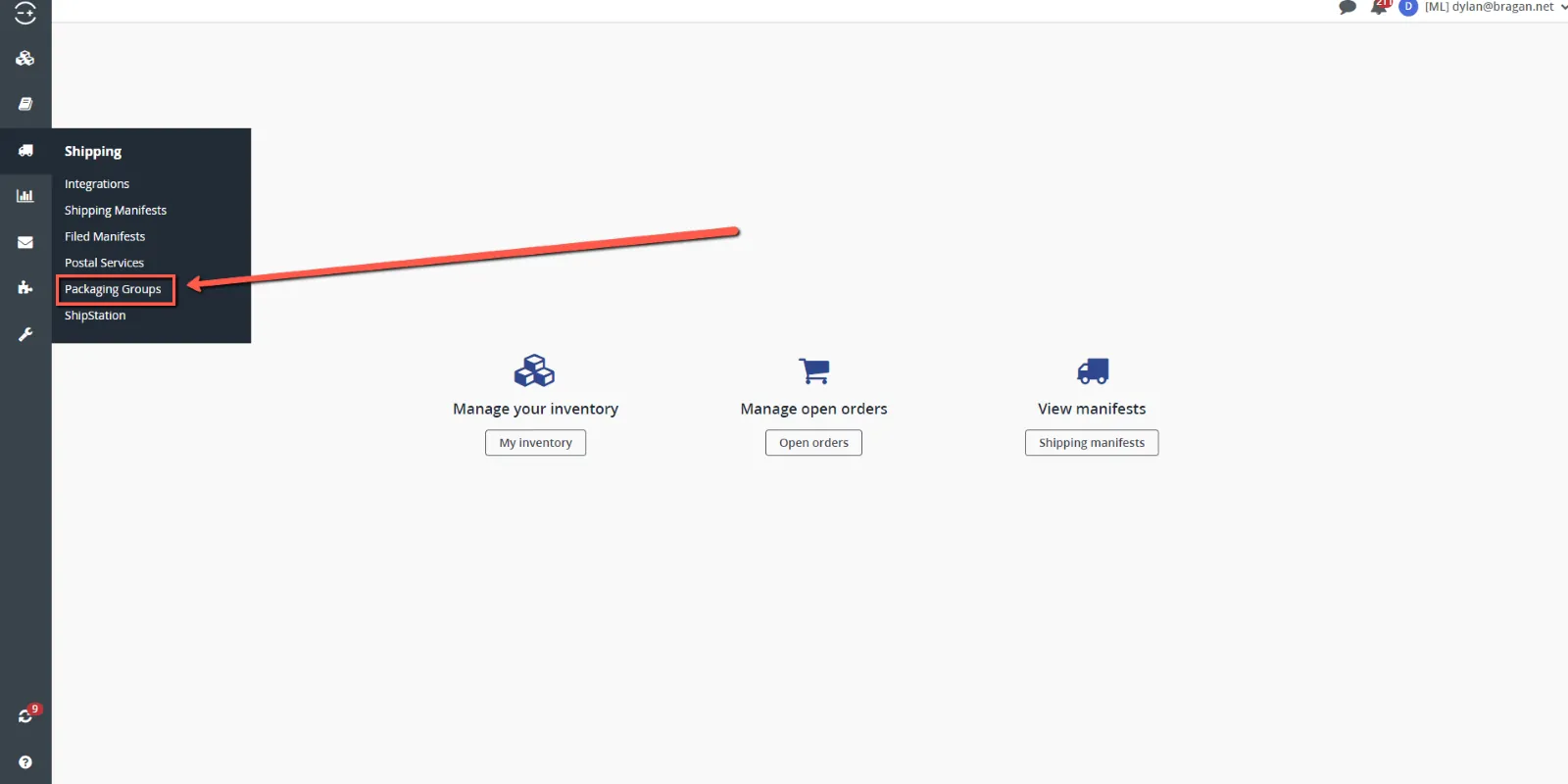
This tab will show you all the active packaging groups, fig 2.1.3. If a packaging group is present here then it is active, there is no way to have a packaging group set up, but not to have it enabled, like the rules in rules engine.

2.2 Packaging group names
This page will show you the packaging group names, fig 2.2, which now it set up to accommodate the UK courier service types that they flow into. The packaging group should indicate what UK courier that should be selected for the order. The reason for this is the UK courier has the most complex restrictions, it is also our most used couriers so the less editing we can do to these orders the better as they would have the largest number of orders in them.

2.3 Number of Packaging Types
You will also see how many different packaging types are inside each of these packaging groups, fig 2.3. A simplification of how this works is there would be different categories of boxes used (packaging groups), small, medium, and large. Inside each of these categories would be the different sizes of boxes used to package every order (Packaging Types), with every order needing to go into a box.

2.4 Packaging Group Prevalence
Finally, you will see the prevalence of the packaging groups, fig 2.4. The prevalence is the order in which you would like Linnworks to look for a packaging type. The prevalence works from the largest number down to 0. For example, in the way our packaging group prevalence is set up, the system will first look in the packaging group ‘NEW – 3. Courier Specific IFS Packet’ for a packaging type that the order will fit into, as this packaging group has the highest number (4).

2.5 Deleting Packaging Groups
To delete an order, highlight the order that you want to delete, and select the ‘Delete’ at the top right of the screen, fig 2.5.

2.6 Adding Packaging Groups
To add a packaging group, select ‘Add New’ at the top right of the screen, fig 2.6, and enter the name of the new packaging group that you are creating.

- Packaging Types
Packaging types are the subcategory of packaging groups. These are the packaging or box that Linnworks will try to fit the order into. Linnworks will use the postage definition of the items, explained in section 1, to determine if they would fit into the packaging type. If one side is longer than the packaging type, then the system will move on to the next packaging type to try and find one that the order will fit into.
3.1 Packaging Type Breakdown
Inside the packaging group is where you will find the packaging types, you can have as many packaging types as you ant per packaging group. The packaging group name, fig 3.1.1, is on the right of the screen. Each packaging type can be named whatever you want, however, I recommend having it named as something related to the packaging group, along with a letter, so you are able to sort the name in alphabetical order.
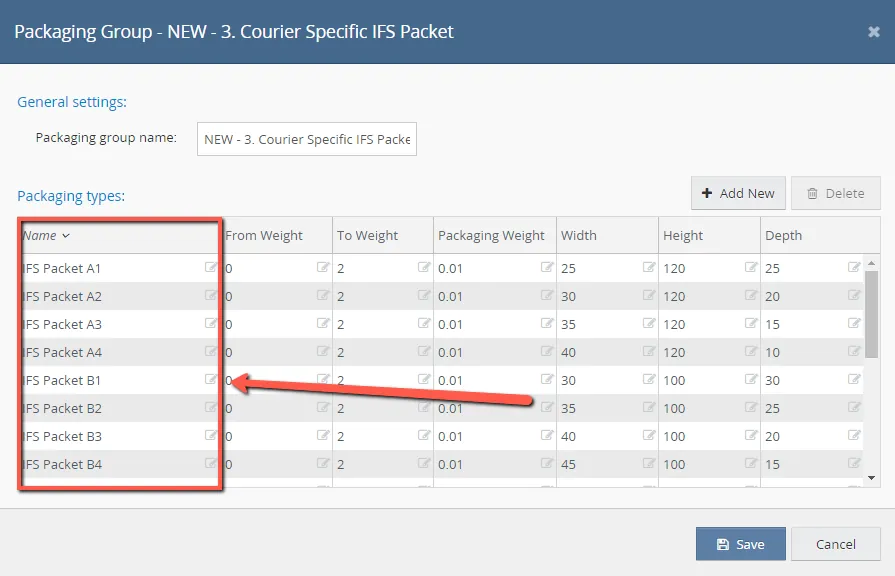
The next columns are the minimum and maximum weight, fig 3.1.2, the orders total weight must fall in between these two numbers to be assigned to this packaging type. In this example it is between 0kg and 2kg.
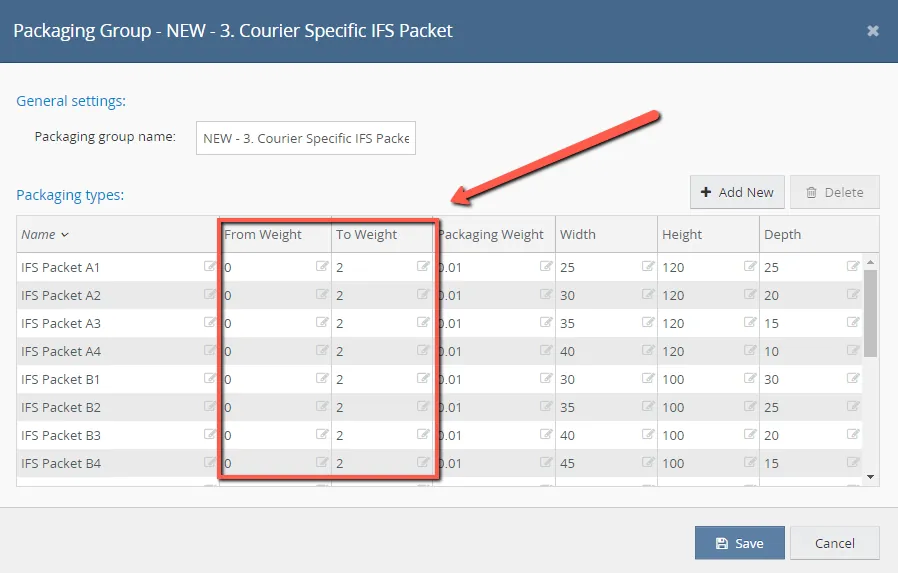
The next column is the packaging weight, fig 3.1.3, this is the weight of the box that the order will be put in and will be added to the weight of the items. As this is fictional packaging, I have set the weight to 0.01kg as this will not impact the overall weight of the order.
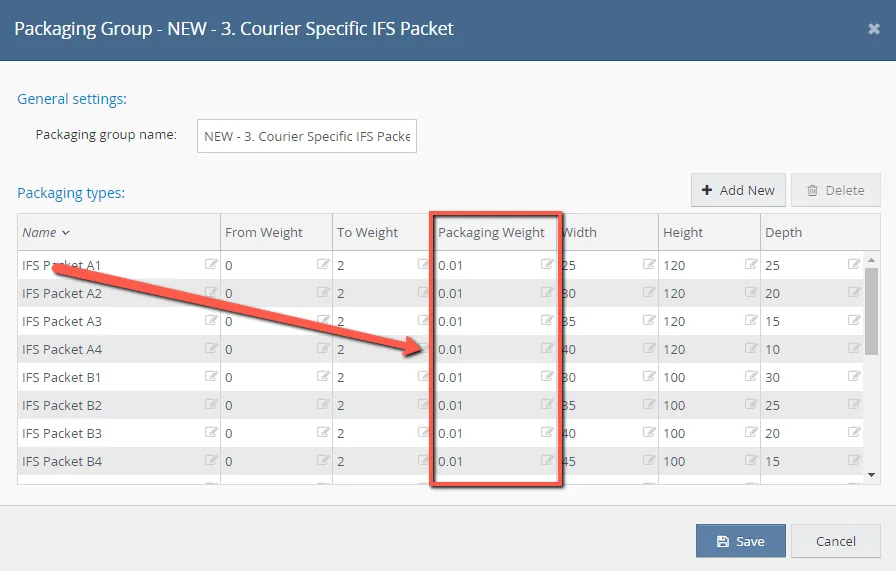
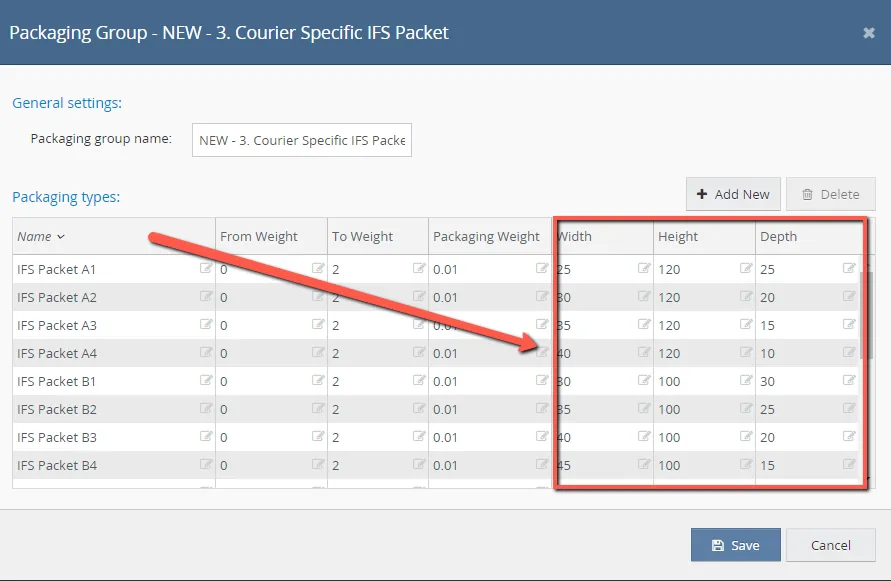
The final three columns are the dimensions of the box that the order will be put in,
must be smaller than the dimensions of the packaging type. If one side of the order is bigger than one of the sides in the packaging type, then this packaging type can not be selected for this order. For orders with multiple items in them, the system will fit all items geographically by all dimensions, meaning it will virtually stack the items in the smallest possible space and select the packaging type by these new dimensions. This is broken down further in section 4.
3.2 Adding Packaging Types
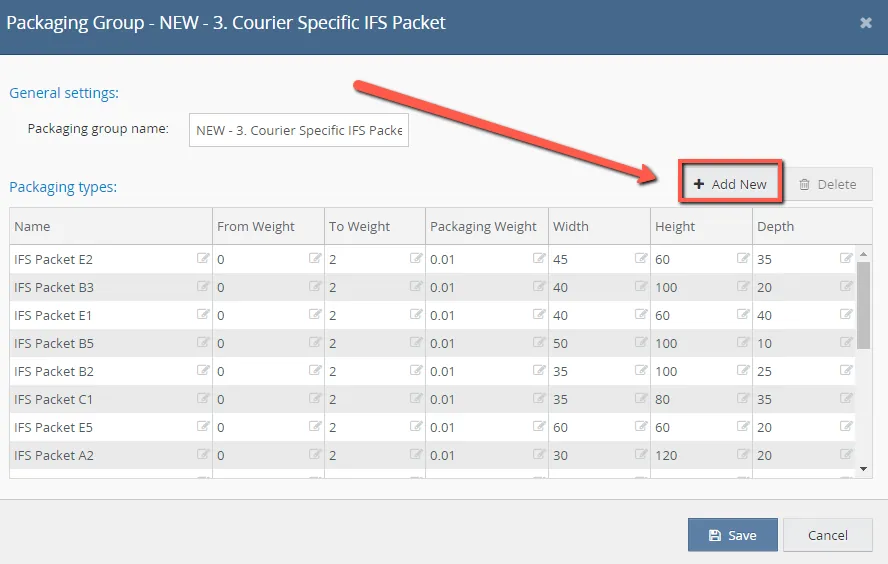
To add a packaging type, select the ‘Add New’ button in fig 3.2 and input all the details shown in section 3.1.
3.3 Deleting Packaging Types
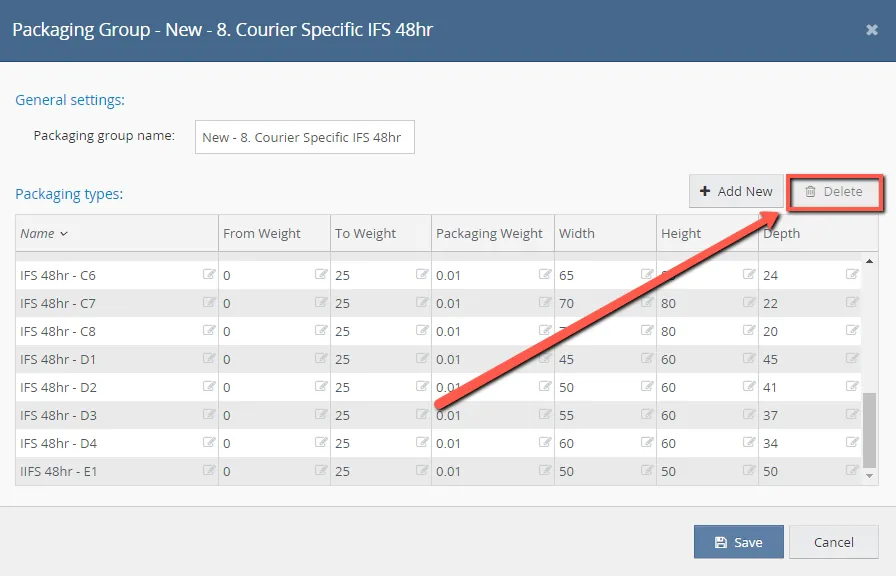
To delete a packaging type, select the packaging type that you want to delete and click the ‘Delete’ button, fig 3.3. Only delete packaging types when you are absolutely sure you no longer need them, deleted packaging types can not be salvaged and would have to be created again.
3.4 Determining Packaging Types
As mentioned before, packaging types are not needed for Bragan as we do not box items before they are sent, however, packaging types are needed for Linnworks. For this reason, packaging types at Bragan are not based off box sizes, rather they are based on the maximum allowed dimensions from the courier, therefore the groups and types are named after the courier service.
We will break down the packaging group ‘NEW – 3. Courier Specific IFS Packet’ and the packaging types inside this group and explain how they are set up. All the packaging groups and types are set up the same so this will be the same process for all.
The maximum allowed dimensions and weight per service is given to us by the courier. If there is ever a need to change these packaging groups and types, if there is a change in courier perhaps, then it is important that we clearly know the maximum weight and dimensions per service so we can set the groups and types up accurately.
At the moment, the packaging groups match the current courier services in the UK.
The IFS service ‘Packet’ has a maximum length of 1.2 meters, a maximum weight of 2kg and a maximum volumetric weight of 25kg. The IFS service ‘48hr’ has a maximum length of 1.2 meters, a maximum weight of 25kg and a maximum volumetric weight of 25kg The IFS service ‘Non-Conveyable’ has a maximum length of 3 meters, a maximum weight of 50kg and a maximum volumetric weight of 50kg. (This is the only service with a different dividing factor for the volumetric weight formula, this service uses 6000 instead of 5000 as shown in section 1.3) The EF service ‘Oversized’ are for any parcel that is larger than the non- conveyable service and does not have restrictions. However, this service is considerably more expensive and should only be used if needed.
Using this information given to us by the courier, we can select packaging groups to match the allowances they have set. IFS 48hr service will be used as an example to show how to set up the packaging groups and types to suite the service.
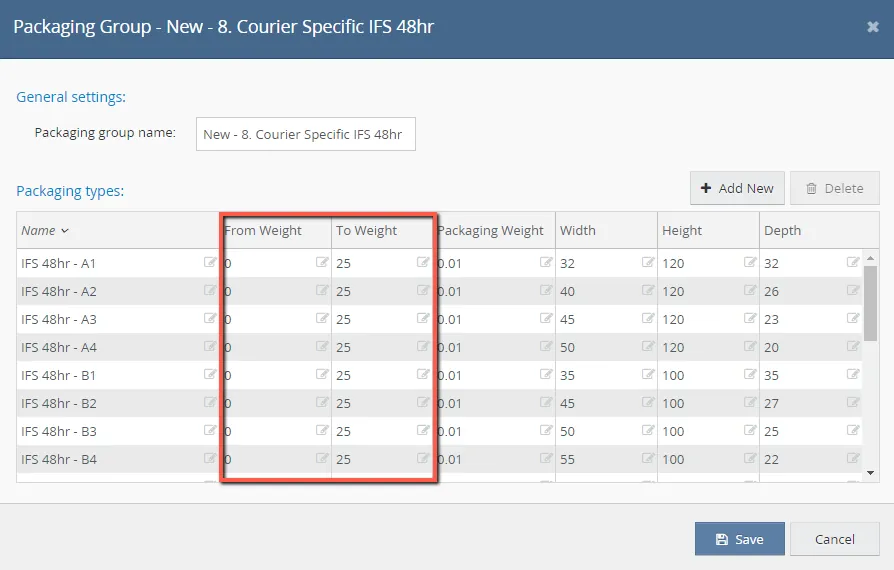
The most basic way to set up the packaging type of match the allowances on the service IFS to set the weight from 0 to 25, fig 3.4.1, as this is the maximum weight allowed on this service.
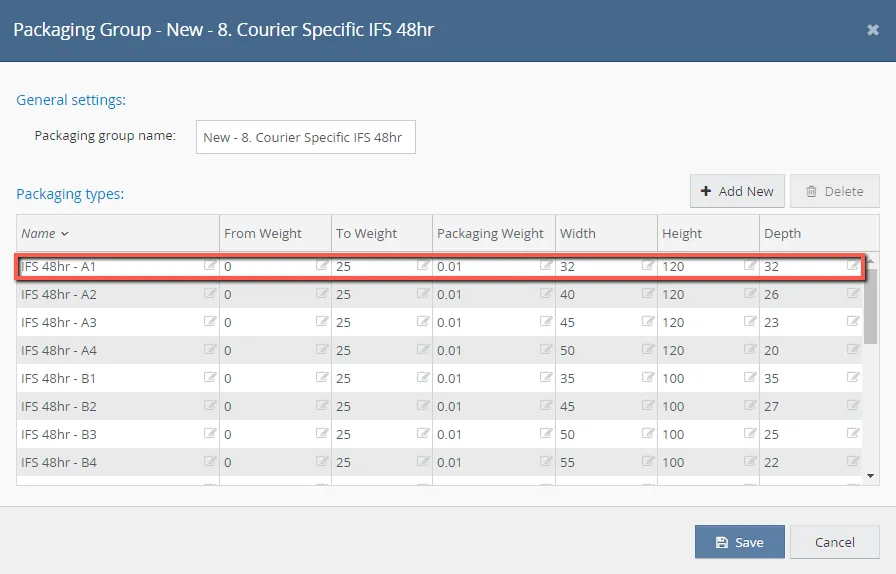
Then set the height as the maximum allowed length, in this case 120cm, and the width and depth as the largest possible number that is permitted with keeping the volumetric weight below 25kg, fig 3.4.2, as this is the maximum volumetric weight allowed for this service.
120 x 32 x 32 ÷ 5000 = 24.5 which is lower than the maximum 25kg.
However, having this packaging type alone will not work as if an order had the measurements 120 x 35 x 26, then it would fall outside the requirements for the pack+aging group IFS 48 hr, as one side is bigger than the packaging type, even though it would be accepted by the courier as it falls under their allowances.
120 x 35 x 26 ÷ 5000 = 21, which is below the maximum 25kg.
To get around this, there are multiple different packaging types with varying different dimensions that are allowed with this courier service. Fig 3.4.3 shows packaging type A1 to A4, the ‘A’ section is all packaging types with the height 120.

Starting off with A1, this is the maximum height, and the maximum equal width and depth that will allow the packaging the fall under 25kg volumetric weight. We then move the width up in intervals, usually 5cm, and move the depth down along with it so that the volumetric weight never goes above 25kg. There is no need to keep moving the width up until the depth is at zero, just so that the packaging groups will catch all the orders that should be with that courier, around 20cm depth seems to
work ok. Any packaging type shown in fig 3.4.3 put into the volumetric weight formula will be below 25kg.
Moving to packaging type B1 to B5, fig 3.4.4, we have lowered the height to 100cm, as this would allow us to have larger width and depth measurements and still fall below the 25kg volumetric weight threshold. It follows the same process as the packaging types in the ‘A’ section.

The same process is followed through out all the packaging types, with the height moving down 20cm each time, and the width and the depth going up and down respectively so that the volumetric weight does not go above 25kg.
There is no point in creating anymore packaging types when the width is equal to the height, as shown in packaging type D4, fig 3.4.5.Linnworks will take the longest side as the height, so when the width starts to become longer than the length, it will then take this new longest side as the length. If your groups are set up properly, you would have also covered those measurements in a previous group.

I recommend continuing making packaging types until you come to one that is a square box like packaging type E1, fig 3.4.6. Following this system should cover all scenarios and allow the orders to fall into the correct packaging type, and therefore the correct courier.

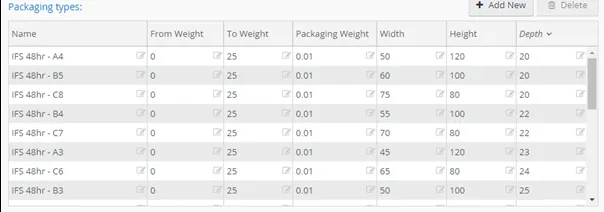
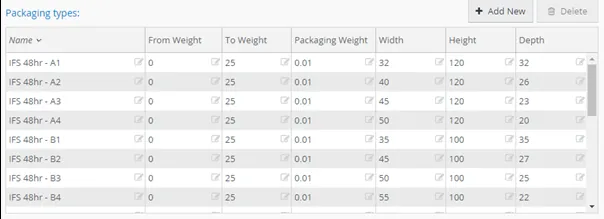
Due to some of the packaging groups having so many variations, it can become quite difficult to organize and keep track of all of the packaging types; this is why I had recommended naming the packaging types as such in section 3.1. This will allow you to sort the packaging type names in alphabetical order and have them organized. If you change the letter every time you change the height and change the number
every time you change the width it will give you an organized system to follow when trying to keep track of all of your packaging types. Fig 3.4.7 shows you a disorganized, messy packaging group, while fig 3.4.8 shows you an organized packaging group using this method.
- Review
Using the postage definition associated with each item, shown in section 1, and the packaging groups and packaging types shown in sections 2 and 3, every order will be able to make its way through the rules engine (see rules engine SOP) and have the correct courier assigned as now it has the correct packaging type assigned.
Notes#
This section is important so Adhoc points and issues can be logged. Also, Q&A can be logged for suggestions for potential issues encountered. Also, log important notes needed for this system.
Additional Notes:
This system is important to help agents manage Postage definition and Packaging groups.
Potential Issues:
1 - ISSUE ENCOUNTERED: Stuck on Loading
RESOLUTION: Refresh Browser
2 - ISSUE ENCOUNTERED: Broken Links
RESOLUTION: Get the external link as this will allow other people to access the SOP without the need for login credentials and avoid broken links.