Linnworks SOP - Create discount to customer
Sometimes customers will ask for discount on our fixed priced items and this
Overview#
Purpose: Sometimes customers will ask for discount on our fixed priced items and this discount may be agreed by management.
Scope: Create a discount offer for specific customer.
Responsibility: It is the customer service representative’s responsibility to create the offer.
Objective: The objective is to create more sales by offering select customers discount on products.
- Linnworks Layout
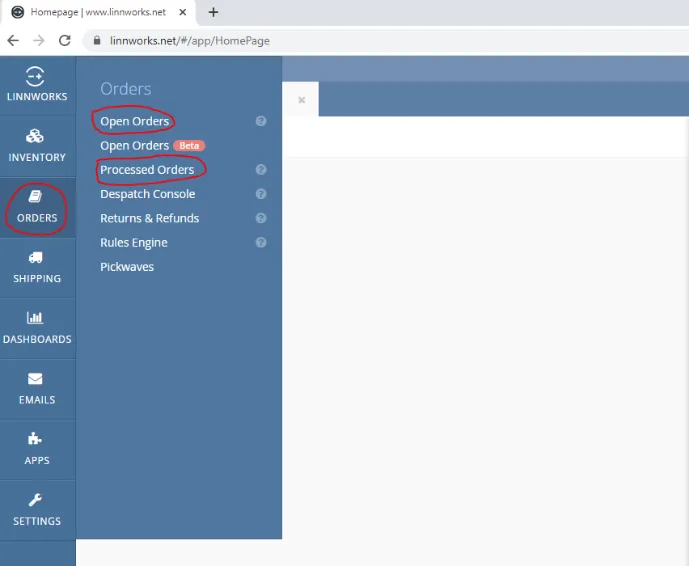
1.1 Home Page
This is the home page and as shown above I have highlighted Order Book – within this Order Book - there is / OPEN ORDERS (New orders also entered here) / PROCESSED ORDERS
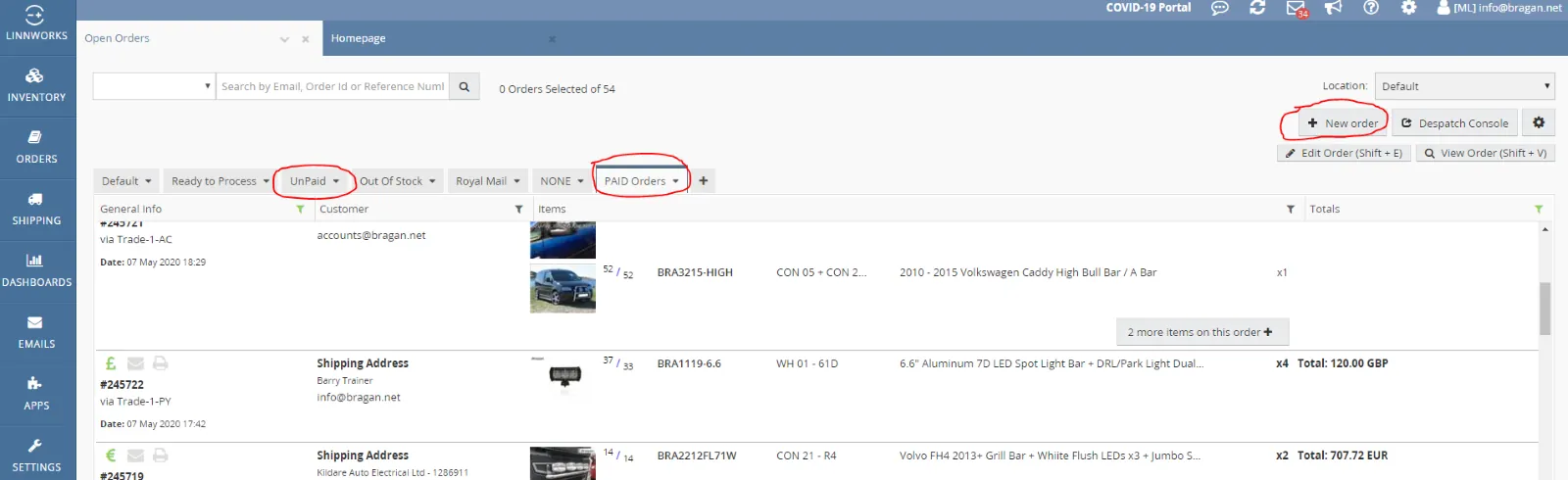
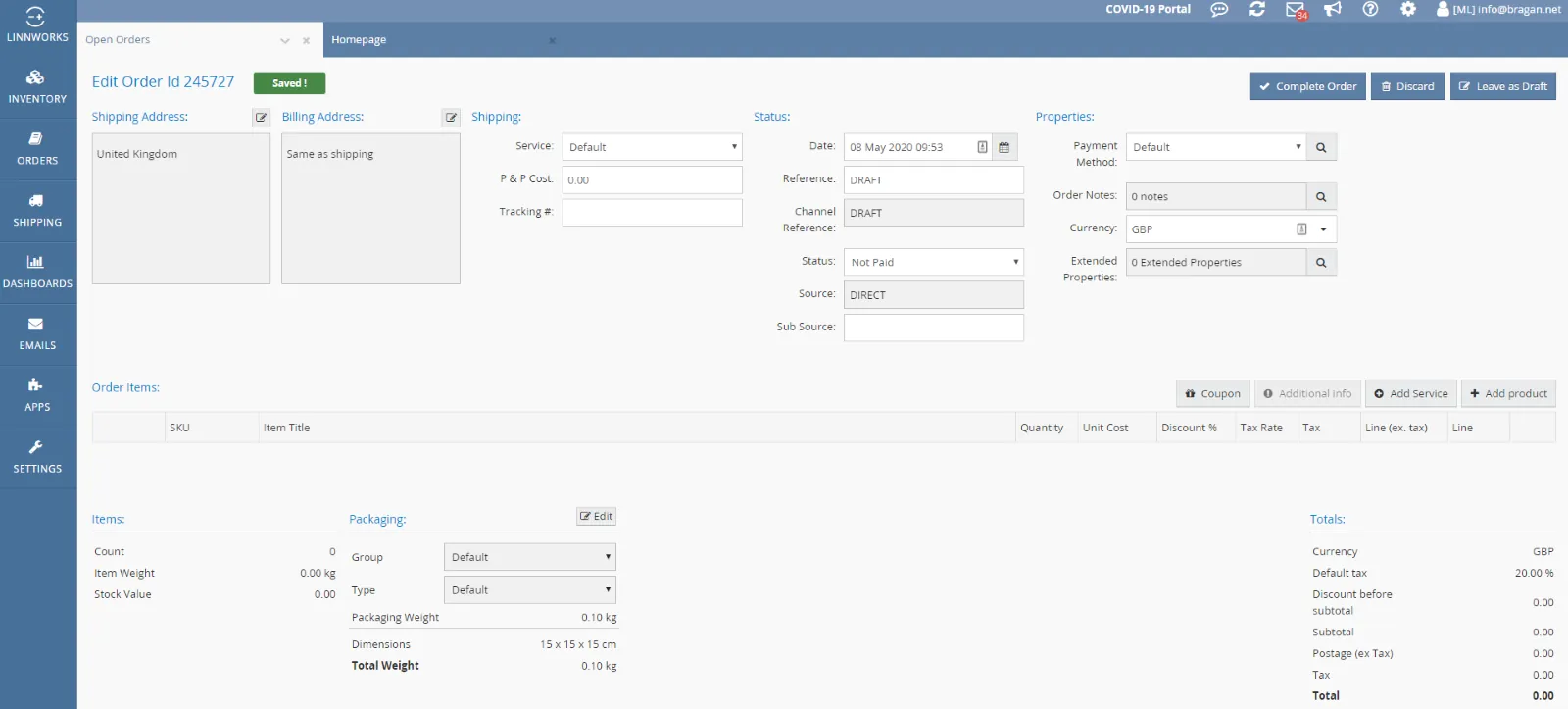
New Order Tab is selected in Open orders (See fig.2)- Fig.3 – Is the New Order Screen, this is what you will use if putting a new order on the system - if it’s a Direct Order being paid by PayPal invoice we are sending, an incoming bank transfer or an order we have received over the phone/email.
Open Orders (SHOWN BELOW) - this is where you will see all the open orders which are awaiting a label to be printed (WHEN PAID IS SELECTED) or will show quotes that we have generated or orders we are awaiting payment for (WHEN NOT PAID IS SELECTED) - You can see which invoices that has been sent to customers
which are awaiting payment (Select Folders & Outstanding Invoices)

Processed orders
- this is where you will see orders which have had a label printed & the order has been processed off.
From here you can check or look up previous orders through any of the following options: Order ID: 6 Digit number which is generated for every order that comes through our system i.e - 200511
Tracking Number: IFS/FedEx tracking number - DPD and Fastway tracking numbers will not be on this Reference Number: This refers to numbers generated from the website (i.e 100009395) or through Amazon (i.e 202-9843833-
6157927) Customer Name: Email: Postcode: (ALWAYS try with and without a space, ie CV3 3TT or CV33TT) Shipping Address: Town name Order Item: You can search the BRA number or Keywords i.e Rear roof bar This Can be done through the filter button highlighted in Fig 4 above
1.2 Inventory Page
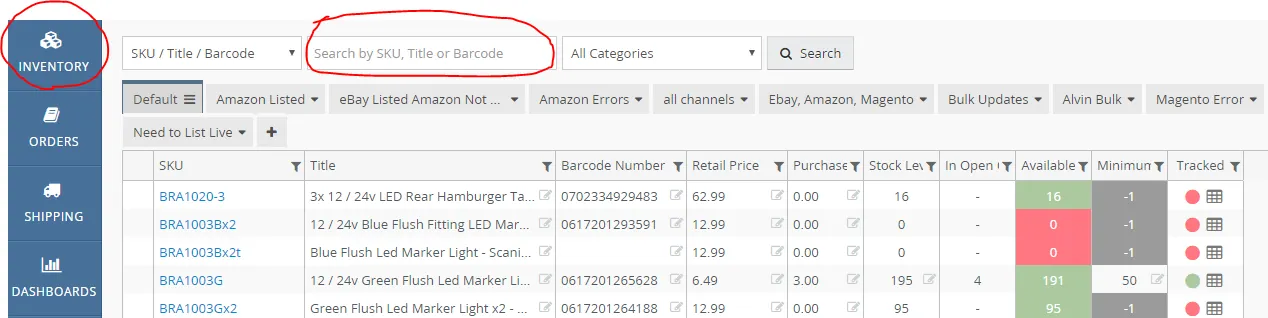
From here you can search the BRA number or key words relating to an item. i.e. BRA22111 or Volvo FH4 Roof Bar - which is roof bar for a Volvo FH4, when you search this part number it will bring up all other part numbers which relate to BRA22111 for example BRA22111FL - which is the bar + Flush LEDs and will also so all other combinations you can have. Or if you search Volvo roof bar - it will bring up all the items that have Volvo roof bar in the item title

1.3 How to use the inventory page
Let’s just focus on BRA22111 – See Fig.6 - So on the inventory page you have the SKU Number/ Item title (If you searched Globetrotter XL Roof Bar - then this item would appear on that list) Category (this refers to the shipping groups we have created for printing our labels - will go into more detail about this when you see this) / Retail Price (this is what we sell it for) / Purchase (This is where we see how much we buy the item for - not very important to know just yet) / Level (this will tell you how many we have in stock) / Minimum level (this will tell you how many is the lowest amount we should have before we have to reorder) / In Open Orders (this will tell you how many is on todays orders which are to be dispatched) / Available (Simply how many we have after open orders - so if the Level was 100 and there was 2 in open orders then 98 would be the number on the Available column).
1.4 Parent/Child Items
If you click on the item and select composition, see fig.7 then this will tell you the main item which is BRA1054-SUS (FH4 Roof Bar) this means that the plain roof bar for the FH4 Globetrotter & FH4 XL Globetrotter is the same bar and will fit both models as its used across more than one listing.
PLEASE NOTE: Just because the plain bar is the same for both models doesn't mean that the bar with LEDs is the same bar - Difference in FH4 Roof Bars + LED (ASK YOUR TRAINER ABOUT THIS).

1.5 Checking Supplier
To check the supplier of an item you need to go to the main item (BRA1054-SUS ) - Ref: Fig 8. When you click on the item and click supplier it will give you the supplier name (WINBO) & the supplier part number (PW number). So, if we must send a complaint to the supplier about this bar - we would quote the PW number and our own BRA number for reference.
1.6 Composites
I am using BRA22121FL19 as an example. See Fig.9 This part is made up of many different pieces. The title of this advert is Roof Bar + Flush LEDs + LED Spot Light Bars. You can see from the composite (in the picture) this item is made up of: Roof Bar + LED Holes x1 (APPLICABLE ONLY TO THE FLUSH LED) Amber LEDs x2 (Flush) White LEDs x5 (Flush) LED Spot Light Bars x3
Searching and checking other part number is a good way of learning these products. Please complete the following task.
From these 10 BRA numbers please note what pieces make up this item BRA21111SL71W BRA2221119 BRA2712C71W BRA21120 BRA22315FL BRA23111BFLB BRA23121 BRA3413A71W BRA3413B BRA2212634


1.7 Stock Item History
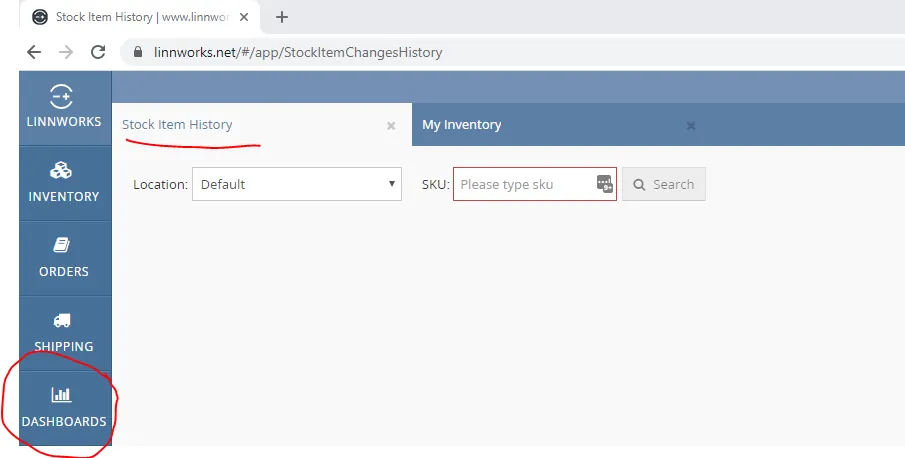
From here we can search when and by how much a stock item was updated or removed. Select View Report when SKU is searched - This allows us to keep a track on the inventory control. I.e. If I made a change to the stock level of BRA1003A from 100 to 10 then it would show up that I have made that change on the list which I will show – adds accountability so that not just anyone can fiddle with the numbers .
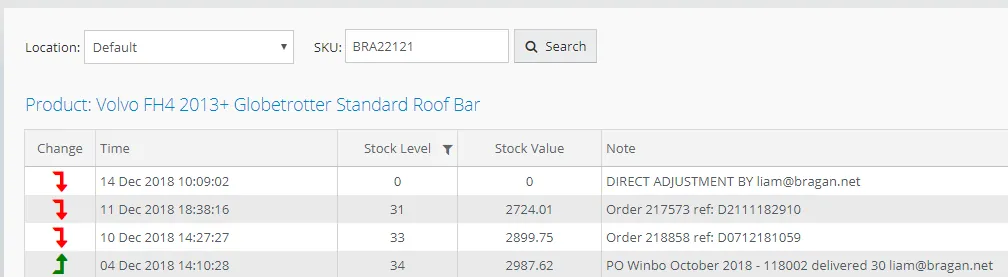
We can see that there was 34 delivered and uploaded onto the system on the 4th December, there was a sale for one on the 10th December which brought the level to 33, sale for 2 on the 11th December which brought the level to 31 and the stock was put to 0 on the 14th December by the [email protected] login.
- Identifying Supplier Use these steps to export a full consumption. From this, we are going to identify supplier & filter.
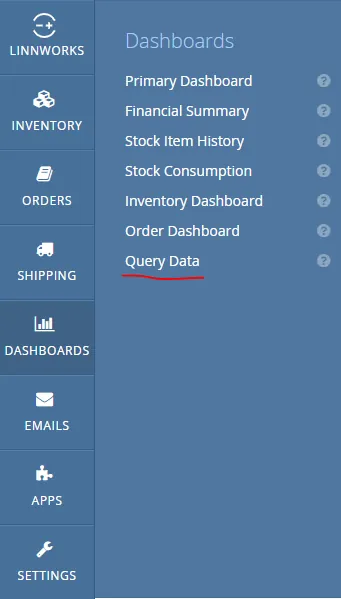
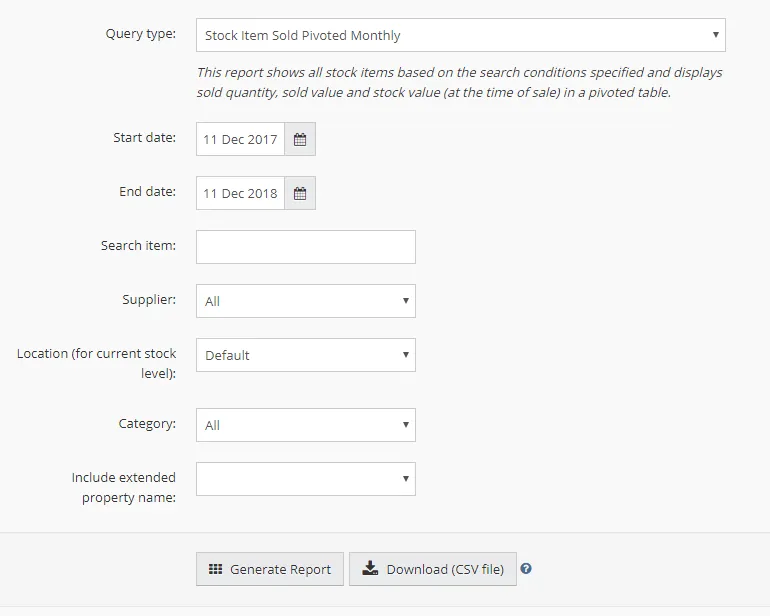
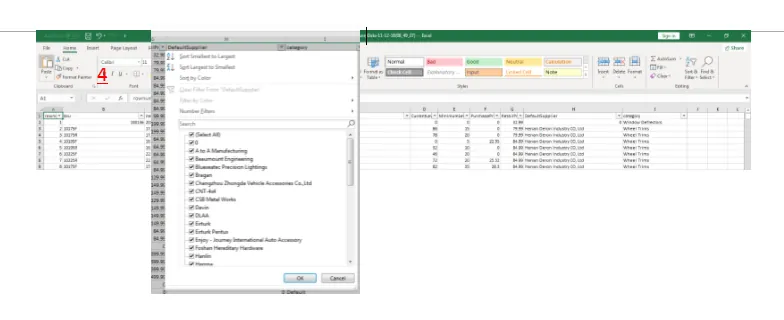
1.1 Open Linnworks Order Management, navigate to “Dashboard” & Select “Query Data”
1.2 Query Type – “Stock Item Sold Pivoted Monthly” – Any date range will suffice – “Download CSV”
1.3 Remove Columns “J-AT” – CTRL + ALT + L Will sort columns
1.4 Select required supplier from drop down list .
- Internal Notes
Sometimes you will be entering orders into LW that will have an UNPAID Status or you will need to LOCK the order to prevent it from being processed.
Some example of this would be when a Pro-Forma & Bank Details are sent to a customer for payment and you are waiting for accounts to confirm receipt of payment into the bank. Another example would be if an order is entered into LW but a PayPal invoice needs to be sent. Outside of payment notes you sometimes would add Internal notes such as quote provided to customer waiting to amend final order.
Please see process below on how this is done.
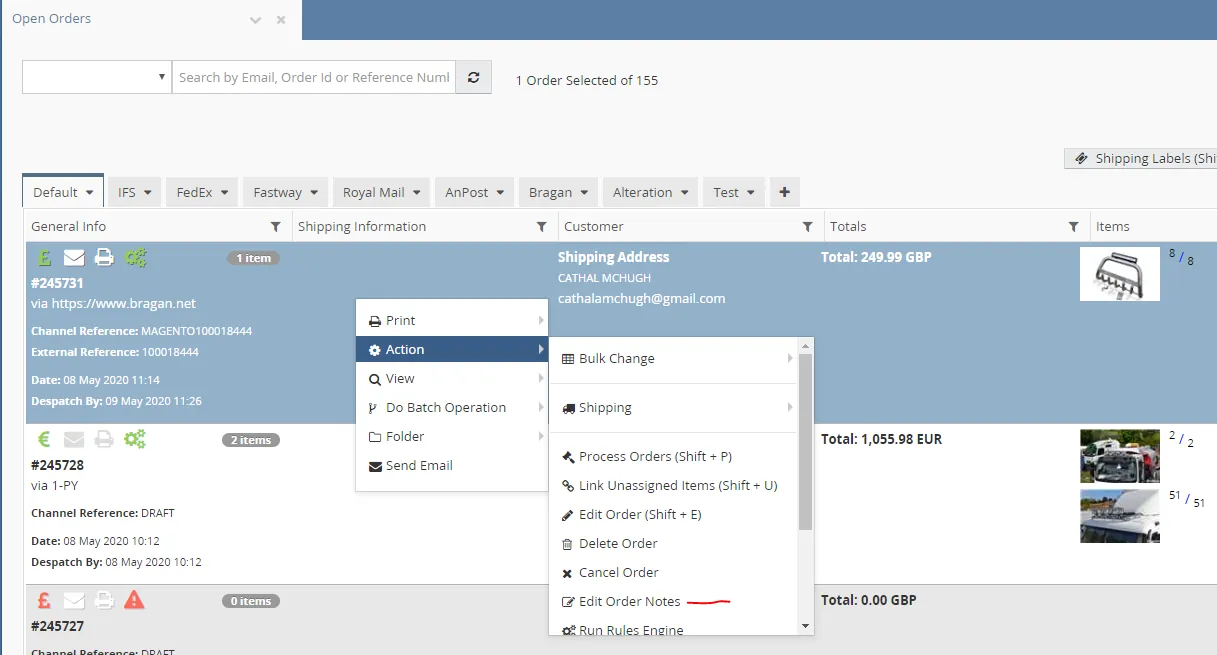
3.1 After entering the order, find it in “Open Orders” – Right Click – Actions – Edit Order Notes
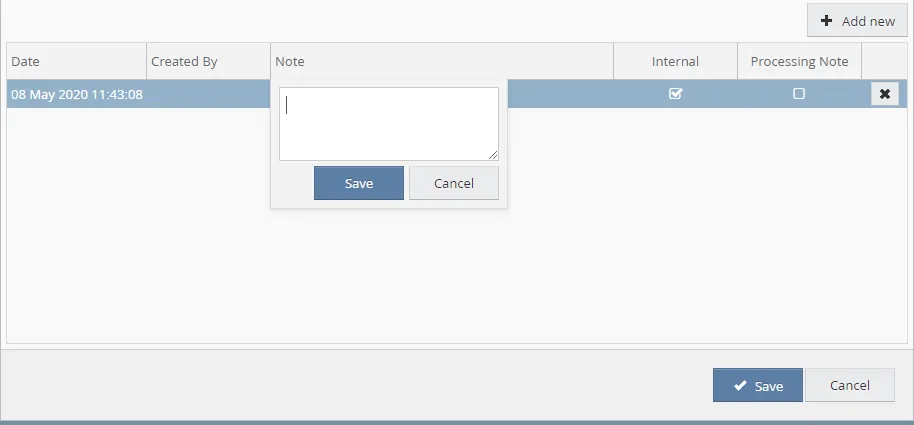
3.2 A dialogue box will appear, you select the lower box and leave your internal note here. Ensure Internal is selected and then click “Apply”.
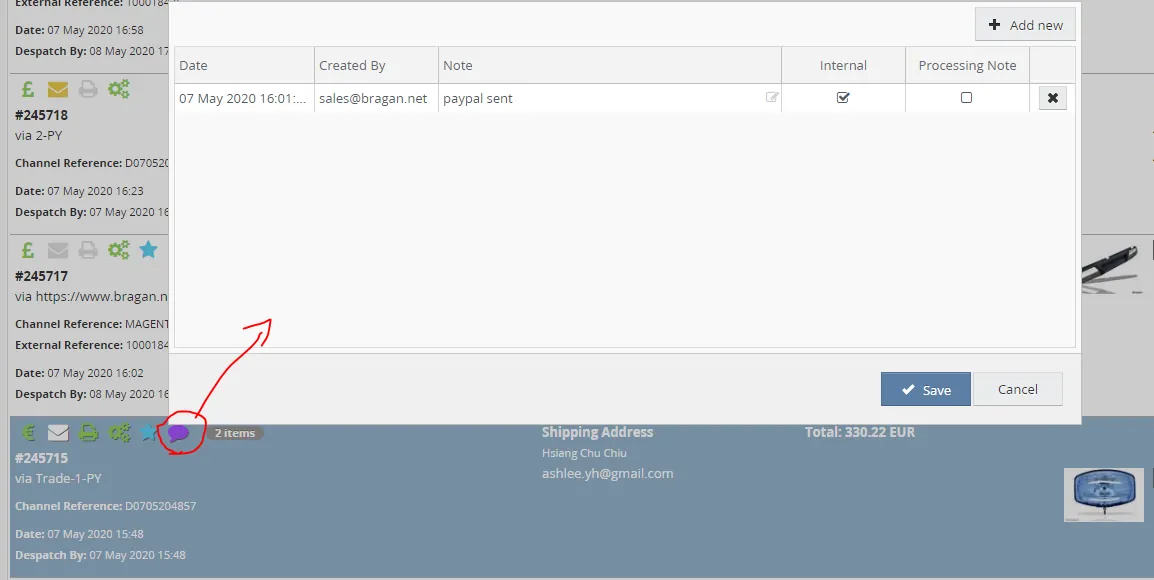
3.3 Your internal note will not be shown in the status bar of the order – when any customer service agent or the warehouse hovers over this the internal note will appear.
** Note ** No order should be put on Hold or have the status as UNPAID unless an order note has been added.
- Entering Orders
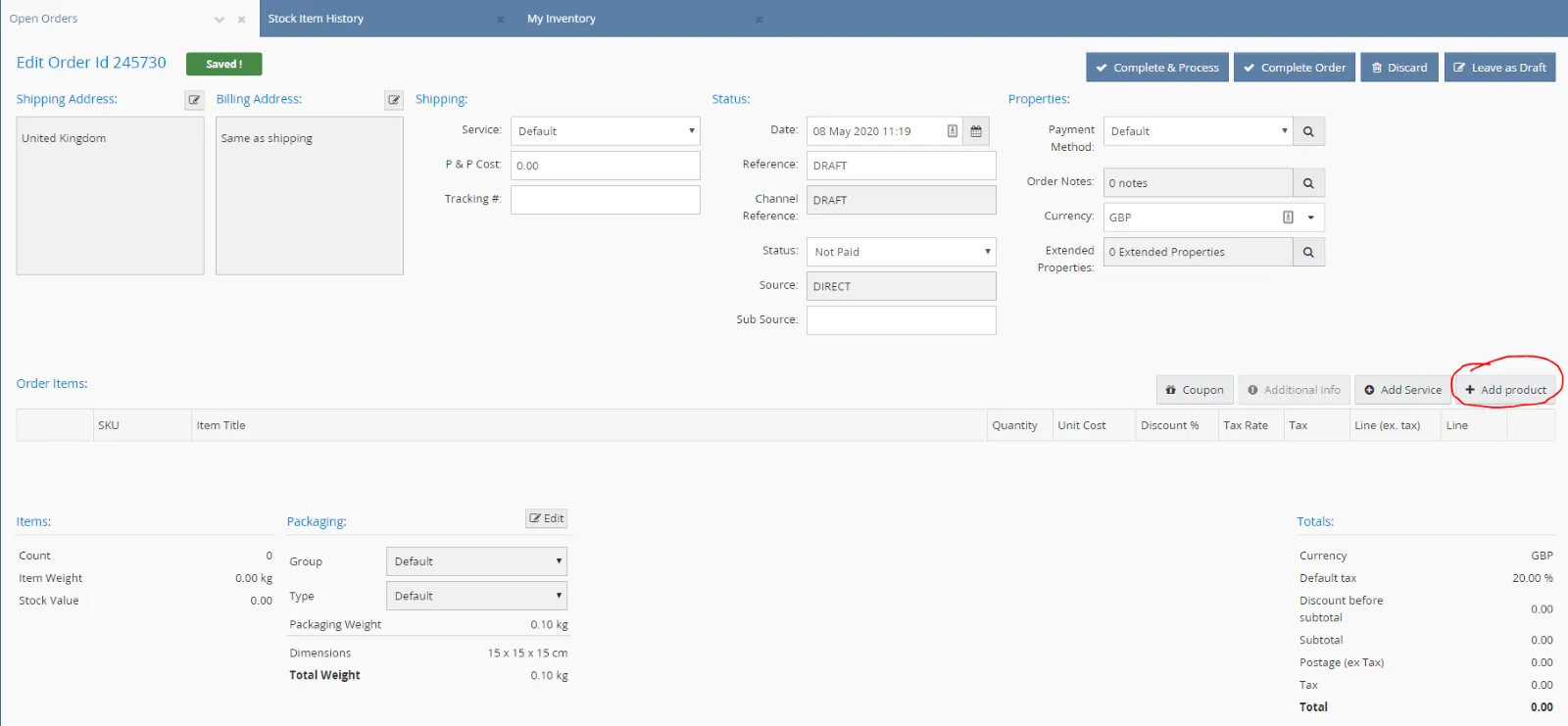
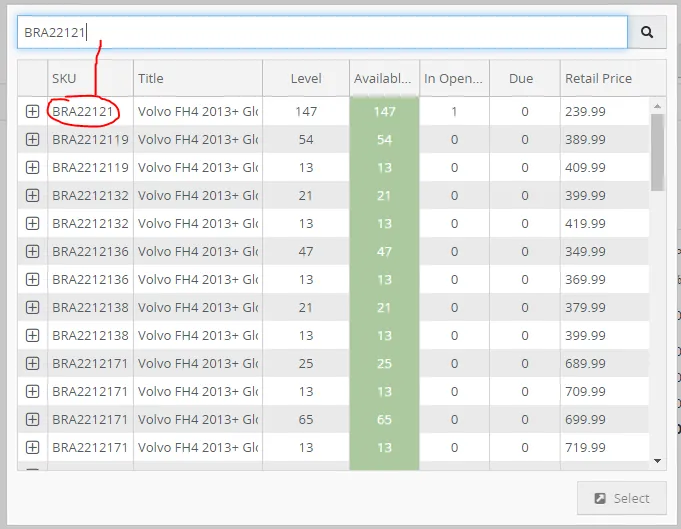
To add items to an order simply click Add New – which will prompt a screen for you to enter the item name or BRA number (Please see both screenshots below).
Double click to add the add to the order.
Once we have added this to the order – we can now amend it if need be (i.e. if you were going to sell this at £170.00 – you would enter 170.00 into the unit cost box and hit enter. If you were going to apply a 5% discount you would enter 5.00 into the
Discount % box & Linnworks would calculate the price for you. TAX Rate – now this is VERY VERY IMPORTANT – please ensure that all tax rates for the order is correct
- if it needs a 20% enter 20.00, if it needs a 23% VAT invoice enter 23.00 (Please note the order would then have to be charged in EURO) and if the order is a 0% invoice then leave it as it is or change it from 20% to 0%.
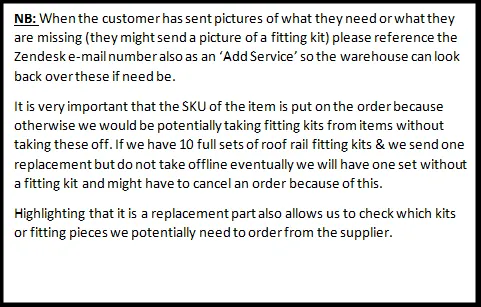
NB: If you enter the address before adding the items – 20% will automatically show when you enter the items onto the order -

NOTE – Update to procedure – 24/06 – Pat IRL (Company Name, Sub source)
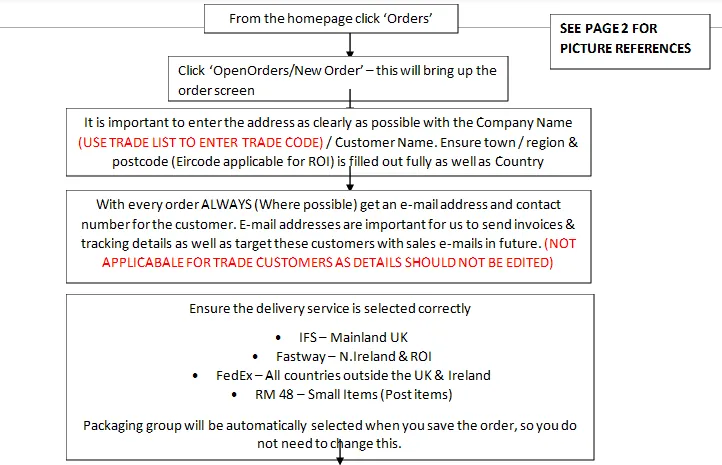
- Ensuring Address Info / Contact Details & Shipping Service is suffice & correct
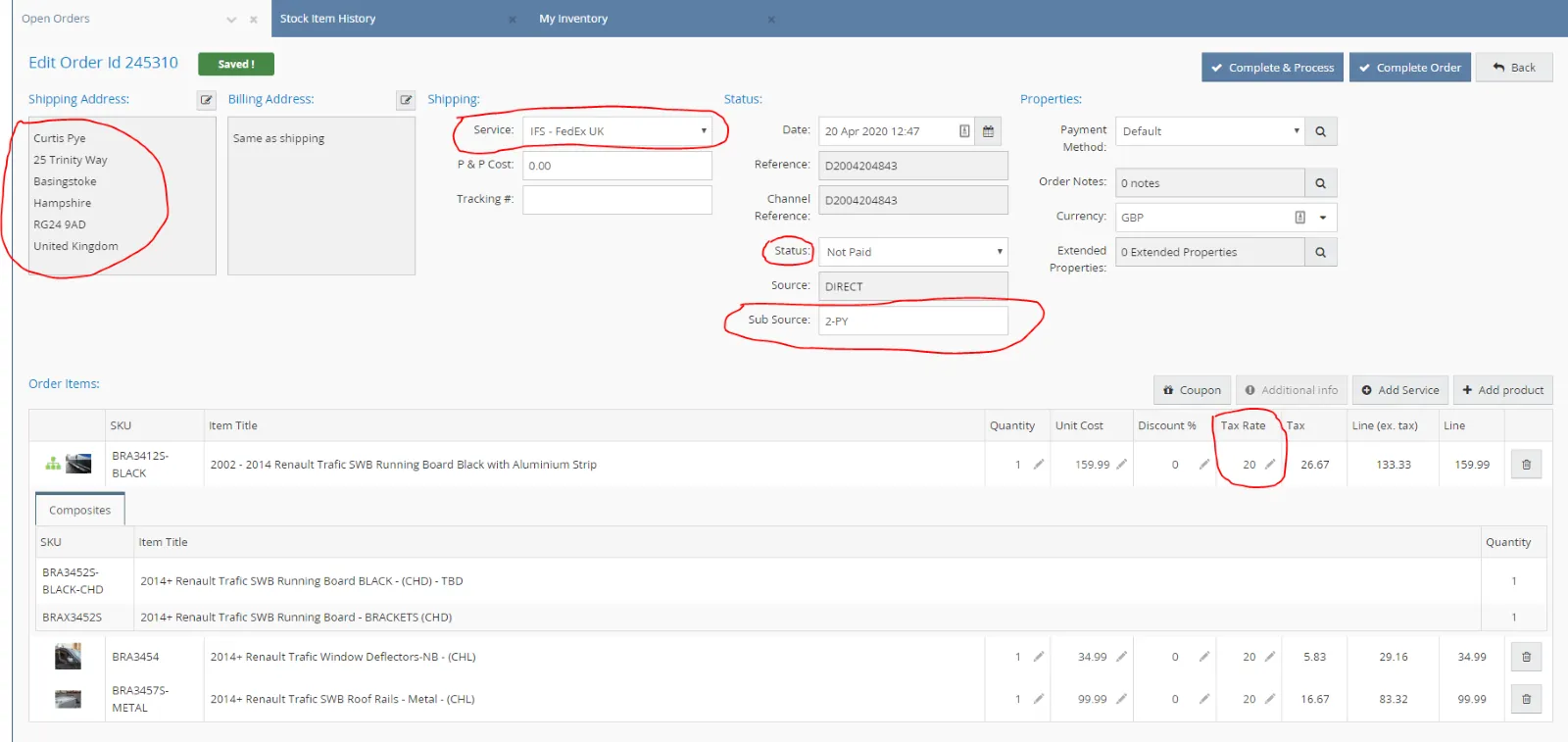
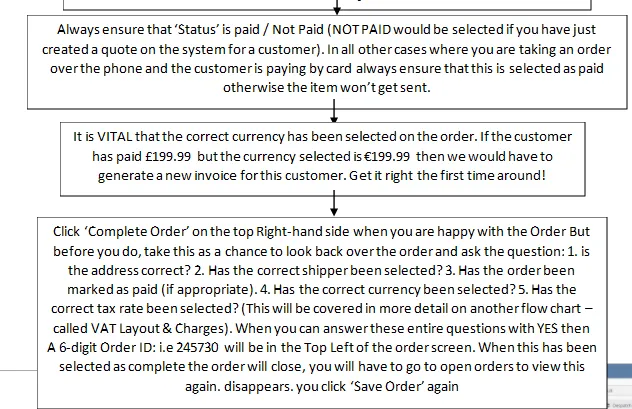
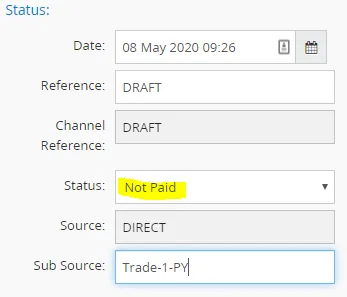
- Paid / Not Paid Order & Currency Correct
- Direct Order - Sub-Source Flow/Key
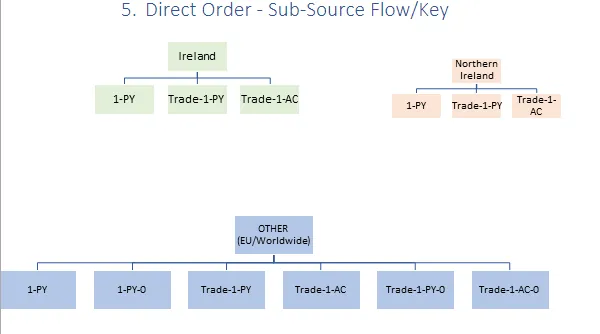
KEY
1 – Bragan Transport – (23%) 2 – Bragan Trading – (20%) Trade – Included if TRADE customer AC – Account (Customer holds Credit Account) PY – Custom pays/paid on purchase 0 – If Order is 0% VAT
- Creating a Proforma Invoice
This SOP will take you through the procedure of creating a Proforma invoice so that a customer can review their order and either send in PayPal information or make payment through bank transfer.
- Create the order that customer has requested. Remember to leave the status of the order Unpaid. This is extremely important. It can be updated to Paid as soon as we have received payment.
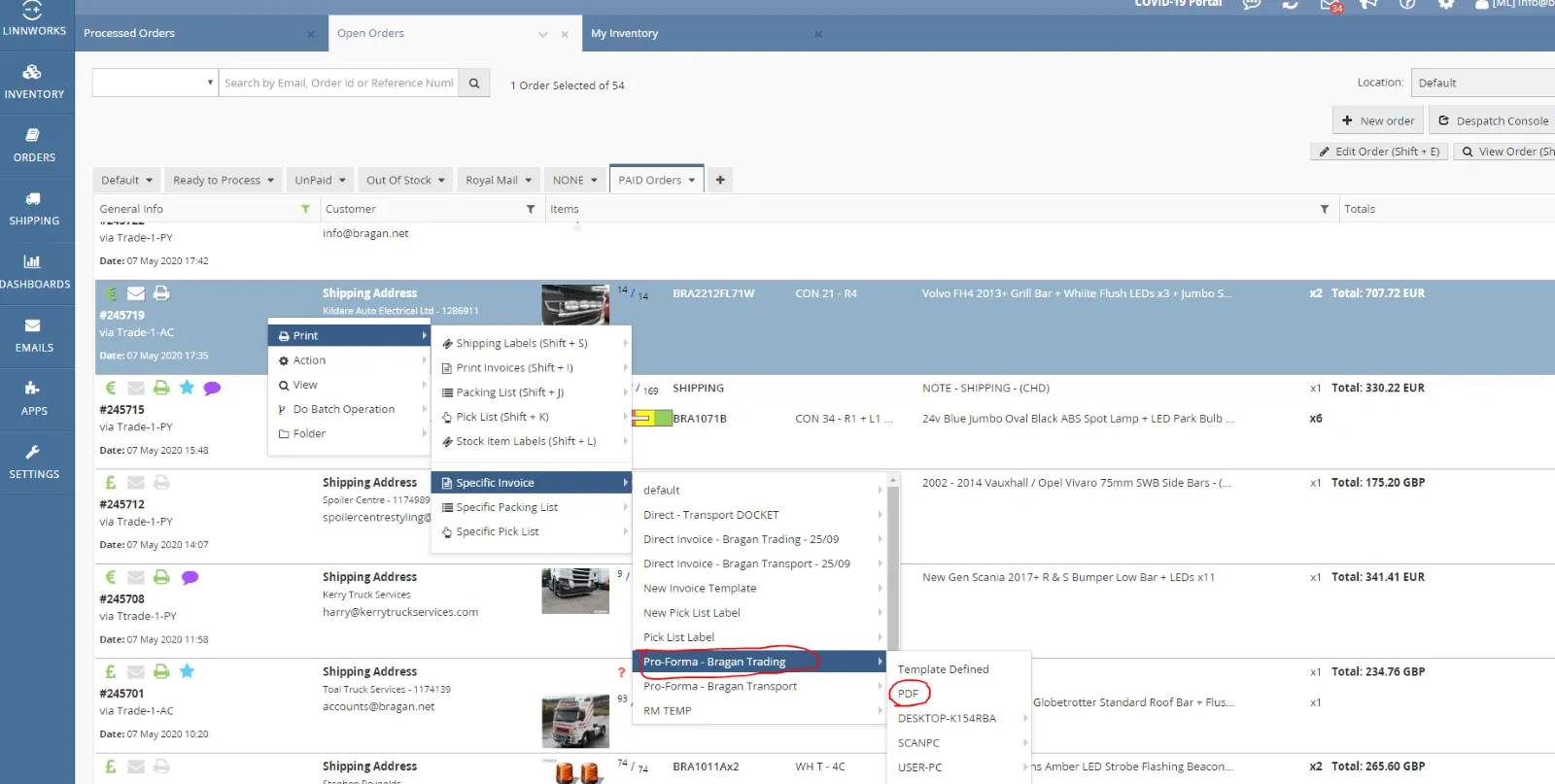
- When the order is saved, it will be moved to Open Orders. From here, right click on the order in question, hover over Print, Move over to Print Specific Invoice and Finally select Proforma – Bragan Transport or Proforma – Bragan Trading (see image below). It is vital that you choose the correct option here. Bragan Transport would be selected for Ireland, Northern Ireland and the rest of the world and Bragan Trading would be selected for UK mainland orders.
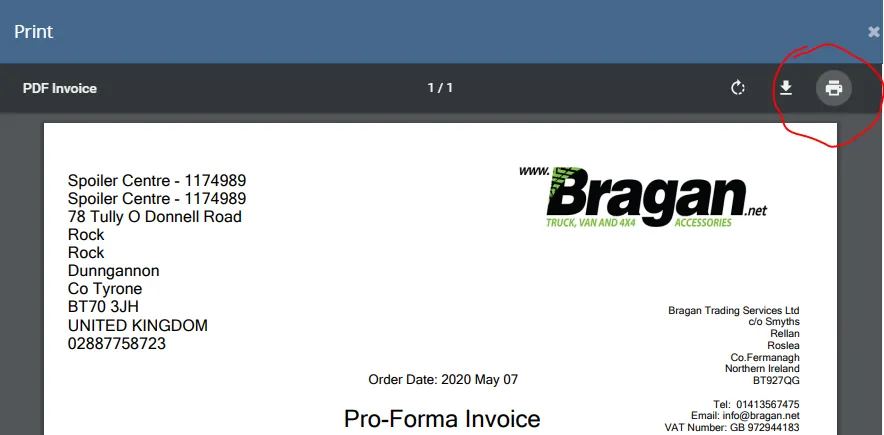
- Select Print and Save as PDF on the next screen (above).
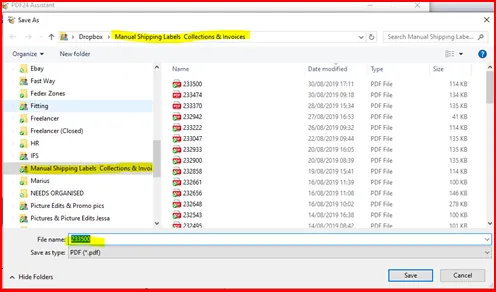
- Save in Manual Shipping Labels Collections & Invoices using the order number as the name. As above
Notes#
This section is important so Adhoc points and issues can be logged. Also, Q&A can be logged for suggestions for potential issues encountered. Also, log important notes needed for this system. Additional Notes:
This shows the process of how to create a discount for customers via Linnworks.
Potential Issues:
1 - ISSUE ENCOUNTERED: Stuck on Loading
RESOLUTION: Refresh Browser
2 - ISSUE ENCOUNTERED: Broken Links
RESOLUTION: Get the external link as this will allow other people to access the SOP without the need for login credentials and avoid broken links.