Price Update (Import) SOP
The purpose of this document is to outline new and existing staff how to properly
Overview#
Purpose: The purpose of this document is to outline new and existing staff how to properly change the price of live listings in the website through Linnworks via import process.
Scope: This procedure applies to all Bragan Personnel.
Responsibility: It is the responsibility of each employee to ensure the process set out in this procedure is followed.
Objective: The objective of this procedure is:
to guide employees on how to update the price of live listings in the website through Linnworks – import process.
Procedure#
- 1st step is to know the channels where the SKU was listed.
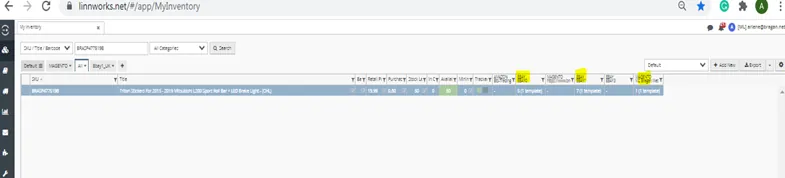
- And then Go to Linnworks > Log in your account > Go to My Inventory.
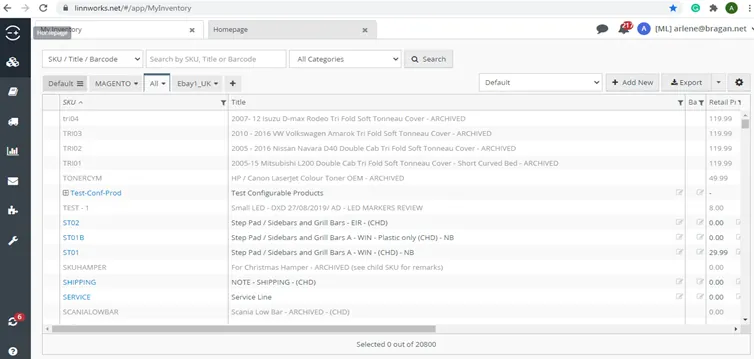
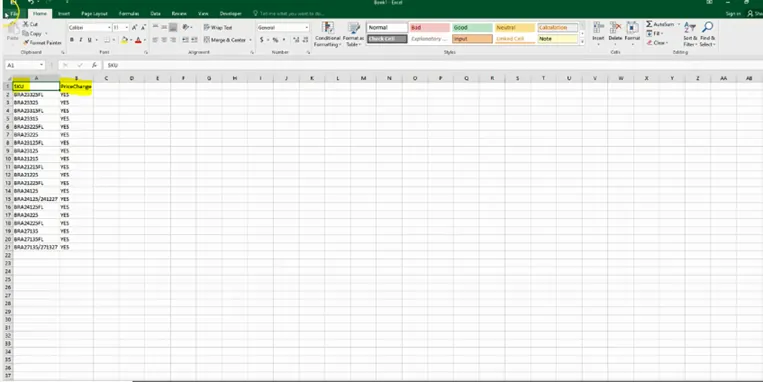
- To check where the SKUs are listed, need to create a new view for this SKU by CSV upload and saved it as a CSV file.
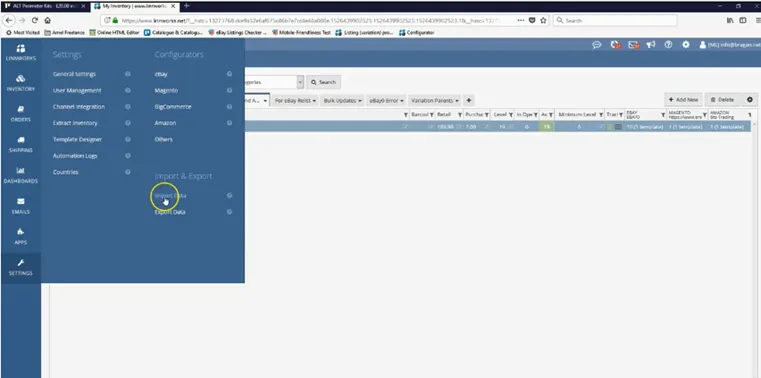
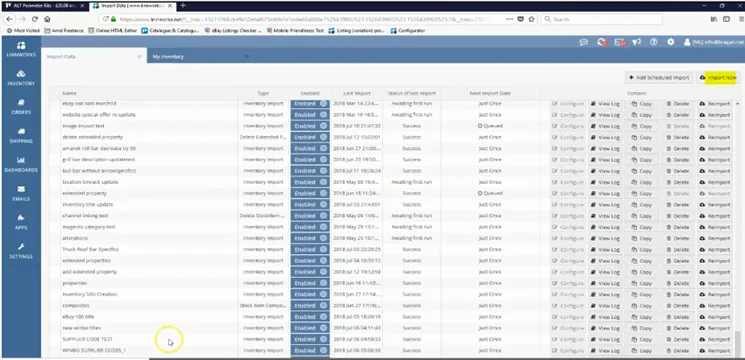
- Now, go to Linnworks > Settings > Import Data
- Go to the ‘Import Now’ tab
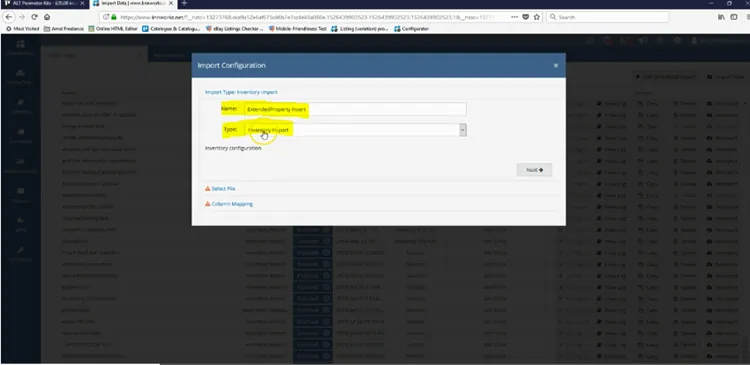
- Fill ‘Name’ to any name you want and ‘Type’ is Inventory Import.
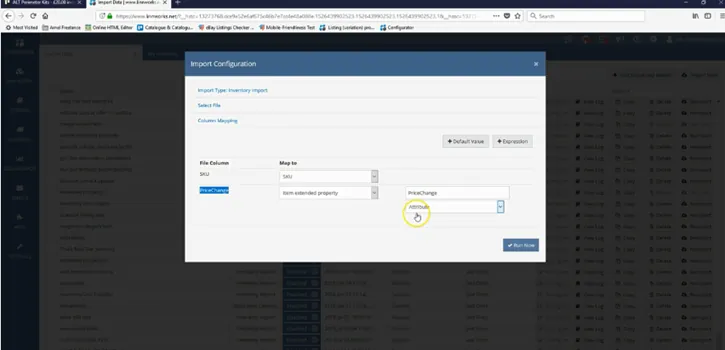
- Map sku > sku and price change > item extended property > price change > attribute then click Run Now.
- If already success go to Linnworks and click edit view.
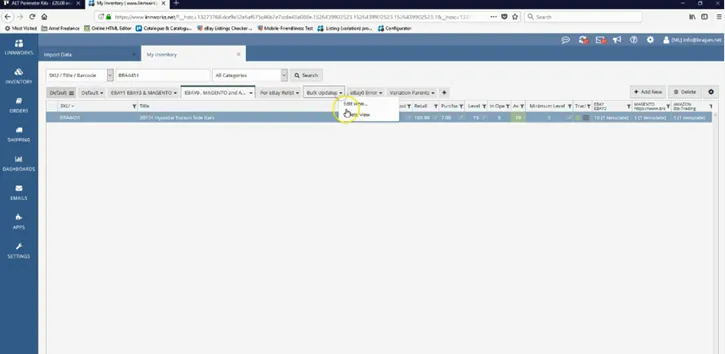
- Click ‘Add New’
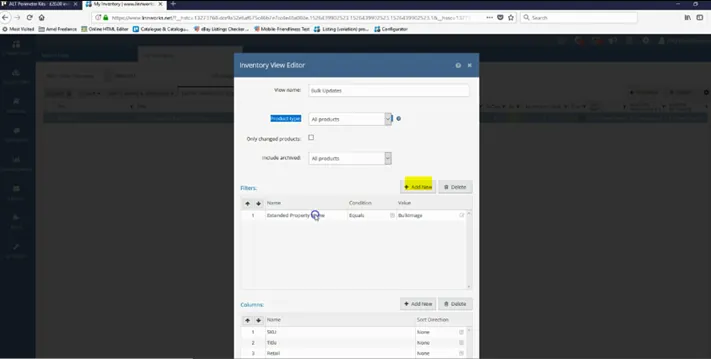
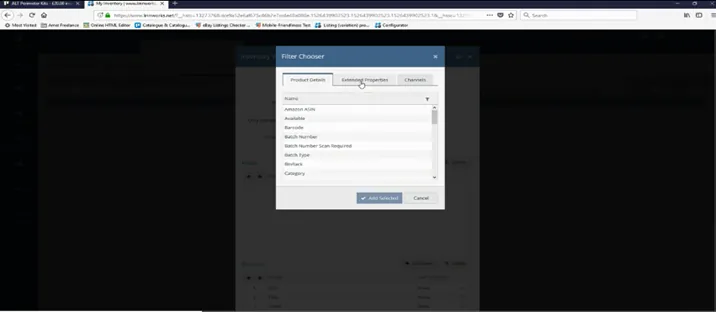
- Choose item extended property, choose the name of the filter view then add selected.
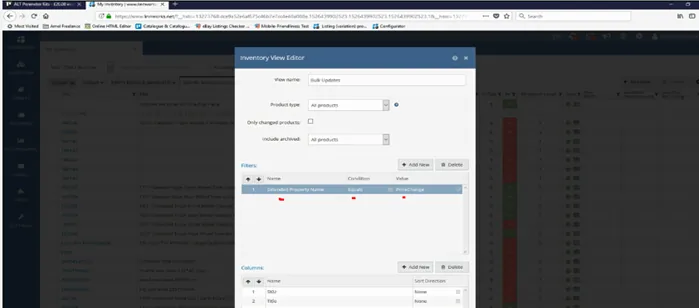
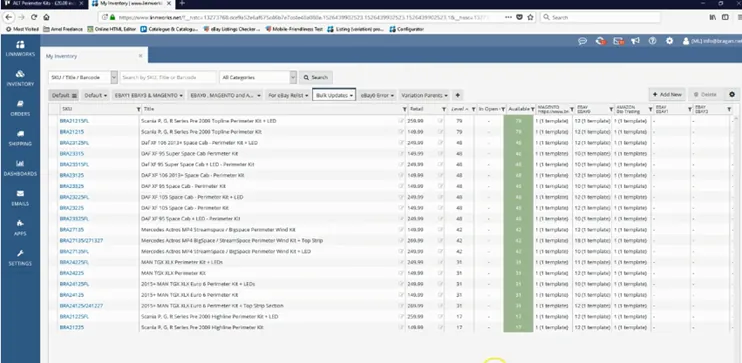
- Now the view shows only the SKUs that need price updates. You can now check where channels these SKUs are listed.
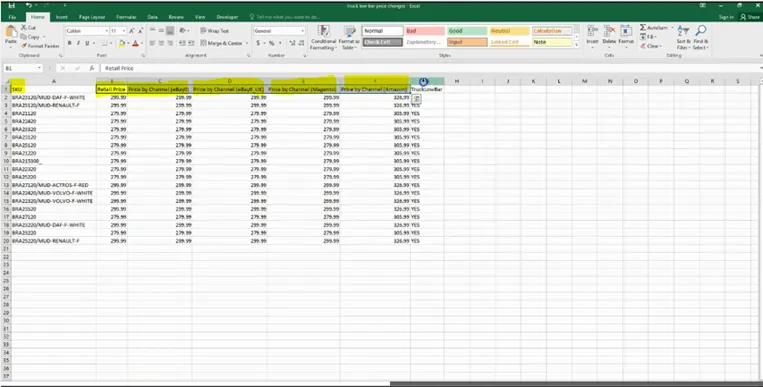
- Now prepare the file for price update. This is the correct format of the column header.
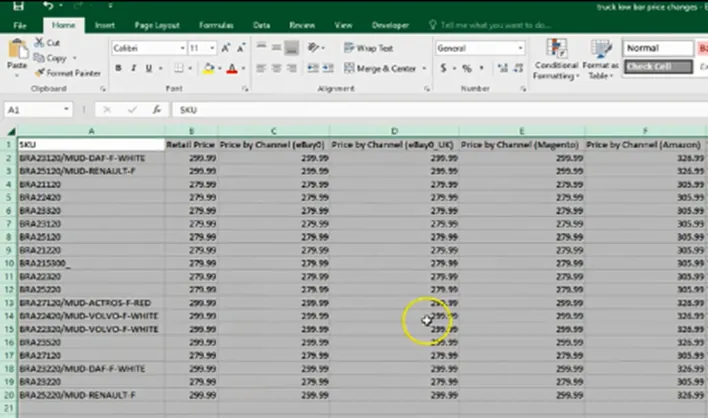
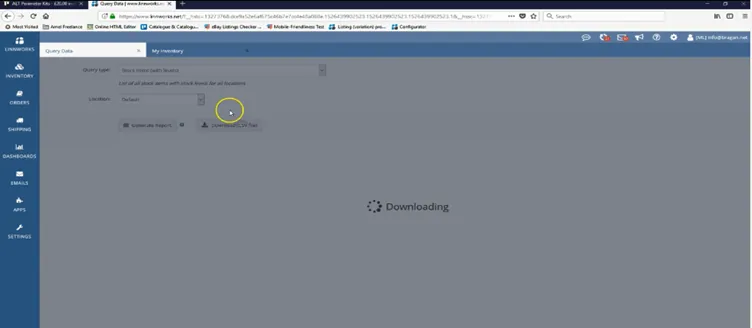
- 1st step is to go LW > Settings > Query Data > Query type – Stock items with level then click download CSV file.
- Open the downloaded file. Now Prepare the file to upload.
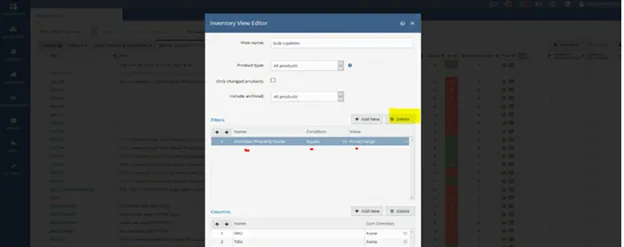
- Upload via import like the 1st process upload above. Wait until it says ‘success’. Then go back to Linnworks inventory view and revise like manual revise for price update, highlight all SKUs and revise all together. Then check the live listing in all channels it was listed if price updates are successful to these SKUs. After that delete the filter view. And go back to your ‘All’ view.
Video & Media#
🎥 3. IMPORT method Price Change
Notes#
This section is important so Adhoc points and issues can be logged. Also, Q&A can be logged for suggestions for potential issues encountered. Also, log important notes needed for this system. Additional Notes:
This shows the process of the Price Update (Import) SOP. This system is beneficial for agents when updating bulk SKUs for price update.
Potential Issues:
1 - ISSUE ENCOUNTERED: Stuck on Loading
RESOLUTION: Refresh Browser
2 - ISSUE ENCOUNTERED: Broken Links
RESOLUTION: Get the external link as this will allow other people to access the SOP without the need for login credentials and avoid broken links.
3 - ISSUE ENCOUNTERED: "Type Text Here"
RESOLUTION: "Type Text Here"