Creating a Warehouse Listing Query
Trello is Bragan’s primary tool for recording workflow and task management.
Overview#
Purpose: Trello is Bragan’s primary tool for recording workflow and task management. The
Purpose: of this document is to outline to new and existing staff how to make warehouse queries.
Scope: This procedure applies to all product listers
Responsibility: It is the responsibility of each employee to ensure the process set out in this procedure is followed.
Objective: The objective of this procedure is:
to standardize the process of making queries to the warehouse
to make the process of warehouse queries more efficient
Procedure#
A warehouse query card is usually created when listers are creating new listings and sometimes when an update to a listing and the listers needs from verification from warehouse team about the item.
Part of the listing process especially for new items is to confirm to warehouse team the postage definition, the inventory and location of the item and sometimes to confirm the material its made of and the dimensions to be used for the dimension image. See this SOP on How to Create Listings in Linnworks. Therefore if you need to confirm these details to warehouse, you do not just chat it directly in the Skype Group, proper process should be followed. See steps below.
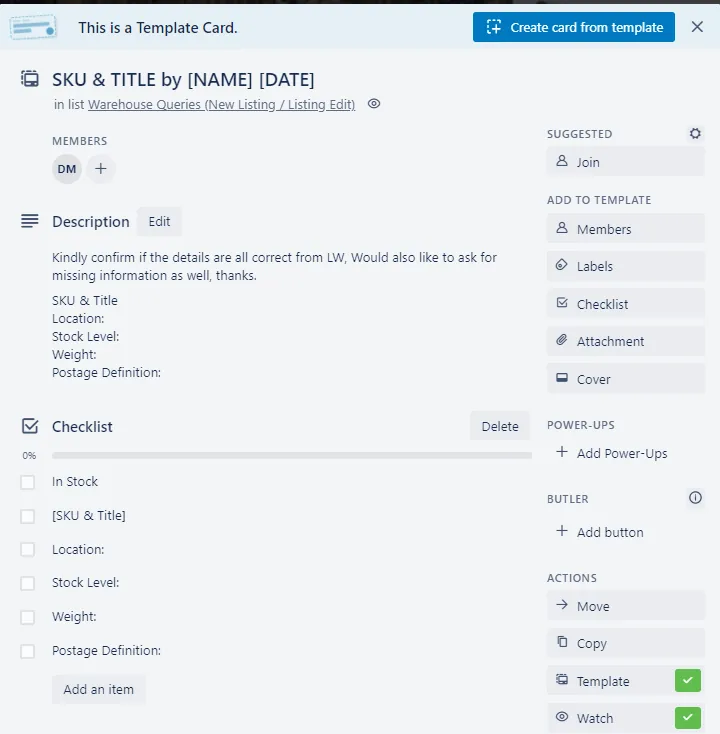
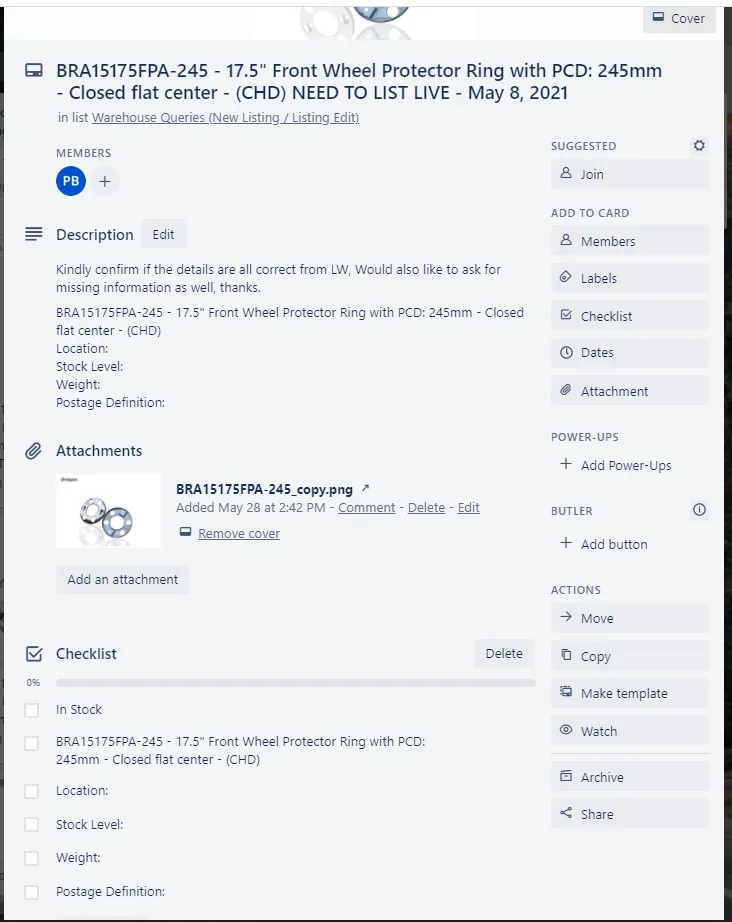
- Create Warehouse Query Trello Card Go to Warehouse Trello Board and create a card using the template provided in the list. Fill out the necessary details (Title, Description, Checklist, Add image of the product). Add or remove details as needed to ensure that the request is as concise as possible. – See Fig. 1.1 and 1.2
- Send Request to Warehouse Group in Skype
Once you have created a card, send your request to Warehouse PH Technical Skype Group. Make sure to tag the warehouse people to notify them of your request. Provide the link to the Trello card at the end of your request. – See Fig.2.
- Do Follow-up Warehouse team is very busy, they have many tasks and sometimes it took a while for them to respond to your queries. If it takes 2 or more days without answer to your query then do a follow-up in Skype. Listers need to be proactive and do everything to finish their tasks on time so do not hesitate to do follow-up.
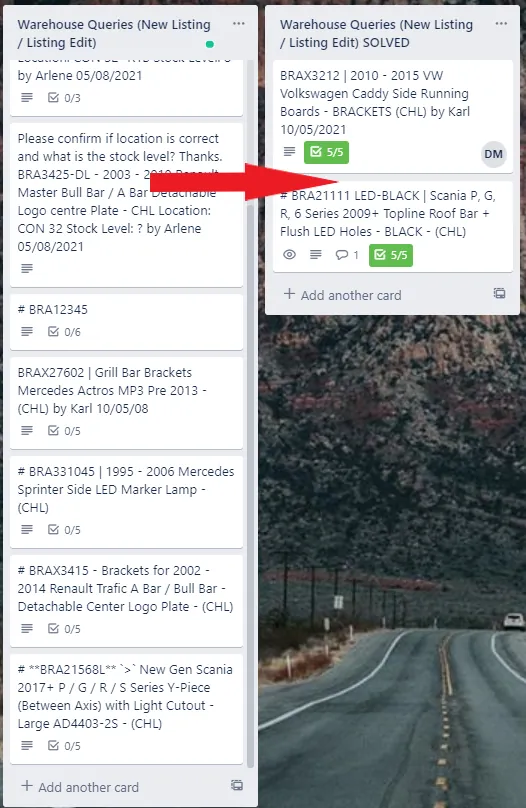
- Move the Card to Solved
If your queries have been answered or have all the boxes checked in the checklist. Move the card to the Solved List. This step is vital to prevent the Queries Checklist from overpopulating. – See Fig. 3.
Important notes#
Decrease in Stock
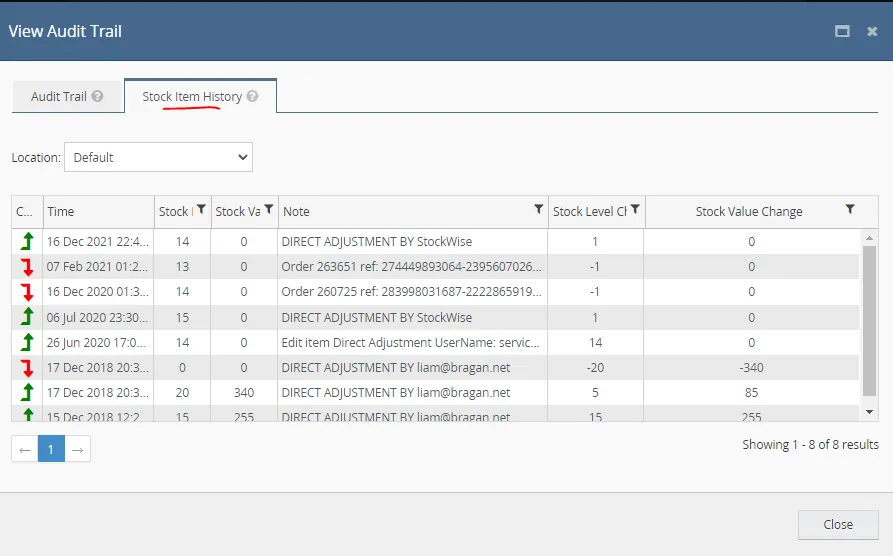
For a sudden decrease in stock level (ex: 20 in Linnworks then 2 confirmed by the warehouse in the Trello Card), check the audit trail of the item in LW. There might be
an update in stock level through PO Delivery in between the time warehouse confirmed the stock level and the lister updating the SKU in Linnworks.
To check items audit trail in Linnworks, open the product details screen of the item and click on the dropdown arrow at the top right corner and select Audit Log.
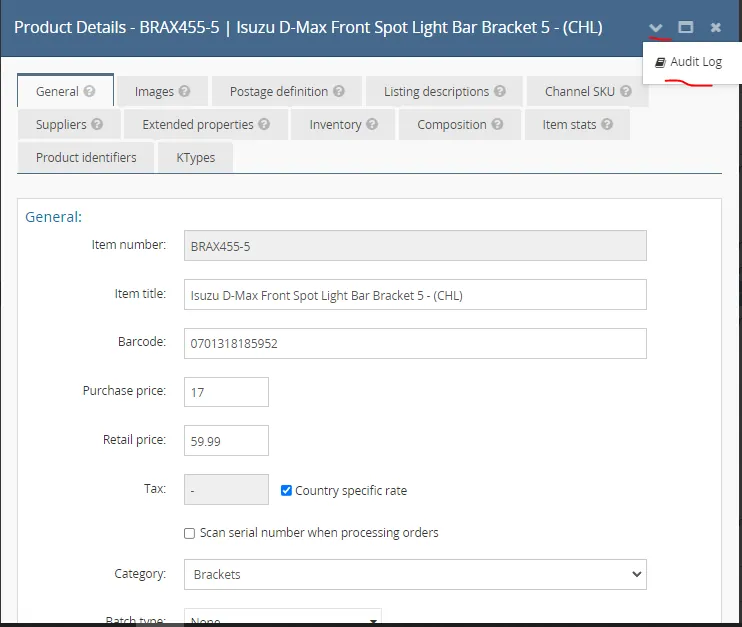
Then click on the Stock Item History tab to check if there is a delivery, contributing to the increase in stock in Linnworks. You can confirm these again with warehouse through skype group then use the confirmed quantity as your stock level.
In Stock Box
The first item in the checklist, In Stock, will be the first one that Warehouse will confirm. In this case, it means that we do have the item in stock but not sure yet with the stock level. Even if in LW it is zero but warehouse check the In Stock box in the Trello card the listing will proceed, just change the level to 2 in the meantime in order to proceed with the listing but make sure to update the remaining details in Linnworks once the warehouse has confirmed the total stock level.
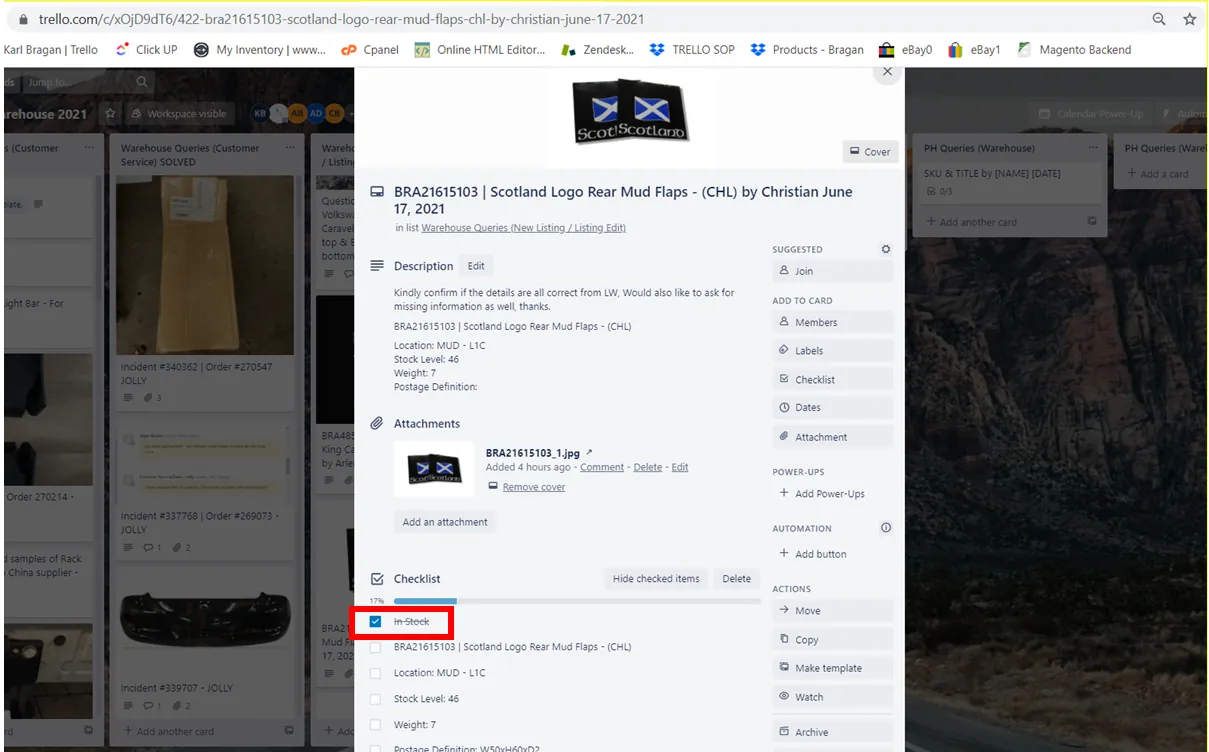
If stock in Linnworks is non-zero (1 or more), and In Stock is checked in warehouse query card but no final quantity yet, the stock level should not be changed to 2 but rather retain the Linnworks stock level and update accordingly when the warehouse confirms.
Video & Media#
Notes#
This section is important so Adhoc points and issues can be logged. Also, Q&A can be logged for suggestions for potential issues encountered. Also, log important notes needed for this system.
Additional Notes#
Decrease in Stock
For a sudden decrease in-stock level (ex: 20 in Linnworks then 2 confirmed by the warehouse in the Trello Card), check the audit trail of the item in LW.
In Stock Box
Even if stock level in Linnworks is zero but warehouse checked the In Stock box of the warehouse query card then lister can proceed to listing, just change the quantity to 2 while waiting for the final stock quantity.
Non-zero stock items
If stock in Linnworks is non-zero (1 or more), the stock level should not be changed to 2 but rather retain the Linnworks stock level and update accordingly when the warehouse confirms.
Potential Issues:
1 - ISSUE ENCOUNTERED: Stuck on Loading RESOLUTION: Refresh Browser
2 - ISSUE ENCOUNTERED: Broken Links RESOLUTION: Get the external link as this will allow other people to access the SOP without the need for login credentials and avoid broken links.