How to Upload Trade Prices to Magento bulk update and single sku (manual update)
Trade Price is a feature where we give out different prices to different customer
How to Upload Trade Prices to Magento bulk update and single sku (manual update)
Overview#
Purpose: Trade Price is a feature where we give out different prices to different customer groups in our Magento website. This will give our customers particular discounts depending on which group they belong to. The purpose of this SOP is to guide new and existing staff how to update trade prices in Magento.
Scope: This procedure applies to Listing Team in charge of trade price update.
Responsibility: It is the responsibility of each employee to ensure the process set out in this procedure is followed.
Objective: The objective of this procedure is to standardize the process of updating trade prices in Magento.
Procedure
For bulk update
- Export Magento Product Report
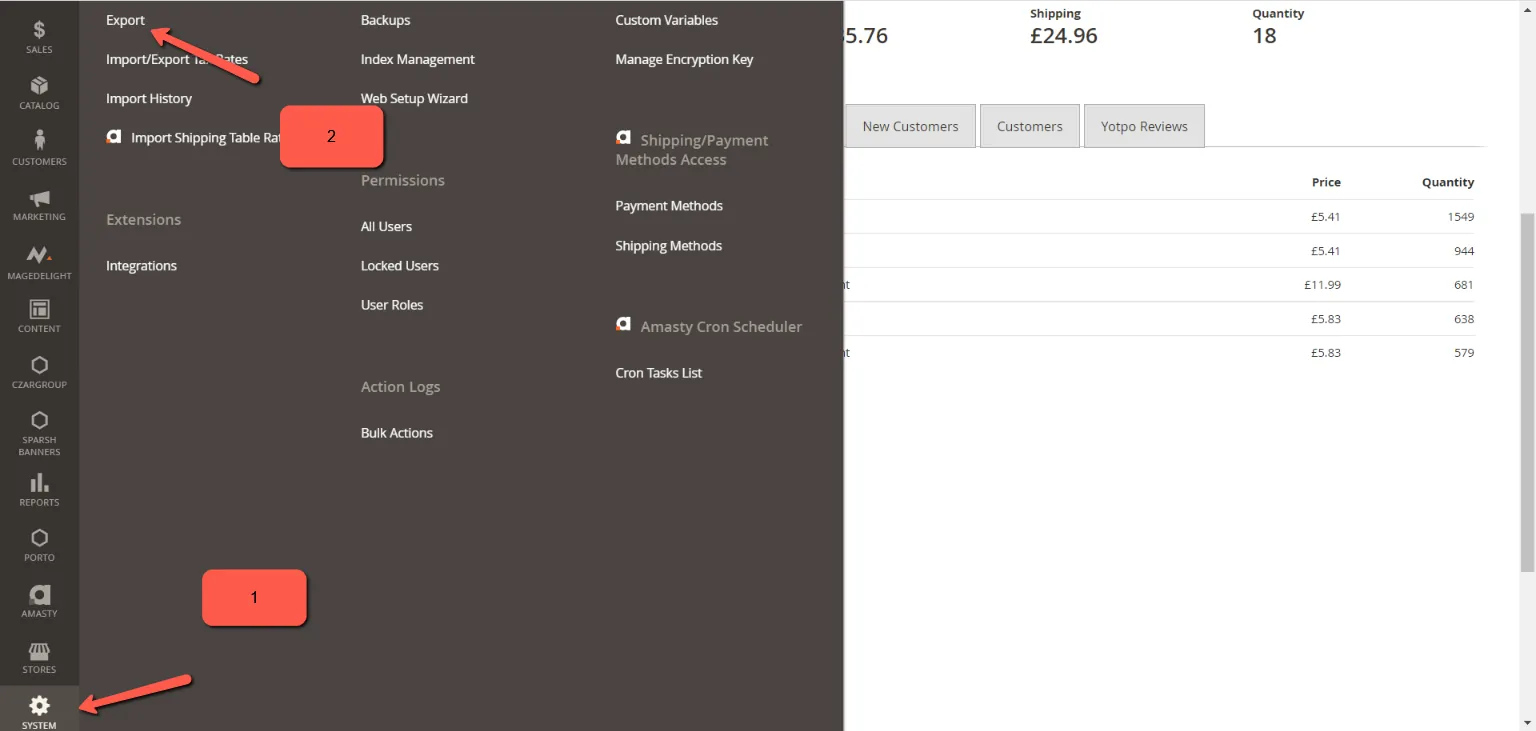
Log in to Magento Back End. Ask management for log-in credentials. Go to settings and click on export.
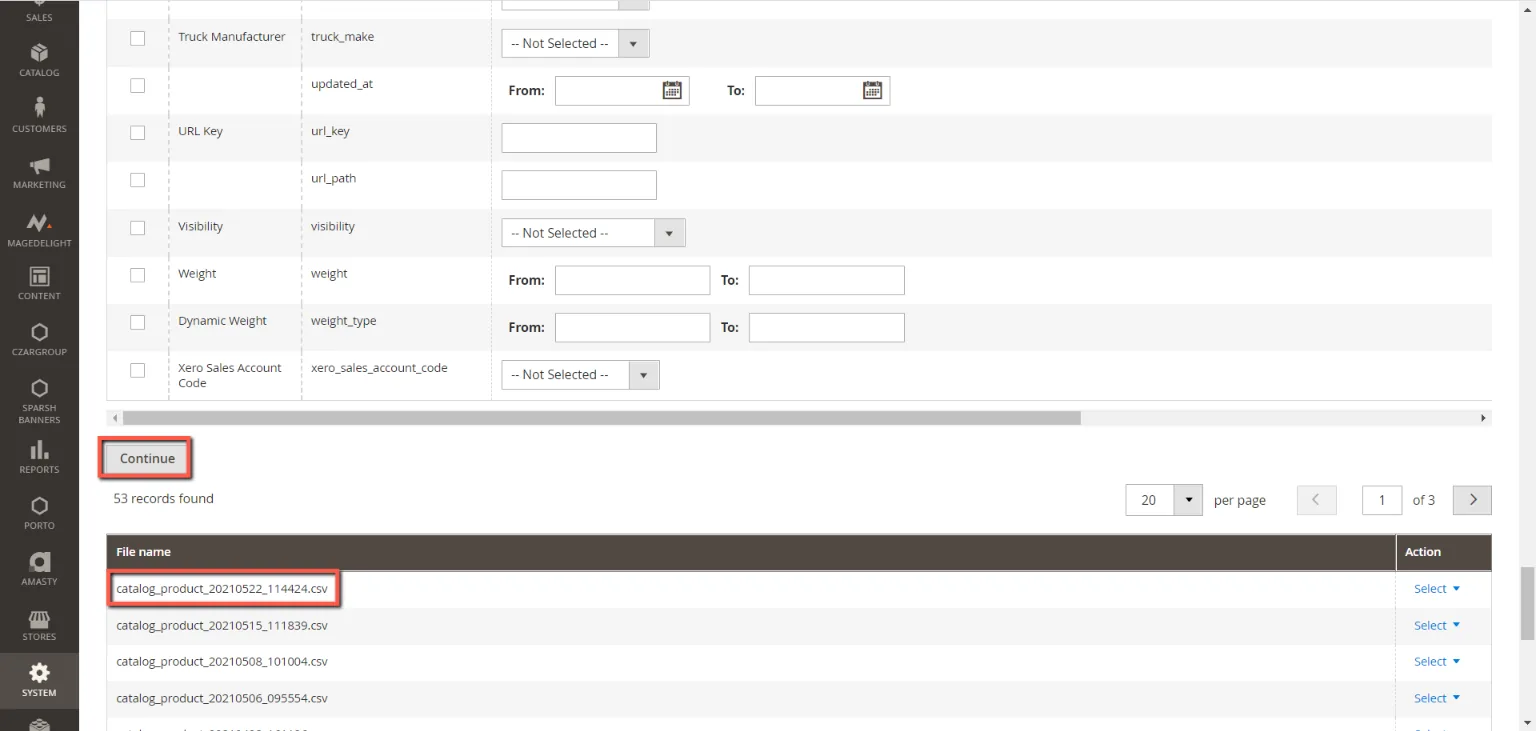
In the next window, select in the first box the “Product” and scroll down and click continue. Take note of the latest file name that was exported. You will use it as reference as to when the last trade price update was made. Look at catalog_product_20210522_114424.csv
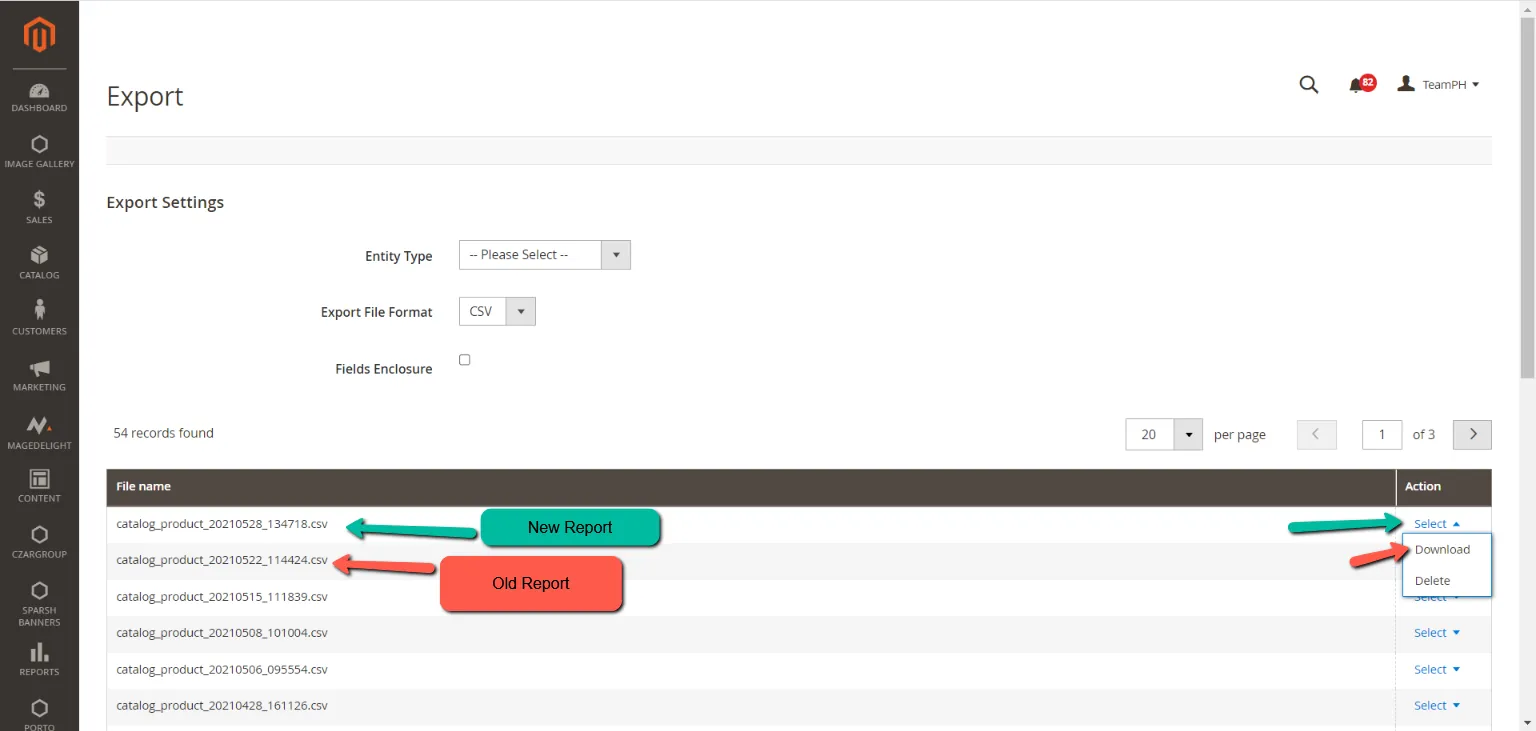
Once you clicked continue, it will take around 5 minutes to generate the report just keep on refreshing the page. When the new report is available. Click on select then download.
- Export Linnworks Inventory Stock Items (with levels) Report
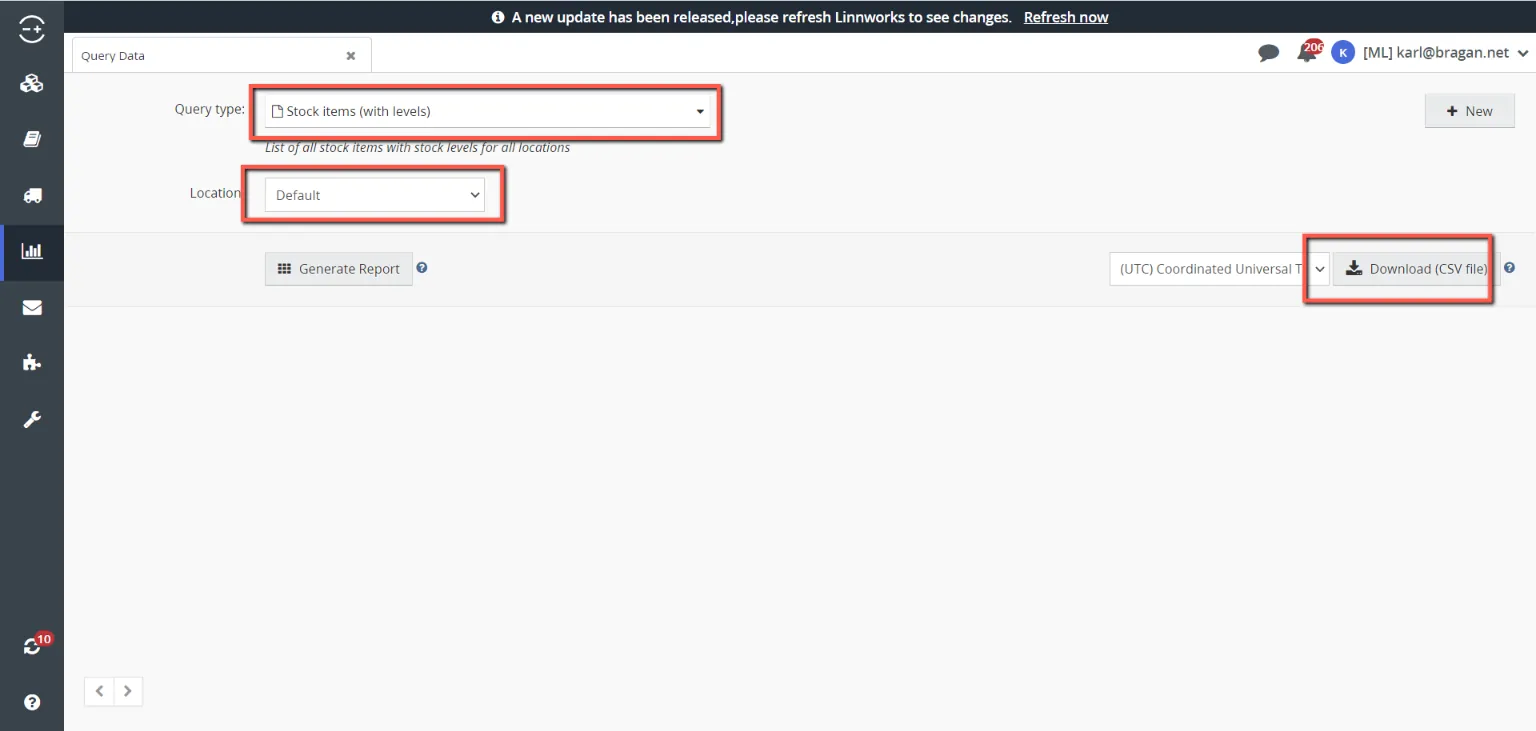
Go to Linnworks and click on Dashboards > Query Data.
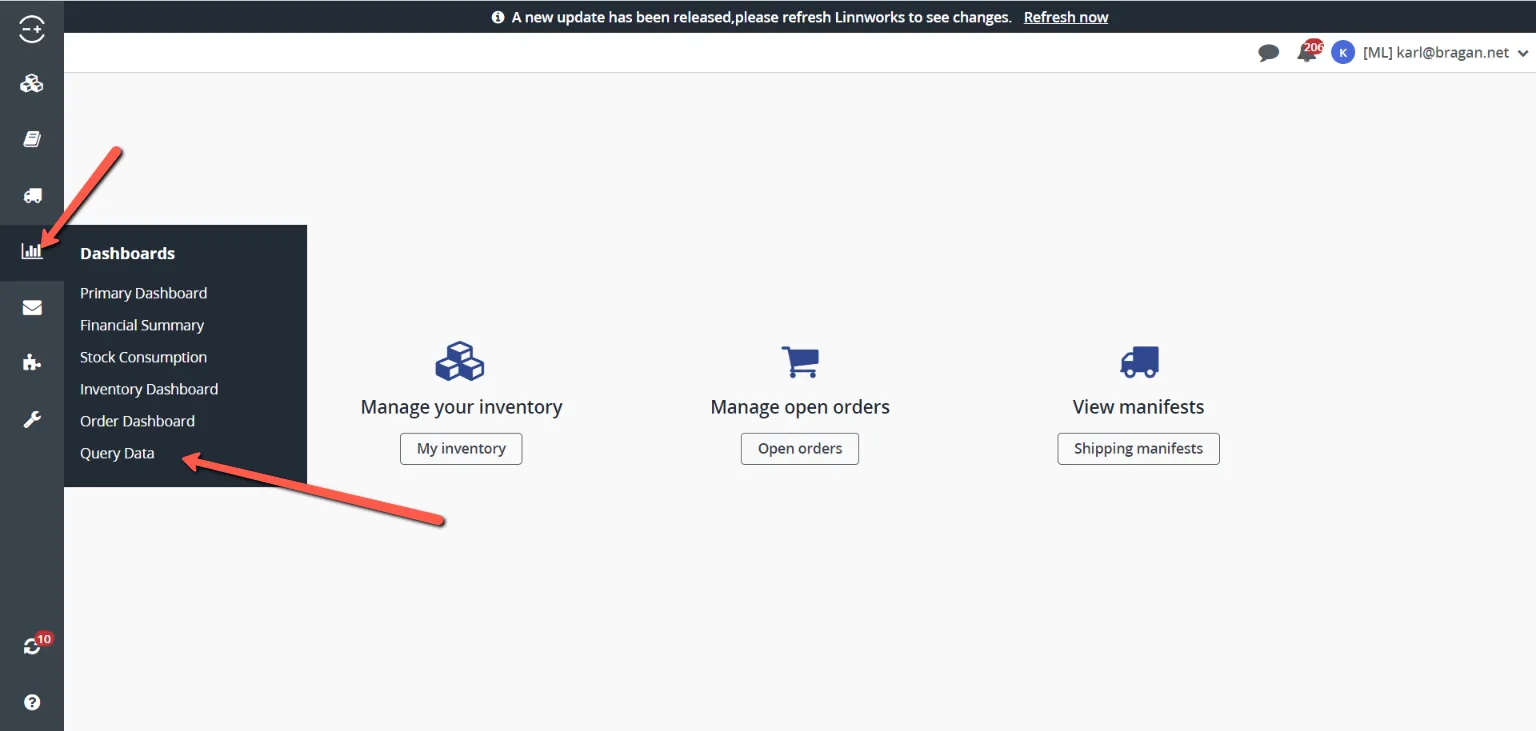
Fill out the field Query Type with Stock Items (with Levels) and Location with Default. And then click on Download CSV file.
- Prepare excel file to use
Open up the Magento Product Report and delete all columns except sku, name, price, and created_at.
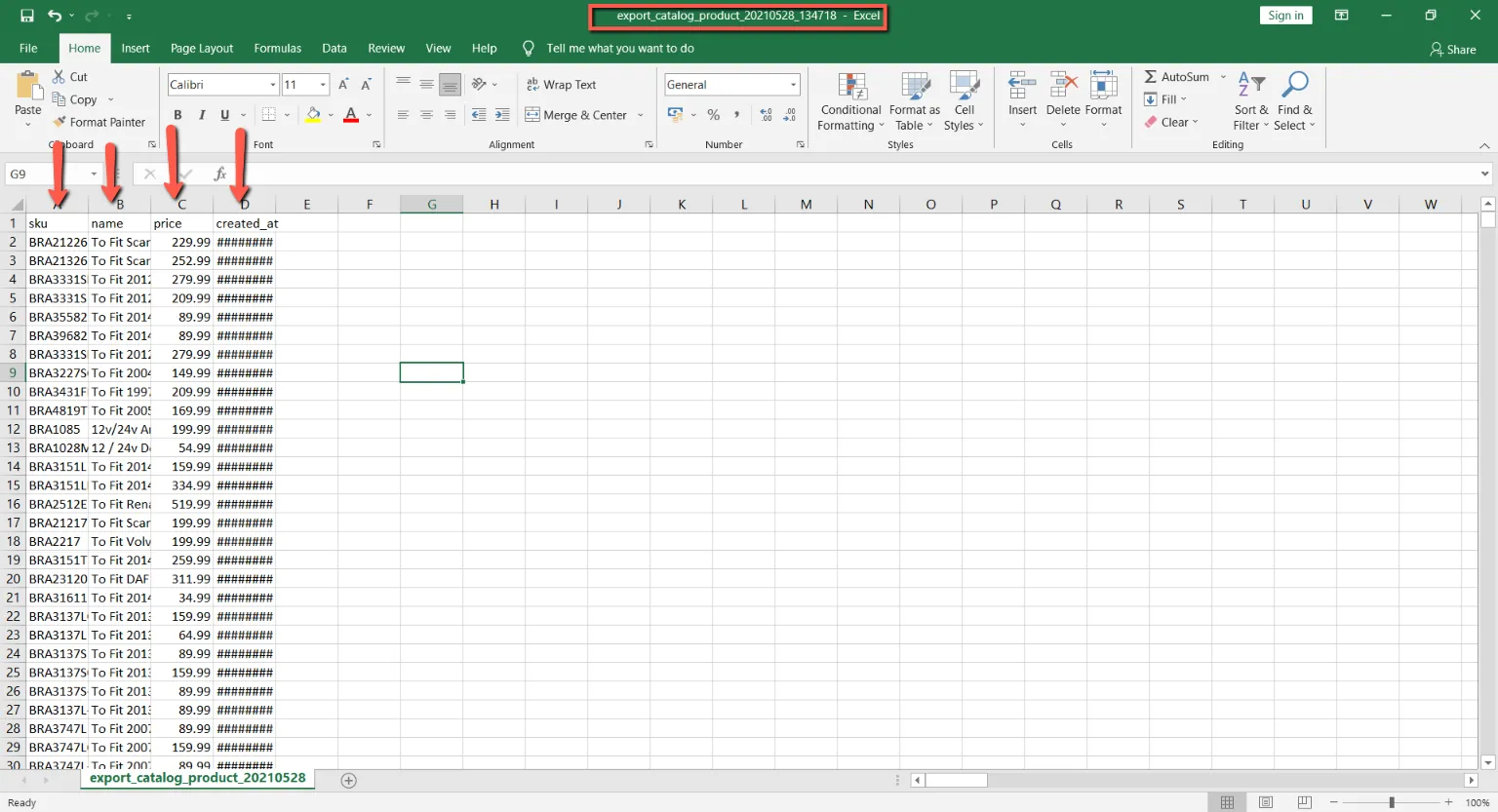
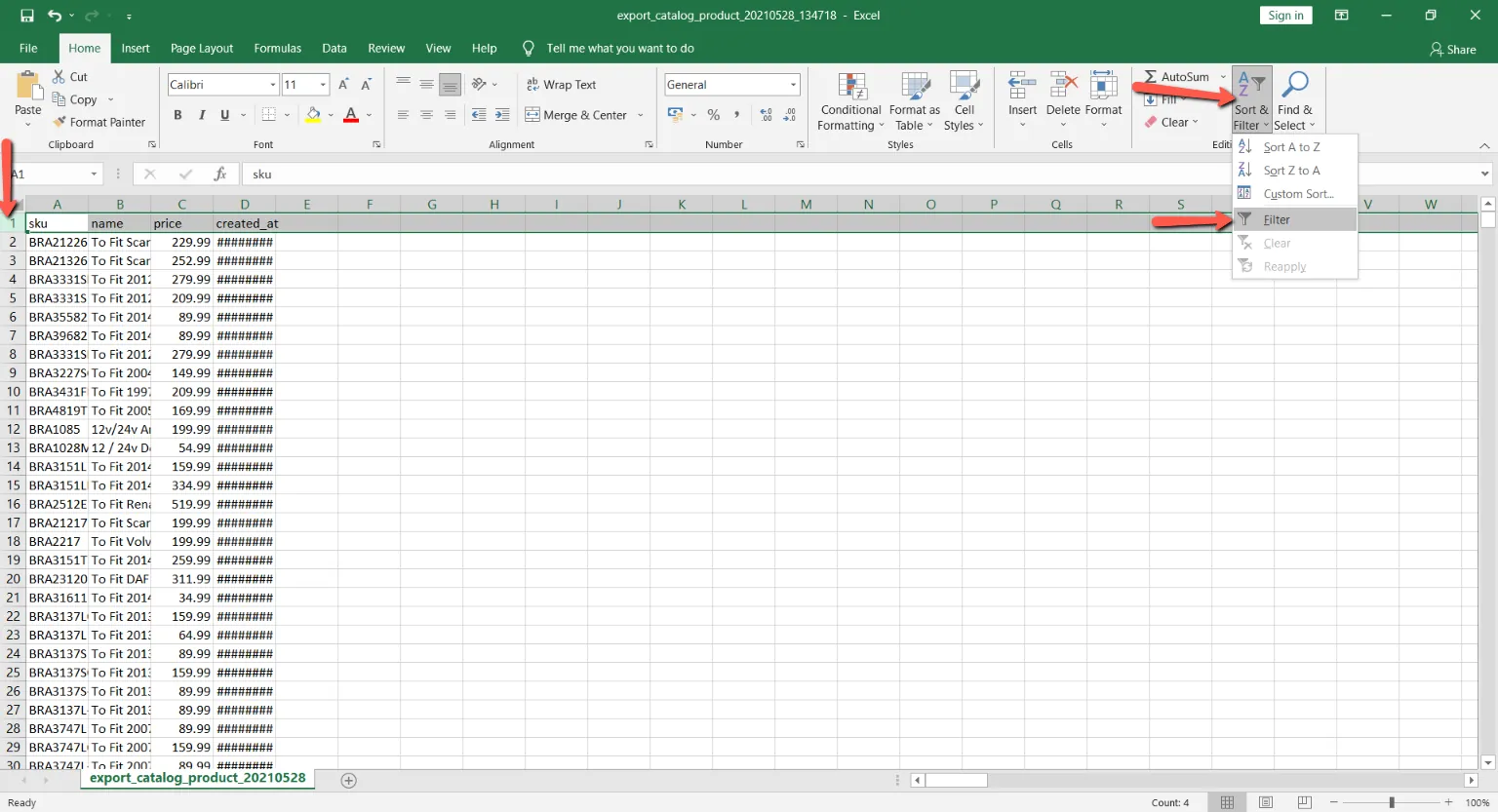
Filter the file by clicking on the first row and clicking on the filter button.
Filter column D by date after.
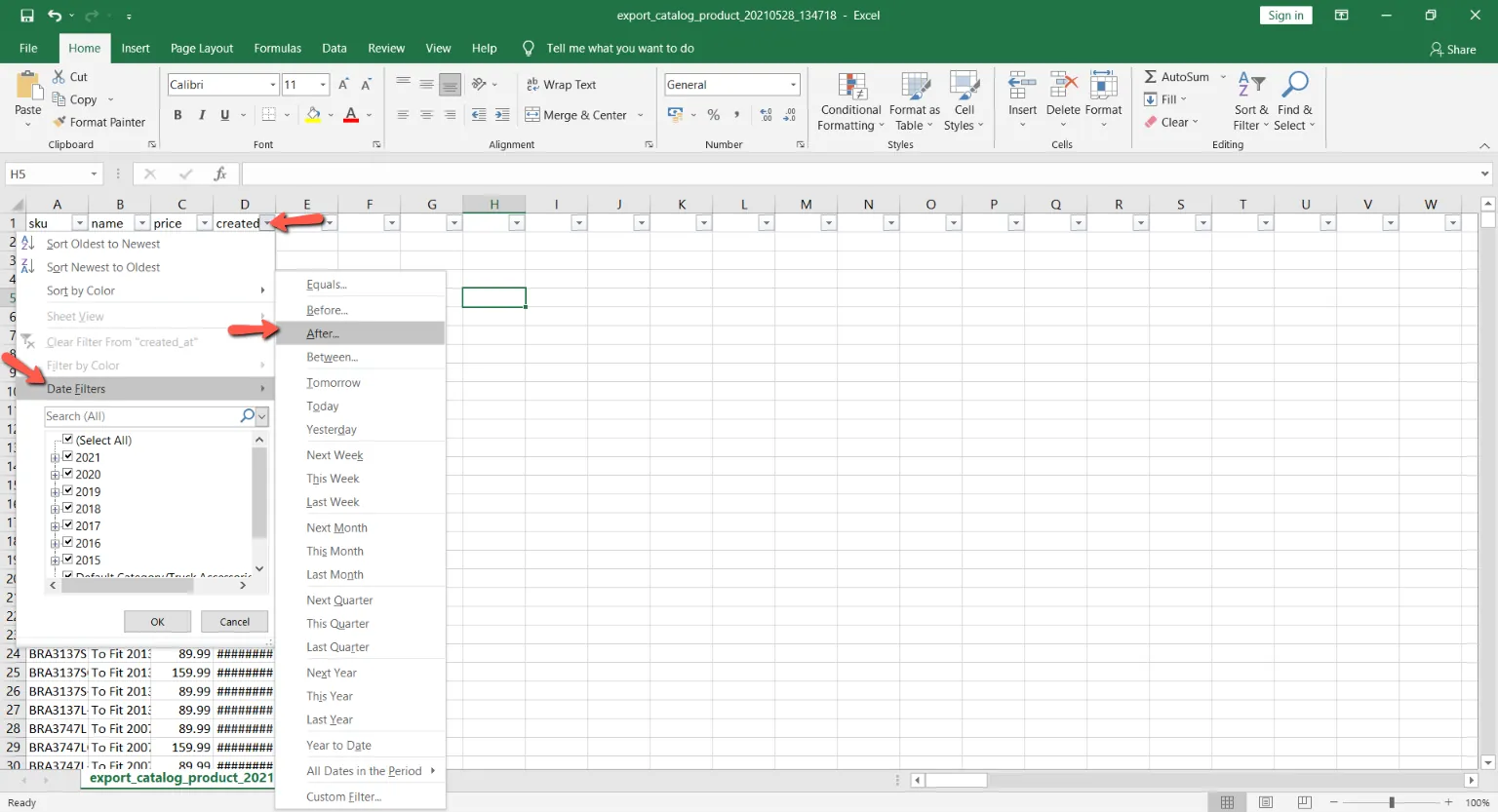
Then select the date that is 1 day before the previous trade update. Remember that we took note of the date when we extracted the magento products report. It was May 22 2021. So we have to input the date May 21 2021 in the filter.
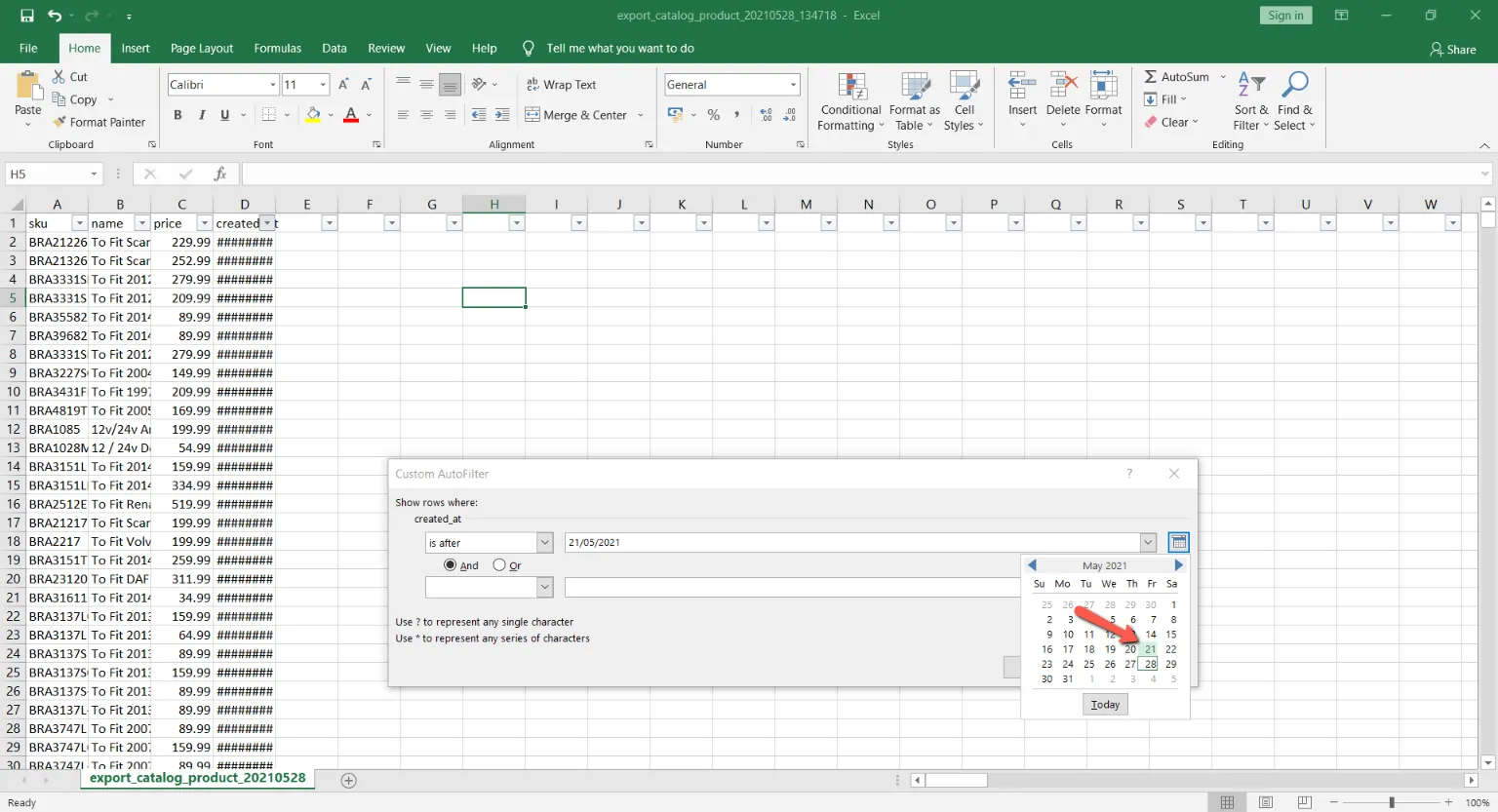
After filtering copy all the cells and paste it in a new excel document. This will be our main working file for the trade price update.
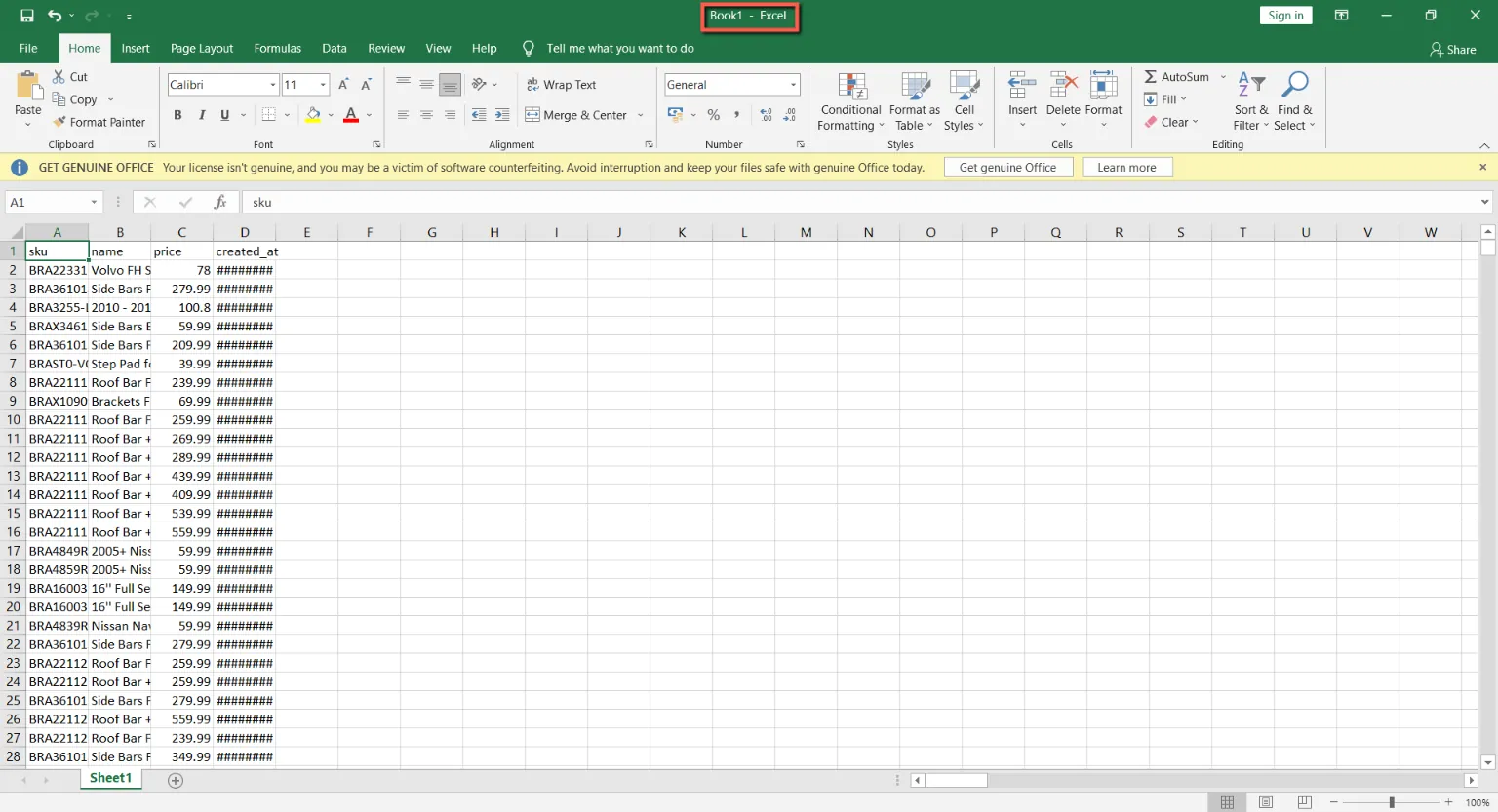
- Cross-check prices with Linnworks Stock Items (with levels) Report
In your working file, delete column D.
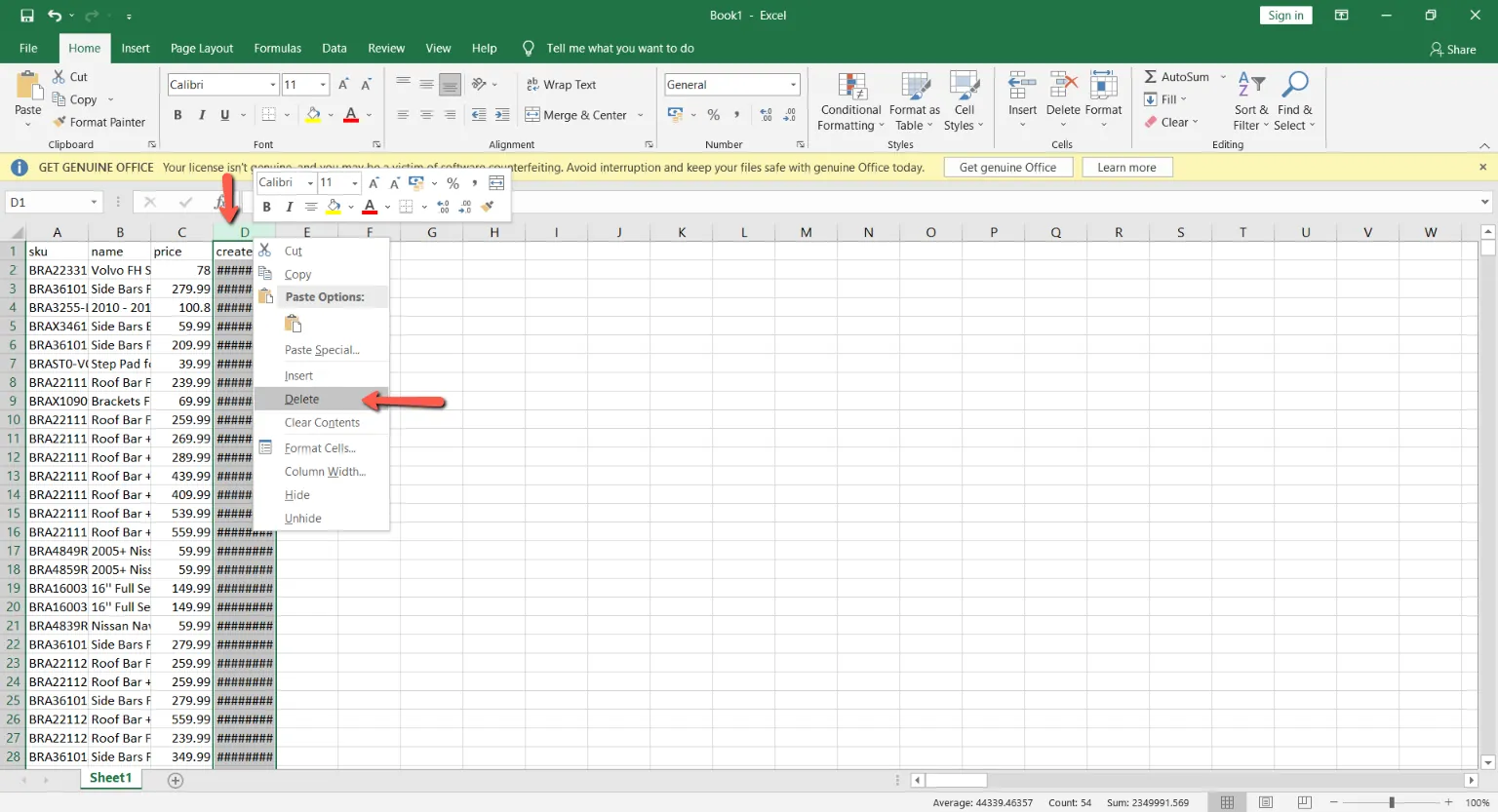
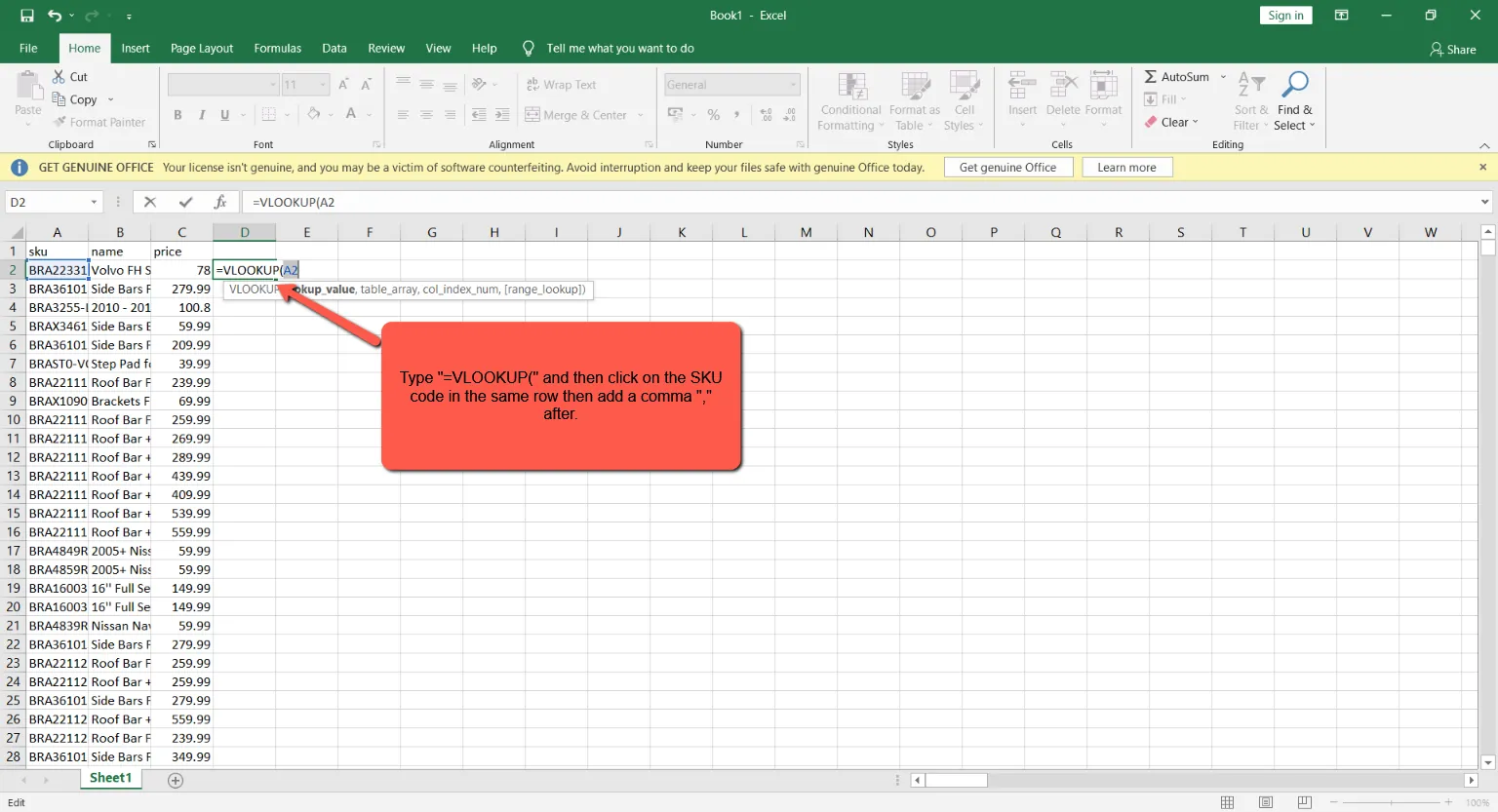
After deleting column D, Use Vlookup function to look up the prices of the SKUs in the working file against the prices in the Linnworks Stock Item Report. Linnworks stock item report must be open as well during this process. Follow the images below for the whole process.
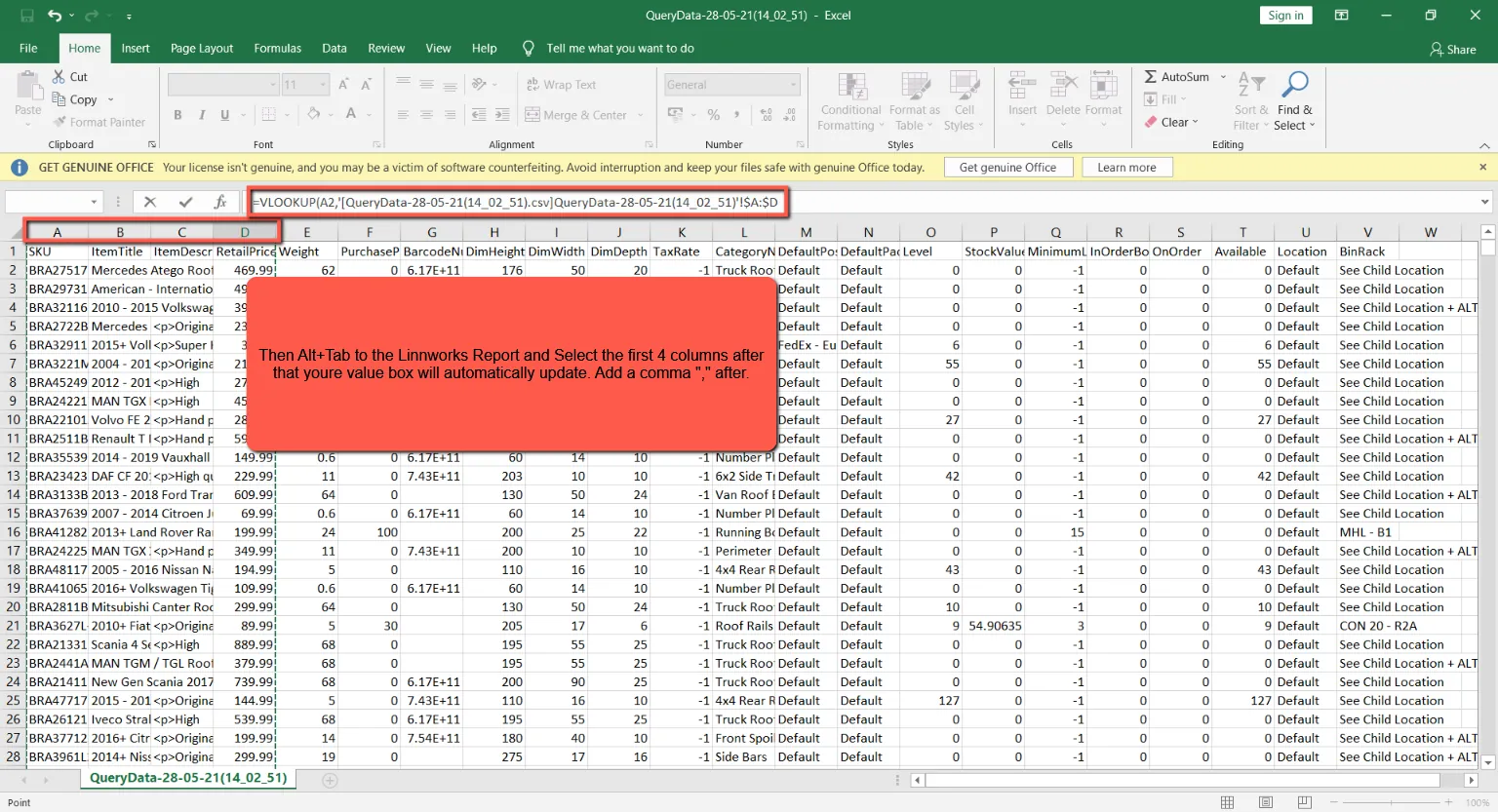
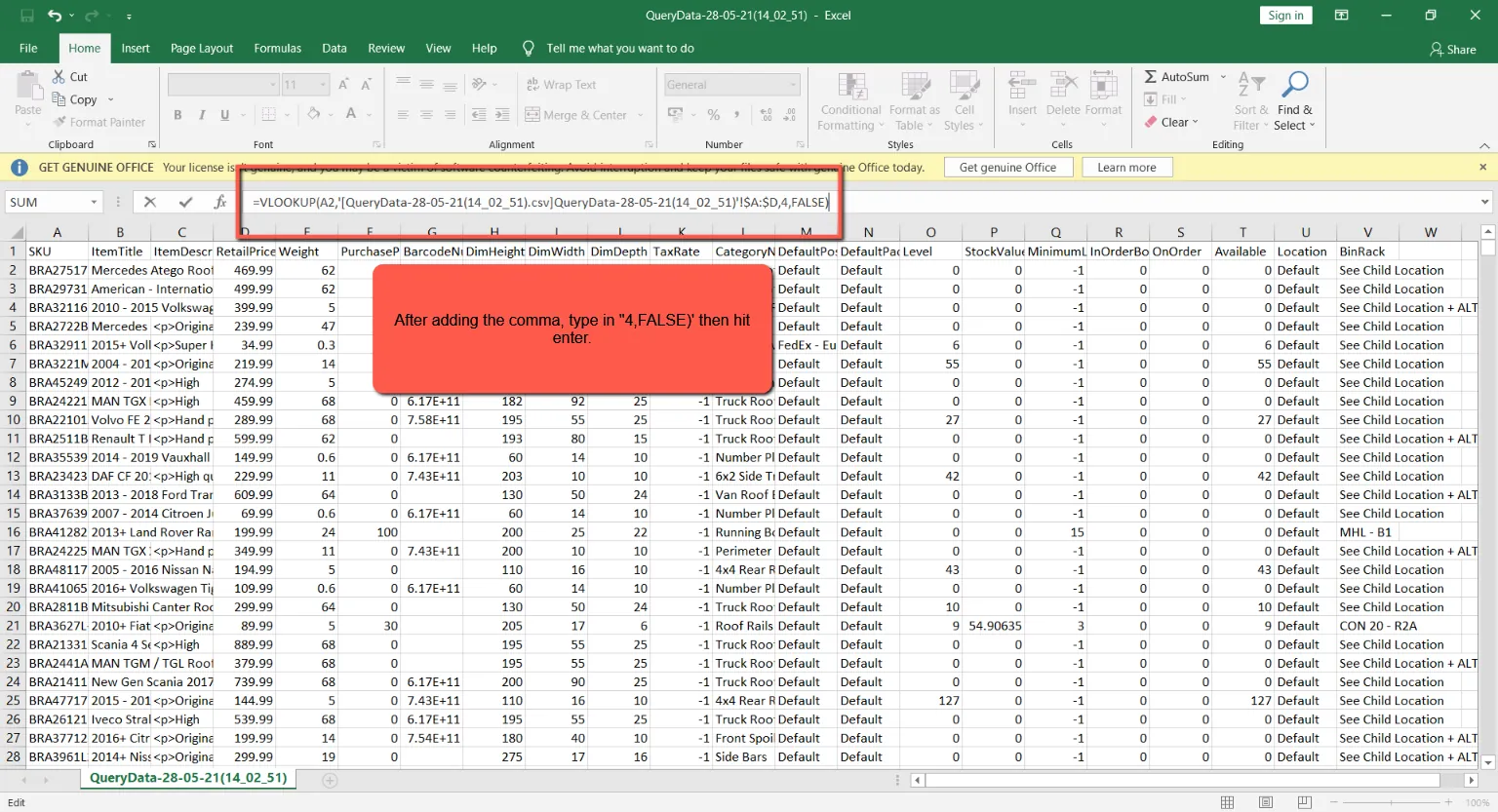
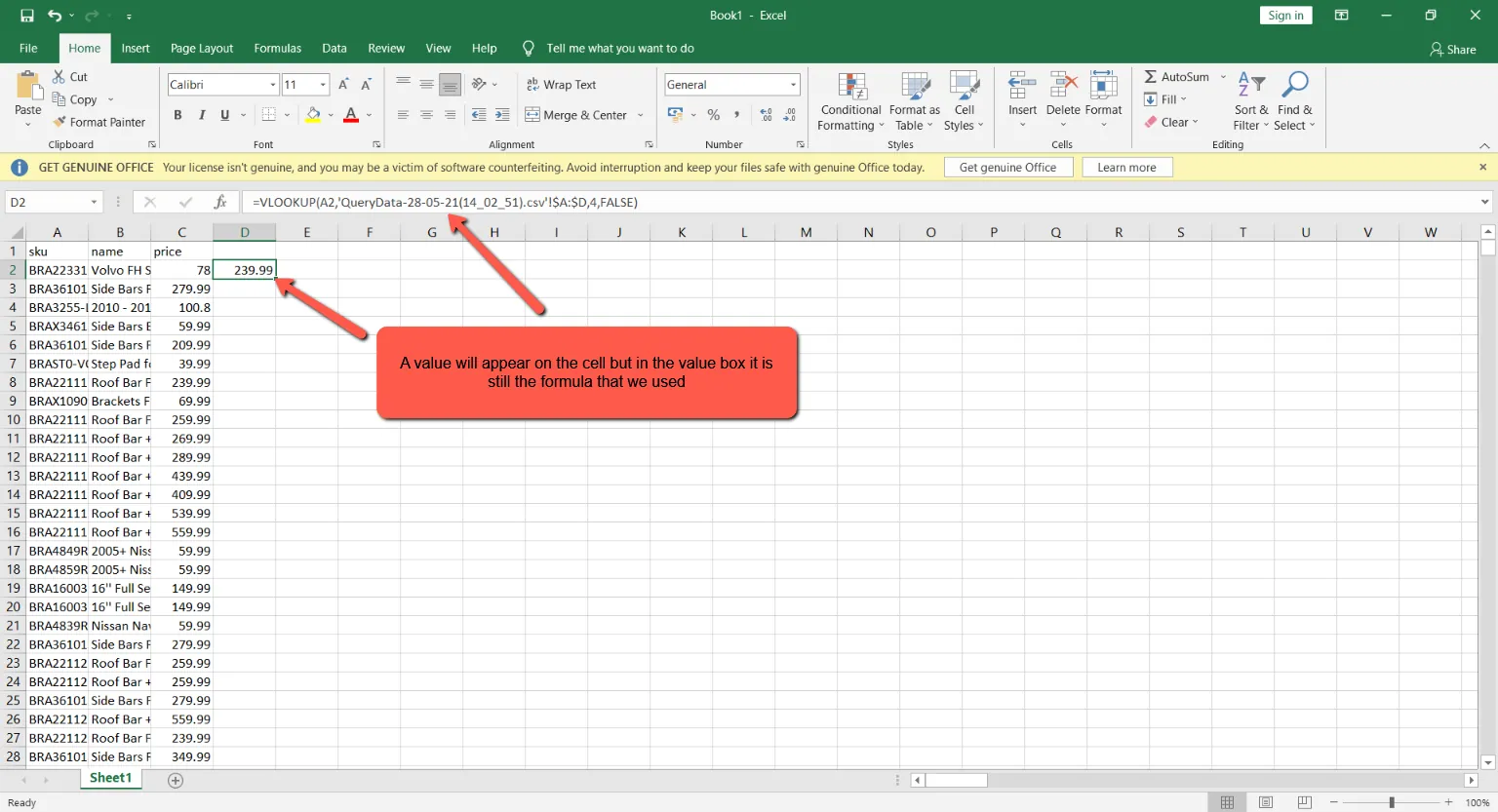
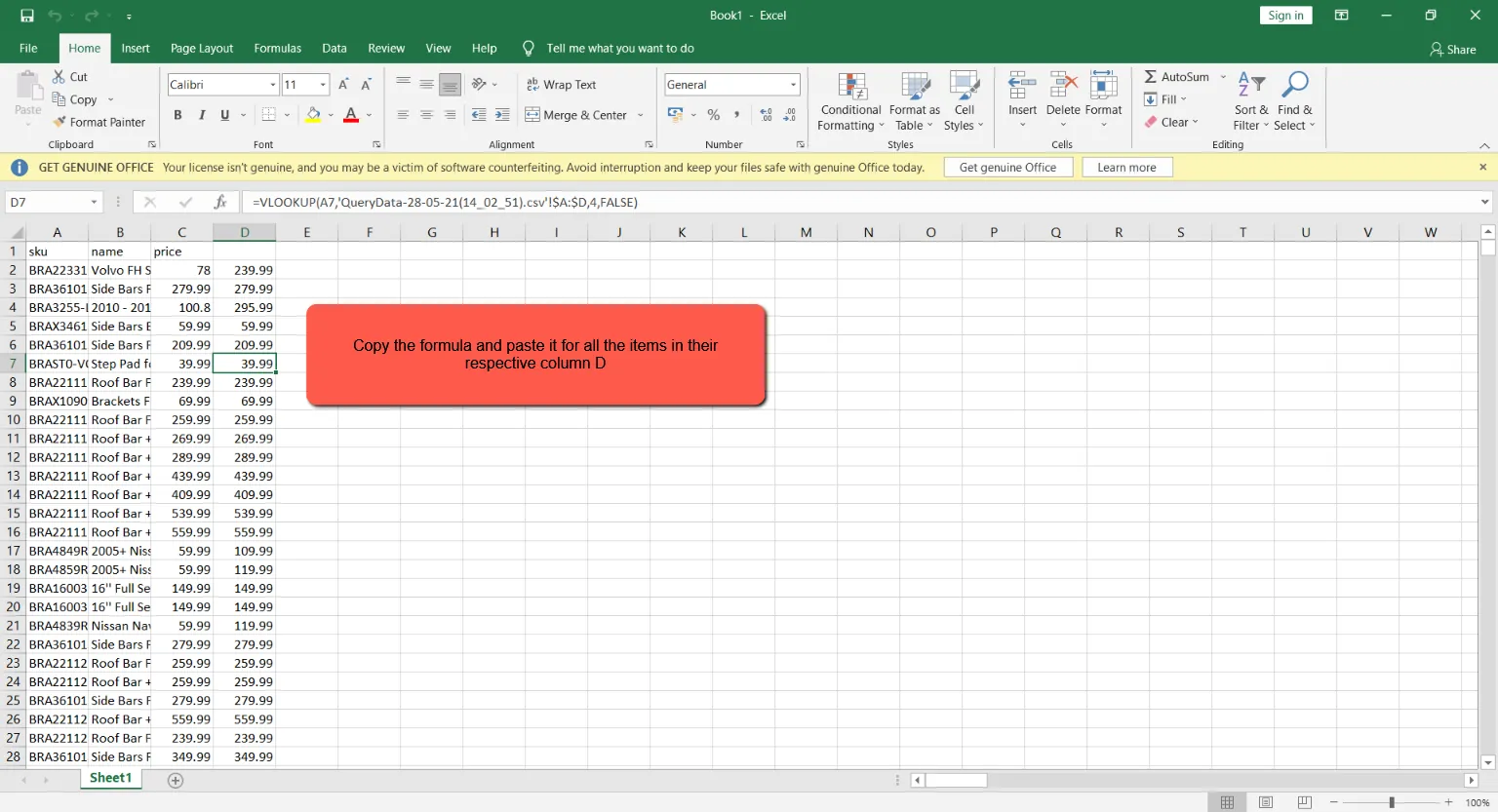
After the LW prices have been added to our working file we have to cross check both prices for LW and magento if they match. To do this, just use the formula =C2=D2 on cell E2. And copy the formula for all items.
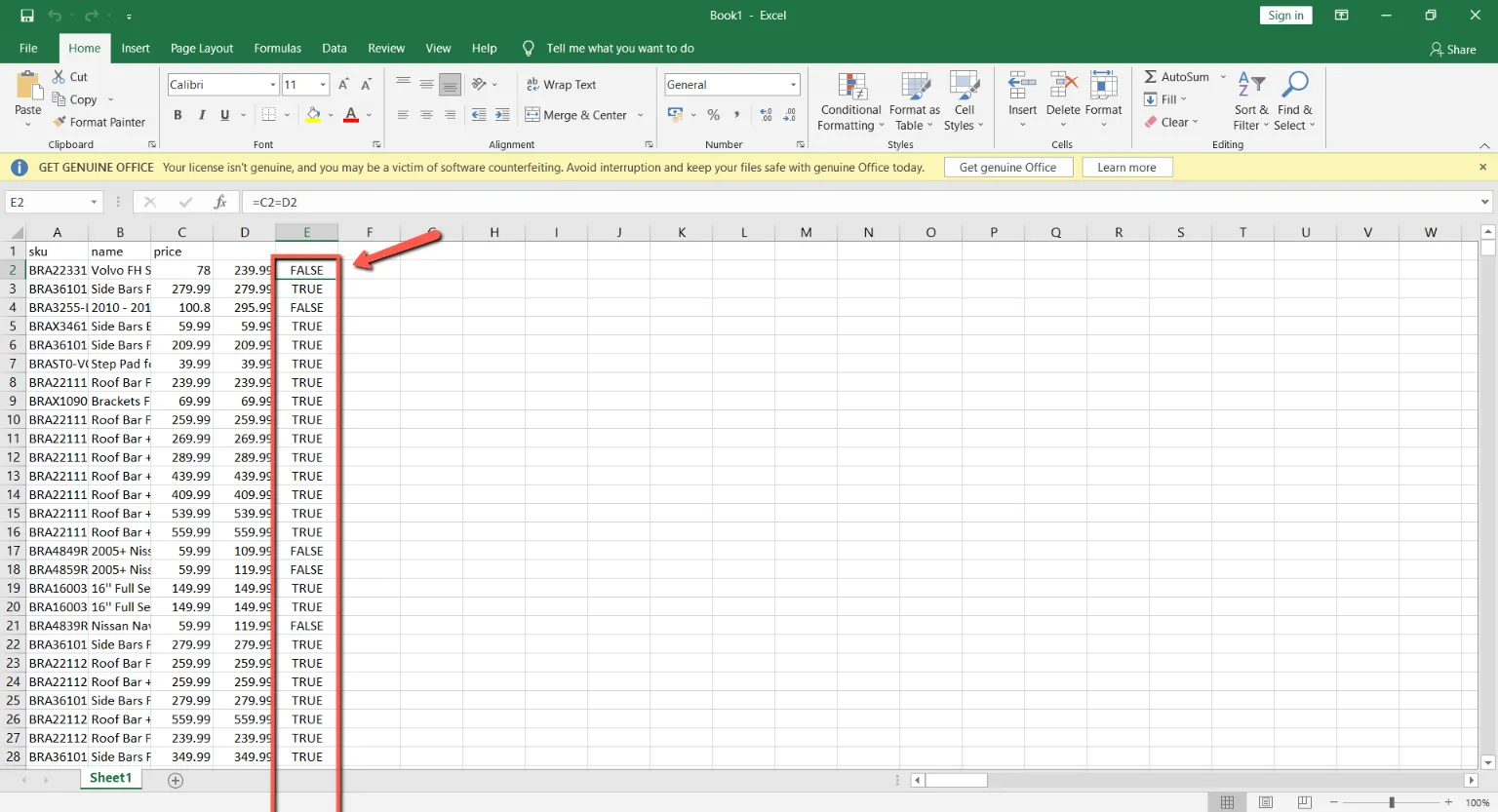
Filter all the FALSE items and delete the rows of all Damaged items or Auction items. Check the titles for “DAMAGED” or the SKU code if it has extra numbers. After deleting, all items present should be TRUE.
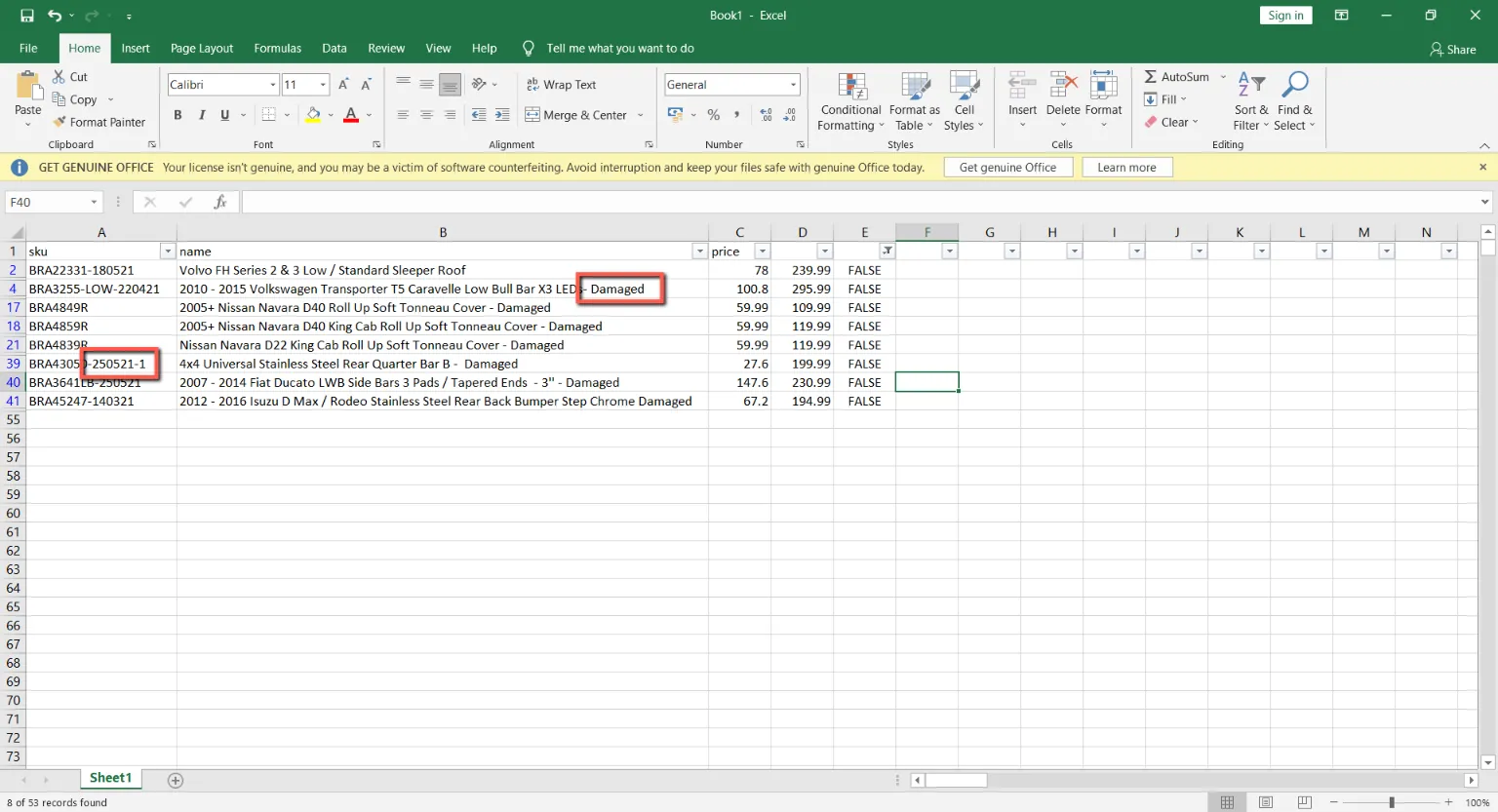
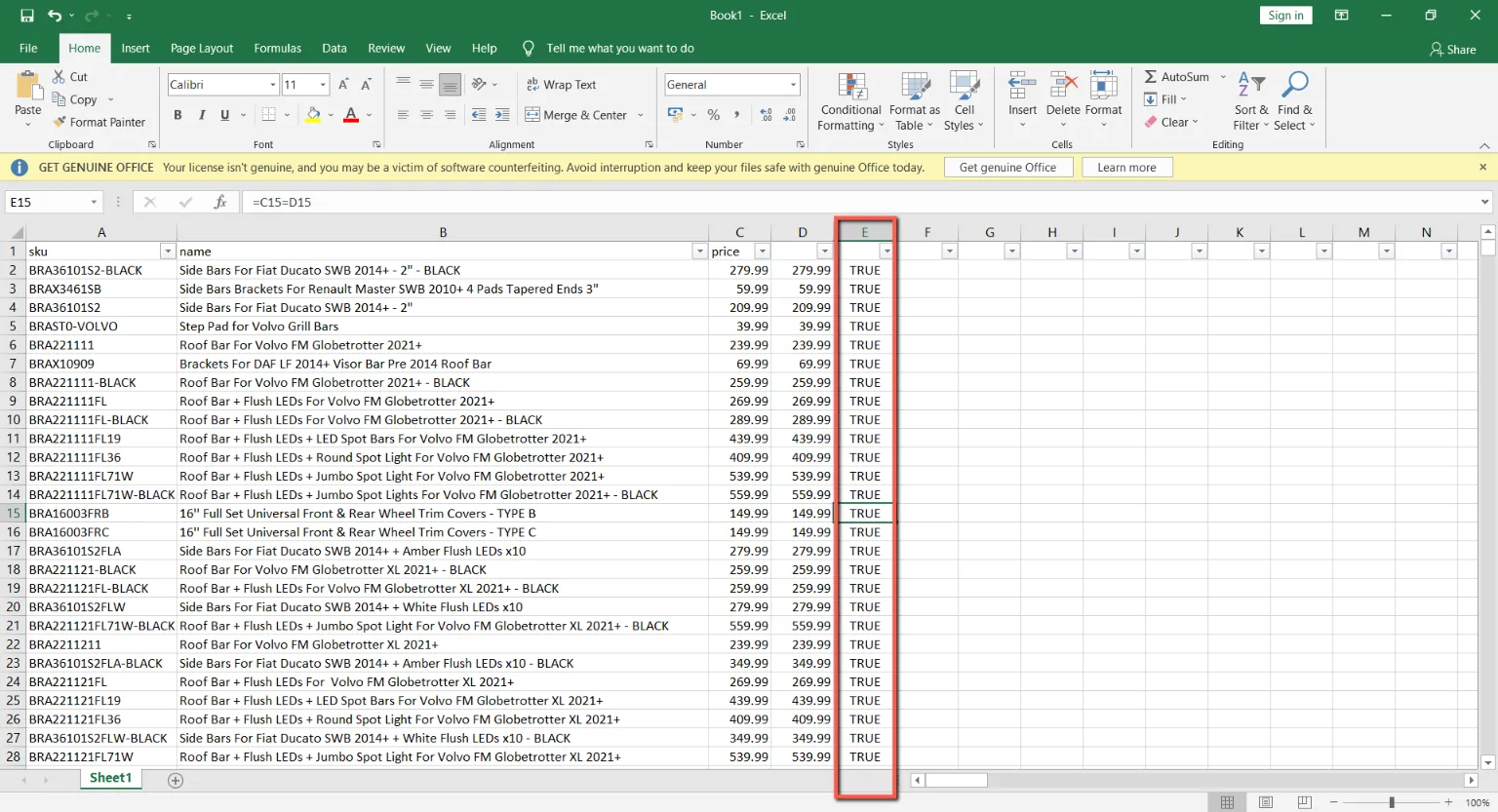
Delete columns B, D, and E so that the SKU Code and Price will remain.
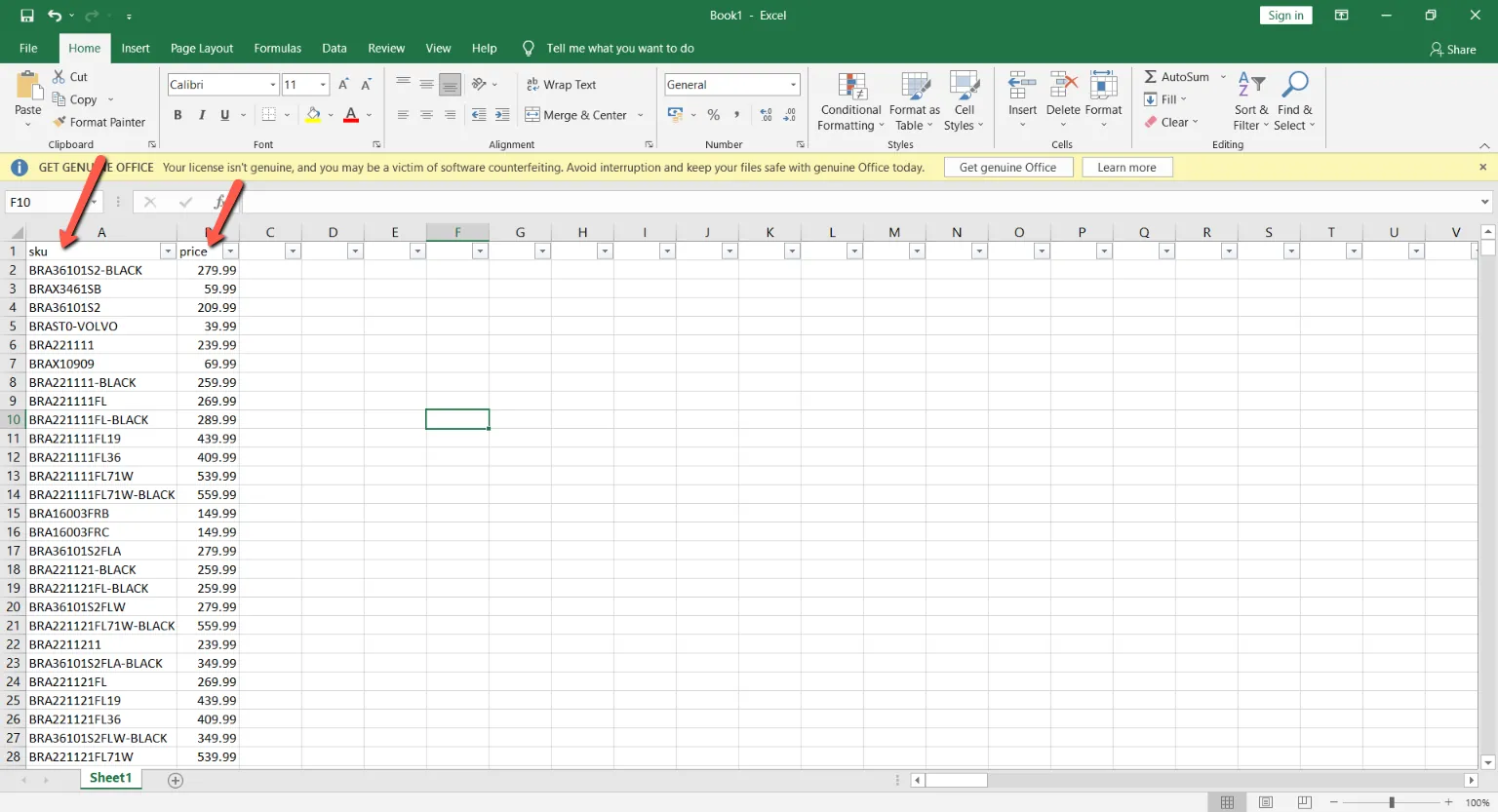
- Compute for the Trade Price
After getting all the SKUs with the correct prices in our working file, we would now compute for the trade price. To compute the trade price, three steps of calculation is needed.
1st step is to divide the price by (1+20%): =B2/(1+20%) on C2
2nd step is to divide the calculated price by 1.15: =C2/1.15 on D2
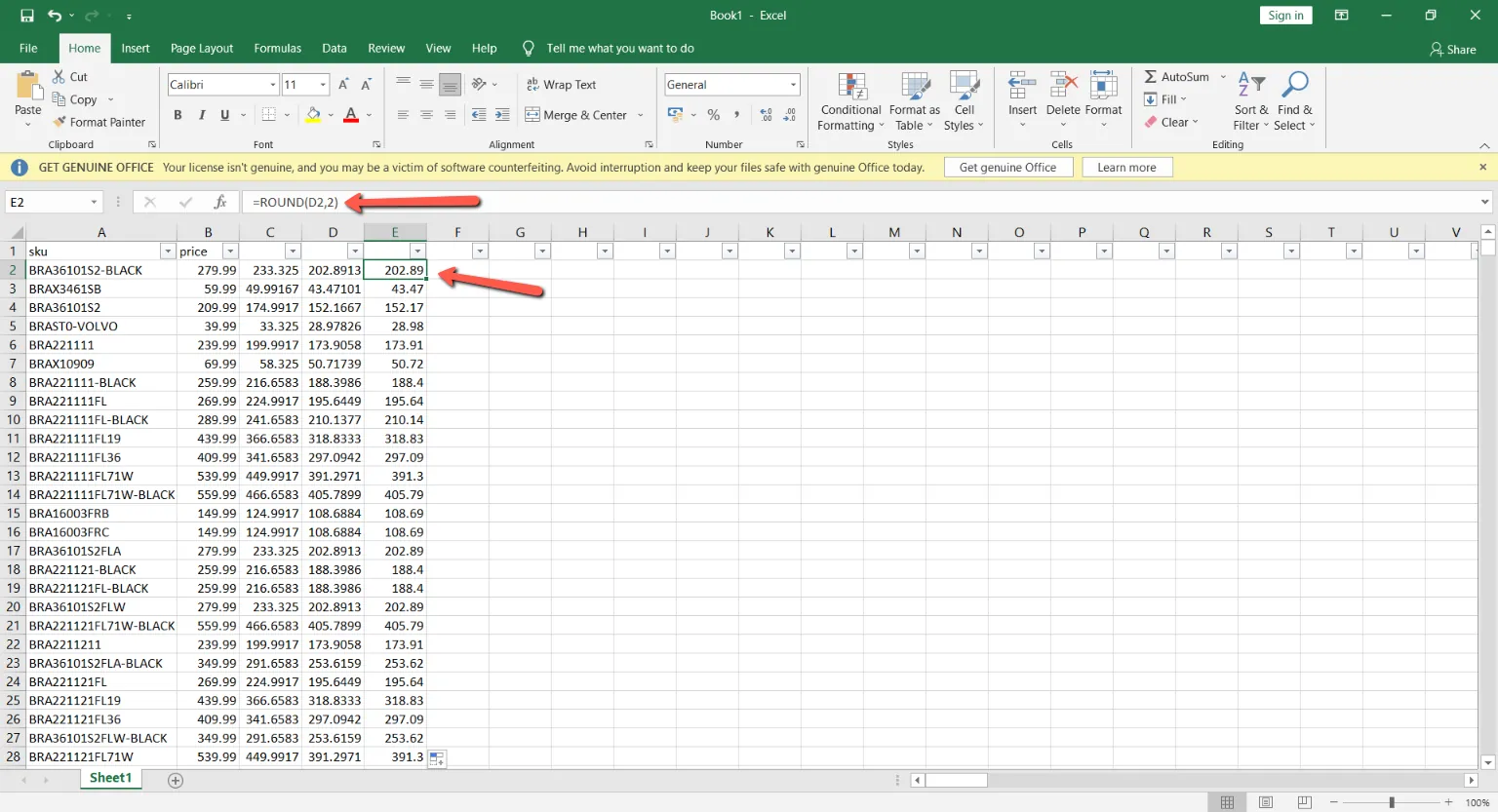
3rd step is to round of the prices to the 2nd decimal place: =ROUND(D2,2) on E2
Then Apply the formula to all items
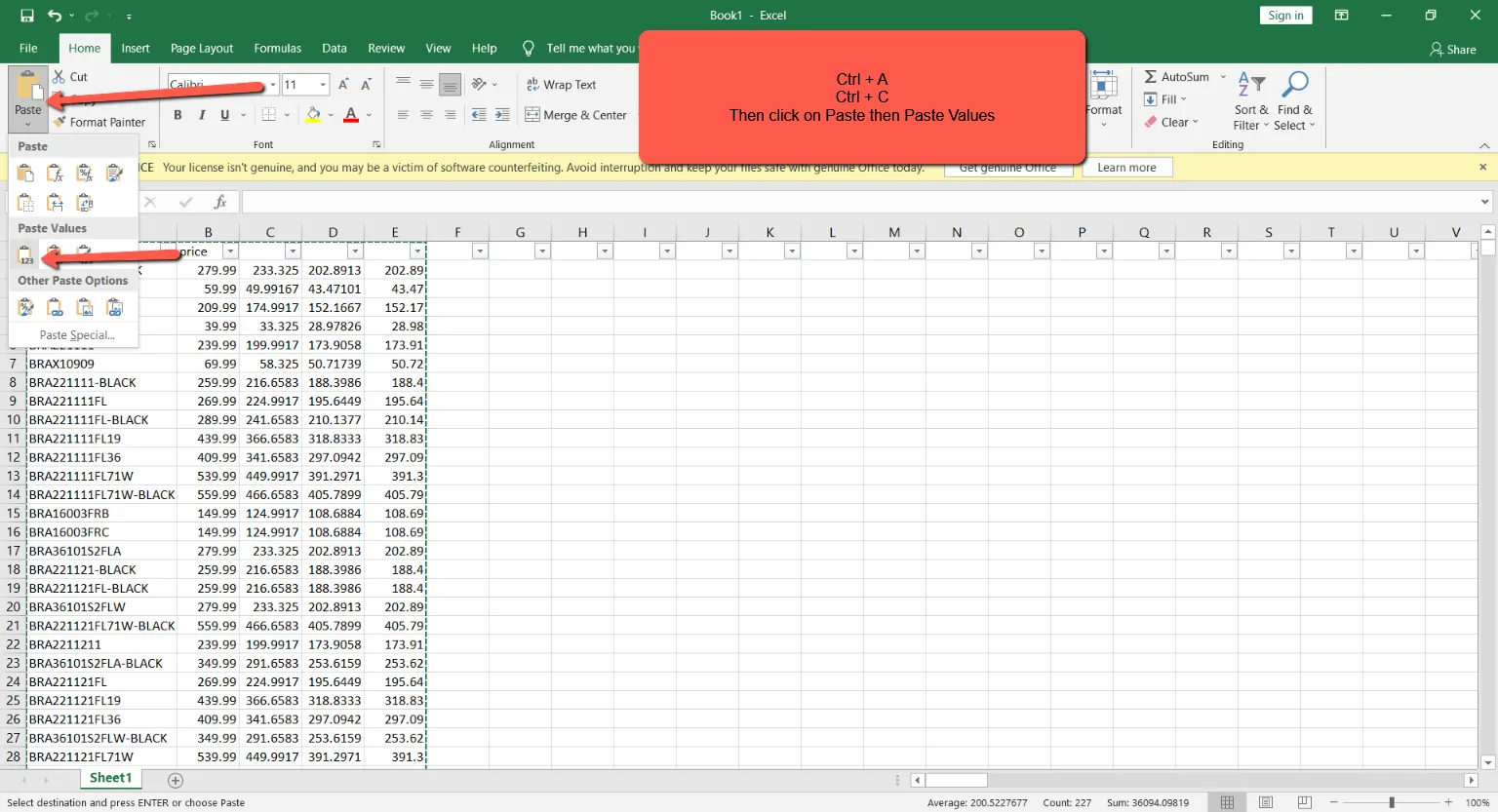
Copy all cells and paste all as Values
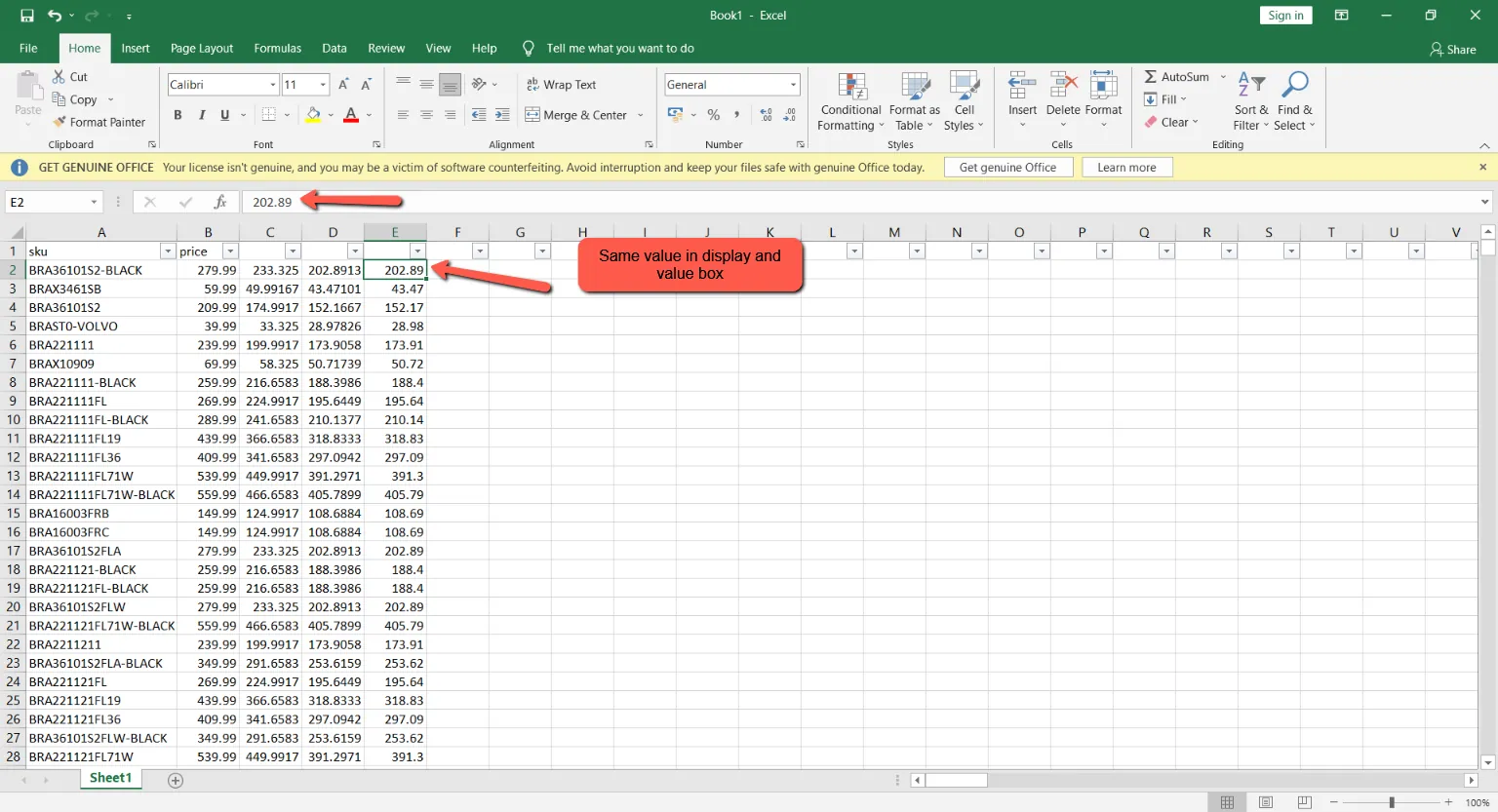
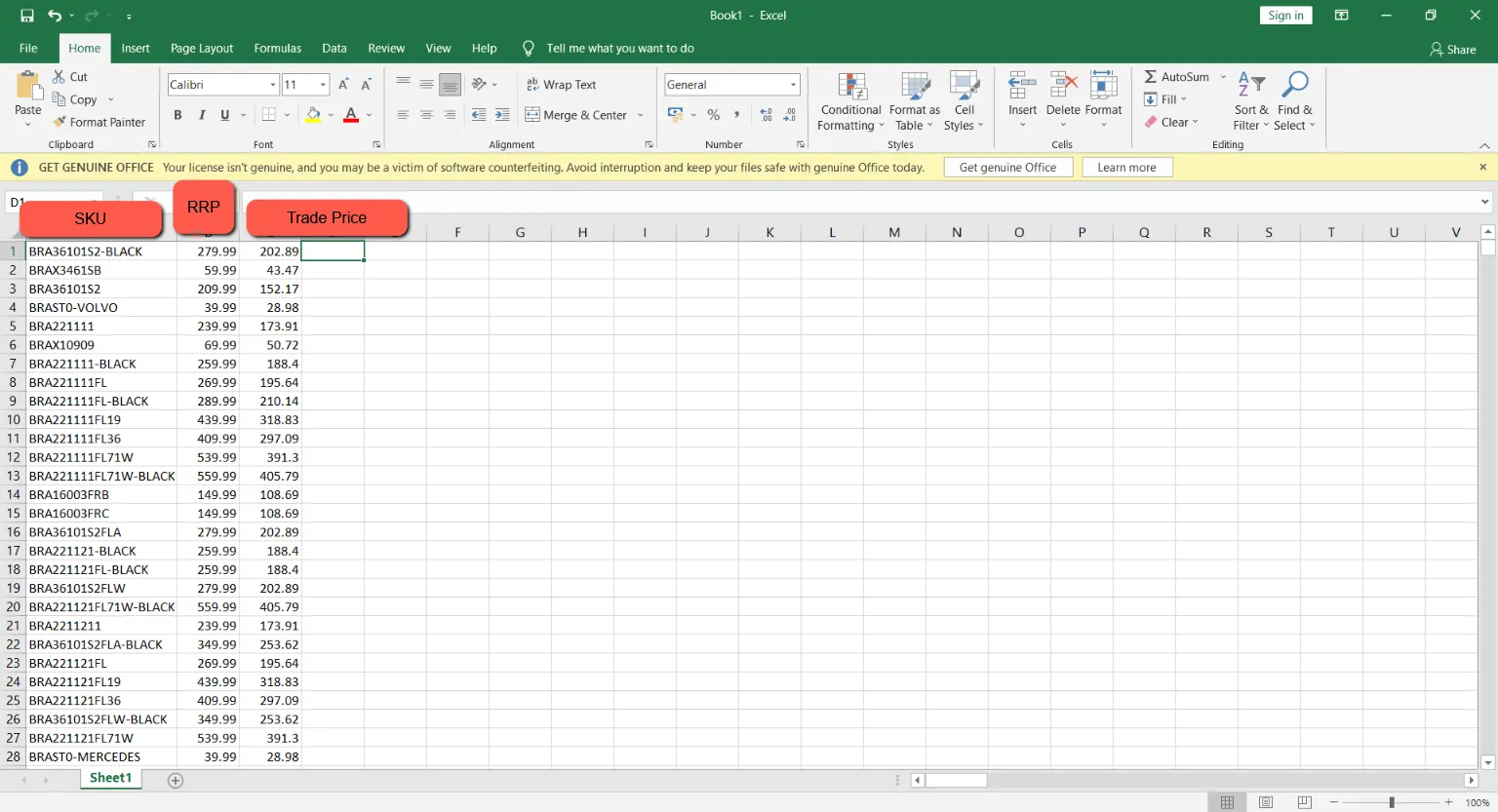
You can now delete Columns C and D. Delete as well Row 1. You will be left with the SKU, RRP, and the Trade Price.
- Save RRP and Trade File CSV
Using create a new excel file and Copy Columns A and C to it
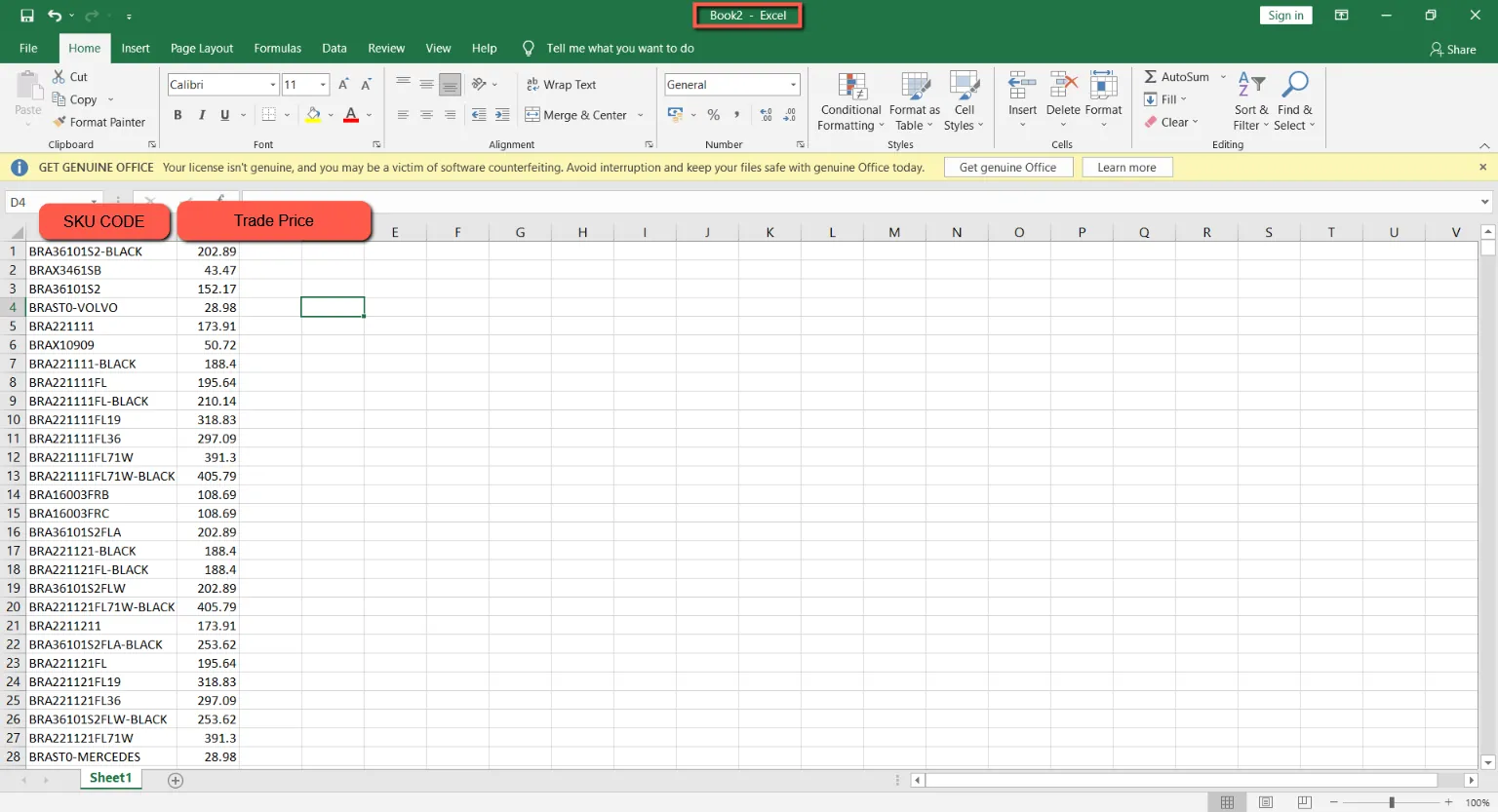
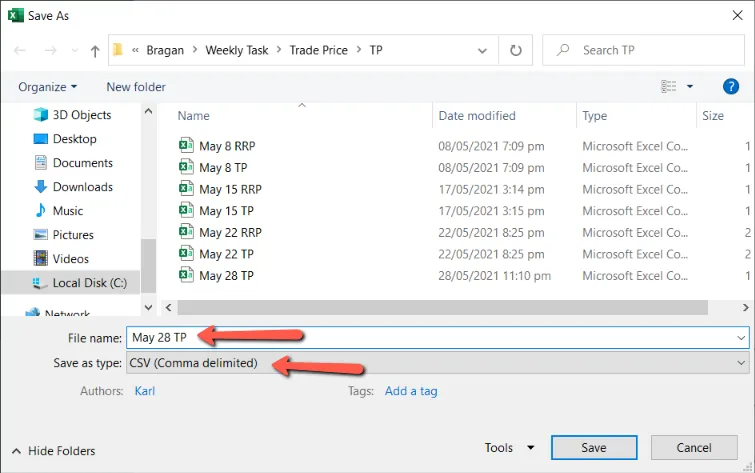
Save this File as CSV. For the filename use [DATE] TP. Any title would work, the important thing is that you’ll be able to identify which is the RRP and which is the Trade Price
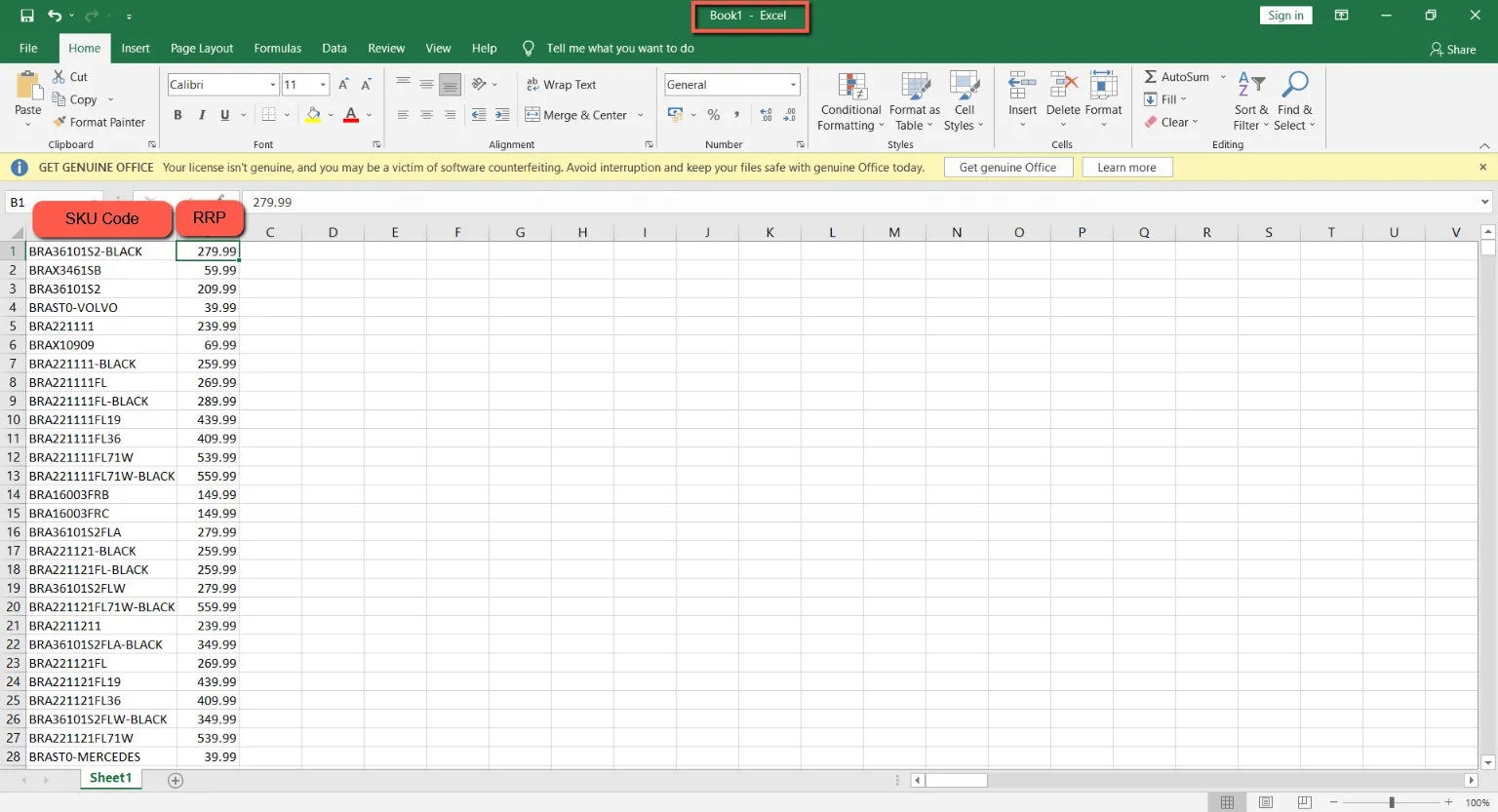
For the RRP CSV, go back to your first working file then delete column C. SKU Code and RPP will be left.
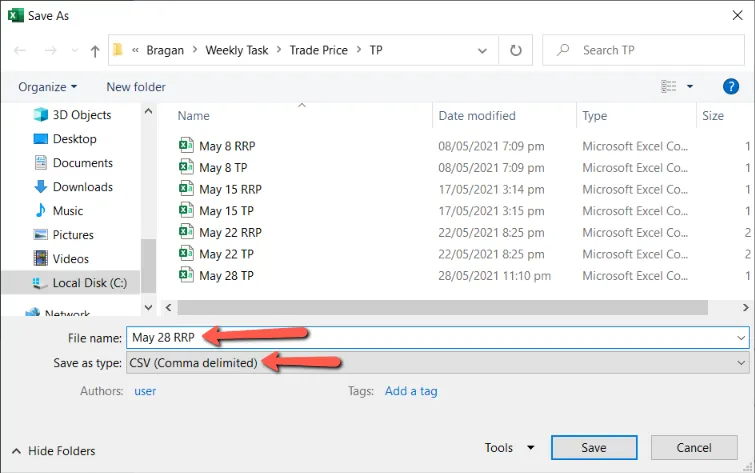
Save this File as CSV. For the filename use [DATE] RRP. Any title would work, the important thing is that you’ll be able to identify which is the RRP and which is the Trade Price.
- Upload to Magento
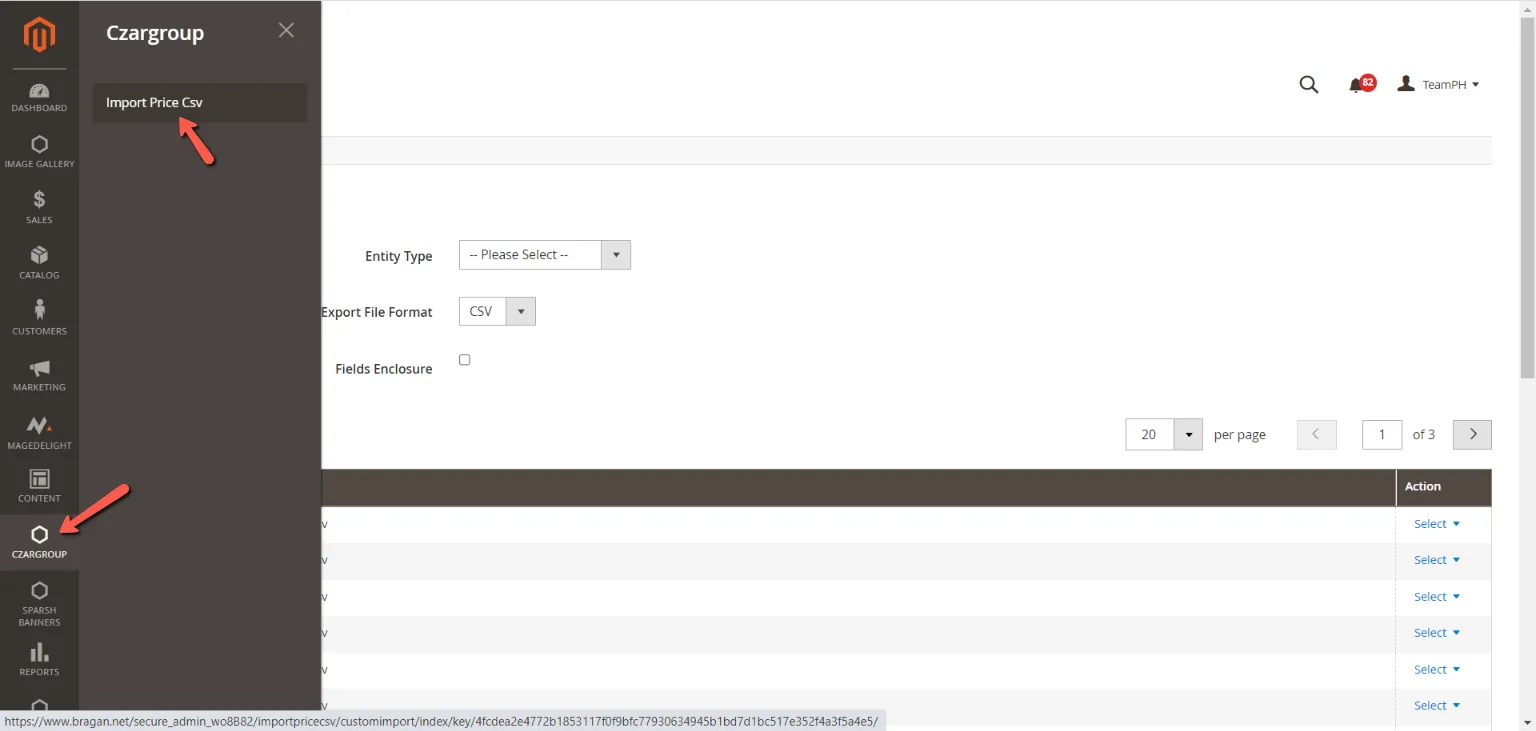
Now that we have the CSV files to import in Magento, we can now upload it. Do this by logging in to Magento Back End. Click on Czargroup then Import Price CSV.
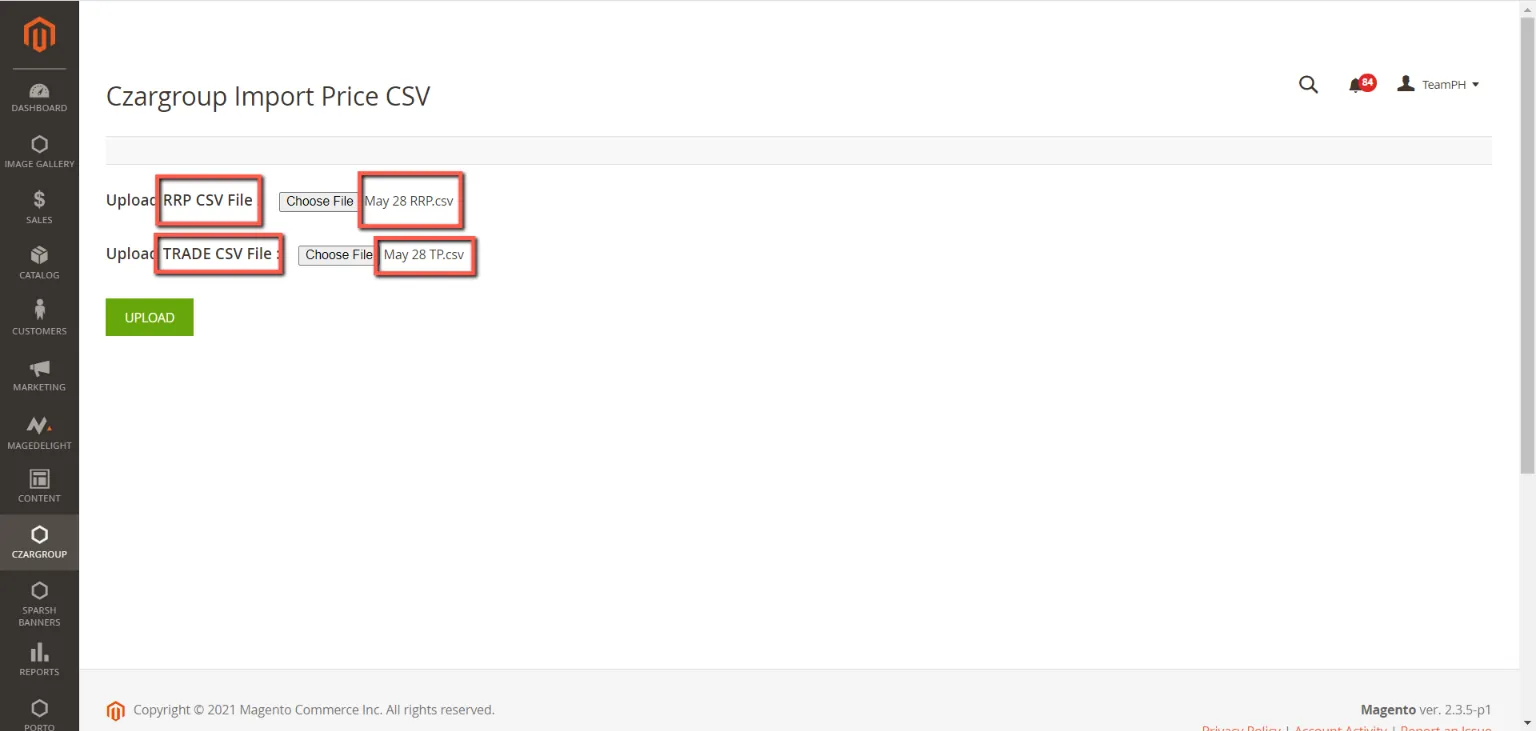
Then in the next window upload the correct files in the correct fields.
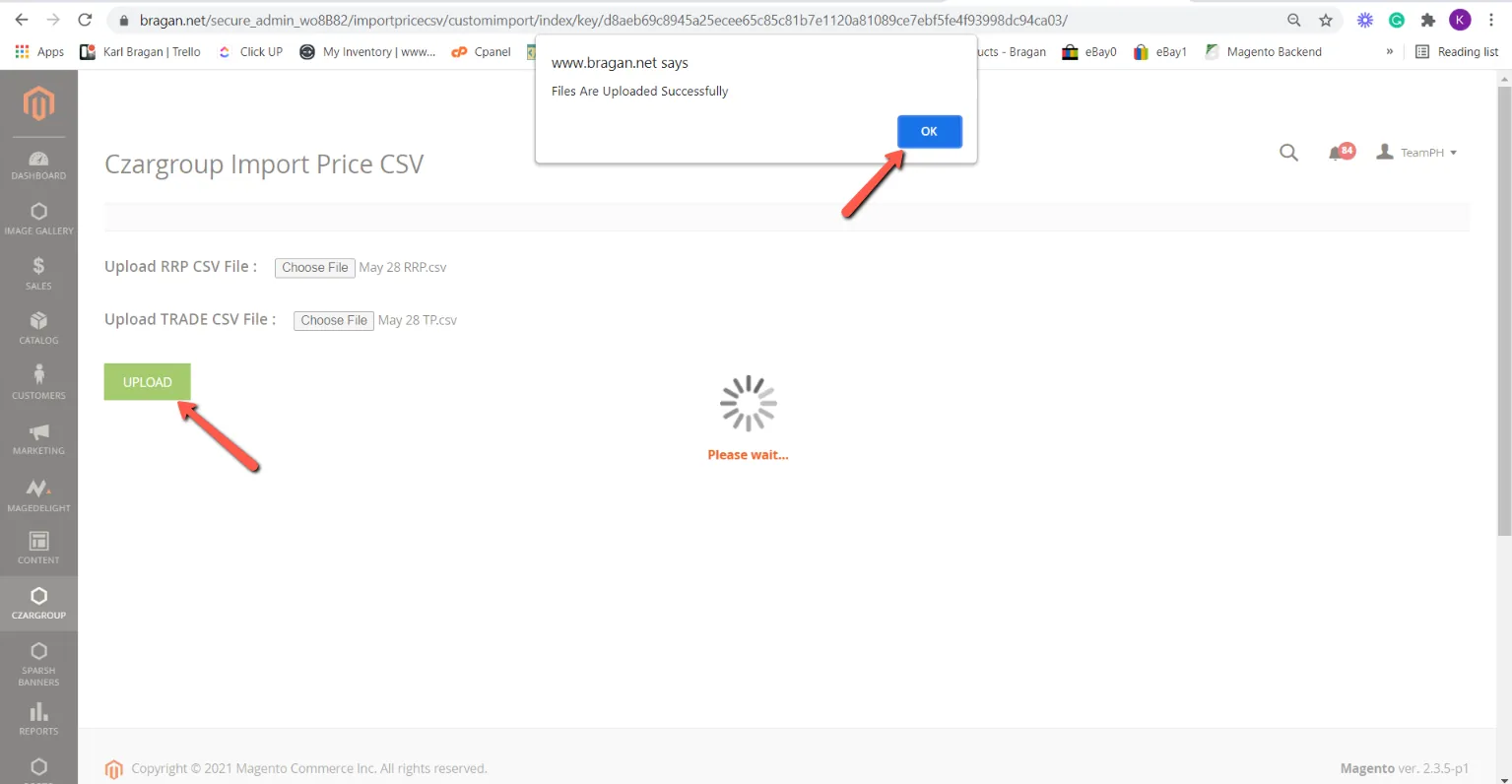
Click on upload. Then Click okay when it pops up.
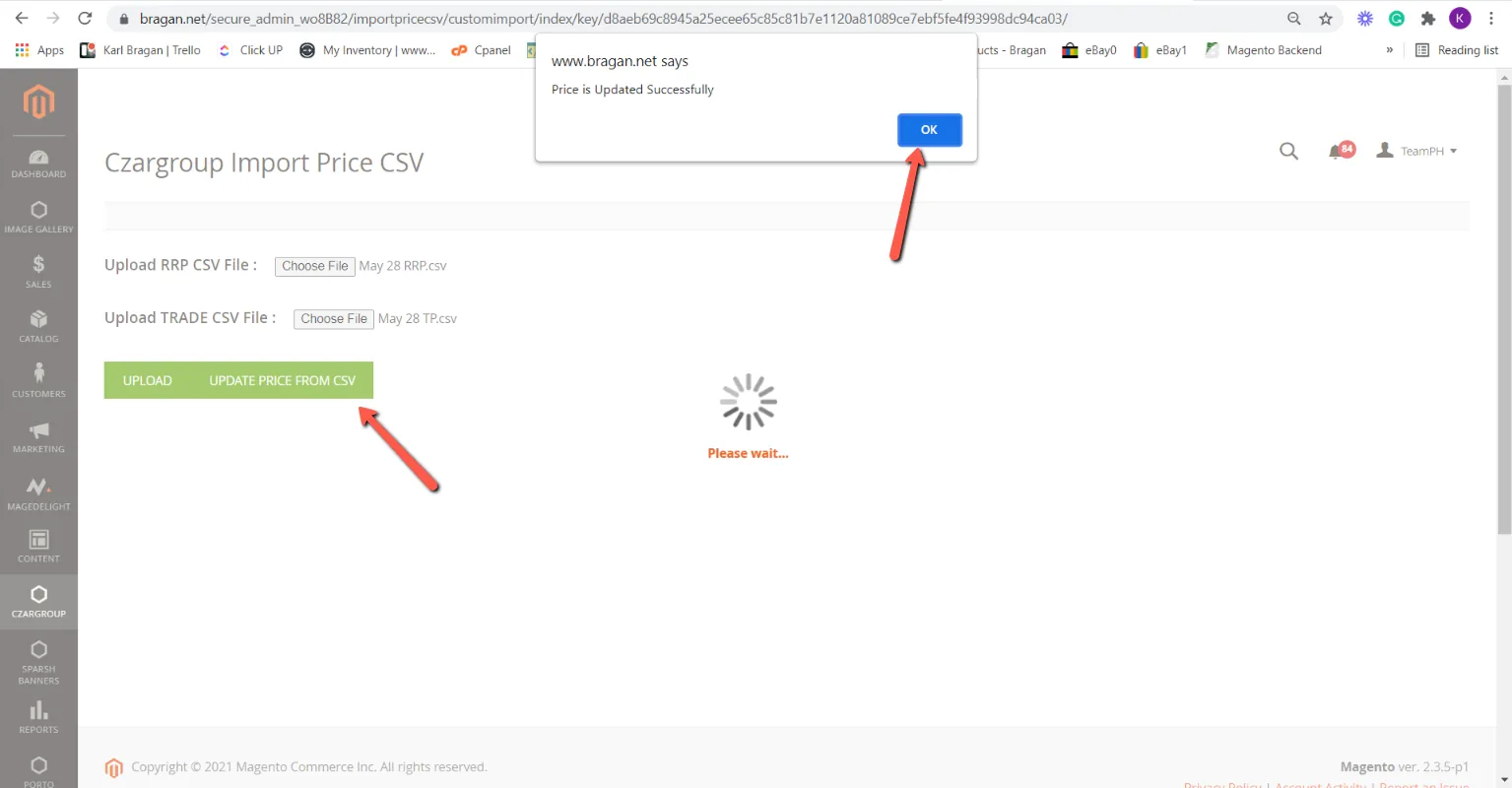
After that click on Update Price from CSV. Then click Okay when it pops out.
- Check if Trade Price are updated
By now, we have updated the trade price in Magento. The last step would be is to sample check a SKU from the CSV and see if the trade price has reflected.
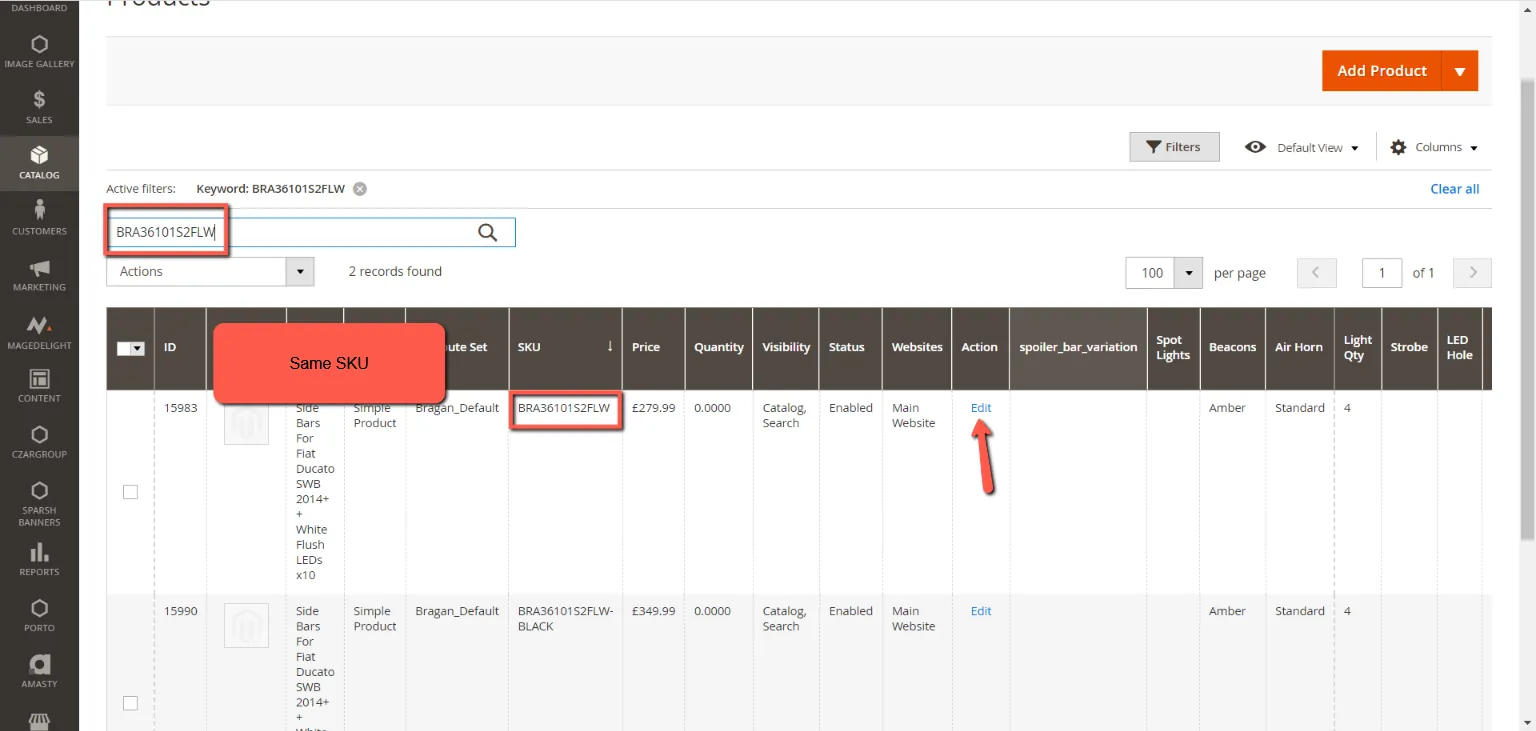
Select a random SKU Code from the CSV you created. In this case: BRA36101S2FLW In Magento Back End, go to Catalog > Products
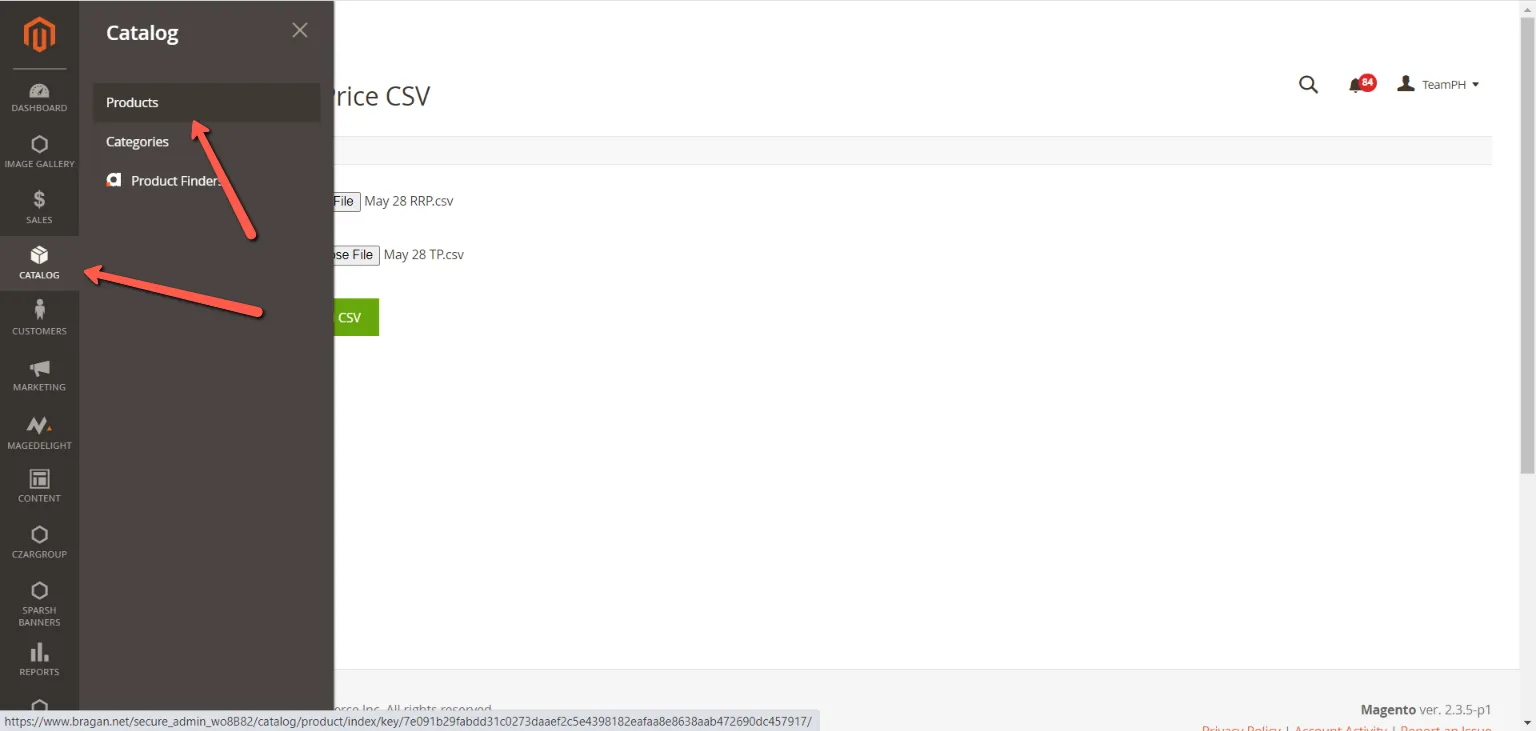
Search for the SKU and click on Edit under Action Column. Make sure that it is for the correct SKU.
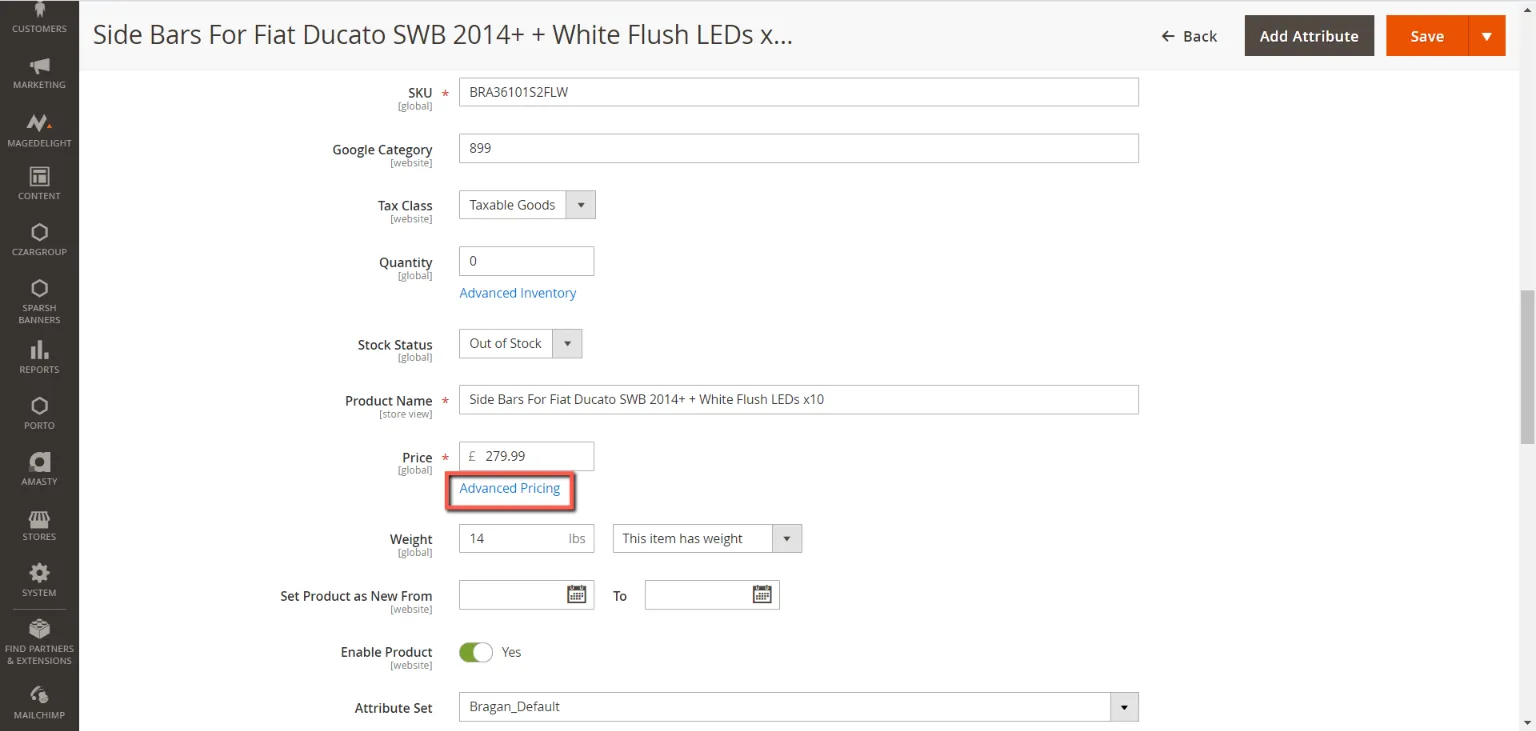
Click on General and scroll down to the Price Section. Click on Advanced Pricing.
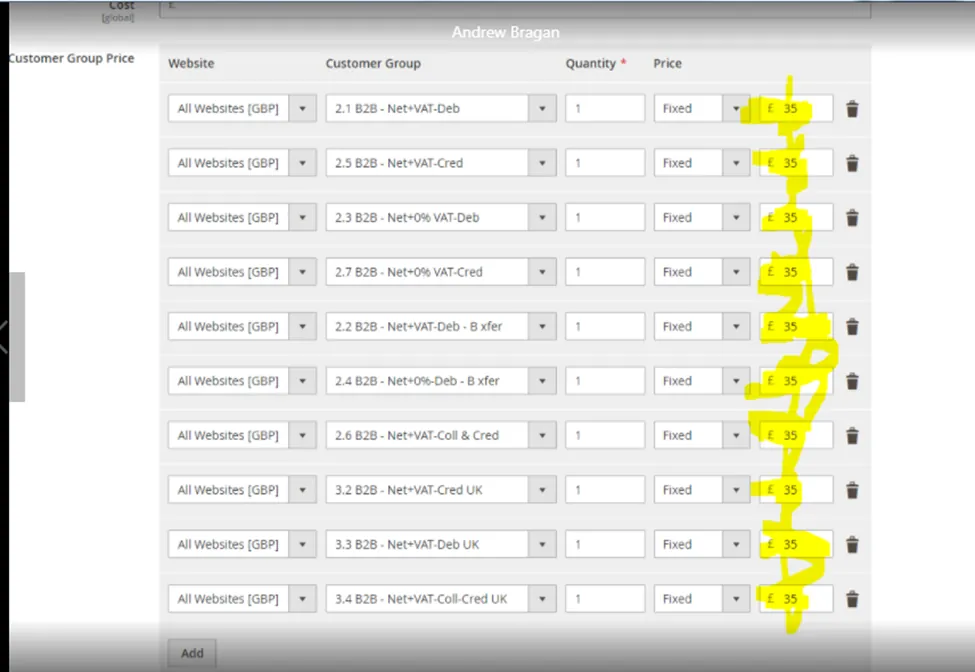
You should be able to see the different customer groups and the price if you look around.
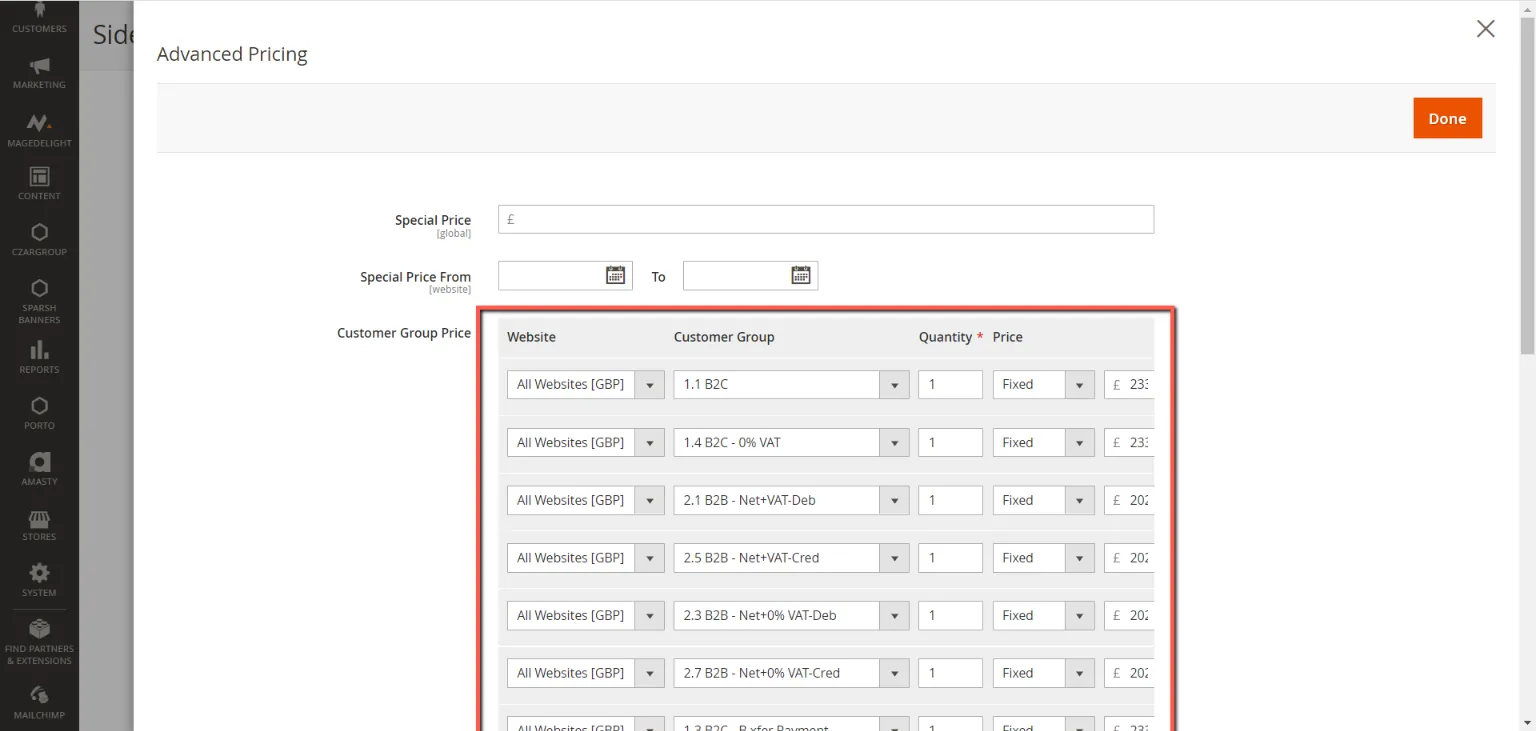
If the Trade Price Update failed, you will not be able to see even the customer groups in advanced pricing. The window will not have the boxed part in the picture above.
---- For manual update of trade price----
Updating Trade Price in Magento Backend manually by 1 sku only (not by bulk via csv)
Steps for editing a single/few products
- Login to Magento back end
and click LUZ then Trade Price generator
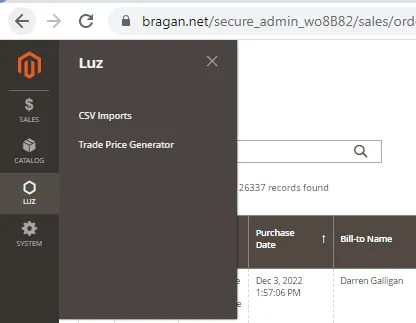
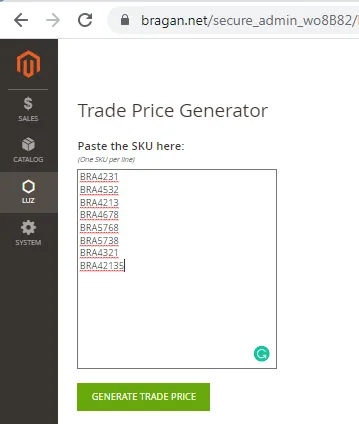
Paste the all SKUs to add trade price inside the box of Trade Price Generator (1 sku in one line, means next sku should be in 2nd line) then click 'Generate trade price'.
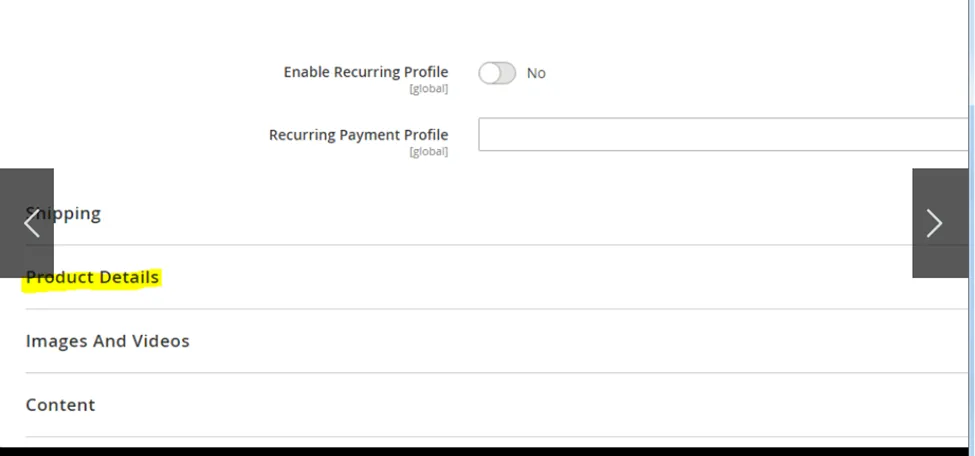
To double check if the sku was added a trade price, go to Catalog > Products and search for the sku to check. Click edit > Product Details tab.
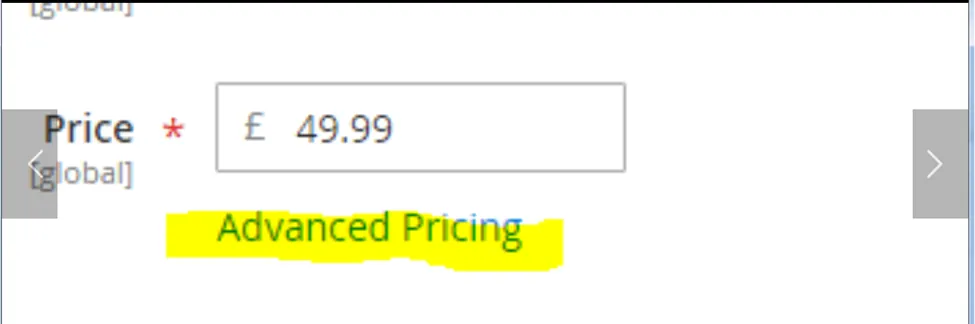
Under Price textbox > Look For Advance Pricing then click it > Advance Pricing window will pop up and check if trade price has been added to the SKU. All groups will be visible with trade price if the trade price update is successful.
To update SKU that has trade price already manually in Magento
- Change the price to all Customer Group Price Column ( This process is if you want to update the trade price for a certain SKU)
- Click Done > Click Save

Video & Media#
🎥 Trade-price-update-using-LUZ 🎥 Trade Price Update
Notes#
This section is important so Adhoc points and issues can be logged. Also, Q&A can be logged for suggestions for potential issues encountered. Also, log important notes needed for this system. Additional Notes:
"Add important notes here" "Add important notes here"
Potential Issues:
1 - ISSUE ENCOUNTERED: Stuck on Loading
RESOLUTION: Refresh Browser
2 - ISSUE ENCOUNTERED: Broken Links
RESOLUTION: Get the external link as this will allow other people to access the SOP without the need for login credentials and avoid broken links.
3 - ISSUE ENCOUNTERED: "Type Text Here"
RESOLUTION: "Type Text Here"