How to use Fastway Website
Fastway is the courier service Bragan uses for Irish deliveries, unfortunately, this

Overview#
Purpose: Fastway is the courier service Bragan uses for Irish deliveries, unfortunately, this service does not integrate with Linnworks meaning we have to use Fastways online portal. The purpose of this document is to outline to new and existing staff how to properly navigate the Fastway website.
Scope: This procedure applies to both Team IRL and Team PH personnel. The usage of the Fastway website is universal throughout the company.
Responsibility: It is the responsibility of each employee to ensure the process set out in this procedure is followed.
Objective: The objective is to standardize the use of the Fastway website so all applicable members of staff have the knowledge to do so efficiently and correctly. Please note this is not including the uploading of labels for order processing, please refer to the order processing SOP for instructions on how to complete this task.
- Fastway Website Fastway use Scurri as their online portal for anyone shipping items, please see the following link to the online portal: data.scurri.co.uk
- Different Types of Labels There are two different labels used here at Bragan for Fastway orders, they are for items that fall under different dimensions. The first is ‘WY’ labels, these are for any items that have no side longer than 2.2 meters. The second is ‘DY’ labels and are for any items with a maximum side longer than 2.2 meters. Although all labels are printed from the same link given above, there are different logins for each of these services, please ask management for these logins if you do not have them. Both of these accounts can not be open on the same browser at the same time, therefore if you need both services open you will have to have the pen on different browsers.
2.1 WY Labels Login
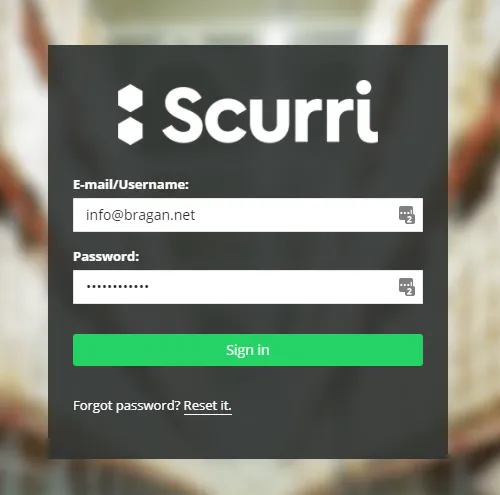
The WY labels are created, ordered, and monitored through the [email protected] login as shown in fig 2.1.
2.2 DY Labels Login
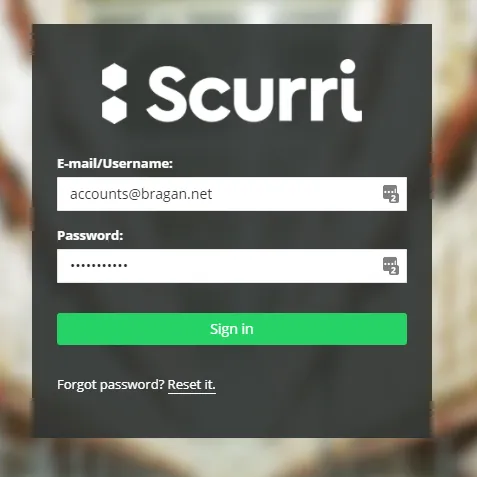
The DY labels are created, ordered, and monitored through the [email protected] login as shown in fig 2.2.
- Ordering Labels
Once you are in the correct account for the type of label you need, the navigation and usage of the portal are the exact same.
3.1 Label Stock
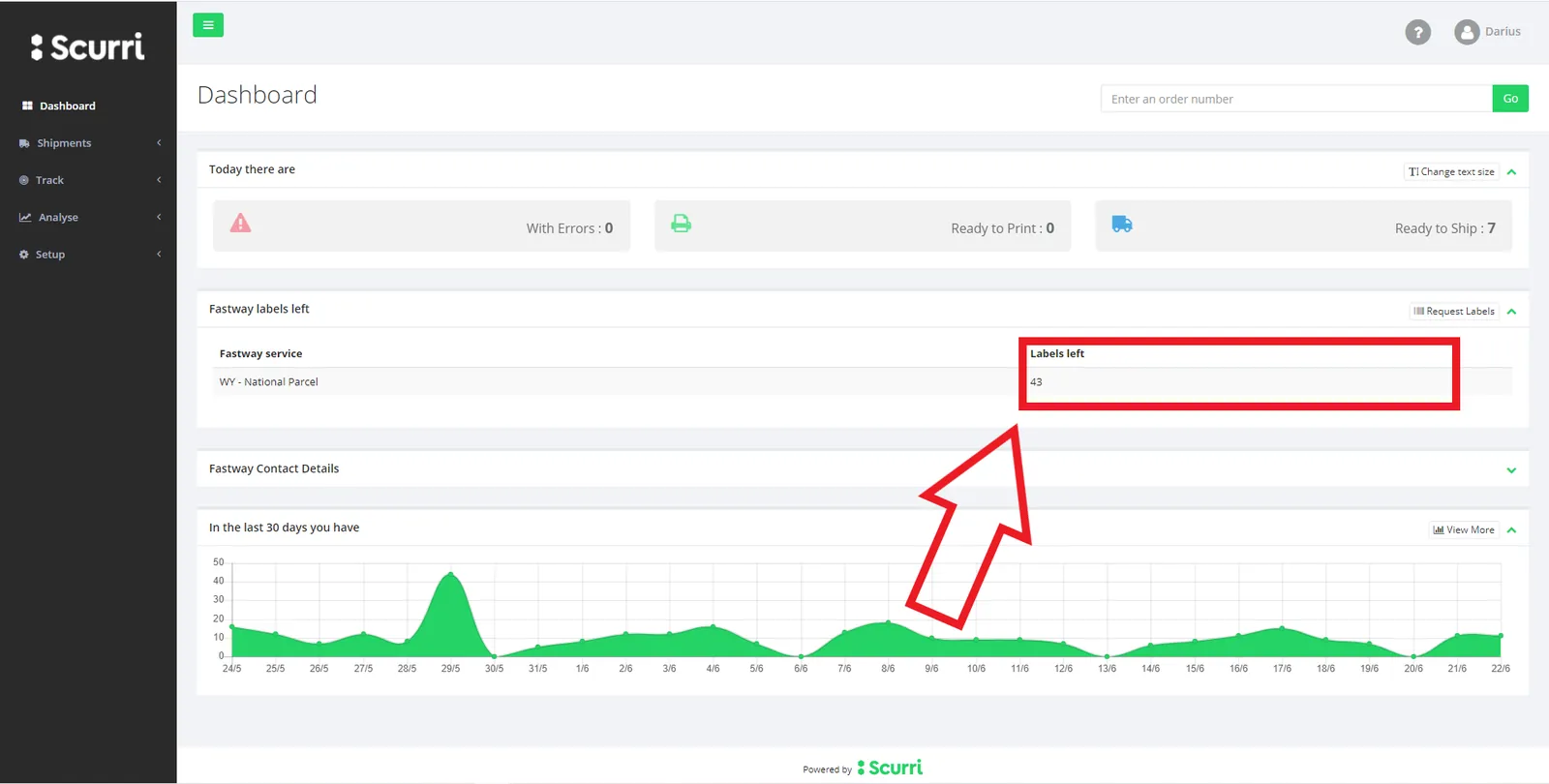
The labels are pre-ordered for Fastway, and there must be sufficient stock kept on the portal. This can be viewed on the main page of the Scurri portal, the Dashboard. Please see fig 3.1.
3.2 Placing an order for labels
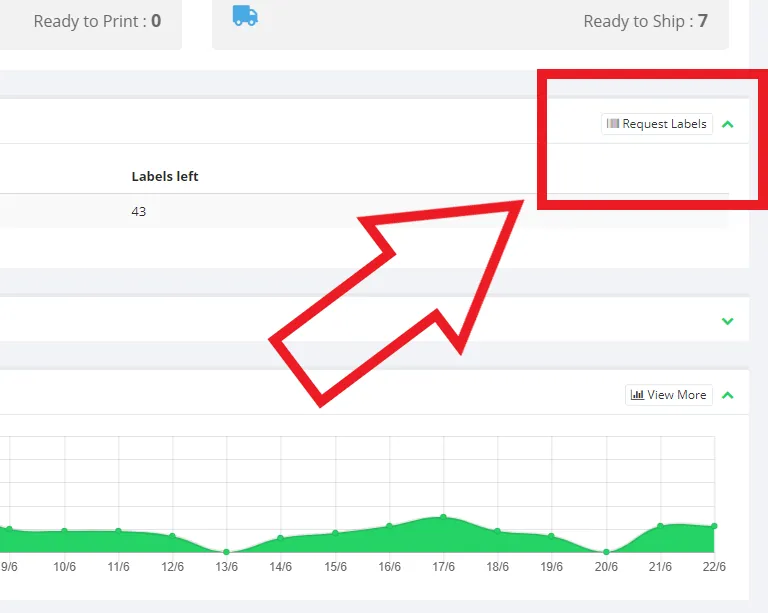
When on the dashboard you can navigate to ‘Request Labels’ to the right of where the label stock count is, as shown in fig 3.2.
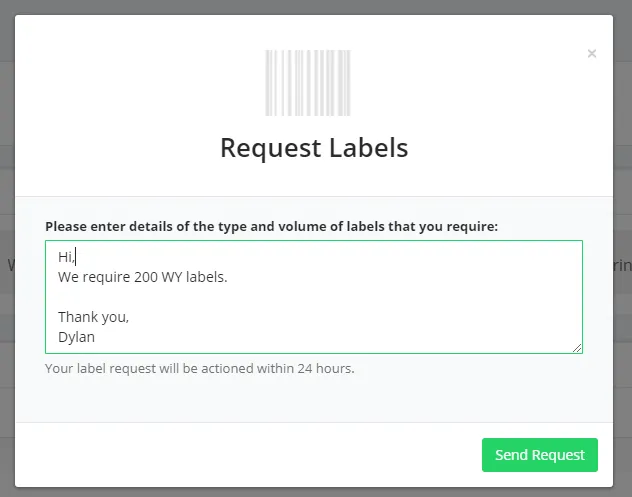
Once you have clicked this button it will open a text box, where you will write a short message with the number of labels that you require, the type of labels you require, and signed off with your name as a reference to who has ordered these labels.Make sure when ordering WY LABELS - 200 and DY LABELS - 50.Labels can be ordered in min of 50s ie 50,100,150,200 etc An example of the message is as follows:
‘Hi, we require 200 WY labels. Thank you, Dylan’
- Viewing Manifests
Manifests contain all labels that have been sent on a given day. Every day there is a manifest printed and given to the Fastway driver (please see order processing SOP), however, all previous manifests are saved and accessible through the Scurri portal if needed.
4.1 Accessing Previous Manifests
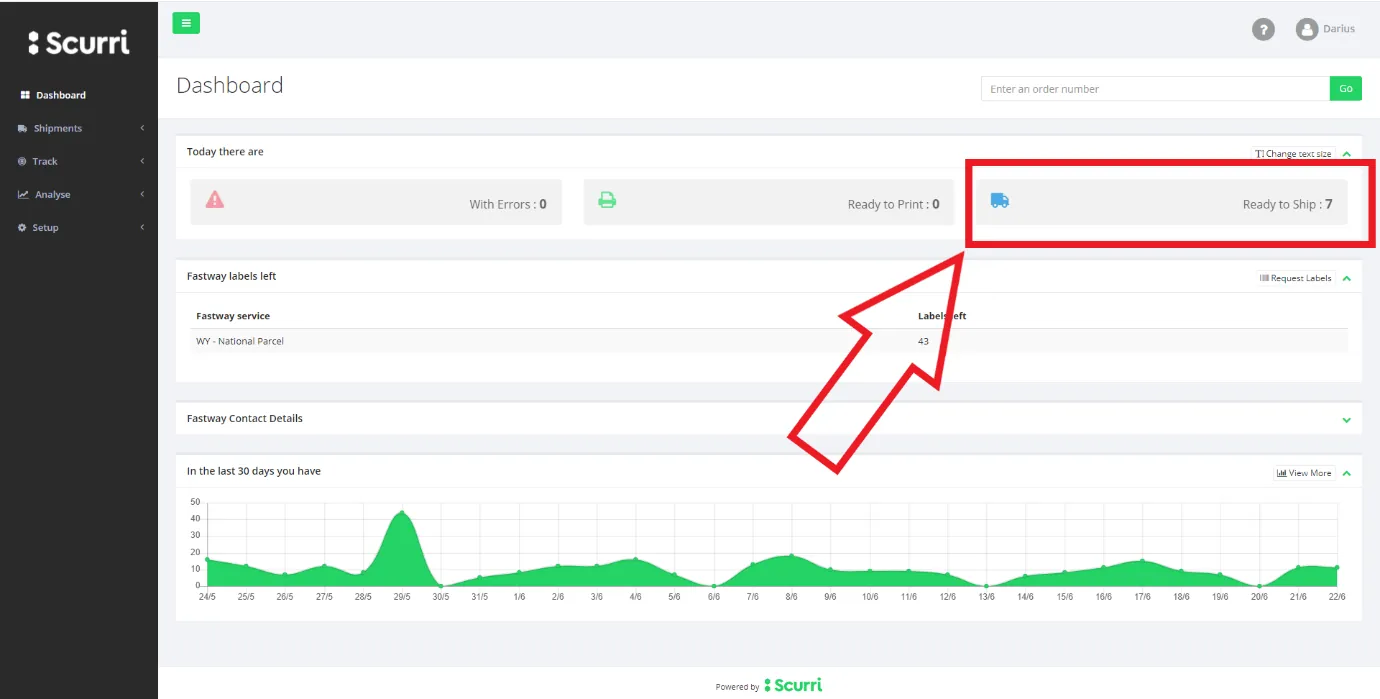
On the dashboard screen on the Scurri portal, as shown in fig 4.1.1, here is a section called ‘Ready to Ship’.
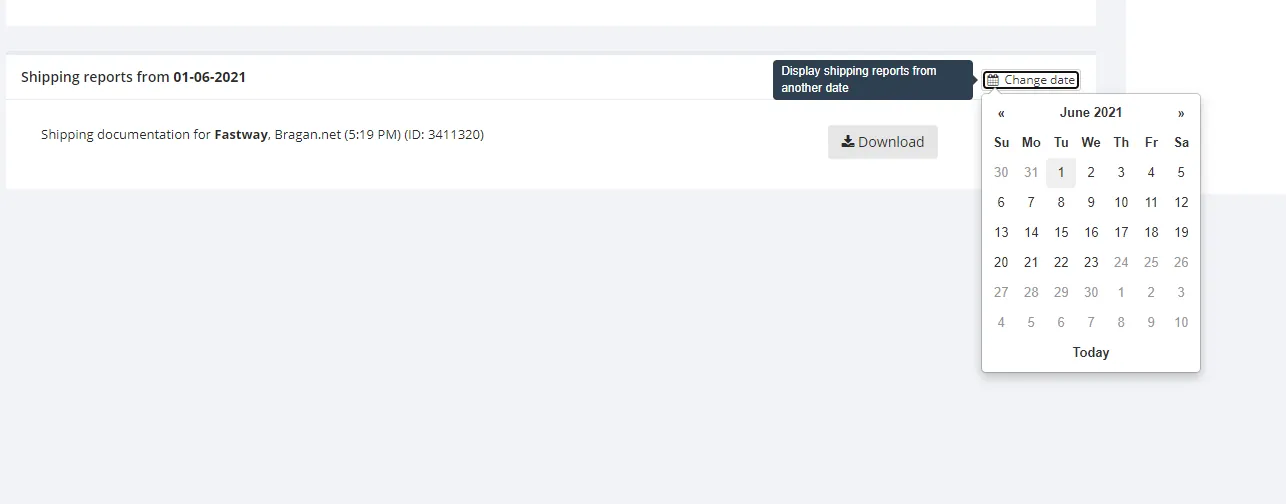
Once there you will be able to navigate to the ‘Shipping reports from…’ and select the date of the manifest that you would like to view. The example shown in fig 4.1.2 is for the date June 1st, 2021.
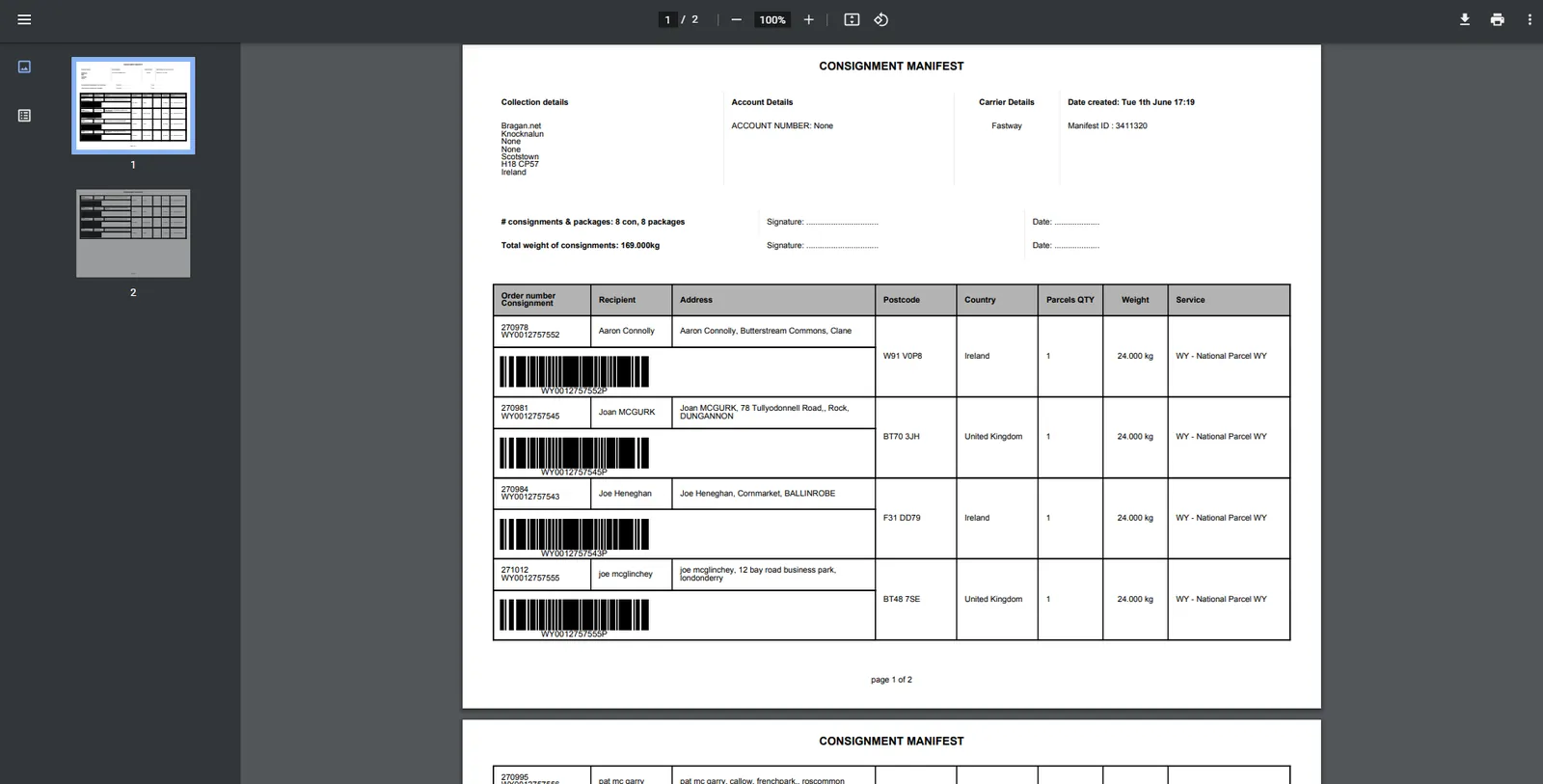
You can then click download and you will be shown the manifest in fig 4.1.3, where you can save, print, etc.
- Searching Shipped There is the functionality to search shipments without viewing the manifest however, the things that can be searched are limited. For example, you are unable to search names, but you can search order or tracking numbers.
5.1 View Shipped
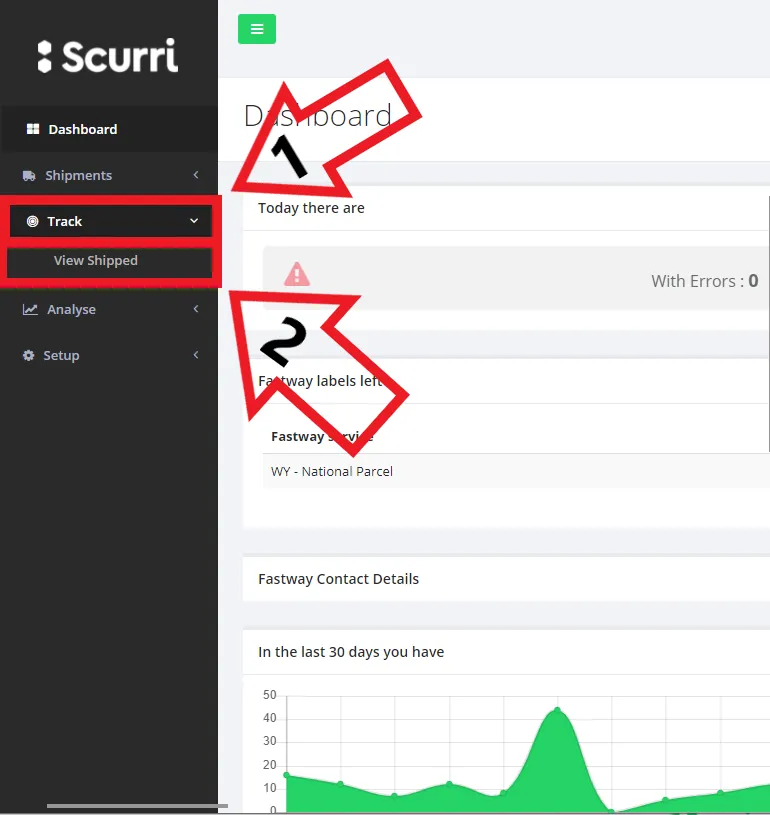
To view the shipped packages, navigate to the ‘Track’ dropdown and select ‘View Shipped’ in the left task bar on the Scurri portal as shown in fig 5.1.1.
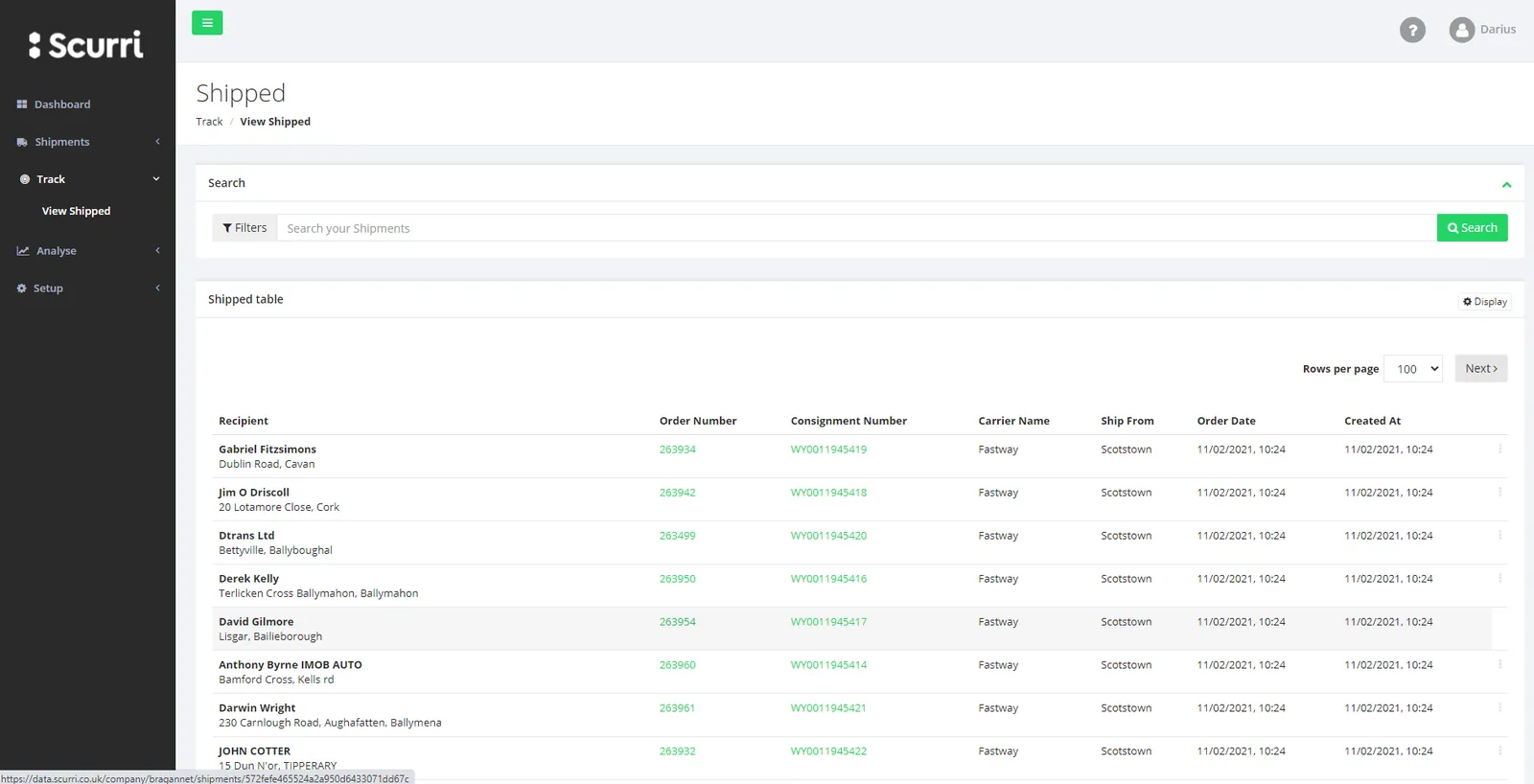
Once you have navigated to this page it will show you the labels that have been marked as shipped. You can use the search bar as shown in fig 5.1.2.
5.2 Navigating View Shipped
There are two main areas that you can view in the view shipped section, the order details, and the order tracking, both are highlighted in green and are a hyperlink that will navigate you to the information you require. The Order details can be viewed by clicking the order number as shown in fig 5.2.1.
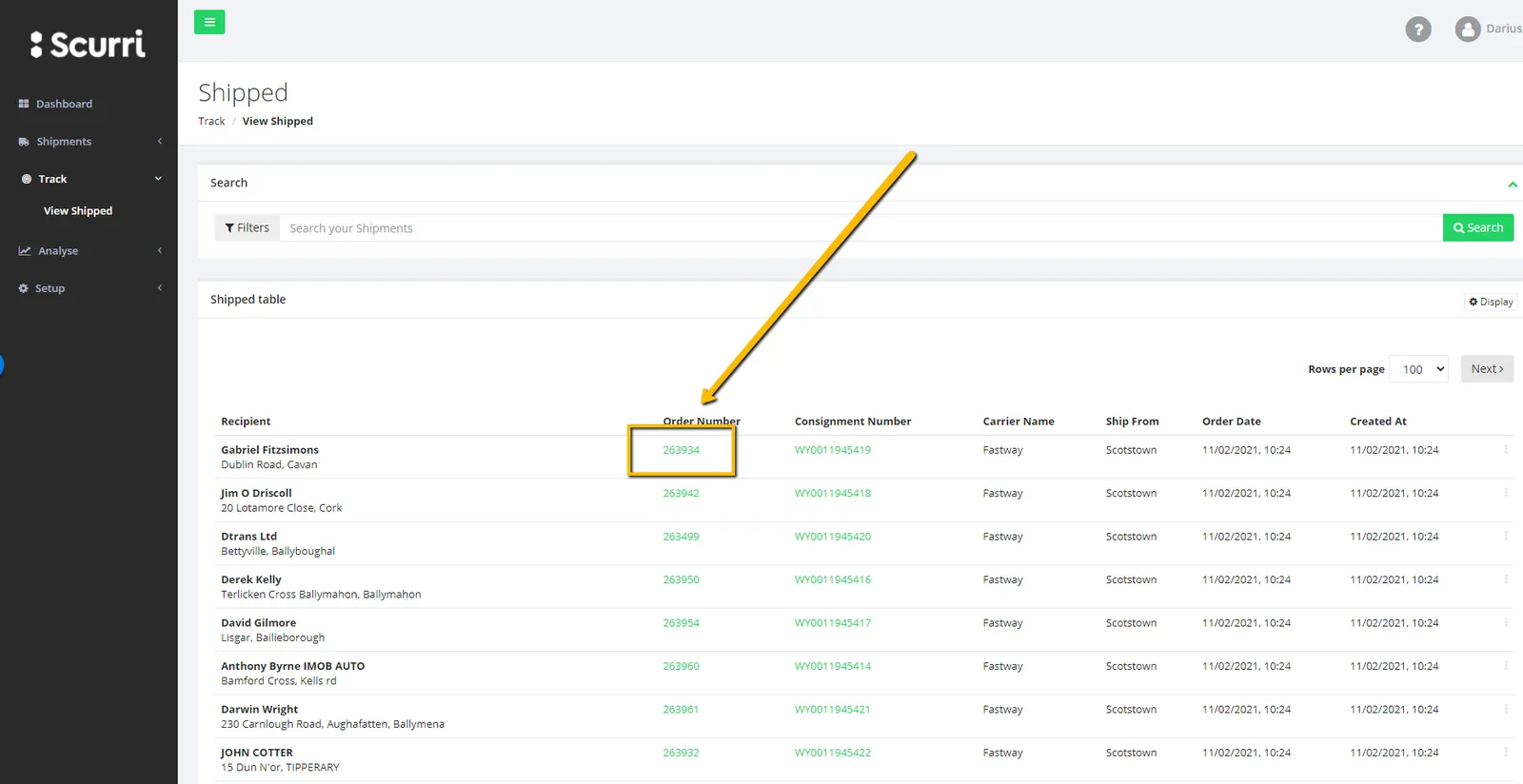
This will show you information about the order like the full delivery address, collection address, shipment size, etc.
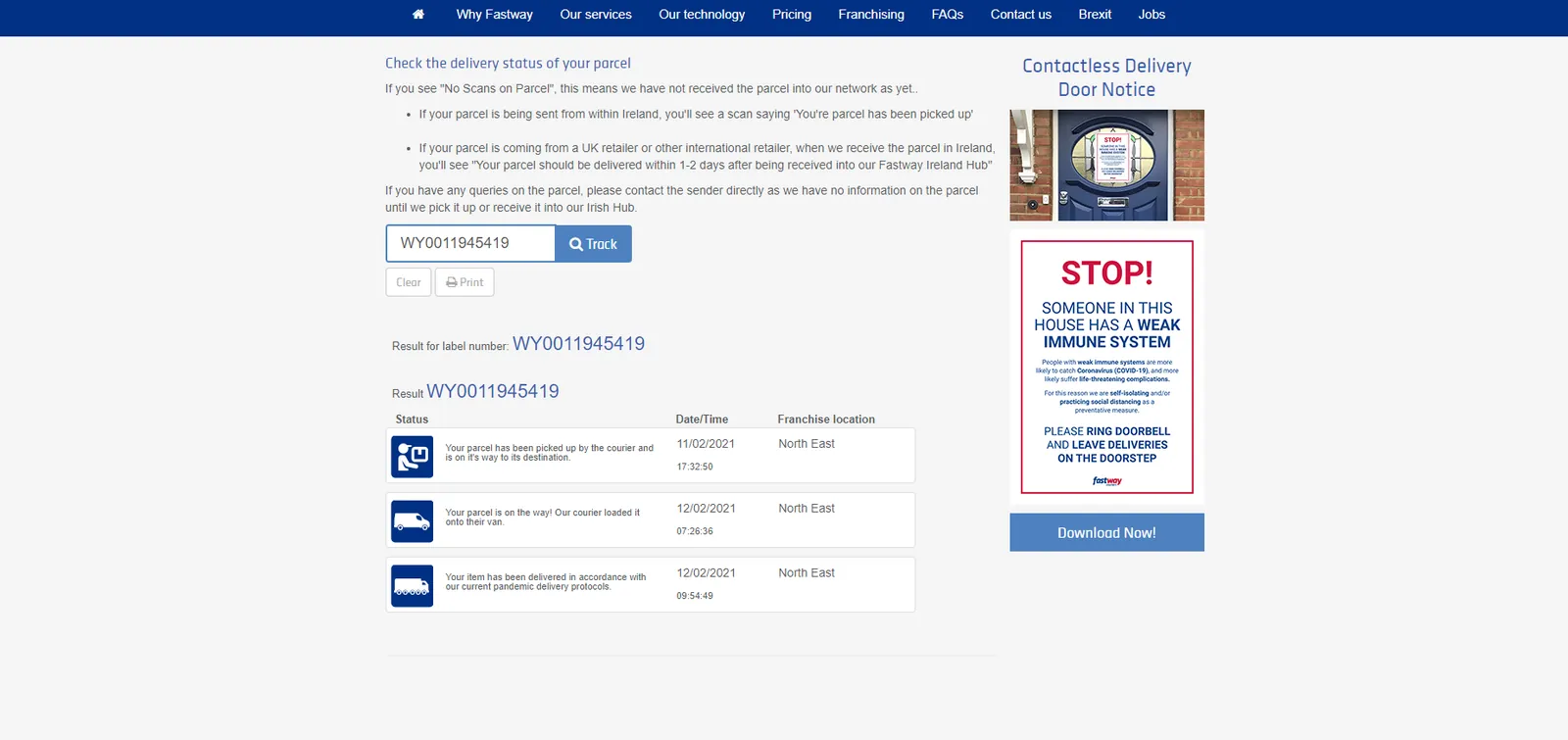
To view the order tracking details you click the consignment number as shown in
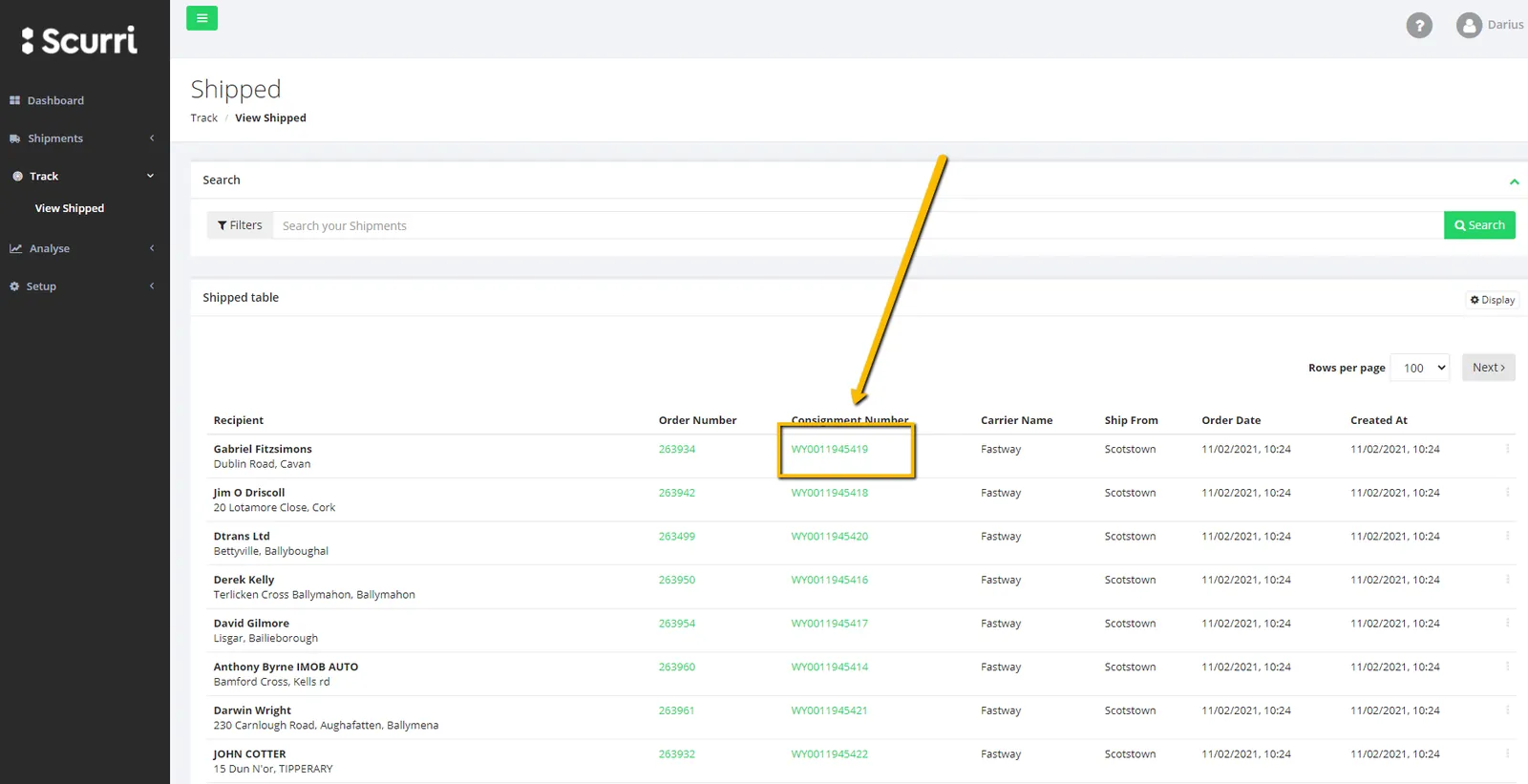
This will open a new window and show you the tracking history of the item as shown in fig 5.2.3.
Notes#
This section is important so Adhoc points and issues can be logged. Also, Q&A can be logged for suggestions for potential issues encountered. Also, log important notes needed for this system. Potential Issues:
1 - ISSUE ENCOUNTERED: Stuck on Loading RESOLUTION: Refresh Browser
2 - ISSUE ENCOUNTERED: Broken Links RESOLUTION: Get the external link as this will allow other people to access the SOP without the need for login credentials and avoid broken links.
Attachments#
How_To_Use_Fastway_Websit… 16/12/2025