Skype Usage
Skype is Bragan’s primary tool for communications within its employees.
Overview#
Purpose: Skype is Bragan’s primary tool for communications within its employees. The
Purpose: of this document is to outline to new and existing staff how to use Skype to communicate and acknowledge to their team.
Scope: This procedure applies to all employees
Responsibility: It is the responsibility of each employee to ensure the process set out in this procedure is followed.
Objective: The objective of this procedure is:
to standardize the use of Skype for all team members
Every employee at Bragan will have their own skype account. All employees must be familiar with the usage of skype and the group chats that are used. Skype is used as a communication platform and the groups are used so that all relevant people can be made aware of situations at once and in real time.
Skype Groups#
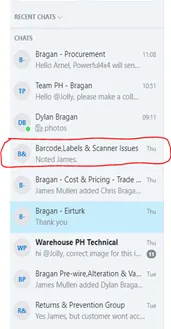
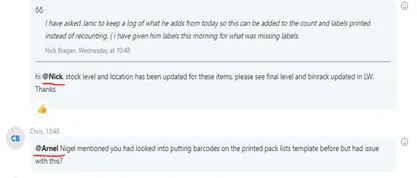
It is vitally important that all messages between employees are done through the relevant skype groups (eg Barcode, Labels and Scanner Issues Figure 1) for transparency and also to keep a log of ongoing tasks and problems. When talking directly to a specific person through skype, you will tag that person in the message.
Skype Message Acknowledgement#
We use Skype to communicate throughout the company with teams in different groups as well as some of the Suppliers. It is vital that you acknowledge comments or instructions for a task to let others know you understand or are doing/have done the task and also for common courtesy.
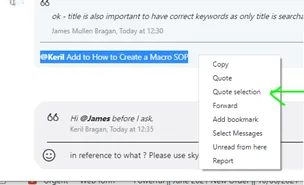
See Figure 3 below for example, thumbs up to acknowledge and comment on after to confirm completed. (you may also ‘Quote the message to write reply so this can be linked’. Use Quote selection to reply on a specific part of a message.) Using ‘Noted’ to confirm is recognized. This will avoid double working of a request or something being missed.
Note:
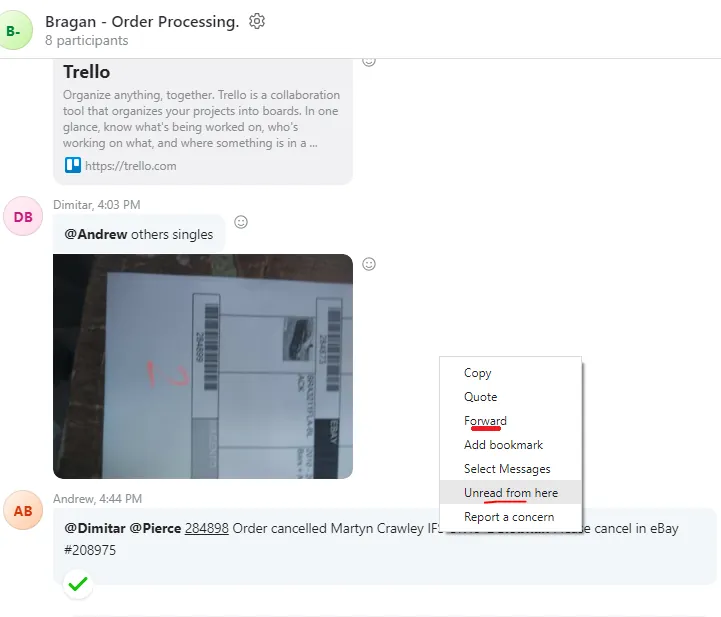
Do not send snipe of messages as we cannot copy, paste or quote certain elements. You can use right click on the message and select forward then choose the person you want to forward the message to.
Only read message when you are prepared to concentrate on it - if you read it accidently then right click and "Unread message"
Notifications#
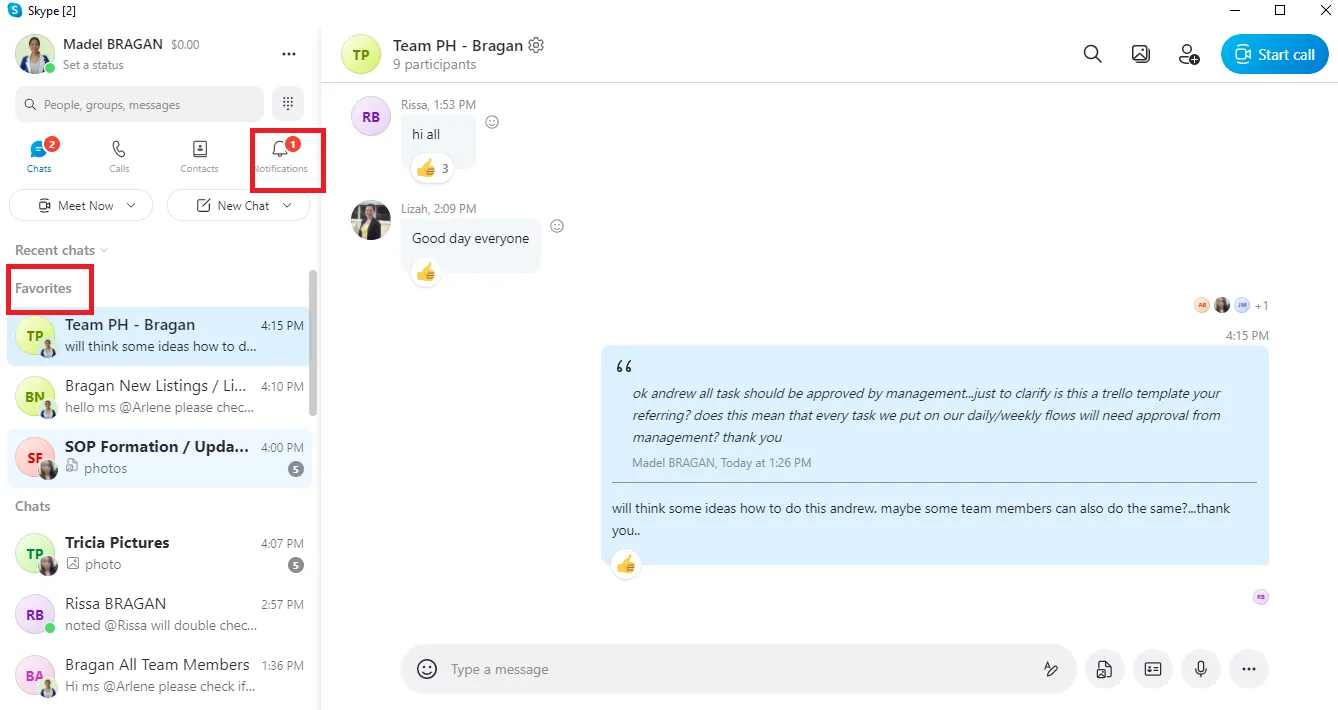
When you have been tagged for a request, this will show in your ‘Notifications’ (bell symbol at top of chat lists). It is also vital to have your most commonly used groups in FAVORITES as below to avoid missing important messages. See Figure 4.
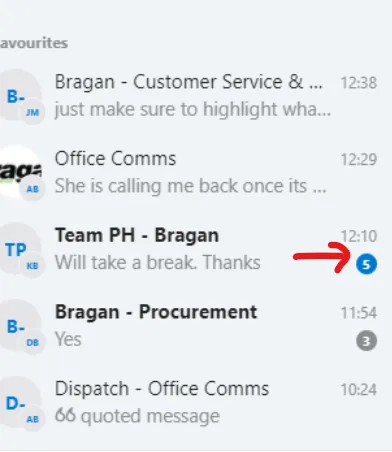
For all agents, only follow/reply to conversations that apply to your role. This is to reduce time wasted in using the Skype application. Messages that appear with the blue notification circle is what only need to be followed as someone is talking to you, see Fig 5. Other messages can wait until break/end of the day or even disregard if not related to your role.
Warehouse#
Operators in the warehouse will have skype on their scanners Figure 6. This is to allow easy communication to each operator. Operators should be aware that messages tagged for the warehouse may also be relevant to them.
Operators should not be using skype on their personal devices during work hours, all communication should be done through the skype on the scanners. If there is a
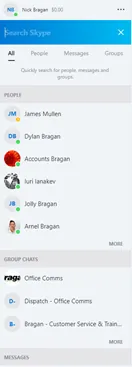
specific message / person / group the operator is looking for they will use the search bar to allow fast and easy locating. Figure 7.
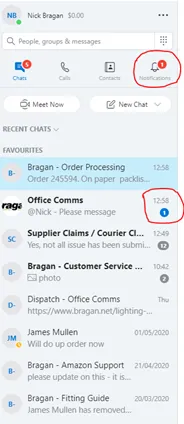
Messages that are tagged for the operator using the device will show with a blue icon and should be treated as a priority Fig 8.
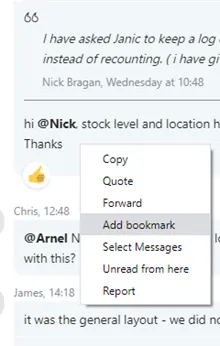
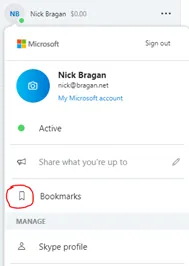
Messages that are important and the operator would like to access easily at a later time should be bookmarked. This can be done by holding down the message and selecting ‘bookmark’ Fig 9. Previously bookmarked messages are found by going to the operators profile Fig 10 and selecting ‘bookmarks’.

Office#
In the office each person will have skype on their desktop. Individuals working in the office should not be using skype on their personal devices during working hours, all communication should be done through skype on the desktop.
If there is a specific message / person / group you are looking for, the search bar will allow fast and easy locating of this. Figure 7.
Messages that are tagged for you will appear with a blue icon next to the group and should be treated as a priority, these will also show in your Notifications Figure 8.
Messages that are important and that you would like to easily access at a later time should be bookmarked. This can be done by right clicking the message and selecting ‘bookmark’ Figure 9. Previously bookmarked messages are found by going to the operator’s profile and selecting ‘bookmarks’ Fig 10.
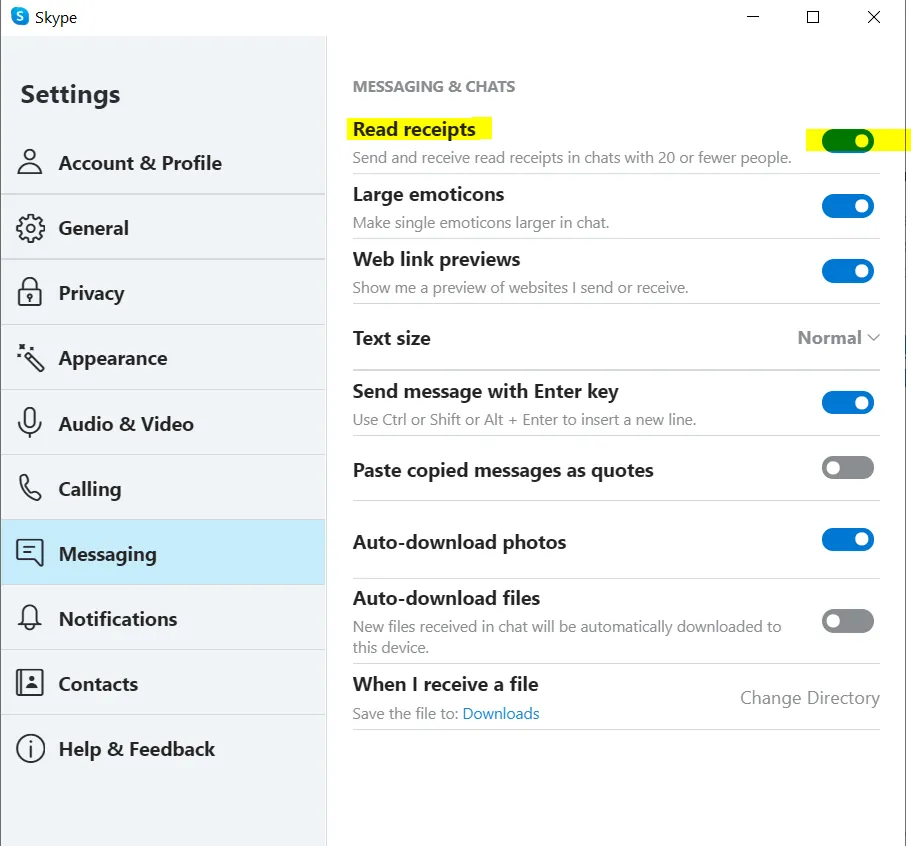
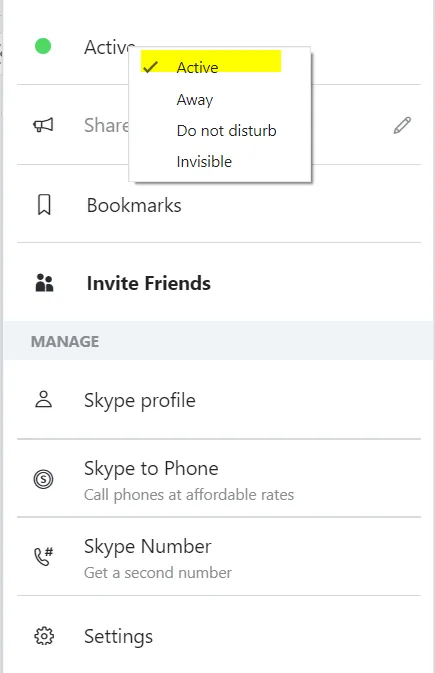
It is important that the Skype 'Read Receipts' notifications must always be active see Figure 11. It is not allowed to change this option. Changing of status from active to invisible will turn off the 'Read Receipts' notifications.
All agents must ensure that the 'Active" status is ON whenever using Skype, see
Notification
Messages
Messages
Always ON
Important Note:
When you want to reference or inquire about a product make sure to always include the SKU Number and the Item Description.
Meeting Recordings#
All meetings held in Skype should be recorded for reference and transparency. Prior to a meeting, certain roles are needed to be established to set a professional meeting. Roles should be assigned before the meeting starts.
Meeting Roles:
Chairman: The one who will facilitate the meeting.
Member to Record: The one in charge of recording the call. Recording should be started at the beginning of the call. Call recordings are automatically uploaded after the meeting.
Member to Summarize: The one who will record the minutes and review the recording and log all important points to be sent in the group for reference.
Roles will be assigned and will rotate so that a different member would have the experience of doing the recording or summary of the call.
For any Skype call - after the call, the record should be sent on skype together with the summary note about the call.
For example, Nigel called the employee, the employee should record the call and take note of the things that have been discussed during the call and send the record and summary to skype after the call.
Note:
When taking notes of important details during the call, also note the time log manually in your notebook so that it would be easier when you're going to review the video since you know which part it is (this is most useful for very long video recordings, this way you won't have to watch the whole video).
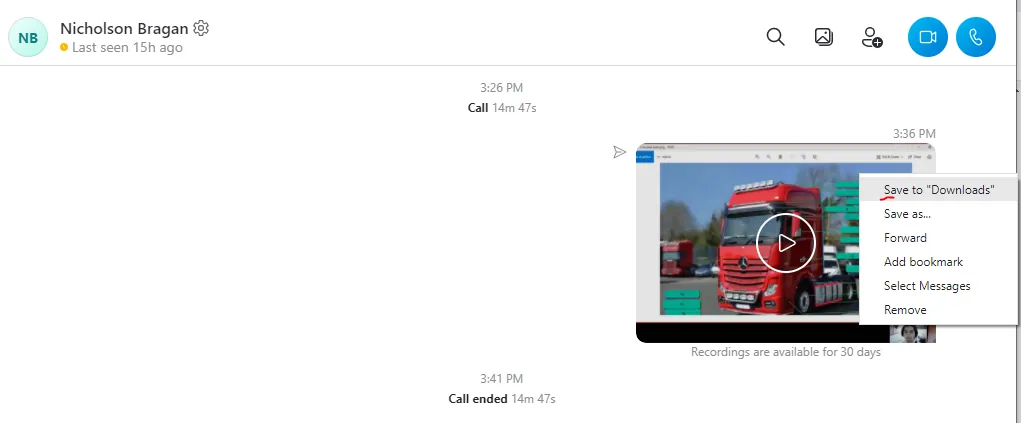
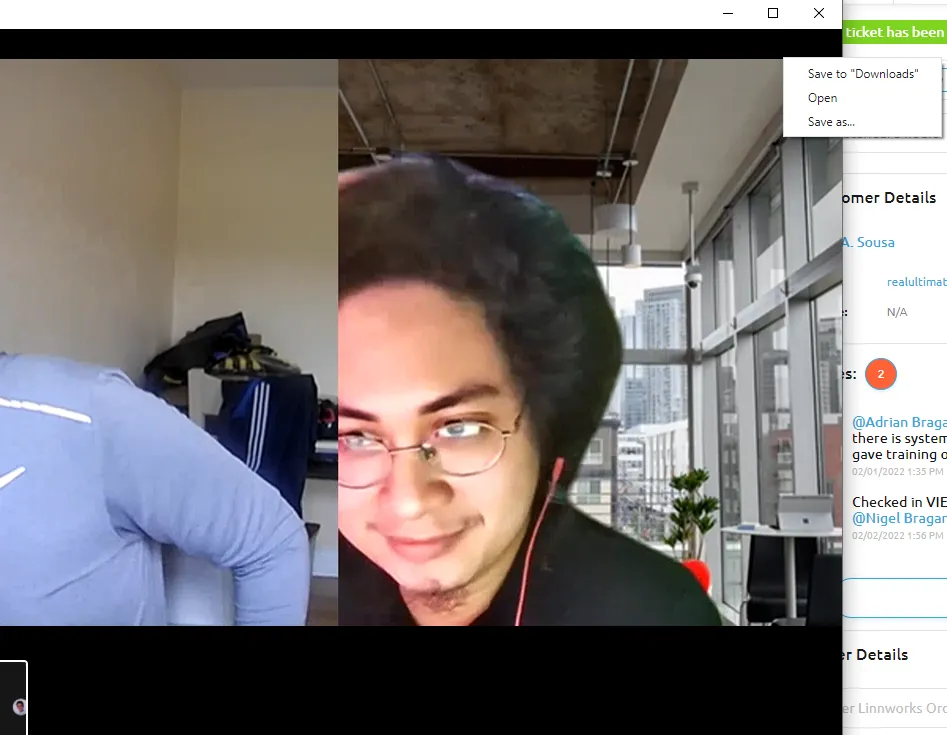
To download the video recording, right click on the video and click Save to Downloads.
Signing In and Signing Out in Skype#
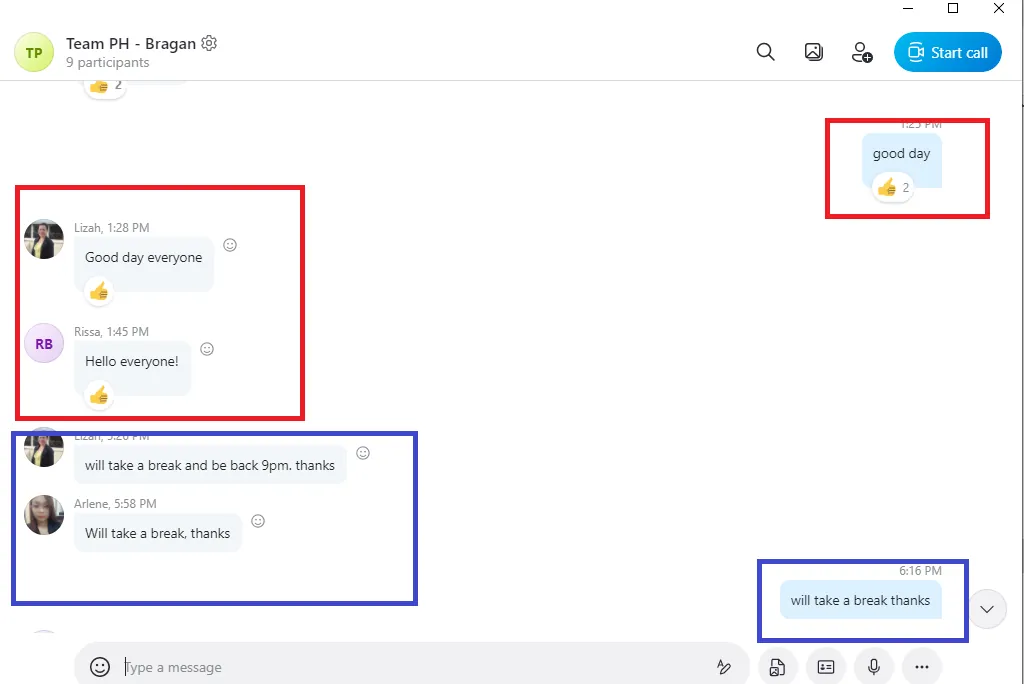
Each employee must sign in and inform the skype group (Team PH group) to serve as attendance before starting the daily task. Additionally, each employee must inform the group if taking break time to know who is present. This can be done as a simple "Good Day everyone" or "Taking a break" comments as a courtesy.
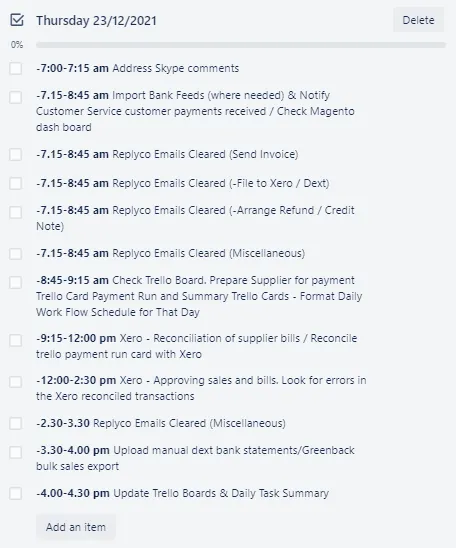
When clocking out for the day, provide a snip of trello daily workflow card with checklist of completed task for the day and another snip for the task plan for the next day, it should be check points on tomorrow's flow.
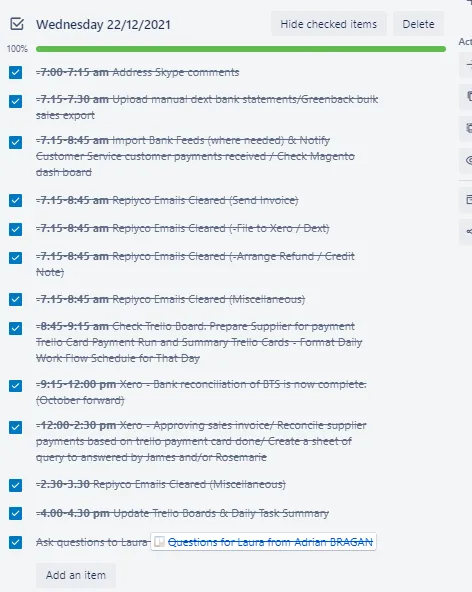

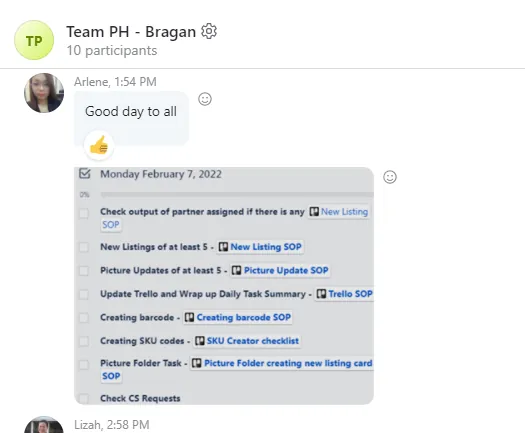
As the employee signs in at the start of the week (Monday), a daily plan should also be sent to the group. See sample message below.
Training#
When conducting training videos (screen share), especially if it is a new one (no previous videos was created yet) please use English in conducting the training so it can be incorporated in the system.
Notes#
This section is important so Adhoc points and issues can be logged. Also, Q&A can be logged for suggestions for potential issues encountered. Also, log important notes needed for this system. Additional Notes:
Never interfere/change the original settings of Skype. It is very important to ensure 'Skype Status' is always ACTIVE and 'read receipts' in ON, It is not allowed by the company to change these settings as it
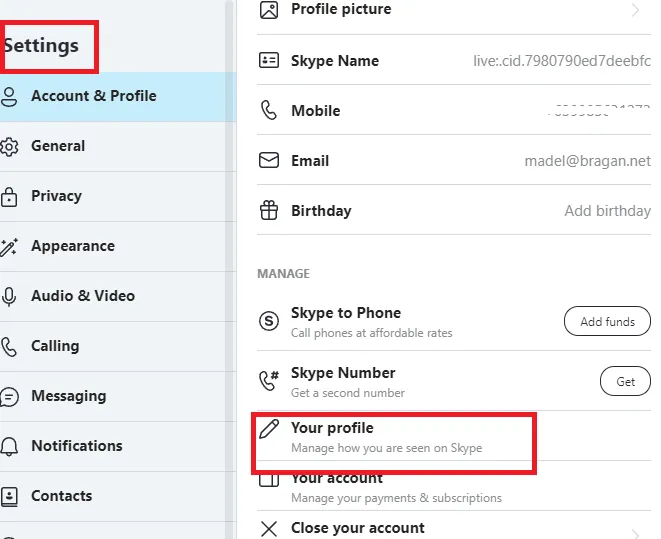
will reflect moving forward with the company. At no point should employees be privately messaging each other; skype groups are a necessity and should be treated as such. Ensure the correct people are tagged and the messages are being sent in the correct group. If messages are not tagged or are in the wrong group and go unseen it is down to the individual sending the message. Make sure all the details necessary are include when making an inquiry or providing information. For example, when making an inquiry about a product SKU Code and SKU Title should be included to save time for the other team members. This applies to all forms of communication as well. When taking notes during video meetings, also note the time log. For easier review of the video recording. At the end of each day, employees should provide a summary of tasks done in the day and a workflow planned for the next day. Make sure to add your mobile number in your Skype Profile.
Just click Setting > Your Profile to edit. It will redirect you to another page (your profile page), scroll down to contact details, then add you mobile number and verify it. Save it once finished.
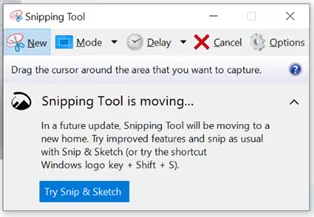
For sending screenshots in Skype, use the Snipping Tool to create the screenshots.
When you want to reference or inquire about a product make sure to always include the SKU Number and the Item Description.
Potential Issues:
1 - ISSUE ENCOUNTERED: Stuck on Loading
RESOLUTION: Refresh Browser
2 - ISSUE ENCOUNTERED: Broken Links
RESOLUTION: Get the external link as this will allow other people to access the SOP without the need for login credentials and avoid broken links.
3 - ISSUE ENCOUNTERED: Skype Not Working
RESOLUTION: Close Skype and Re-Open Skype Application