SOP for Adding & Removing Staff CC
Insert text Zendesk is Bragan’s primary tool for e-mail handling.
Overview#
Purpose: Insert text Zendesk is Bragan’s primary tool for e-mail handling. The purpose of this document is to outline how to add or remove staff CC.
Scope: This procedure applies to Administration/Management.
Responsibility: It is the responsibility of each employee to ensure the process set out in this procedure is followed.
Objective: To standardise the process of Adding and Removing Staff CC in Zendesk.
Adding & Removing Staff CC in Zendesk#
Login to dashboard..
Important note: You’ll need an account with Administrative Privileges to do this. Ask management for access.
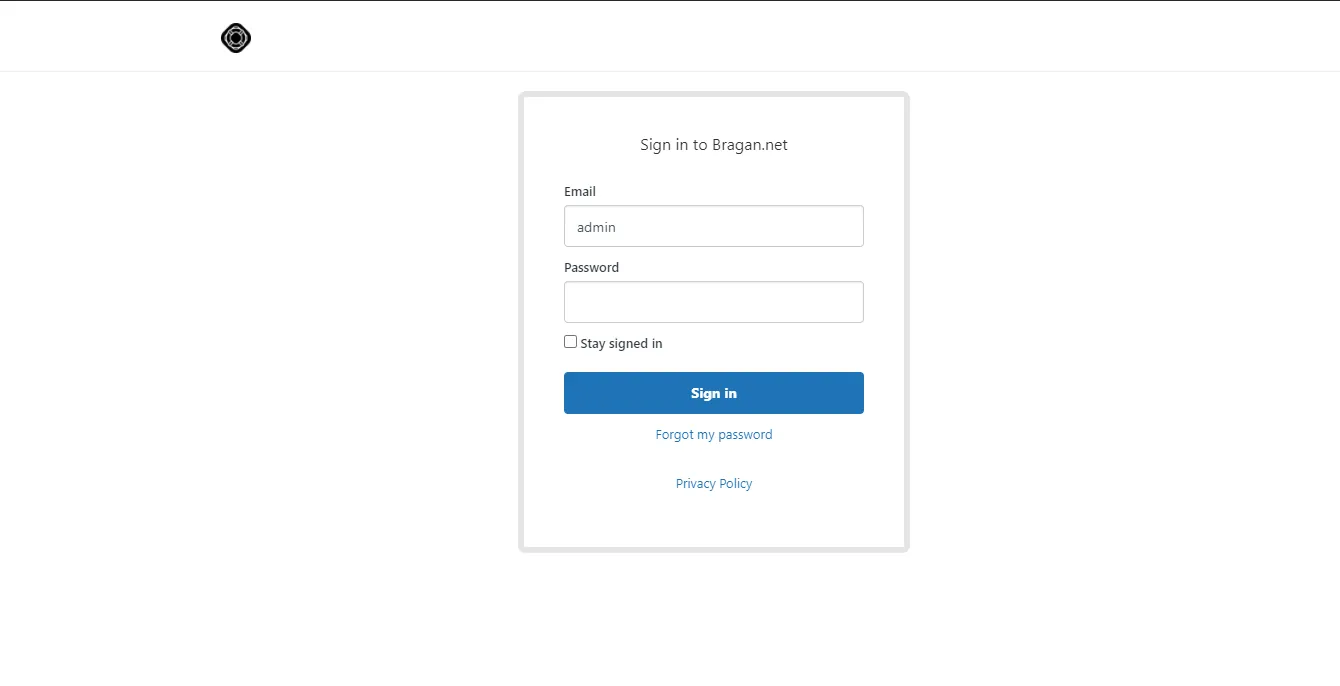
After logging in. You will be redirected to Zendesk Dashboard.
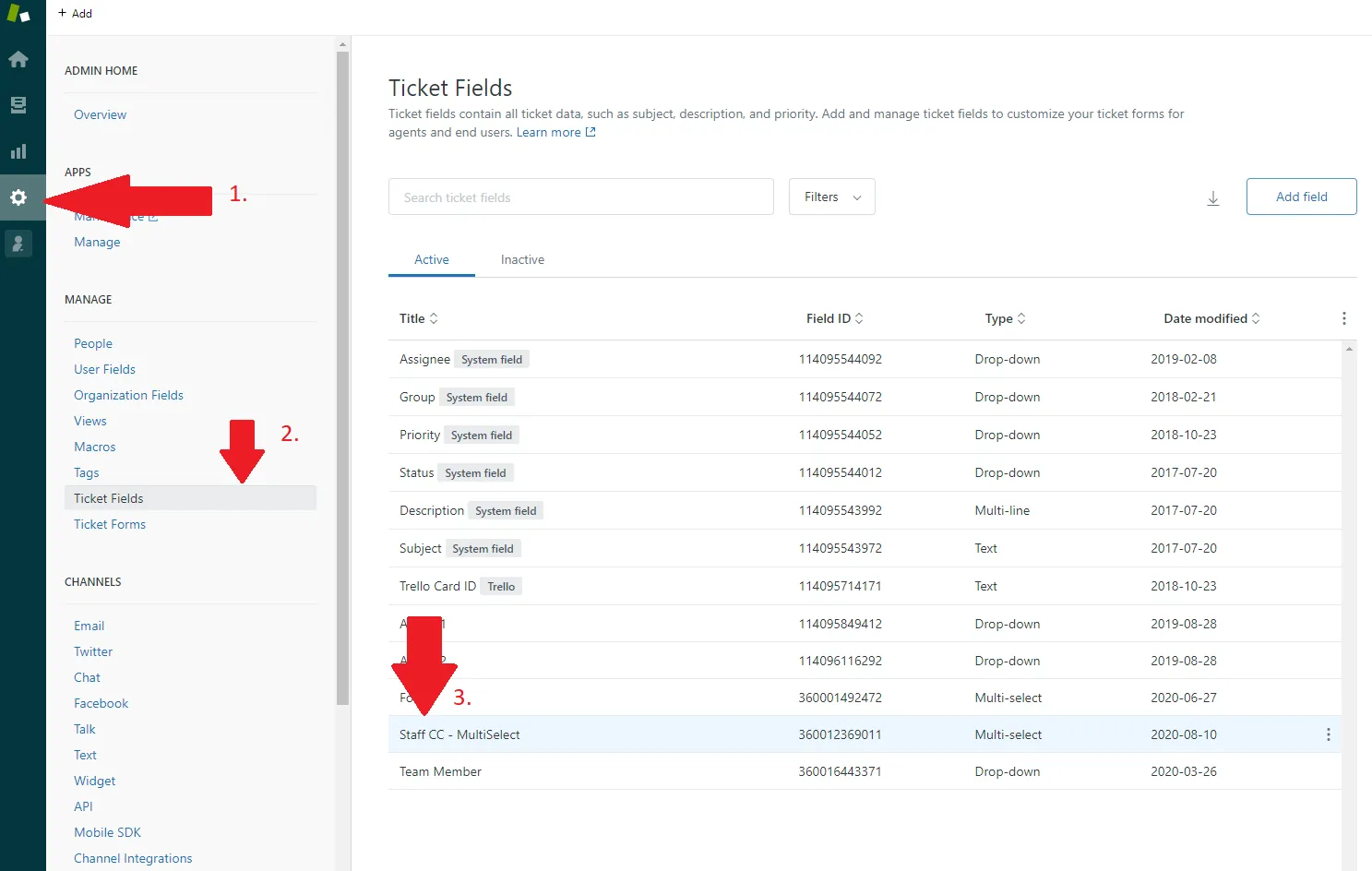
Click the gear icon on the left side of the screen. Click Ticket Fields. Then click Staff CC – MultiSelect.
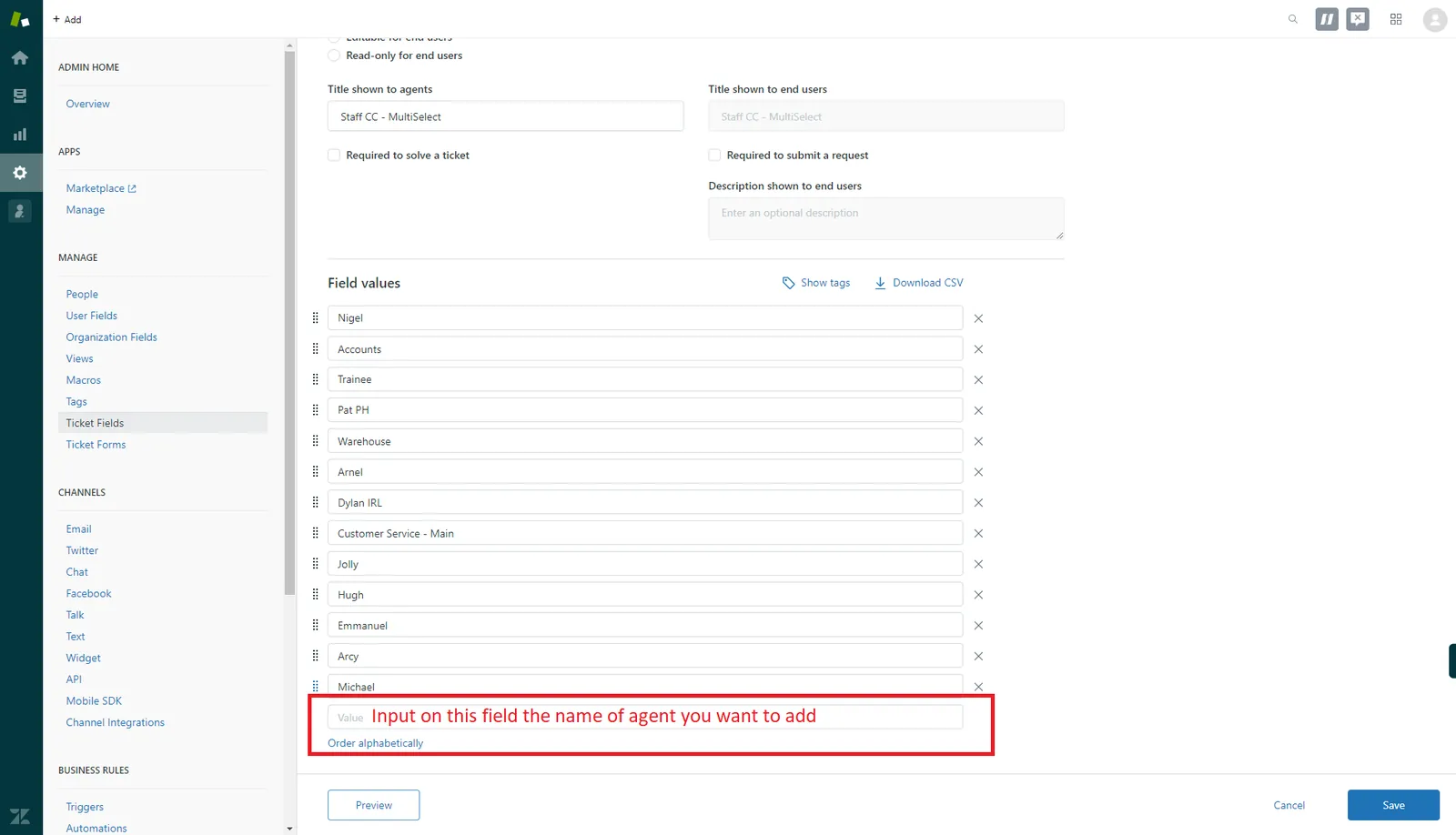
If your task is to add new Staff CC, scroll down until you see the Value Field (shown in the picture). Type the name of the agent you want to add then click Save.
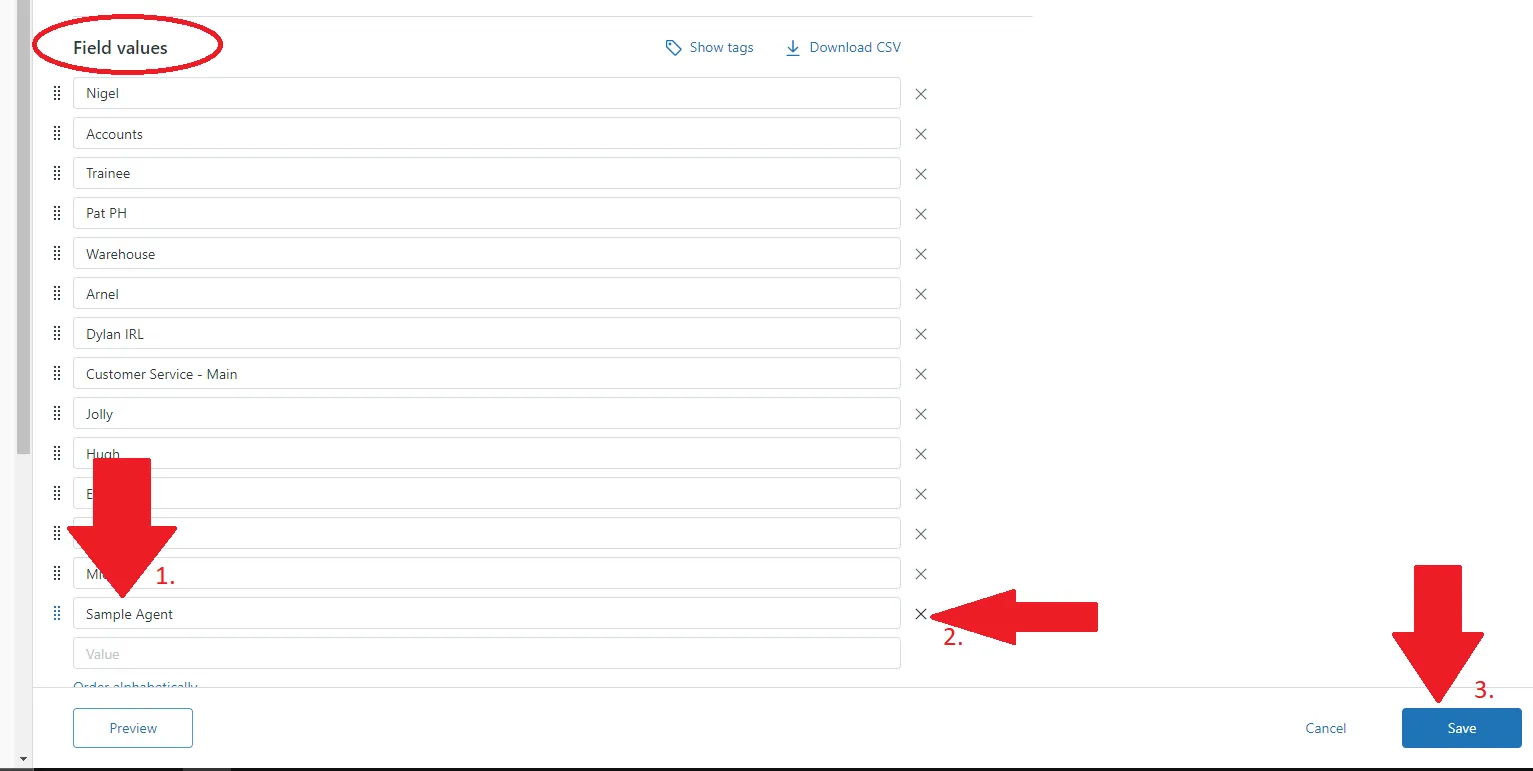
Removing process (Assuming you already did Step 1 and 2). Scroll down until you see Field Values Section(shown in the picture). Select the agent you want to remove,
click the ‘X’ icon then Save.
Notes#
This section is important so Adhoc points and issues can be logged. Also, Q&A can be logged for suggestions for potential issues encountered. Also, log important notes needed for this system. Potential Issues:
1 - ISSUE ENCOUNTERED: Stuck on Loading RESOLUTION: Refresh Browser
2 - ISSUE ENCOUNTERED: Broken Link RESOLUTION: Get the external link as this will allow other people to access the SOP without the need for login credentials and avoid broken links.