SOP for Creating Ticket in Zendesk Support
Zendesk is Bragan’s primary tool for Customer Service and E-mail Handling.
Overview#
Purpose: Zendesk is Bragan’s primary tool for Customer Service and E-mail Handling. The
Purpose: of this document is to outline to new and existing staff how to create tickets in Zendesk Support.
Scope: This procedure applies to the Customer Service and Email Handling Department.
Responsibility: It is the responsibility of each employee to ensure the process set out in this procedure is followed.
Objective: To standardise the process of ticket creation in Zendesk.
Procedure#
Creating Tickets in Zendesk Support#
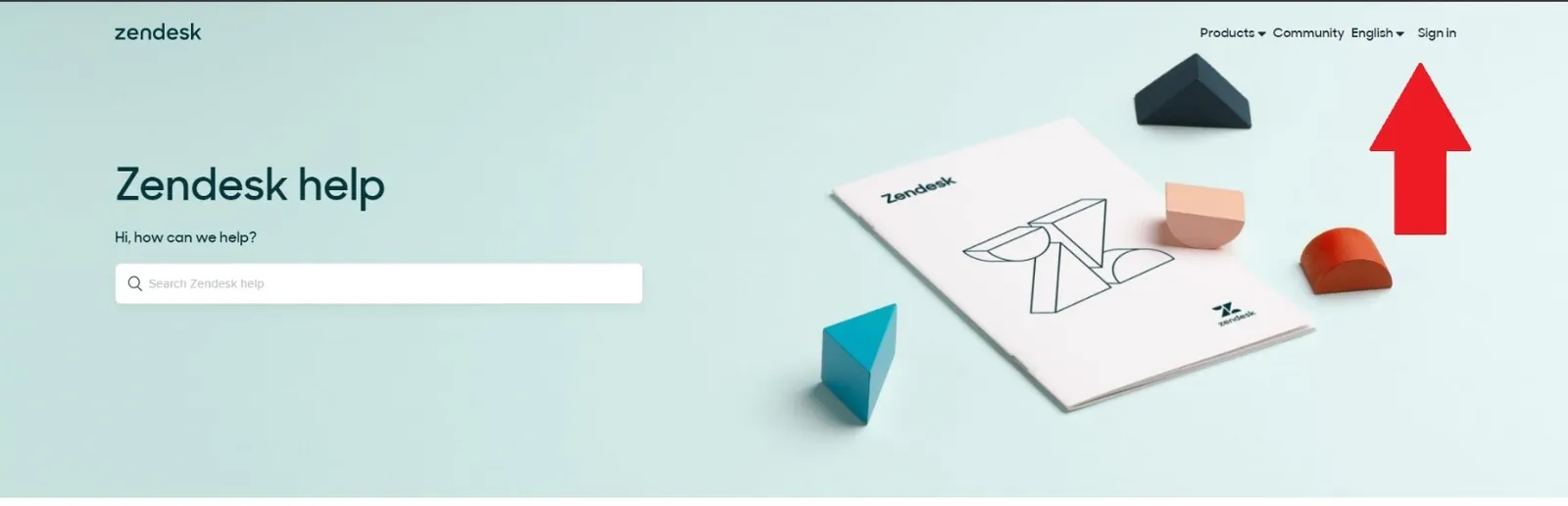
Go to support.zendesk.com and log in using the credentials provided by the management team.
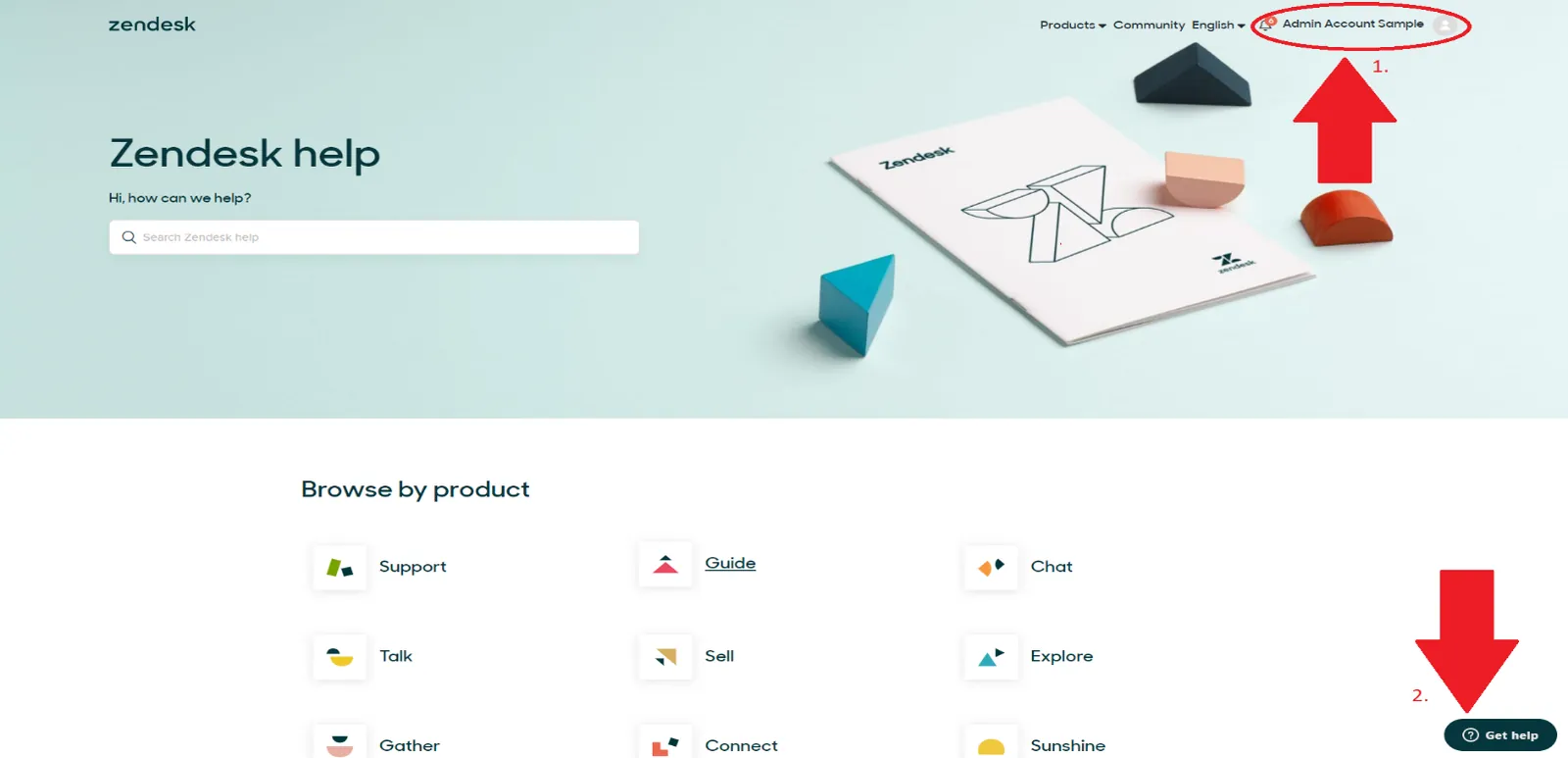
After logging in, you should be able to see the name on the account instead of Sign In(see picture below). Then click Get Help at the bottom right corner of the screen.
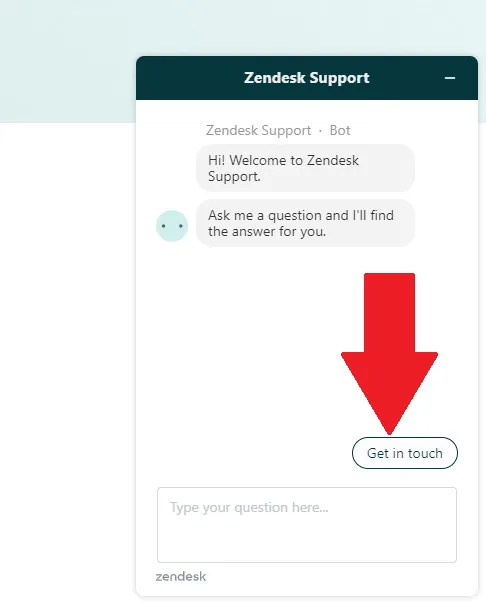
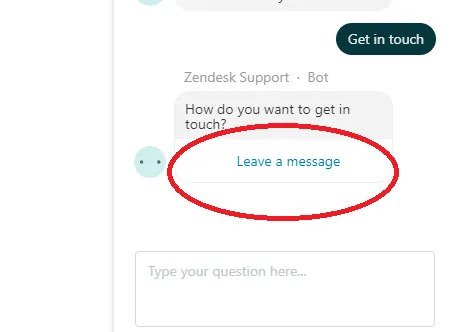
Chat Window will appear. Click get in touch. Chat BOT will reply with “How do you want to get in touch?”. Click the Leave a message hyperlink.
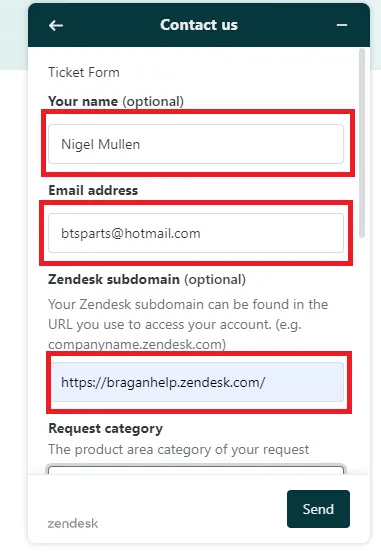
The ticket form window will show after clicking Leave a message. Fill up the form(important fields are shown in the picture below, see fields with red box). Fill up the rest of the form accordingly then hit Send.
Notes#
This section is important so Adhoc points and issues can be logged. Also, Q&A can be logged for suggestions for potential issues encountered. Also, log important notes needed for this system. Potential Issues:
1 - ISSUE ENCOUNTERED: Stuck on Loading RESOLUTION: Refresh Browser
2 - ISSUE ENCOUNTERED: Broken Link RESOLUTION: Get the external link as this will allow other people to access the
SOP without the need for login credentials and avoid broken links.