Warehouse Queries for Customer Related Concerns
The purpose of this document is to show how to deal with warehouse customer-
Overview#
Purpose: The purpose of this document is to show how to deal with warehouse customer- related queries and how to make the communication clear, get a faster response, and resolve problems effectively and efficiently.
Scope: This task applies to all Customer Service Team both Team PH & Team IRL that needs assistance from the Warehouse Team about customer-related queries.
Responsibility: It is the responsibility of each employee to ensure the process set out in this procedure is followed.
Objective: The objective of this procedure is:
To have a standard process when dealing with the Warehouse Team.
Shipment-Related Queries#
From time-time the CS Team will have to communicate to the warehouse regarding orders. Like, when will an order be shipped, confirm if it was sent indeed, do not send yet (put on hold), or cancel an order – there is a very precise way to do this & a correct procedure for doing this – we will start will the Shipping Queries.
Shipment Delays#
An order is normally dispatched in 1-2 working days. If an item requires Prewire or Alterations, it may take longer. When a customer follows up with their order but it still shows open (found in open orders in Linnworks) even though it does not require prewire or alterations, you will need to confirm with the Warehouse Team when will this be sent.
Example: Order 268507 - Current date is May 27, 2021 and the purchase was made on April 23, 2021.
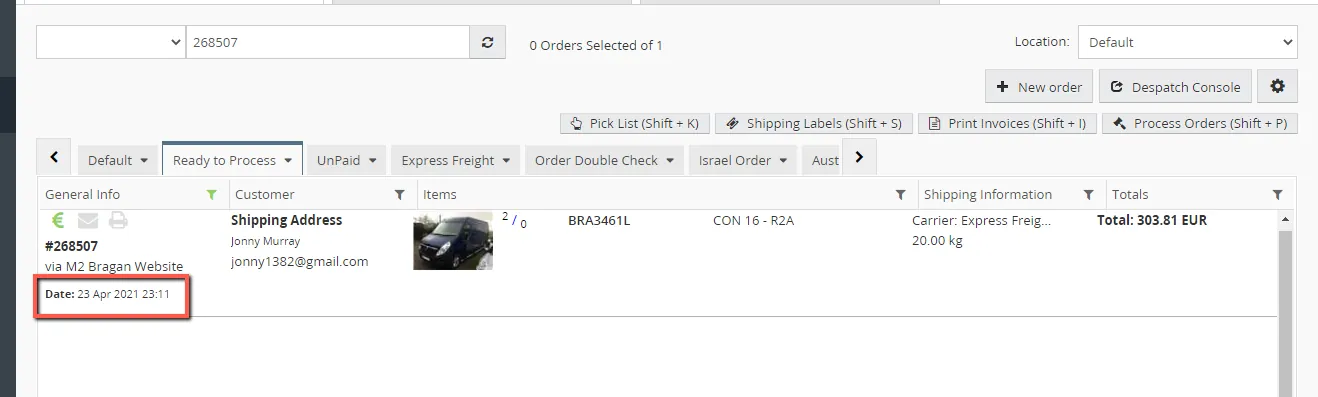
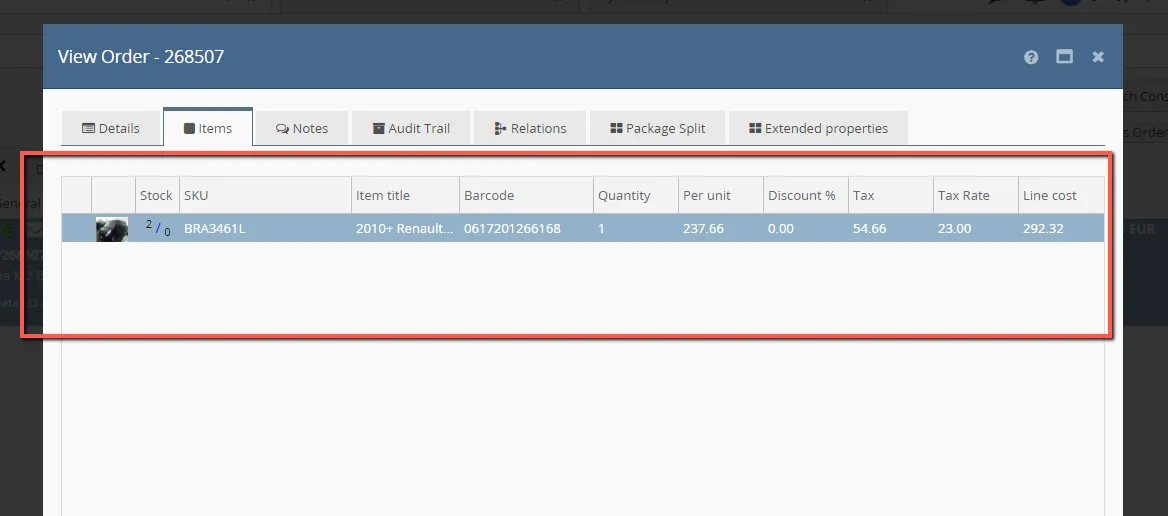
- Check the item in the order if there’s a Prewire Requested or Alteration needed. To do this, double click on the order > Go to Items > Check if there’s ALT/Prewire on it.
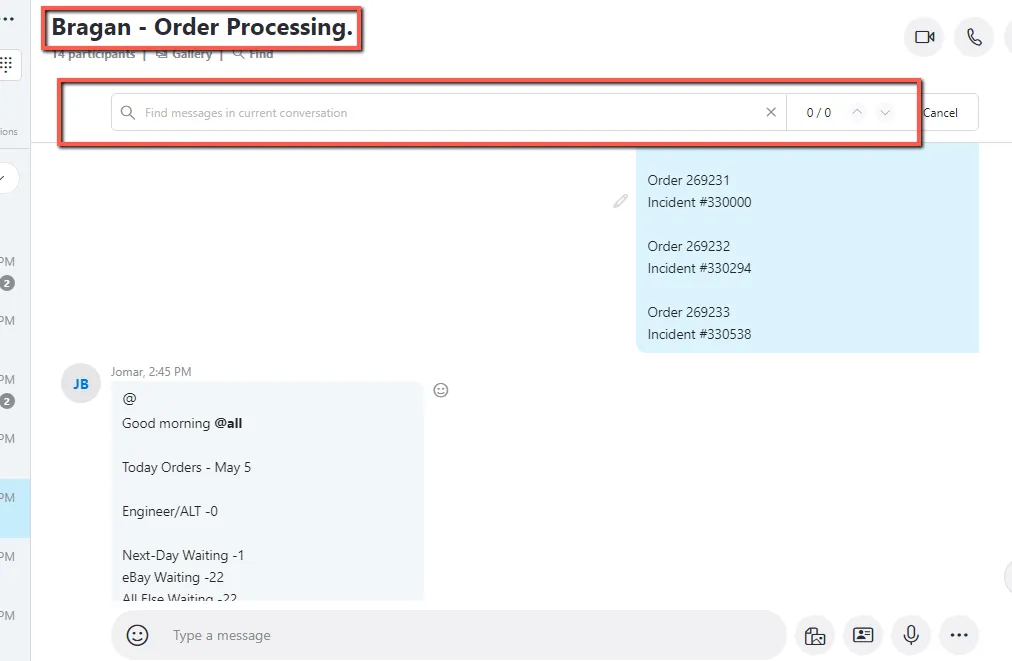
- If there is no alteration or pre-wire indicated, then go to Bragan – Order Processing Skype Group and check first if this order has been flagged recently by pressing CTRL + F then type the order number.
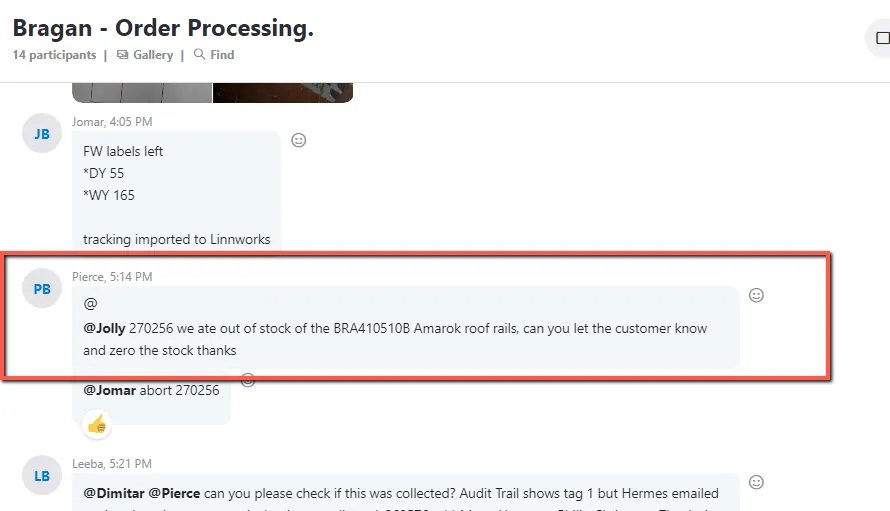
- If there is a result such as flagged by the Warehouse Team that the item in the order is out of stock, then inform the customer using Macro 014 – we will blame the
delay with the courier so it will be easy for us to pacify the customer. DO NOT ADMIT FAULT.
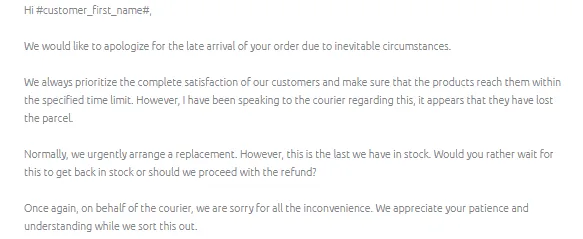
- Wait for customer's feedback, if customer chose the refund, tag management for approval then tag also Accounts and label it as -Arrange Refund.
- If there is NO result in the Skype Group, then proceed in checking with the Warehouse Team.
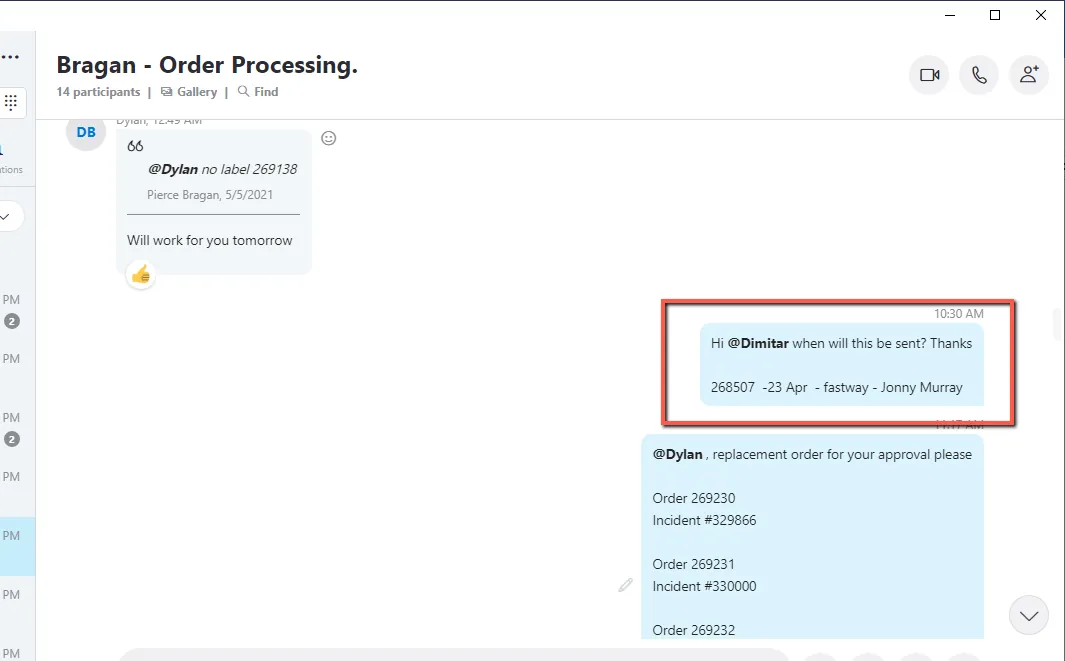
Format inquiry should include the following details:
inquiry + LW order number + pick list date + SKU + item description + customer name + courier + ticket number
Ensure that your query is set in this format for the Warehouse Team to easily assist you on this.
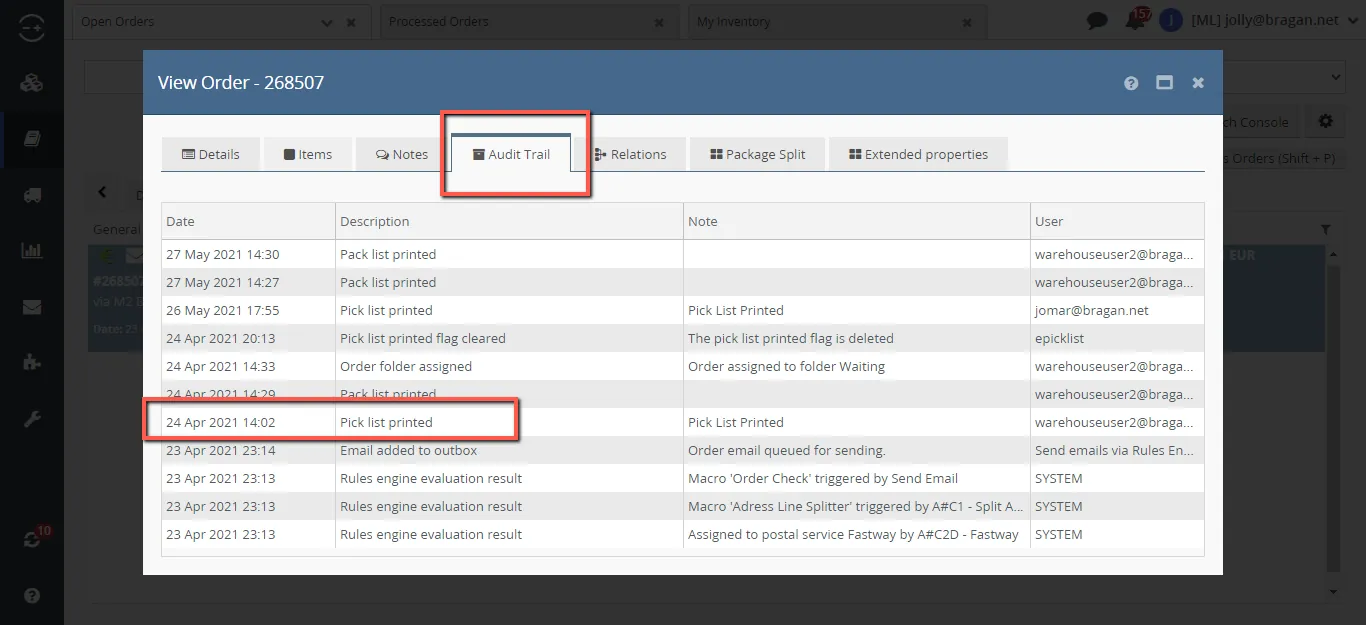
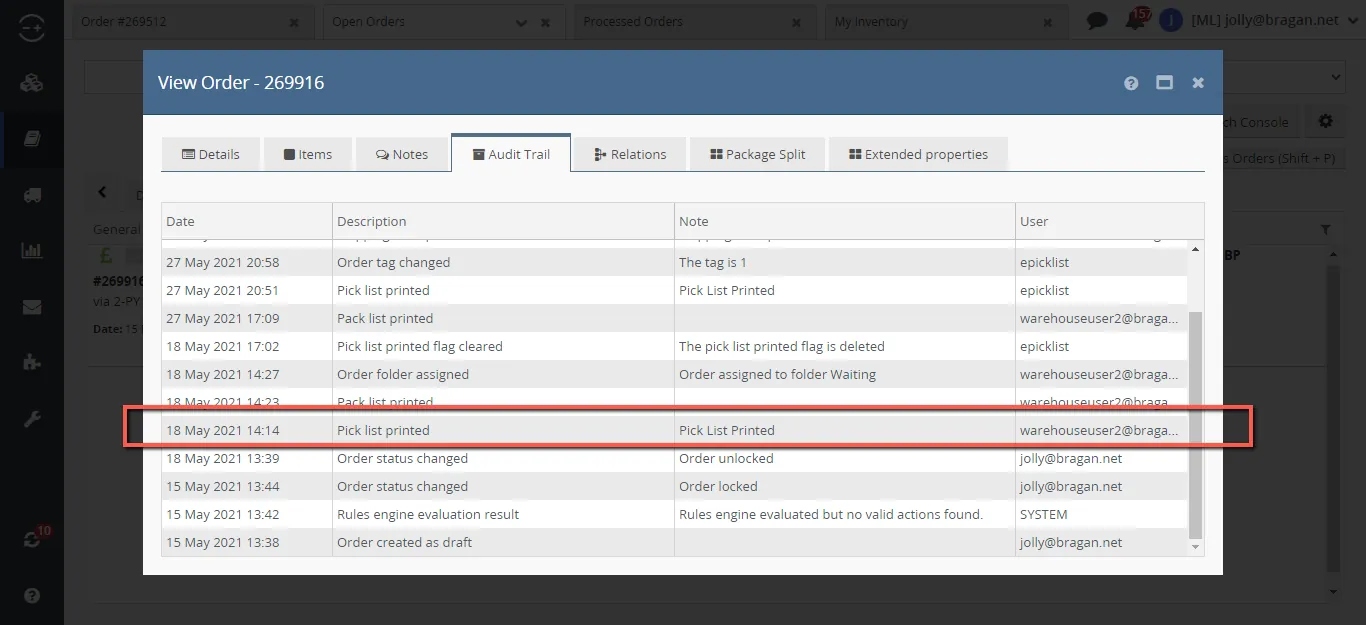
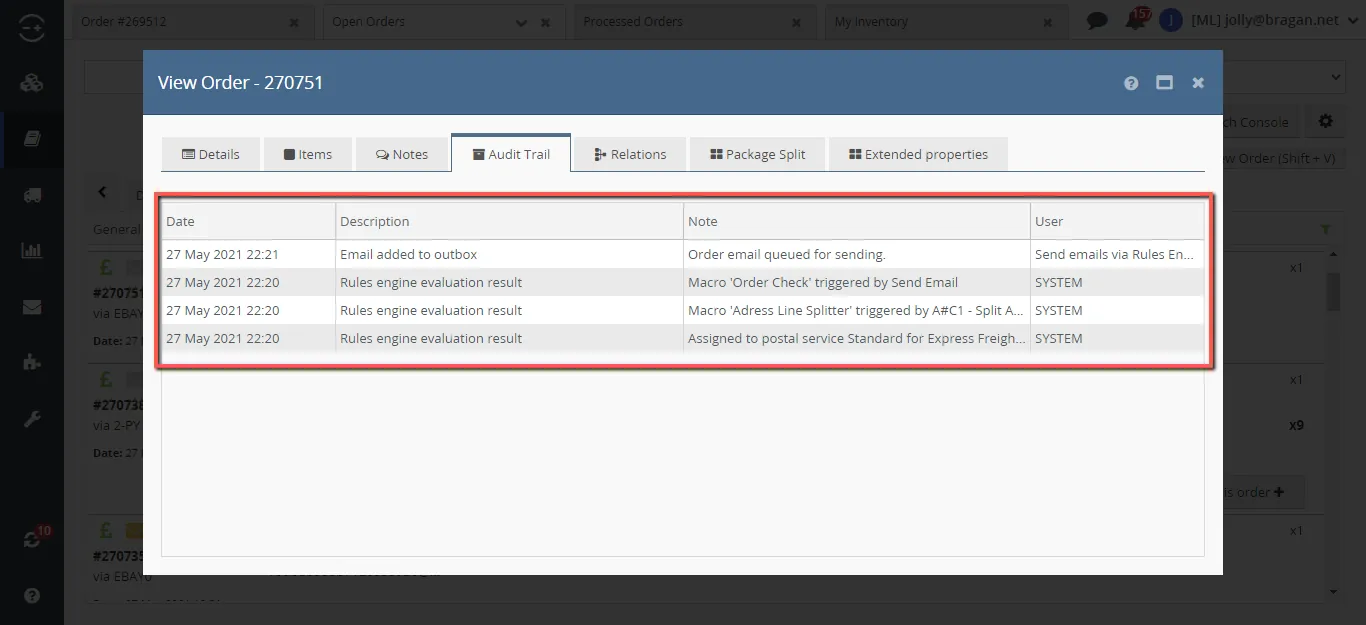
Note: To check the Picklist Date, Double click the order > Go to Audit Trail > Check the Picklist Date
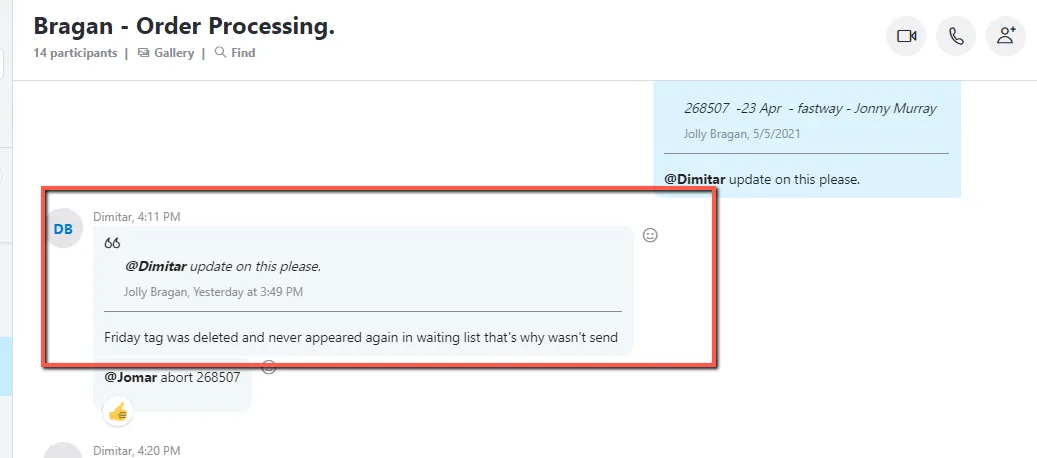
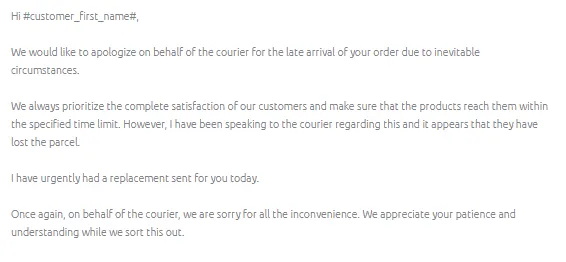
- In this scenario, where shipment delay was because the item was not sent on time, you may use Macro 013 – telling the customer that the courier had lost the parcel and we will be sending a replacement as soon as possible.
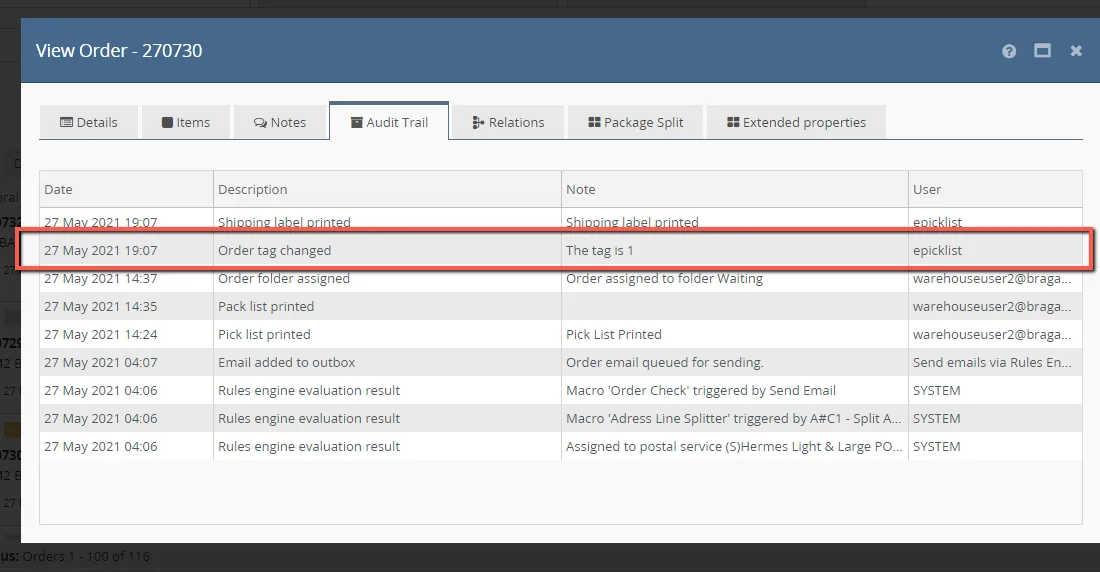
Note: One of the ways for you to identify if the order has been sent is there’s a Tag 1 on the Audit Trail. This means that the parcel has been collected by the courier from our Warehouse. To do this, Double click the order > Go to Audit Trail > Check Tag 1. See Fig below.
When the order has TAG 1 (Processed/Open) and the Tracking shows no scan, confirm with the Warehouse Team if the order was indeed sent. Please see fig below.

Cancellation / On Hold Orders Request#
- When the customer wants to cancel their order or there’s a need for you to put the order On Hold, always check the Audit Trail if the Picklist has been printed before making any changes.
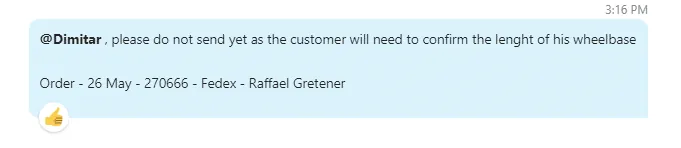
- When the Picklist has been printed, you will need to notify Warehouse Team in Order Processing Skype Group that you will need to cancel the order as per the customer request or do not send the order yet and state the reason. See fig below.

- When you are done notifying the Warehouse Team and they confirm that the item is not yet collected by the courier, you may cancel the order or put the order On- Hold. See SOP on Handling Order Cancellation Request so you will know how to cancel orders.
Please Note: Any changes made on the order after the picklist was printed will not be visible to the Warehouse Team. If the order was put On Hold or was canceled after the picklist has been printed and you did not notify the Warehouse Team, the order will still be sent to the customer.
- If there is NO Picklist Printed showing on the Audit Trail yet, then you may proceed in canceling or put the order On-Hold. Then update warehouse team that you cancelled or put the order on-hold in Order Processing Skype Group.
- Once you have done this – you would message the customer and ask them to confirm what it is they need (if it is on hold) or inform them that cancellation request is already processed (if customer wants to cancel order). If we can keep the sale, keep the sale! If then the customer comes back and says that they want a different item simply send them the link to the item they are looking for.
Standard Process in Sending Queries to#
Warehouse Team#
Any type of product-related request that needs assistance from the Warehouse Team, should be addressed on Warehouse / Customer Service Questions Skype Group.

All types of product-related requests should have a Trello Card created. It is a must that you will need to create a Trello Card first before posting your request on the Skype Group. Request access to Warehouse 2021 Trello Board from Team IRL. Provide your Trello email so they can send you an invite.
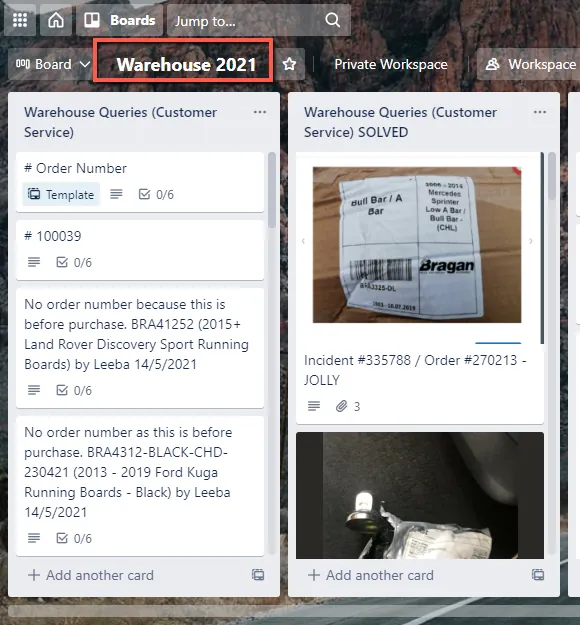
- Under the Warehouse Queries (Customer Service) Trello List, click the Template Card and copy.
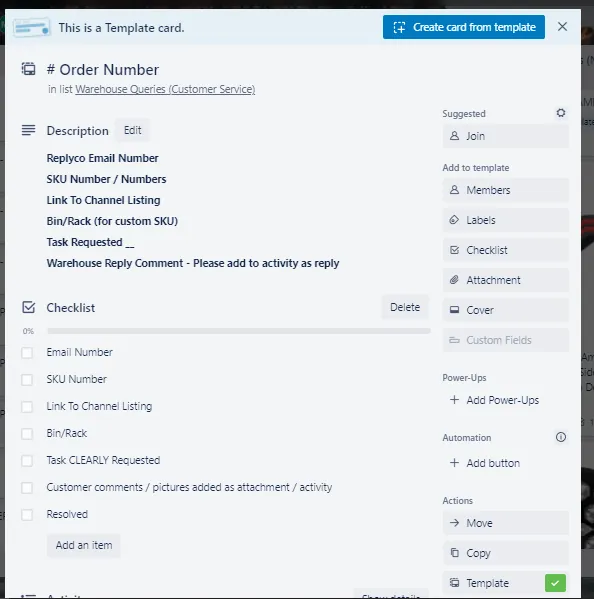
- The card title should include the Order Number
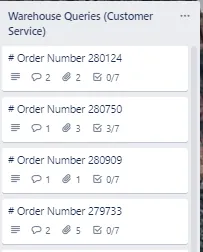
- Ensure that your request is detailed as much as possible. You may state the issue of the customer so the Warehouse Team would also know what else needs to be done. Ensure to the attached photo as well.
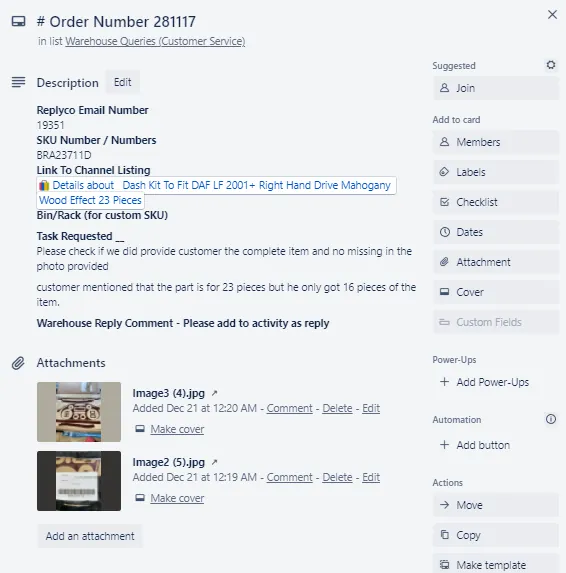
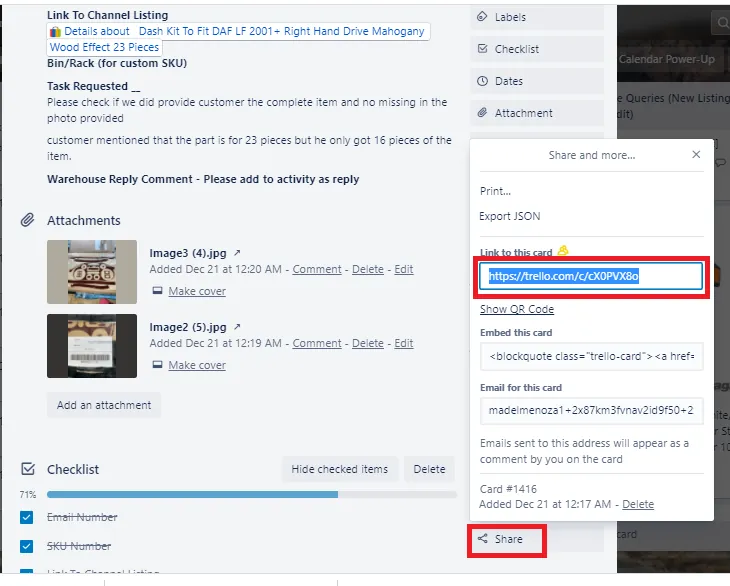
- When you are done creating the Trello card, copy the shared link and include it in your post to Warehouse / Customer Service Questions Skype Group. Inquiry post should include the following details:
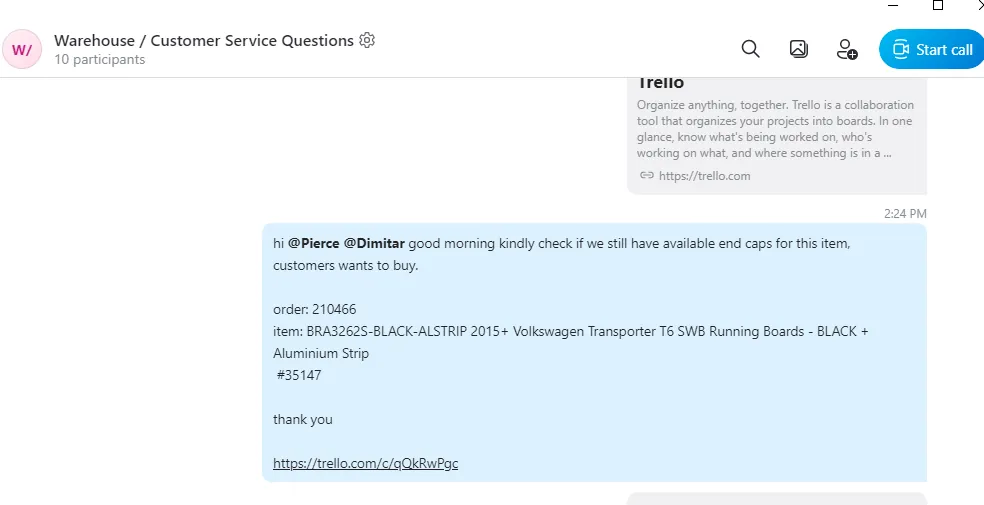
inquiry + LW order number + SKU + item description + ticket number + trello card link
Notes:
Ensure to Tag someone from the Warehouse Team (Dimitar or Pierce, etc) Ensure you have gathered and checked everything before requesting assistance from the Warehouse Team. Ensure to follow up if you still have not received any response. Ensure to provide the CHD SKU and not the Parent SKU. Ensure the title of the item is also included – DO NOT post just the SKU as the Warehouse does not memorize these and NOT near to the computer to check it themselves. Ensure queries are COMPLETE, CLEAR, AND CONCISE. DO NOT provide partial details as this will be a waste of time.
Request to Check Remaining Stocks#
There are various reasons why we request Warehouse Team to check the remaining stocks. Common reason – there’s an issue with the item received by the customer.
Ensure that you have gathered all the information before asking for assistance from the Warehouse Team.
It is a must to follow the Standard Process mentioned above for requesting assistance from the Warehouse Team.
Item received does not match the listing.
When requesting assistance from the Warehouse Team to check the remaining stocks as the customer complains that it is different from what we have on the advert, ensure that you have done the following first:
Requested pictures from the customer of everything they have received. The label on the outer packaging is correct. The item received by the customer is different from what was shown in the advert.
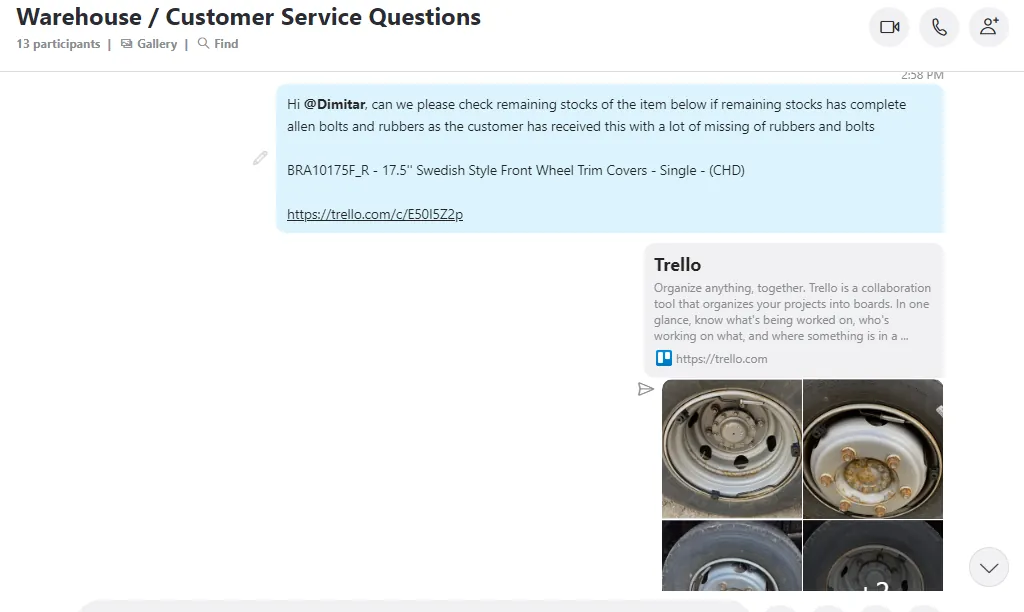
See sample post below.
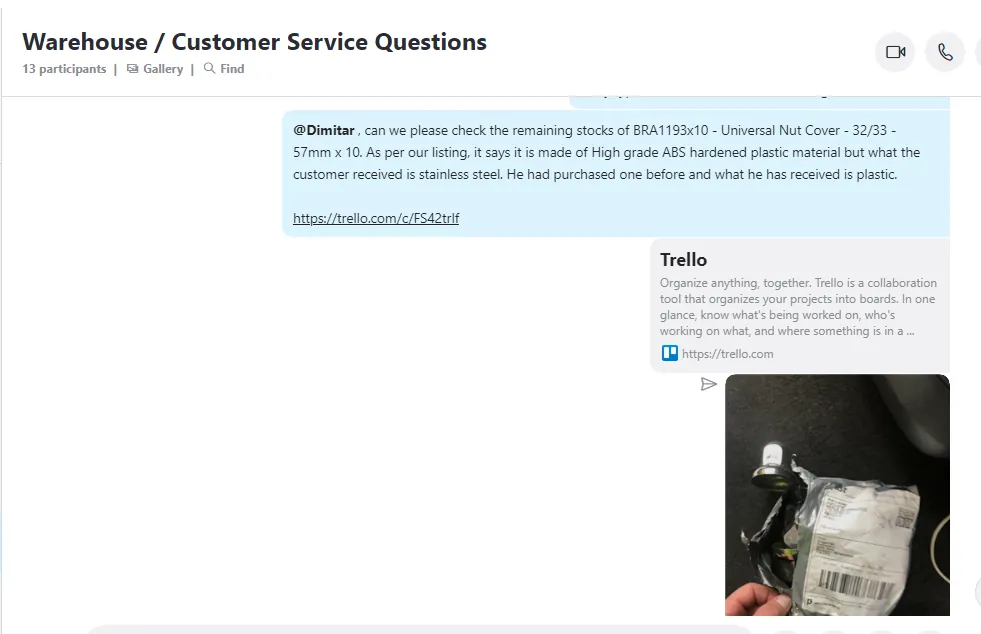
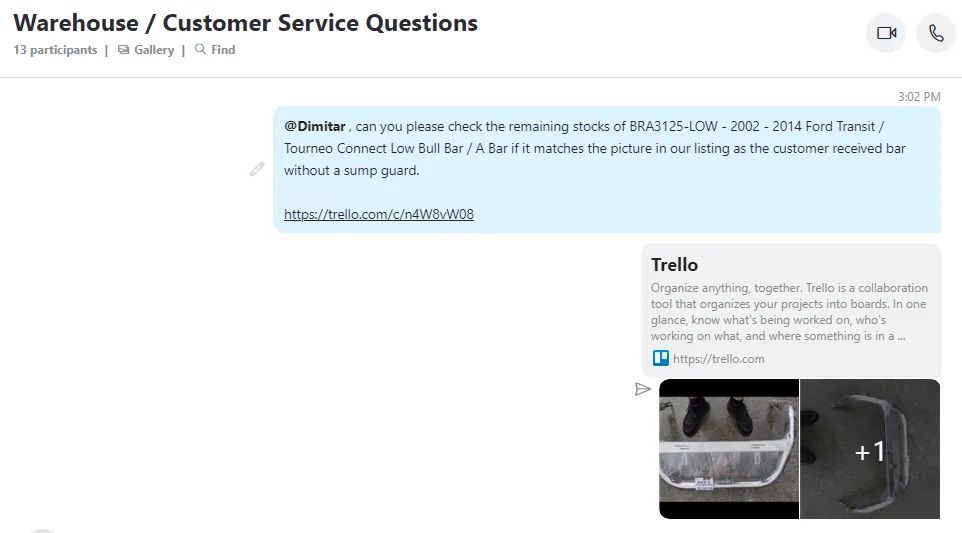
Note: Ensure the pictures receive clearly show the issue.
When these have been checked, you can then request with the Warehouse Team why the item received by the customer does not match in our listing even though the label on the outer packaging of the item is correct. Request the Warehouse Team to
check the remaining stocks to identify if the supplier had sent an incorrect item or with an incorrect label or if this was just a Warehouse Mistake.
Follow the Standard Process mentioned above in sending requests with the Warehouse Team. Again, all information should be COMPLETE, CLEAR, AND CONCISE.
The customer received an incorrect/missing item. Note: See SOP on Handling Missing Item Complaints and SOP on Handling Fitment Issue for the step by step process.
If the customer received an incorrect or missing item, the following below must be checked before requesting assistance from the Warehouse Team:
Does the label on the item received by the customer is correct? You will have to check if the SKU of the item in the label matches the SKU on the customer’s order or with the composite SKU on Linnworks. If not, then it appears to be a Warehouse Mistake and need to confirm with them. If the label is correct, does the item received by the customer match the item on the website/eBay advert? If yes, check the customer’s vehicle model as they might have purchased an incorrect item. If the vehicle model is correct, then check with the supplier and NOT with the Warehouse Team. If the label is correct but the item received by the customer is different in our website/eBay advert, you need to request the Warehouse Team to check the remaining stocks to identify if the supplier had sent an incorrect item or the item was labeled incorrectly or if this was just a Warehouse Mistake.
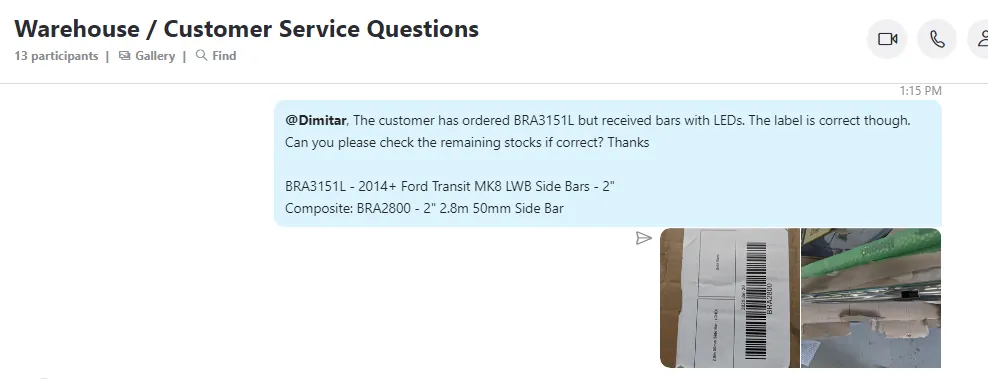
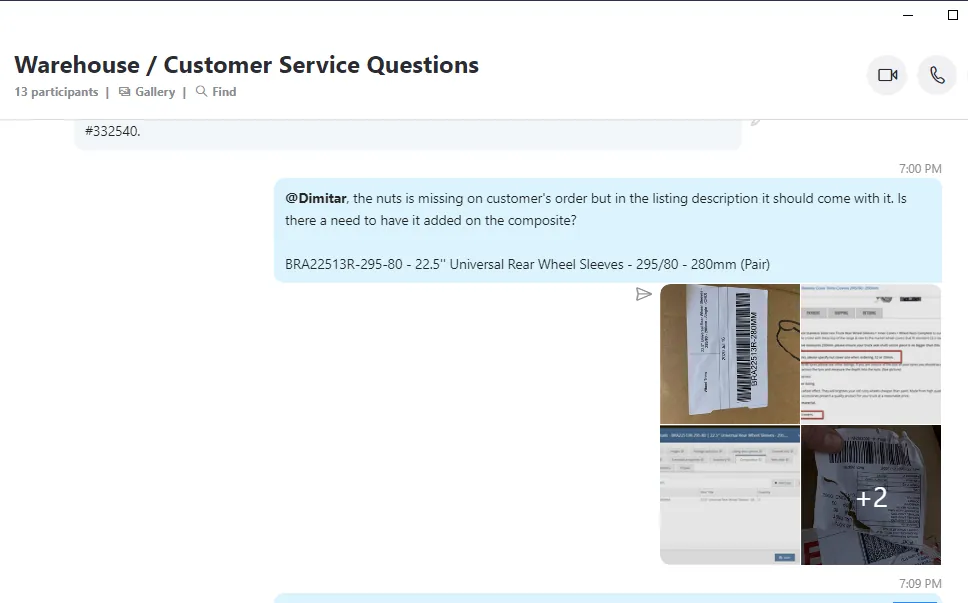
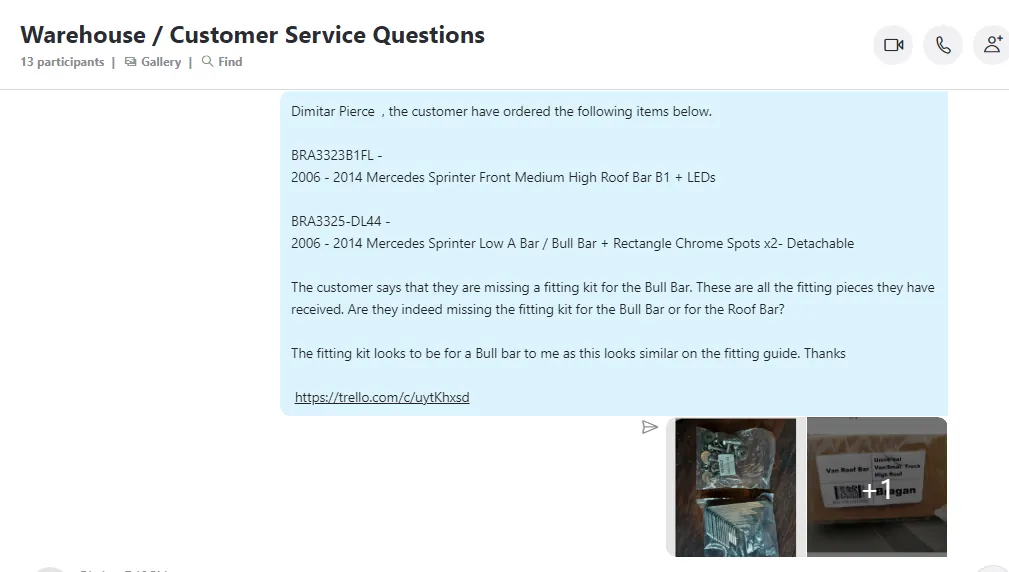
If the item received by the customer has some missing items, ensure that the customer has double-checked the package as it might be hidden there. Check the picture of everything the customer has received against the fitting guide on file, on Linnworks, and on our advert. If you confirm there is indeed a missing item, you can request with the Warehouse Team to check the remaining stocks if they are complete and if there are spares that we can send as a replacement.
Request to Check Spare Availability#
Aside from selling a complete set of products, we also now offer spare pieces. All spare pieces we have available should now be listed on the Website. However, in any case, that the item the customer looking for is not yet listed, you will need to check with the Warehouse Team if we have some spares available to sell. We CANNOT break a set for the purpose of selling it to the customer. We are only obliged to break a set if we need to send a replacement because of our fault and there are no spares available in stock.
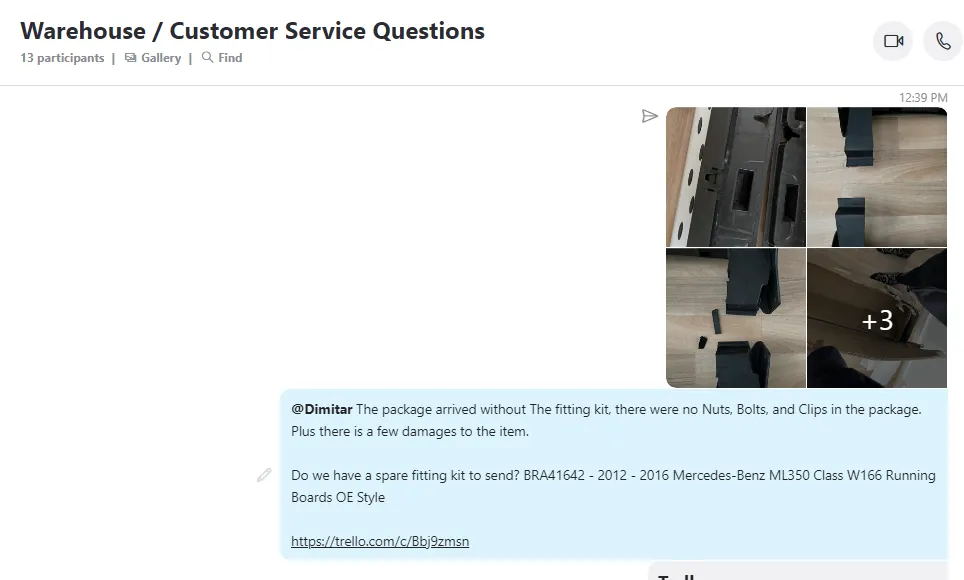
The following must be followed when requesting this with the customer.
A clear picture of spare pieces requested.
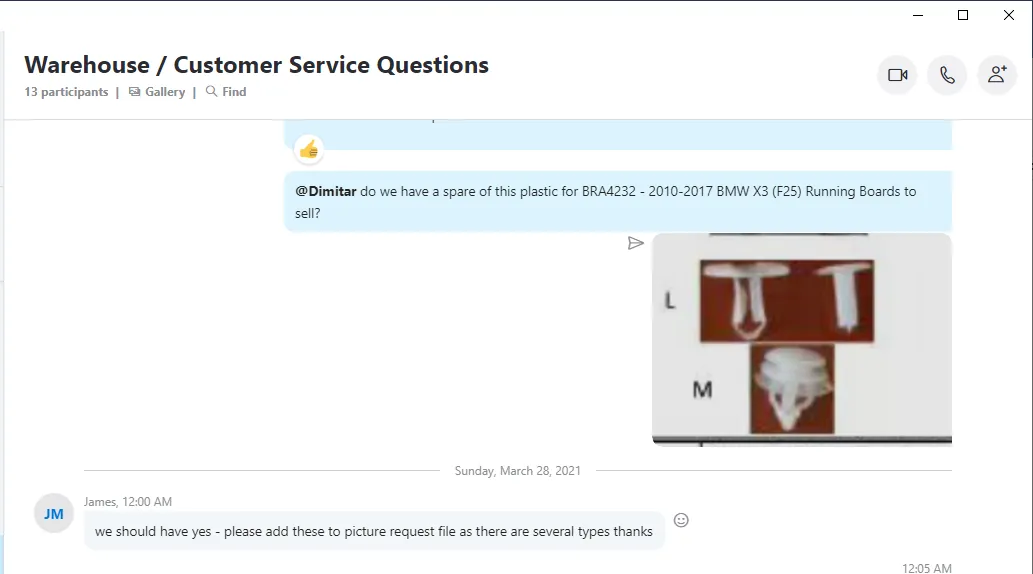
Ensure you have double-checked on Linnworks that the item was not yet listed. Ensure to provide Child SKU with the item Title description.
Inform Warehouse if the spare you are looking for is for a replacement or the customer wants to buy it.
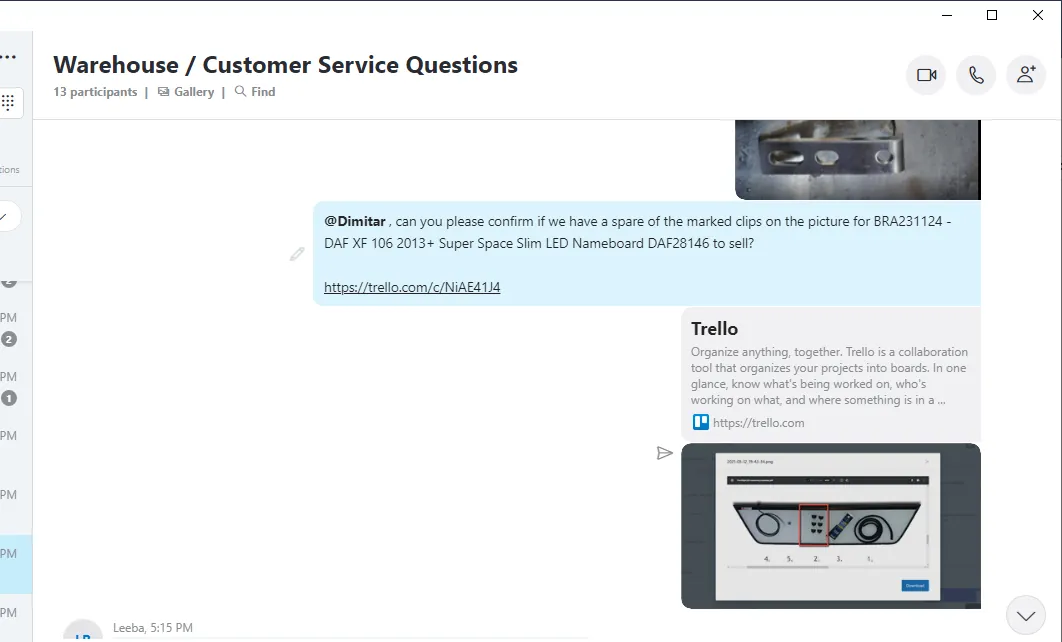
We only offer spare pieces of the product that we offer. We cannot guarantee the fitment of these spare pieces with our product brands even though they look exactly the same.
When the spare piece is available, request for pictures, location, and stock count so PH Listing Team can list this live.
Inform the Listing Team in the Bragan New Listings/Listing Changes Skype Group, tag the lister and request the item to be listed live, make sure to include the link of the WH trello card query so they can see easily the pictures, location and stock count needed for it to be listed.
Once this is listed, offer the link to the customer so they can order it online.
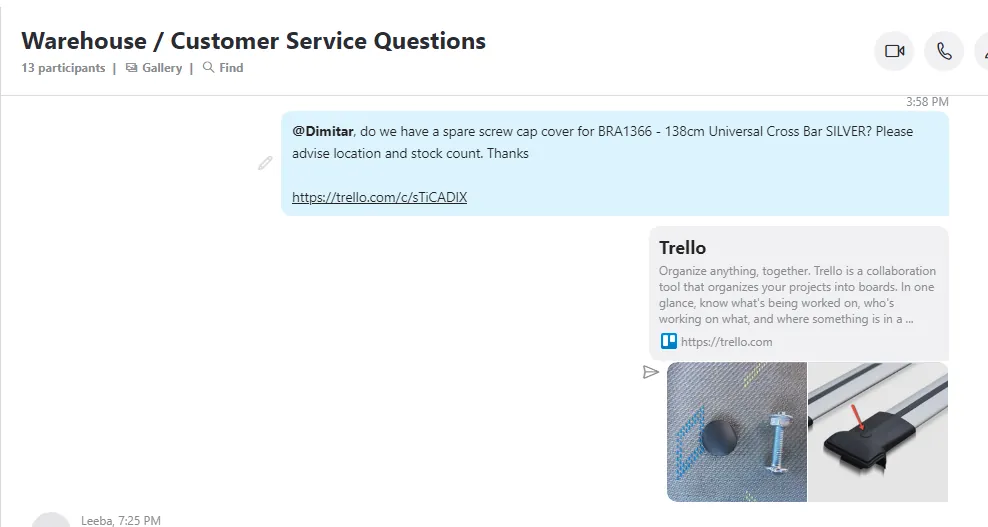
Follow the Standard Process mentioned above in sending requests with the Warehouse Team. Again, all information should be COMPLETE, CLEAR, AND CONCISE.
Product Related Queries#
Most of the time, all information requested by the customer about the product are already in the advert listing description. In any case that the information requested by the customer is not yet on the advert listing description such as the item technical details, dimensions, an actual picture of the item, and etc., you will need to contact the Supplier first prior to requesting this with the Warehouse Team. Most likely, the Supplier has this information as it is their product. However, in the event that you are not getting any response from the Supplier, this is where the Warehouse Team comes in.
For example, the customer is asking for the dimension of the Roll Bar. Given that this is not yet in the advert listing and you are not getting response from the Supplier, you can request assistance from the Warehouse Team with complete details and which part of the item you requires a measurement of. See Figure 33.
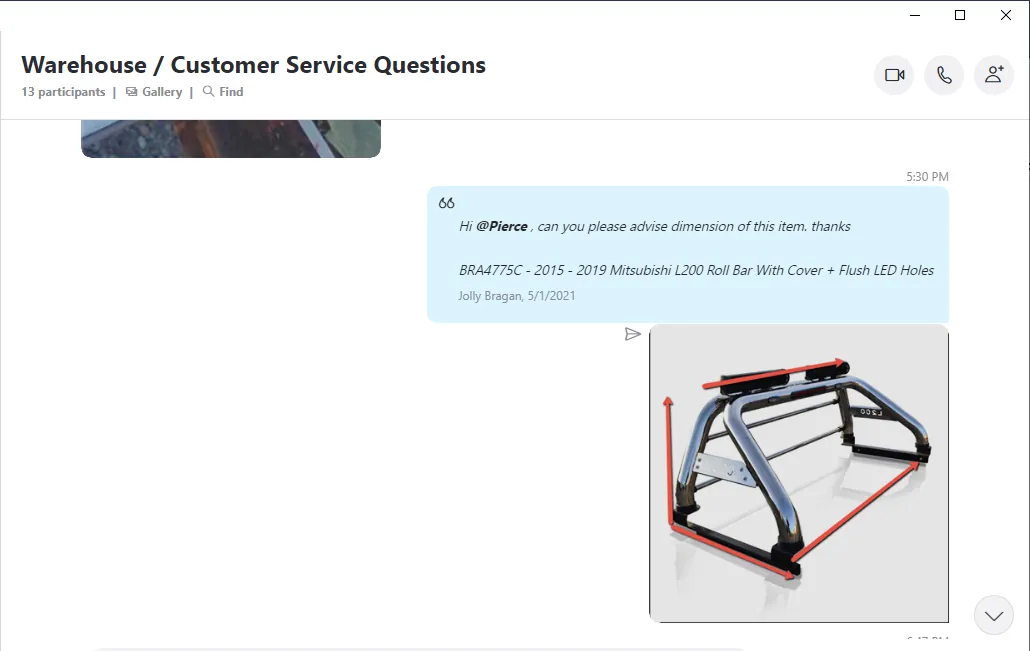
In some cases, there is information that only the Warehouse Team can answer most especially for alt item. Some products that we offer require an alteration in order for this item to also fit on a different model. See the example below.
The Visor Bar that we offer for DAF XF Standard Model does not require an ALT. However, in order for this item to also fit a Facelift model, there will be an alteration needed on the brackets. In any case that the customer requires about the alteration required, you may then request this from the Warehouse Team. See Figure 34.
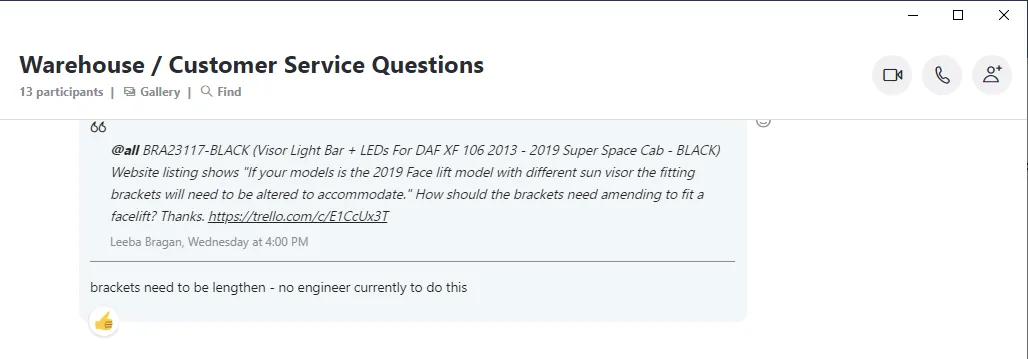
Normally, these types of Alterations required on the item in order to be fitted on a different model are not stated in our advert listing description and should NOT be proactively discussed with the customer.
For some advert listing description that mentioned “brackets will need alteration to fit”, you will need to contact the supplier for this information in any case that the customer inquires about this but normally we provide them with a copy of the fitting guide so they can check it against their vehicle.
Follow the Standard Process mentioned above in sending requests with the Warehouse Team. Again, all information should be COMPLETE, CLEAR AND CONCISE.
Notes#
This section is important so Adhoc points and issues can be logged. Also, Q&A can be logged for suggestions for potential issues encountered. Also, log important notes needed for this system. Additional Notes:
There will be many cases where you will have to check items with the warehouse, but this is very important that this is done in the correct manner and in the appropriate Skype Group.
If you have a question about the product – try and work it out yourself by asking the office colleagues, looking at the fitting instructions – asking the supplier where possible, and with the help of google.
However, if it is something that physically needs to be checked or you want to check it for your own knowledge then communicate this with the warehouse – speak to them and agree on a time which suits you best and make sure that when you check it you are checking things correctly.
Any information that is gathered such as DIMENSIONS or PICTURES of the item or COMPONENTS is documented and shared/saved with the appropriate Dropbox Shared Folders. i.e. pictures of brackets and components could be sent to the “Fitting Guide” group to be included in the product fitting information. Dimensions of an item or specific information relating to a product should be shared with “Team PH” to have a listing update to carry this information.
There is absolutely no point in checking and re-checking items as this is not only a waste of your time but is a waste of the warehouse's time also.
Potential Issues:
1 - ISSUE ENCOUNTERED: Stuck on Loading
RESOLUTION: Refresh Browser
2 - ISSUE ENCOUNTERED: Broken Links
RESOLUTION: Get the external link as this will allow other people to access the SOP without the need for login credentials and avoid broken links.